Secondary
initial
FAQ
MULTI-FACTOR AUTHENTICATION
For clients in the BDO Global Portal environment
MFA Selfservice
1. What are the timeout limits for automatic logout?
The user receives a warning when the browser session has been idle for 45 minutes. After one hour, the user is logged out if the browser remains idle.
2. Which available authentication method can be used?
The following authentication methods can be used with multi-factor authentication (MFA): - Authenticator app on a smartphone - Telephone or SMS
3. What MFA methods are available?
Log in
Account verification code
Office 365 (BDO Global) account
Required
Office 365 account (outside BDO Global)
Office 365 account not available (e.g. @yourcompany.com, @gmail.com, @yahoo.de)
Not required
Microsoft Authenticator app
Possible
Other authenticator apps (Google Authenticator)
Telephone method (call or SMS)
4. Can more than one app be used?
Unfortunately, only one app can be used. Please select your preferred app during set-up. It is possible to switch to a different app. Please get in touch with your BDO contact to do so. Your contact will then request an MFA reset for you from the Service Desk.
5. Can multiple methods be used in parallel?
Direct support for the apps is not available, apart from this document. In these cases, the user must contact the support service for the app itself.
6. Problems with the app
7. Resetting the MFA
If your company already uses Microsoft Azure Cloud authentication with active MFA, please contact your company IT directly for a reset. If this is not the case, please refer to your BDO contact, who will get in touch with the BDO Germany Service Desk.
via Microsoft Authenticator app
via phone
via SMS
via Google Authenticator app
Initial
Initial set-up of MFA (via Microsoft Authenticator app) for login
Navigate on your computer to BDO Global Portal
Log in with your Microsoft Office 365 account. (If you do not have this type of account, please use your business email address). During the login process, you will be asked to enter an account verification code (also called one-time password (OTP)):
Initial via Microsoft Authenticator app
>
Request for a code
This account verification code will be sent to the email address you used to log in. Please check your spam folder if you do not find the message in your email inbox:
E-mail mailbox
Click “Next”.
Further information requested
Select the authenticator app, for example, from a drop-down menu. If necessary, you can use other authenticator apps (e.g. Google Authenticator app); however, our support is limited to resetting the MFA only.
Downloading the app
Confirm your selection and click “Next”. The next window displays the QR code required for the app. Leave this window open. Open the Microsoft Authenticator app on your smartphone. If the app is not installed, it can be found in the Google Play Store or App Store. It is also possible to use other authenticator apps or Google Authenticator, but no support is provided, except for resetting the MFA.
Selecting the authentication method
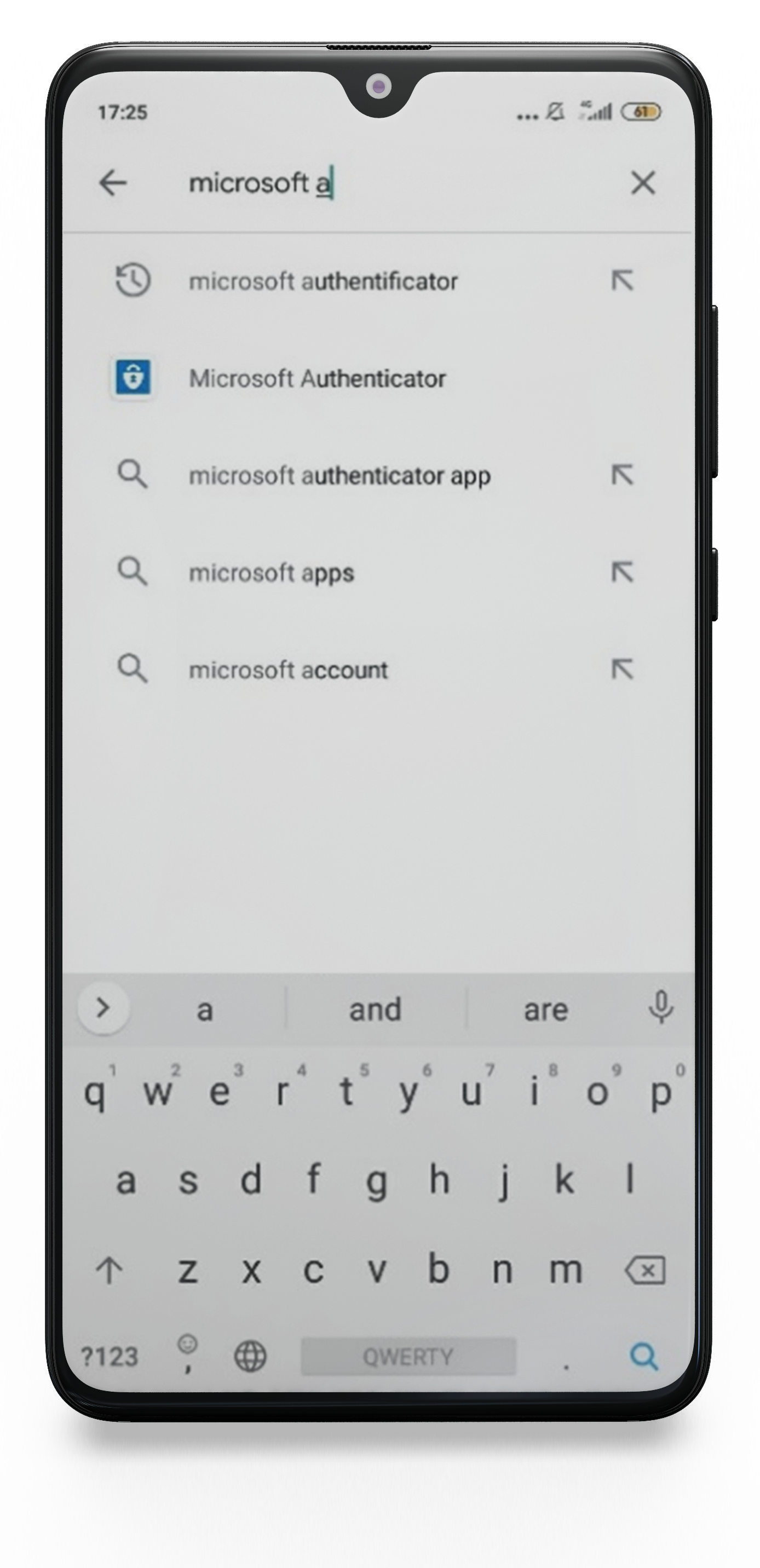
Play Store on a smartphone
Search box input
Microsoft Authenticator in Play Store
Once the app is installed, open it and select “Add Account”.
Adding an account
On the next screen, select “Work or school account” and accept the app permission when prompted.
Select account type
Then scan the QR code from the window in step 2 that you have kept open on your computer.
QR Code
You will receive a push notification on your phone asking you to approve the login. Select “Approve”.
Approval
Notification on smartphone
Your computer will show that the notification was approved.
Notification approved
Click “Done” to continue logging in.
Set-up successful
Following successful approval, you will be transferred to the official BDO Global Portal website:
BDO Global Portal homepage
Initial set-up of MFA (via phone) for login
Using a different method
Selecting the method
Selecting a key combination
The phone has been registered successfully
Notification of successful registration of your telephone number
Following successful approval, you will be transferred to the BDO Global Portal website
Initial via phone
After entering your account information, you will be prompted for your account verification code (OTP):
This account verification code will be sent to the email address you used to log in
Klicken Sie auf “Weiter”
Login
Entering the code
Account verification code in your email mailbox
Click “I want to set up a different method”.
Select “Phone”.
Confirming the selected method
Phone options
Here you have two options: code sent by SMS or a phone call. Select “Call me”:
You can receive the phone calls on your business smartphone and on your normal business telephone. You will be prompted to enter a combination of digits on your telephone keypad.
Once your phone number has been successfully registered, you will receive the following notification:
Initial set-up of MFA (via SMS) for login
SMS with the verification code
Entering the verification code
Confirmation of successful registration
You will then be transferred to the BDO Global Portal website.
Initial via SMS
Options for the telephone method
Here you have two options: code sent by SMS or a phone call. Select “Send code to me by SMS”.
Once you have selected a code option, you will receive a code on your smartphone.
Enter your verification code and click “Next”.
Initial set-up of MFA (via Google Authenticator) for login
“I want to use a different authenticator app”
Setting up an account
Play Store
Initial via Google Authenticator
This account verification code will be sent to the email address you used to log in. Please check your spam folder if you do not find the message in your email inbox.
Click “I want to use a different authenticator app”.
QR code
The next window displays the QR code required for the app. Leave this window open.
Open the Google Authenticator app on your smartphone. If the app is not installed, it can be found in the Google Play Store or App Store.
Enter “Google Authenticator” in the search box.
Installing Google Authenticator
Click “Install”.
Homepage of Google Authenticator app
Once the app is installed, open it and select “Get started”.
Scanning QR code
Click “Scan a QR code”.
Code
Then scan the QR code from the window in step 2 that you have kept open on your computer. When you see the following screen, switch back to your computer. Select “Next”.
Entering the 6-digit code
Notification of successful registration of the Google Authenticator app
Enter the six-digit code displayed in the authenticator app.
The authenticator app was successfully registered.
via Microsoft Authenticator App
via Google Authenticator
Logging in after setting up MFA for the first time (via Microsoft Authenticator app)
Logging in
This account verification code will be sent to the email address you used to log in:
E-mail with the account verification code in the mailbox
You will then be asked to confirm your login, using the authenticator app on your smartphone:
Confirmation of login request
Then click “Approve” in the authenticator.
Genehmigung der App-Benachrichtigung
Following successful approval, you will be transferred to the BDO Global Portal website:
Secondary via Microsoft Authenticator app
As of 8 May 2023, Microsoft has implemented an additional code requested when signing in. In addition to the authentication steps shown above, you will also have to enter the code shown on the web page in the Microsoft Authenticator App.
Now a login request needs to be confirmed. You will be called on the phone in order to continue the procedure.
Confirming the login request
You will receive a combination of digits on your pre-registered phone number, which you must enter using your telephone keypad.
Secondary via phone
Logging in after setting up MFA for the first time (via SMS)
This account verification code will be sent to the email address you used to log in. Please check your spam folder if you do not find the message in your email inbox. Click “Next”.
You will receive an SMS with the verification code on your smartphone.
Secondary via SMS
Enter an SMS code and click “Verify”.
Enter code and verify
Logging in after setting up MFA for the first time (via Google Authenticator app)
This account verification code will be sent to the email address you used to log in. Please check your spam folder if you do not find the message in your email inbox. Use your Google Authenticator app to get the code, then enter it.
Secondary via Google Authenticator App
Code in the Google Authenticator app
Microsoft offers the possibility to manage the MFA methods for the Azure account. This allows the client(s) to set the MFA methods themselves. To do this, the client must open the following link: https://mysignins.microsoft.com/security-info?tenant=a52b3829-3739-4b76-b025-92fdeb575912
Adding a new MFA method
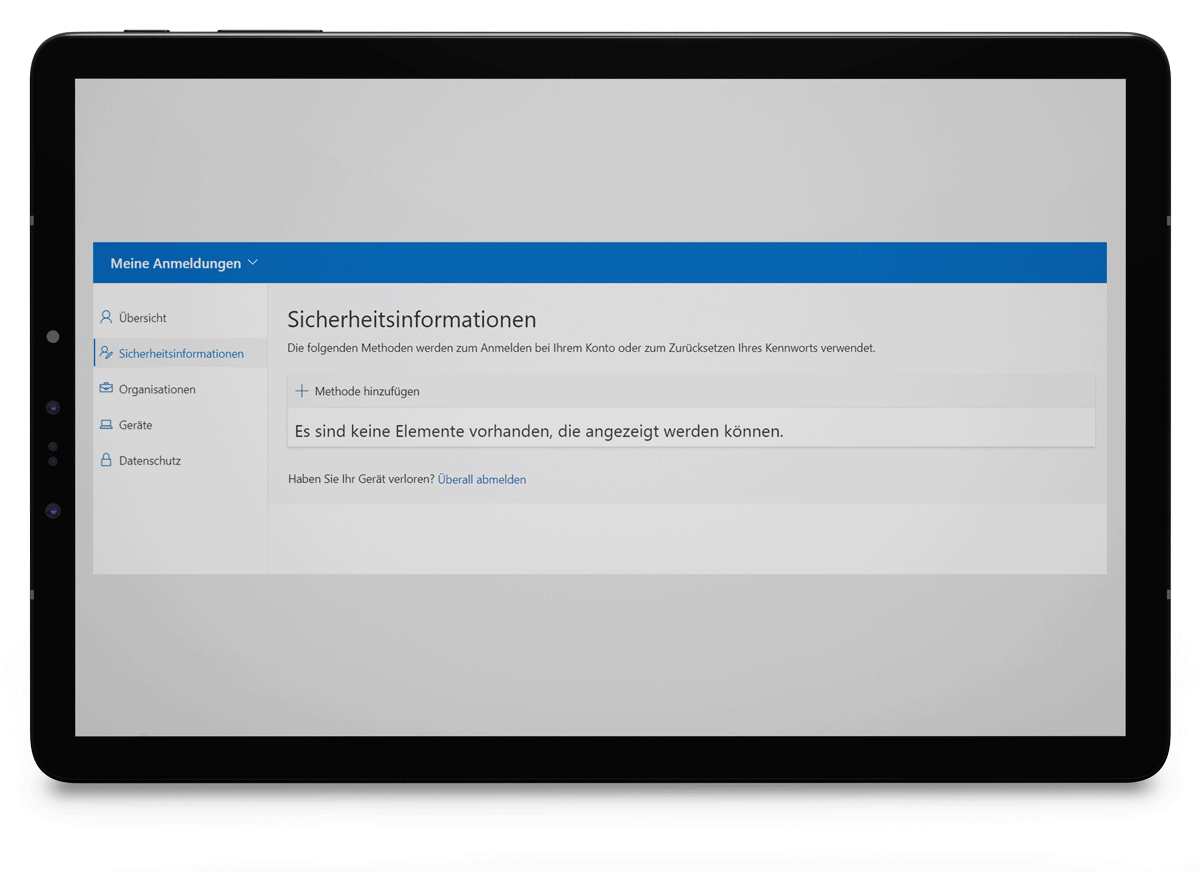
After opening the link, you will be taken directly to the "Safety information" page.
Click on "+ Add method" and open the following form:
The Authenticator app is displayed by default. However, the user can select other methods. The setup of a new MFA method is similar to the initial setup described under the Initial topic.
Picture 1 Desktop "Safety information
Picture 2 Desktop: Available methods
Change default login method
Here you have the option to decide which MFA method should be used first for the registration process.
Picture 5 Desktop: Choose default method
Remove incorrect MFA method
If necessary, you can delete the authentication method by clicking on "Delete" to the right of the relevant MFA method. Important: At least one MFA method must always be set up.
After deleting the method, you will receive the following notification:
Picture 6 Desktop: Delete the method
Picture 7 Desktop: Confirm deletion
Picture 8 Desktop: The Authenticator app has been deleted
Picture 3 Desktop: Available methods
Picture 4 Desktop: Microsoft Authenticator app has been successfully added