You’ve experienced just a fraction of what’s possible with F5 BIG-IQ Centralized Management. Now, you can go more in-depth with a live demo, experience the demo through the lens of an app dev, or both.
Well done!
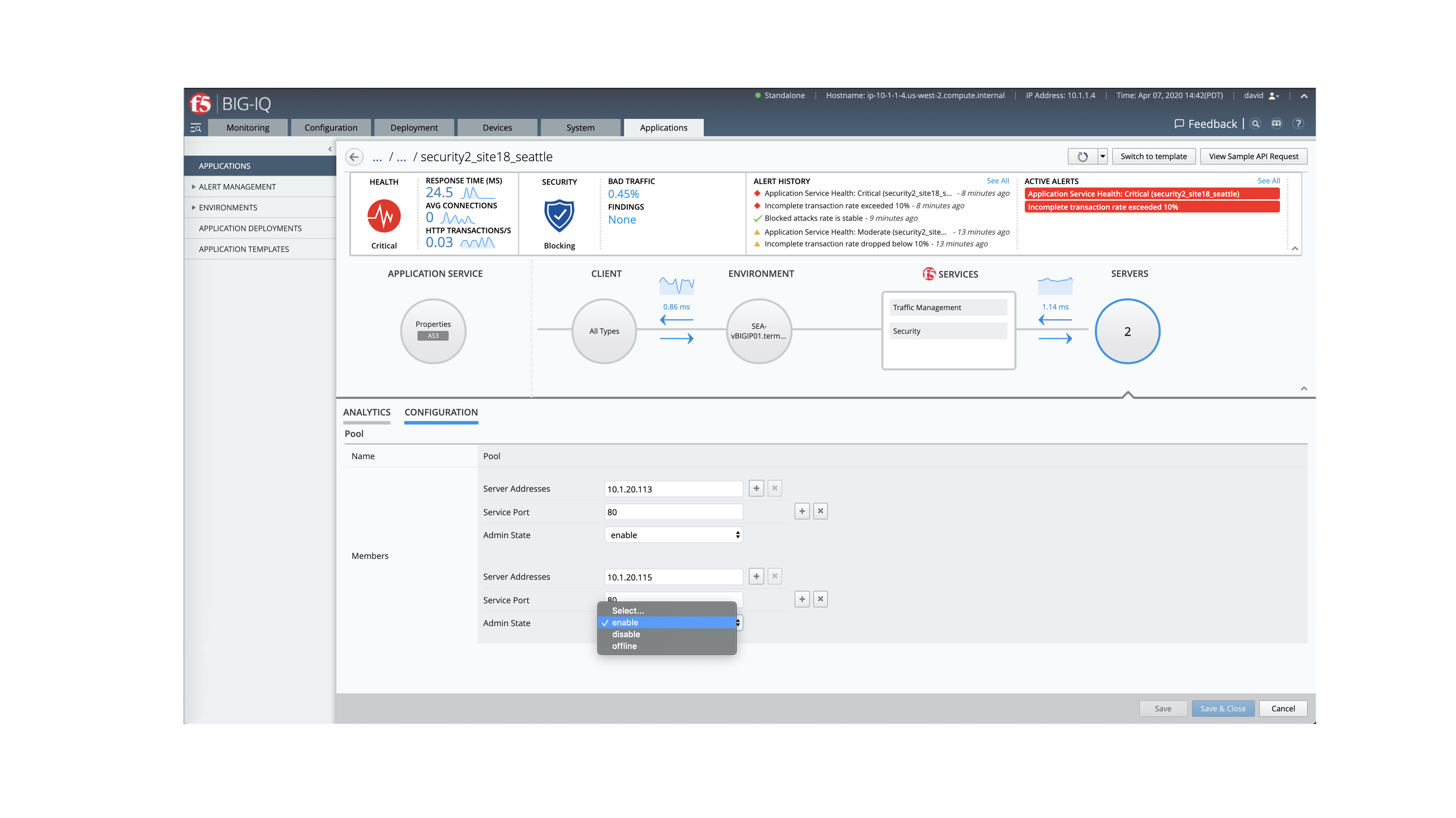
Now that you've identified the problem,
click on "Configuration" for more detail
or to disable or force the problem server offline—isolating the underperforming
server while you remedy the problem.
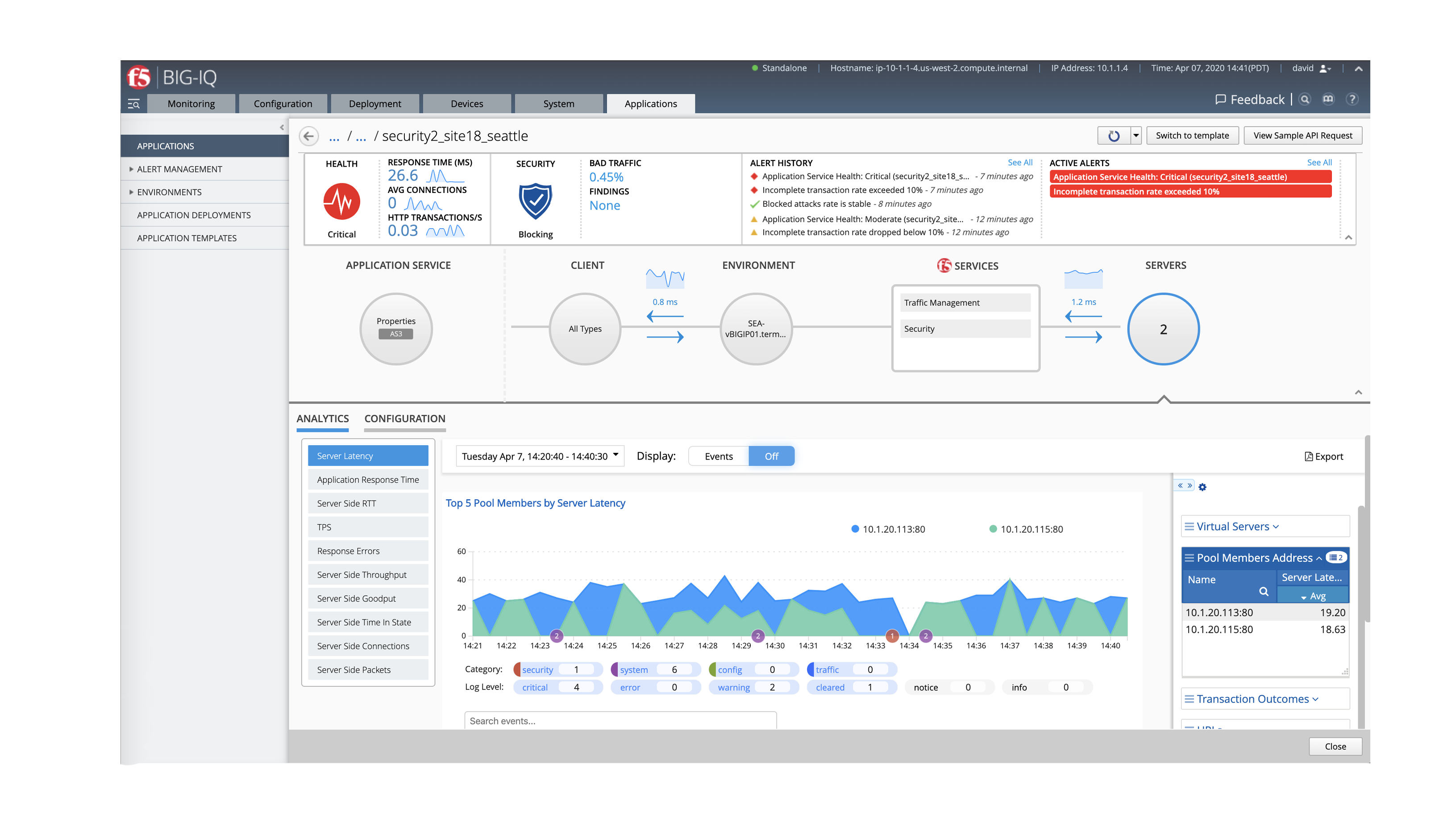
To quickly troubleshoot the source of the problem click the "Server" icon. Here, you can see that application server "10.1.2-0.113:80” (shown in blue) is performing
sub optimally.
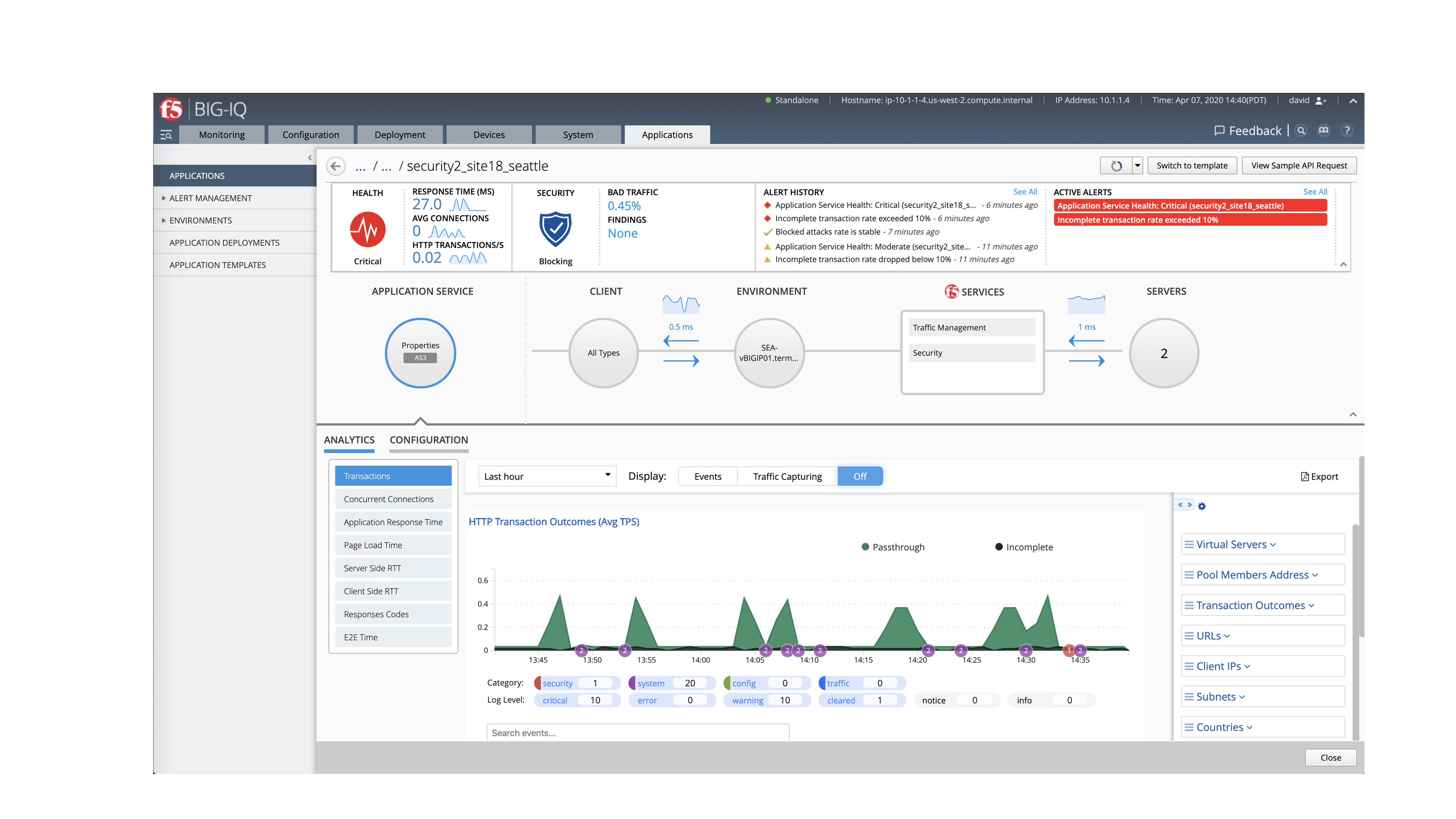
This is the drilldown view of an application service.
You can see from the alerts on the top right that there are problems with both the security and performance of the application.
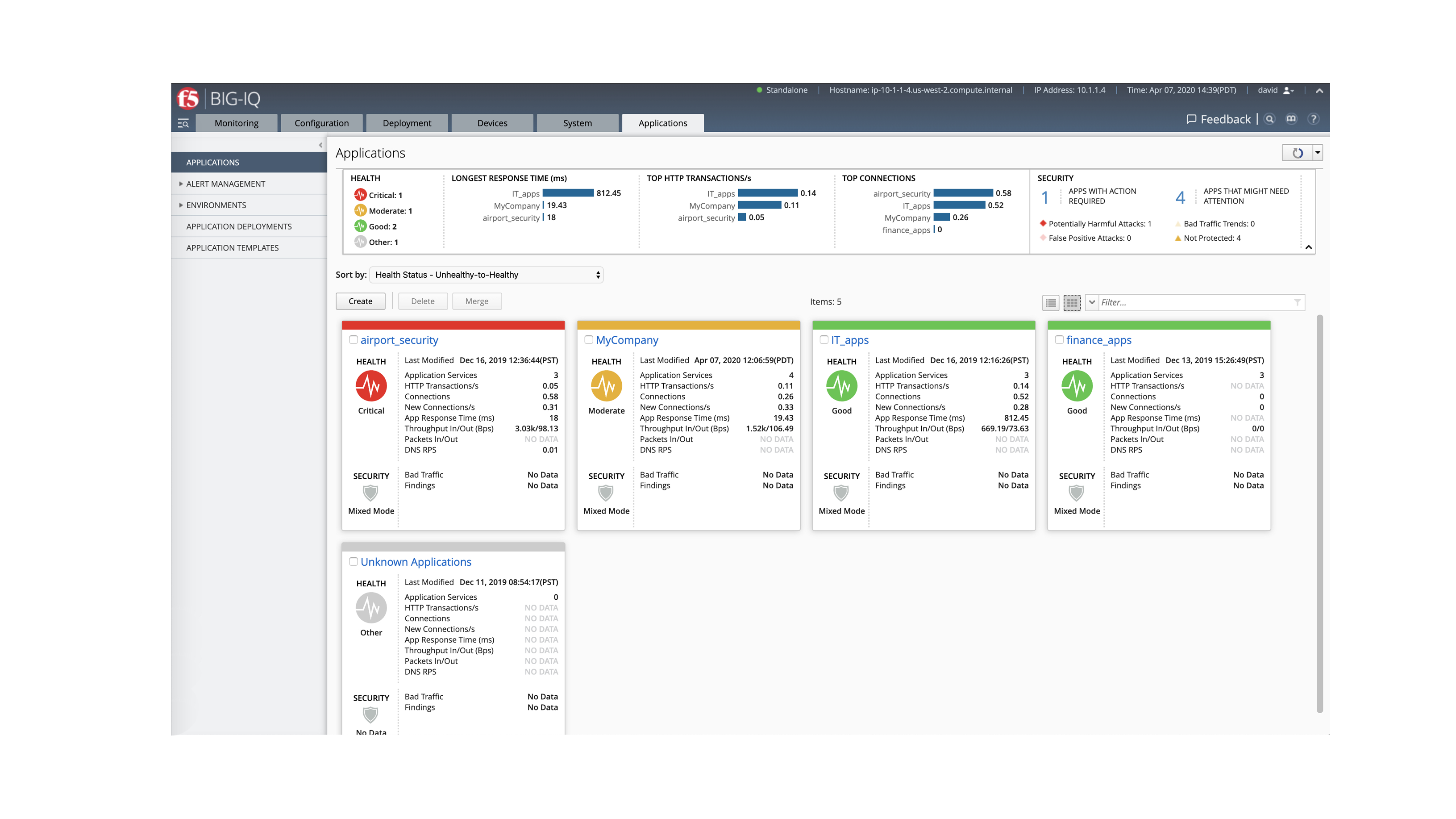
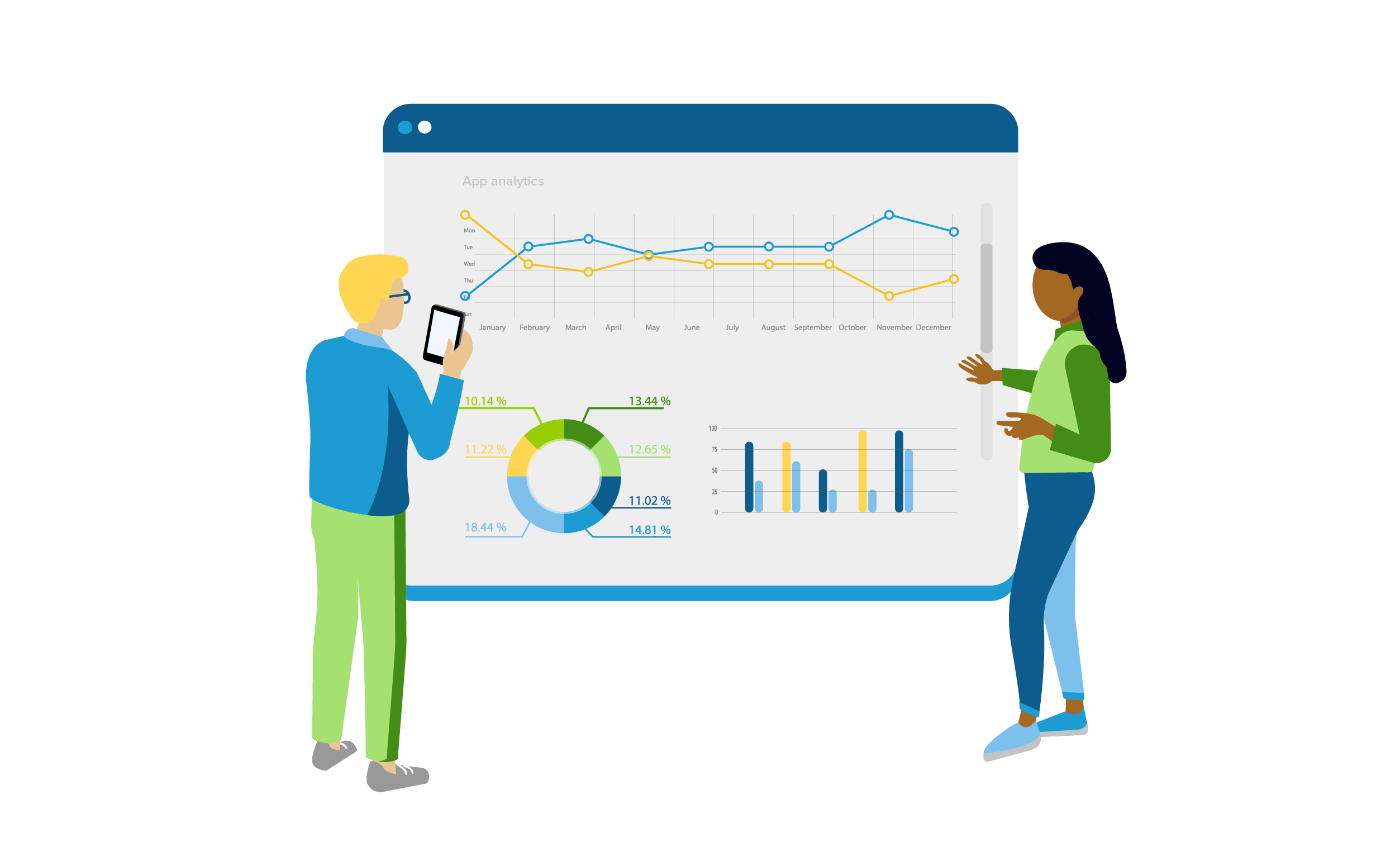
In the “Applications” tab, you can view your application dashboard and check the performance and health of your apps. As the network admin, you have visibility into every application service, unlike the app owner.
Click on an app service to see a detailed view.
With BIG-IQ Centralized Management, you can
take an app-centric approach to application
delivery and security. That means advanced
visibility and analytics into the application health
and performance on a per-app basis across
environments.
This 360-degree view makes troubleshooting a
little less troublesome.
Using Analytics to Troubleshoot Apps
Get started >
< Back 1 / 6 Next >
< Back 2 / 6 Next >
< Back 3 / 6 Next >
< Back 4 / 6 Next >
< Back 5 / 6 Next >
< Back 6 / 6 Next >
Find ways to more effectively and efficiently collaborate via a walk-
through in your teammate’s shoes.
Start now >
Get the Network Engineer Experience >
Want more? Schedule a live, personalized demo with an F5
expert over Zoom by clicking
the button below.
Schedule a live demo