Alvarez
CARLOS




BACK TO TOP
OVERVIEW
SERVICES
SOCIAL SHARING
PARTNER PLATFORMS
LIBRARY OF CONTENT
CLIENT CHANNELS


Portraits
Reach us at EMEA-EntertainmentAssignmentEditors@gettyimages.com
UNITED STATES
© 2020, Getty Images. All rights reserved.


PLACEMENTS
LET'S
WORK
TOGETHER


Madrid, ES


Carlos Álvarez began his photography career in 1988, quickly establishing himself as one of Spain's leading editorial photographers across entertainment, culture, fashion and royal coverage. With a career spanning nearly four decades, Carlos has built an unrivalled visual archive of Spanish public life — from the corridors of the royal household to the red carpets of the country's most prestigious cultural events.
His long-standing access to the Spanish Royal Family has made him a go-to photographer for royal engagements and official occasions, while his deep roots in Spain's entertainment industry have kept him at the centre of events such as the San Sebastián International Film Festival and the Goya Awards — two pillars of the Spanish film calendar.
Alongside his editorial work, Carlos has an extensive track record of high-profile commercial assignments, working with global brands and entertainment companies including Netflix, Disney, Paramount, Christian Dior, Latin Grammy and MTV. Whether shooting a royal engagement, a film premiere or a brand campaign, Carlos brings the same sharp eye and quiet authority that has defined his work for over thirty-five years.
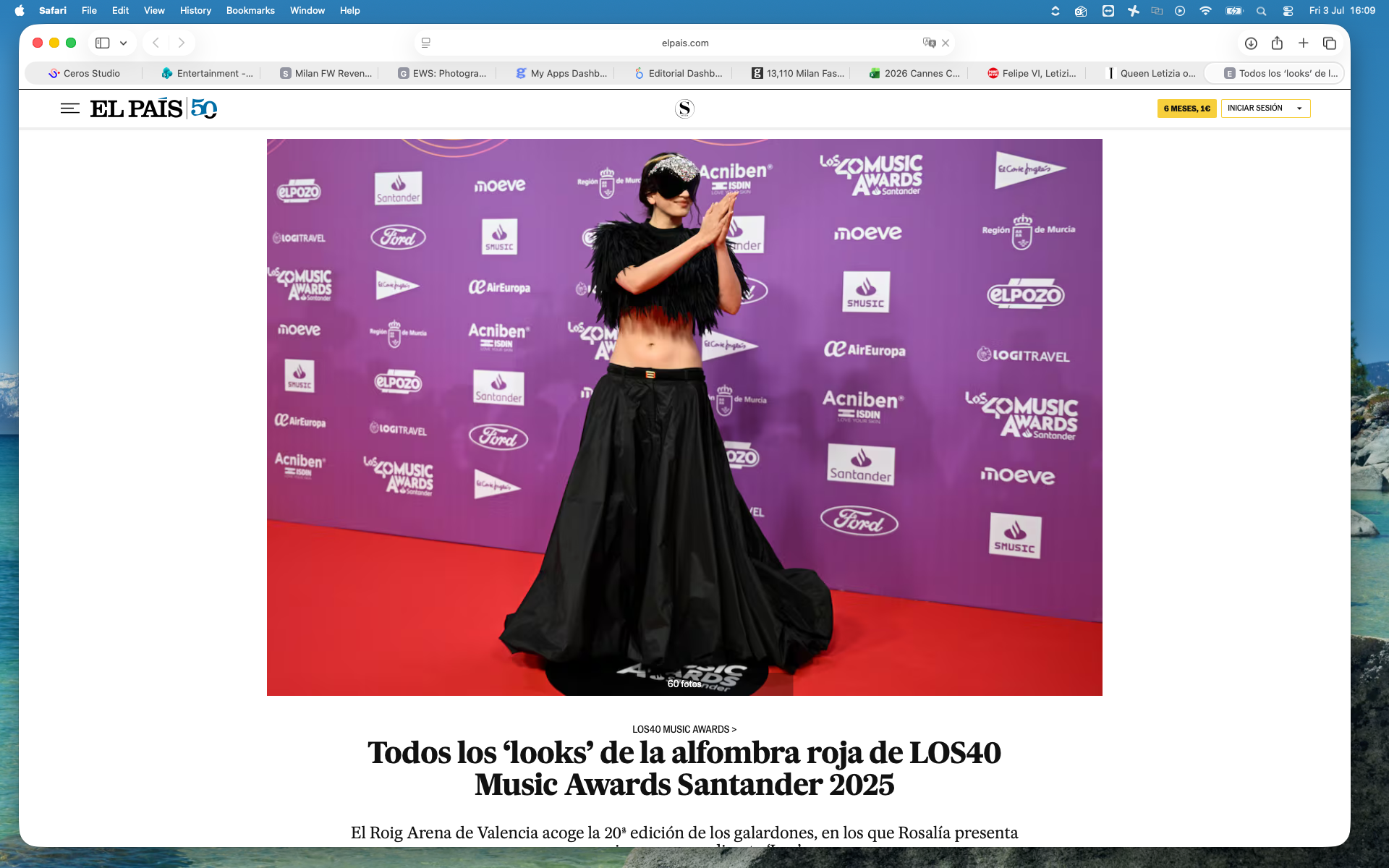
Click the phones to visit Carlos's Instagram.


Scroll to bottom for more
Round the corners on images and rectangles.
To do this, select an image or rectangle and change the value under "Corner Radius" in the Design tab in the Inspector Panel.
Round
Corners
To change background color click on the square in the layers panel or directly on the canvas and select color in the right design panel.
To add a square click the shapes menu in the top left tool bar and draw out your square on the canvas.
*Make sure it is nested in the right layer/section and underneath the assets.
Background
Color
Make sure to change the email to the correct email for your region.
Also make sure to test out the interaction if it does go to the correct email you added.
Email &
Interaction
To replace an image, select the png or jpeg on the canvas or in the layers panel and click the "Replace image" button, which is next to the image thumbnail in the design panel. Any applied animation to the original image will carry over to the new one.
Tip: Try to make the new image a similar size and dimension to the image being replaced.
Replace
Images
To change the interaction on the hotspot click on the existing hotspot and go to interact on the right panel.
Make sure to replace URL within the interaction.
Replace
Titles
Step 2
- Find the title you want to add in and plug the coordinates into the title you want to replace it with.
*You can find the correct title located in the first section listed in the layers panel.
- Copy and paste animations from old title to new.
- Move new tile into selected section in layers panel.
Replace
Iphone
Images
When replacing the screenshot layer, make sure to resize the screenshot to its exact original dimensions. The phone layer does not need to be moved or resized at all. W=337
Go to 2nd Container/About > iPhones > isolate img.jpeg layer and replace (leave PNG layers be)
STEP 1 - BEFORE EDITING DOCUMENT, GO TO SETTINGS.
- Change experience title to photographer's name, vertical & region
- Change URL to first-last-portfolio
(make sure it is all lower case and no extra numbers added)





Portraits