In this experience we wanted more control over the look and feel of the arrow icons, so we added our own. In this case, we search the icon library for an arrow and then applied an "On Click go to next page" interaction. Pro tip: the animation transition for "Go to next page" and "Go to page xx" are slightly different. Choose the one you like best!
To give the background image a subtle animation movement we applied a "Pulse" animation with a duration of 44 seconds, set to repeat. Pro tip: try adjusting the duration and easing options of this image to create a different pulsing effect.
1600px x 900px
Templates - Magazine
This magazine template is a great example of using imagery to tell your story. In it we use vibrant images to draw the user in with subtle animations and interactions to keep them clicking.
We used two Smart Groups for the navigation elements in this piece - one for when it is closed, one for when it is open. What is a smart group you ask? Smart Groups allow you to create grouped content that can also be sync'ed across pages. This way, if you make a change to the menu on page 1, it will be reflected in all of the other places you pasted this menu.
If you're having trouble clicking on an object, it may be locked in your layers panel! Hold "L" on your keyboard and then click on the object. Pro tip: Use the keyboard shortcut "." to toggle the lock functionality.
Breakfast
Fruit
Honey
F I N D U S
Lorem ipsum dolor sit amet, consectetur adipiscing elit, sed do eiusmod tempor incididunt ut labore et dolore magna aliqua. Ut enim ad minim veniam, quis nostrud exercitation ullamco laboris nis.
The Food Issue
Carousels are a bit more advanced to assemble, but are a great way to showcase tons of information without overwhelming the user. Try disecting this piece to see if you can figure out how it works. If you get stuck, be sure to check out our Designer Course on "Creating a Carousel" on the Ceros Educate site.
Our "View Gallery" hotspot is simply an interaction that is showing a new Gallery layer group with all of the necessary hotspots and imagery as well. Pro tip: Create a dark shape in the background of your gallery popup, and then change the opacity to 50-75%. This way some of your original piece shines through, but not so much as to be distracting.
C L O S E
Lorem ipsum dolor sit amet, consectetur adipiscing elit, sed do eiusmod tempor incididunt ut labore et dolore magna aliqua. Ut enim ad minim veniam, quis nostrud exercitation ullamco laboris nis. Lorem ipsum dolor sit amet, consectetur adipiscing elit, sed do eiusmod tempor incididunt ut labore et dolore magna aliqua. Ut enim ad minim veniam, quis nostrud exercitation ullamco laboris nis.Lorem ipsum dolor sit amet, consectetur adipiscing elit, sed do eiusmod tempor incididunt ut labore et dolore magna aliqua. Ut enim ad minim veniam, quis nostrud exercitation ullamco laboris nis.
Ut enim ad minim veniam, quis nostrud exercitation ullamco laboris nis. Lorem ipsum dolor sit amet, consectetur adipiscing elit, sed do eiusmod tempor incididunt ut labore et dolore magna aliqua. Ut enim ad minim veniam, quis nostrud exercitation ullamco laboris nis. Ut enim ad minim veniam, quis nostrud exercitation ullamco laboris nis. Lorem ipsum dolor sit amet, consectetur adipiscing elit, sed do eiusmod tempor incididunt ut labore et dolore magna aliqua. Lorem ipsum dolor sit amet, consectetur adipiscing elit, sed do eiusmod tempor incididunt ut labore et dolore magna aliqua. Ut enim ad minim veniam, laboris nis.
Ut enim ad minim veniam, quis nostrud exercitation ullamco laboris nis. Lorem ipsum dolor sit amet, consectetur adipiscing elit, sed do eiusmod tempor incididunt ut magna aliqua. Ut enim ad minim veniam, quis nostrud exercitation ullamco laboris nis.
VIEW GALLERY
Did you know that there are two different types of transitions for page navigation? If you use the "Next Page/Previous Page" interaction you will get a page flip transition. However, if you use the "Go to Page" interaction, the animation will be a subtle fade. applied
You don't have to recreate the wheel each and every time you create a new page or experience. In this case, we copied the gallery assets from the previous page, and then used the "Replace Image" feature to switch out for new assets. The great thing is the location, folder structure and all of the animations and interactions applied to the original image will be copied over to the new one. Easy peasy!
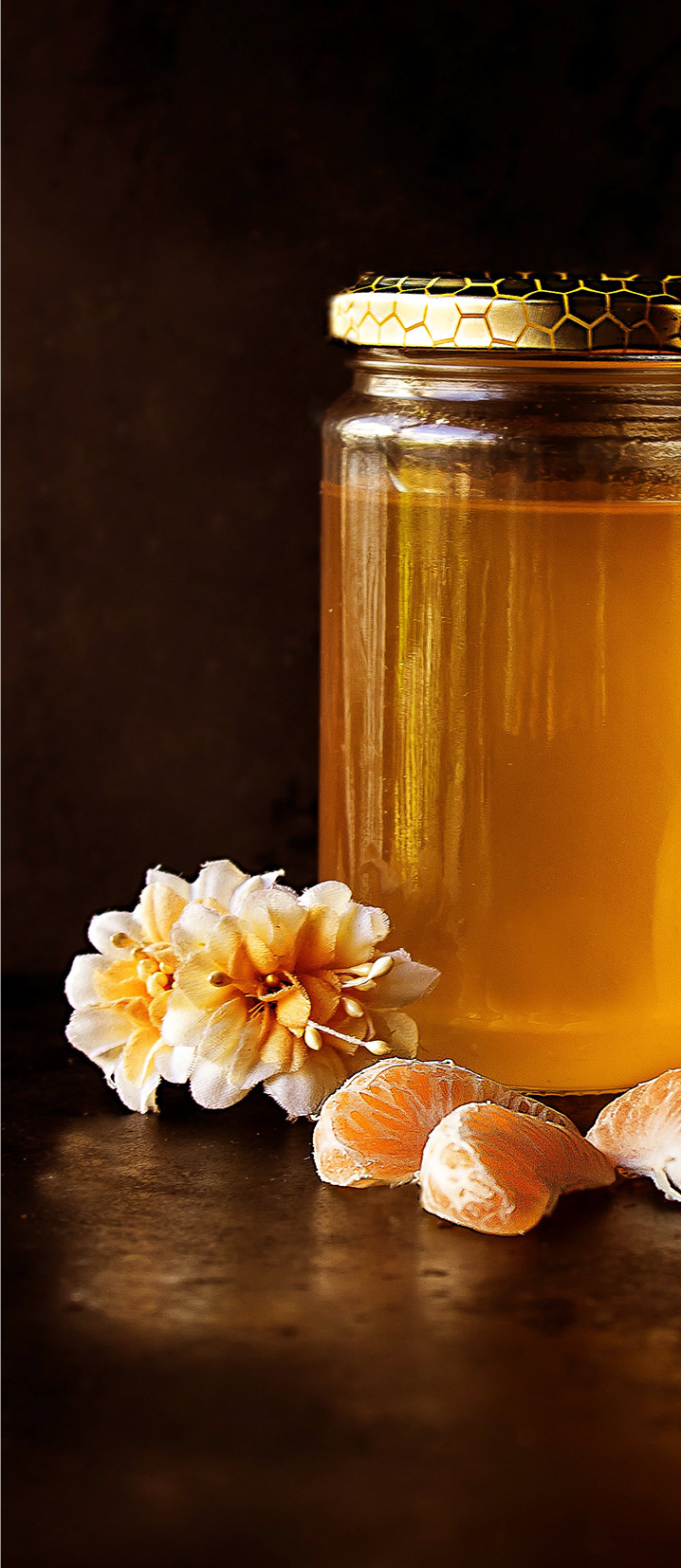
Did you know you can add up to three animations in sequence to the same object? That's what we've done to this beautiful honey image which starts with a simple "Fade in" animation and then transitions to a much longer "Pulse" animation set to repeat.
Embedding 3rd party content into Ceros is incredibly easy. Simply grab the "Embedded Object" tool and draw out a placeholder box. Then paste in your 3rd party embed code. That's it! Pro tip: We will always default to the dimensions set in the embed code. Change these dimensions to 100% to force your object to take the shape of your Embeded Object placeholder.