Welcome to Cloud Audit Suite Cloud Audit Suite is made for collaboration so that you and your staff can securely work from anywhere in real time without version control issues. Experience a guided, start-to-finish audit, preparation, compilation, and review tool with Guided Assurance. Expedite your workflow with Engagement Manager, a cloud-based organizational hub that offers real-time access to all of your work papers and trial balances. Send and request online confirmations securely with Confirmation.
Tour menu
1 Intro and setup 2 Guided Assurance 3 Engagement Manager 4 Confirmation 5 Get a one-on-one demonstration
Request a demo
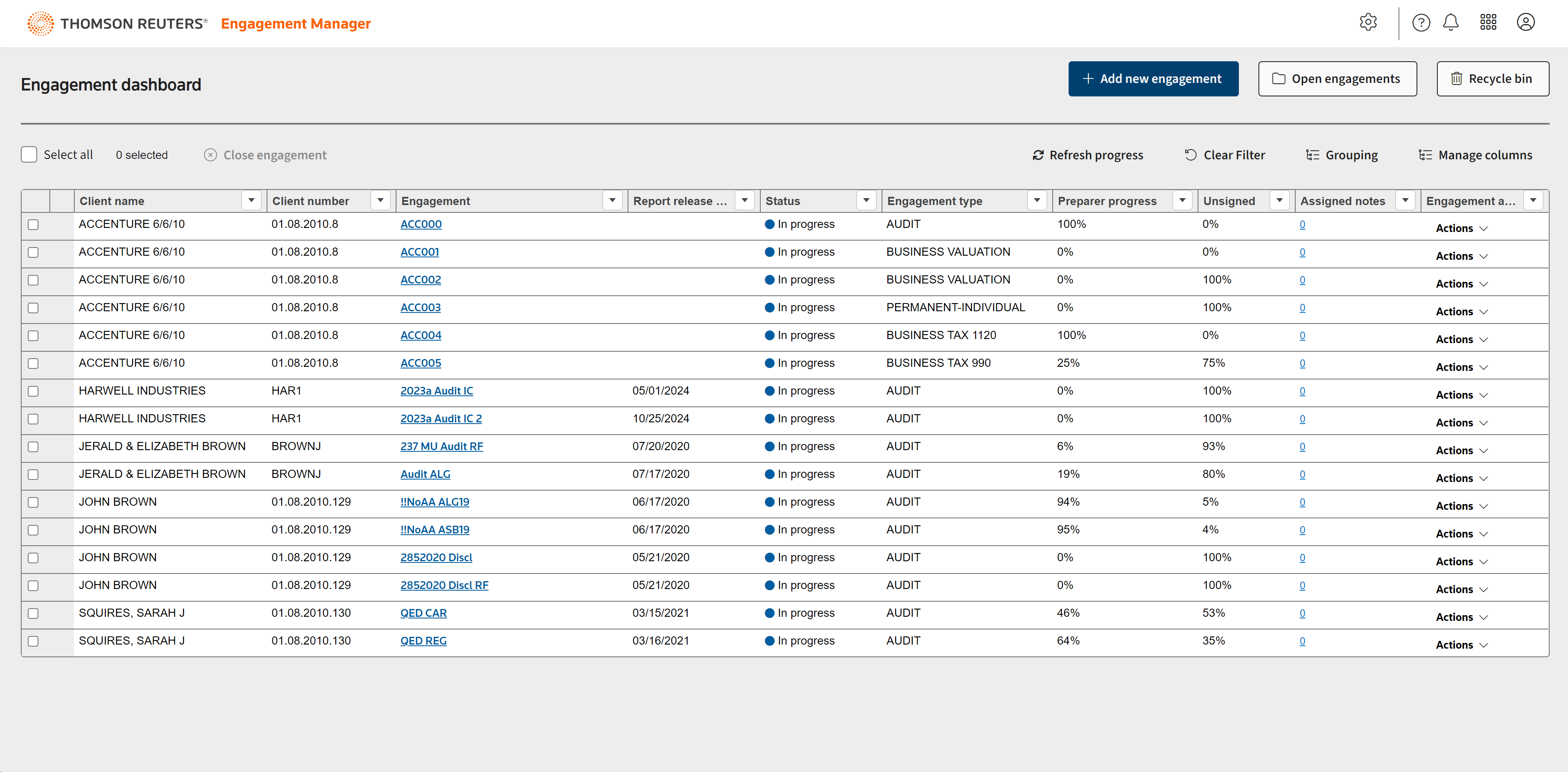
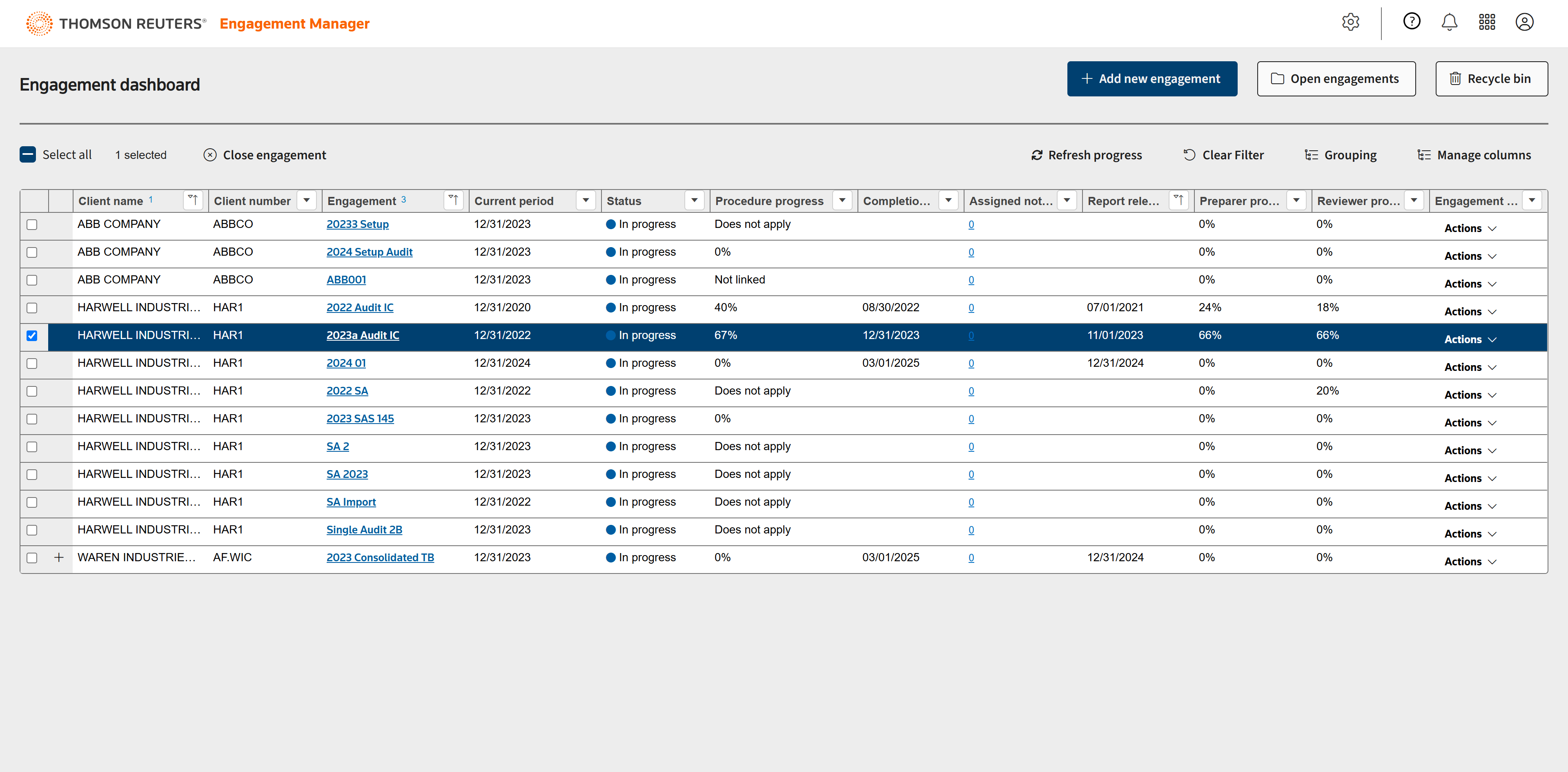
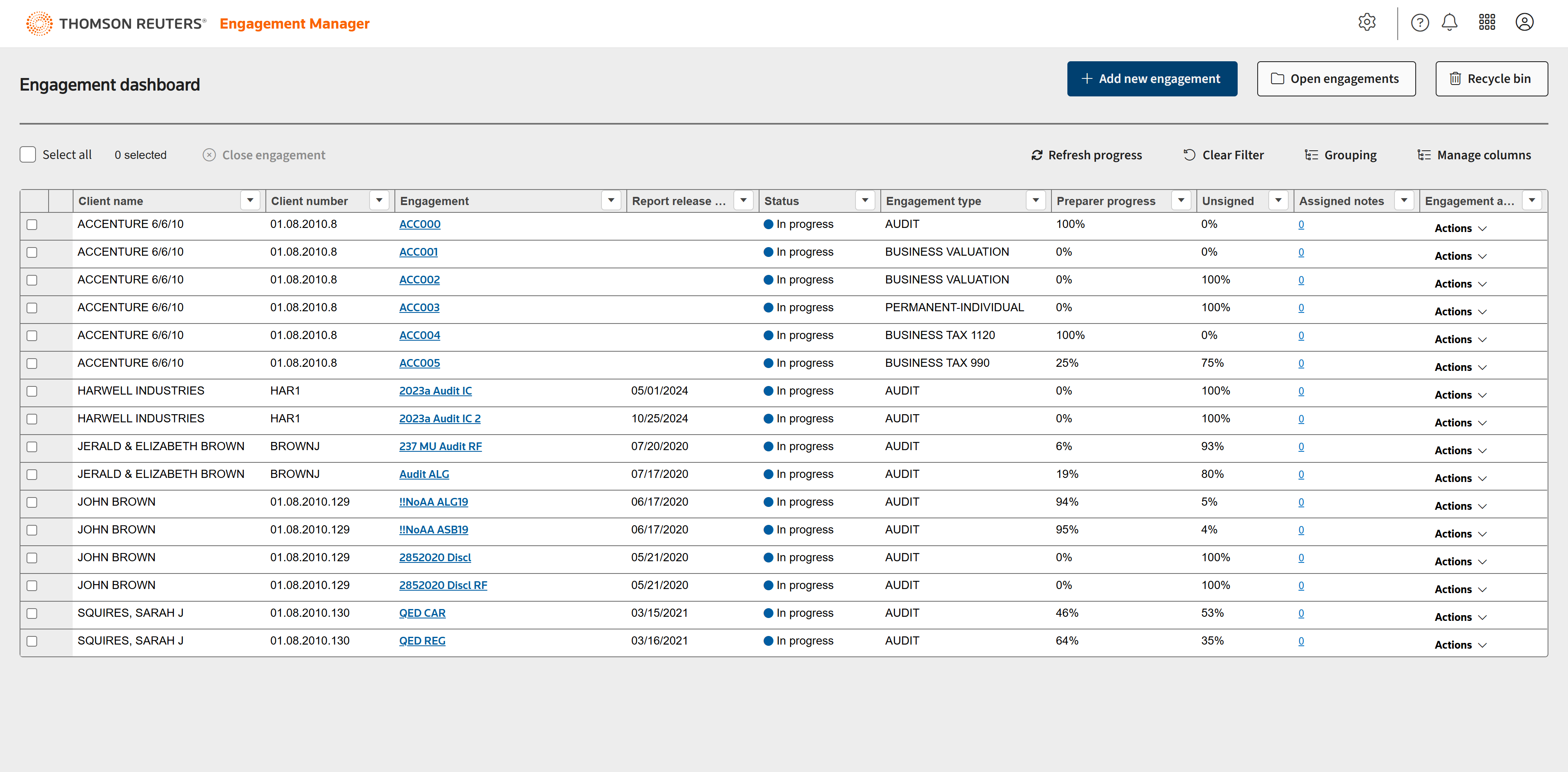
Engagement Manager features an Engagement dashboard.
From the dashboard, you can check progress on your engagements at a glance with Preparer progress, Unsigned, and Status columns.
On the dashboard you can open an existing engagement...
...or add a new engagement
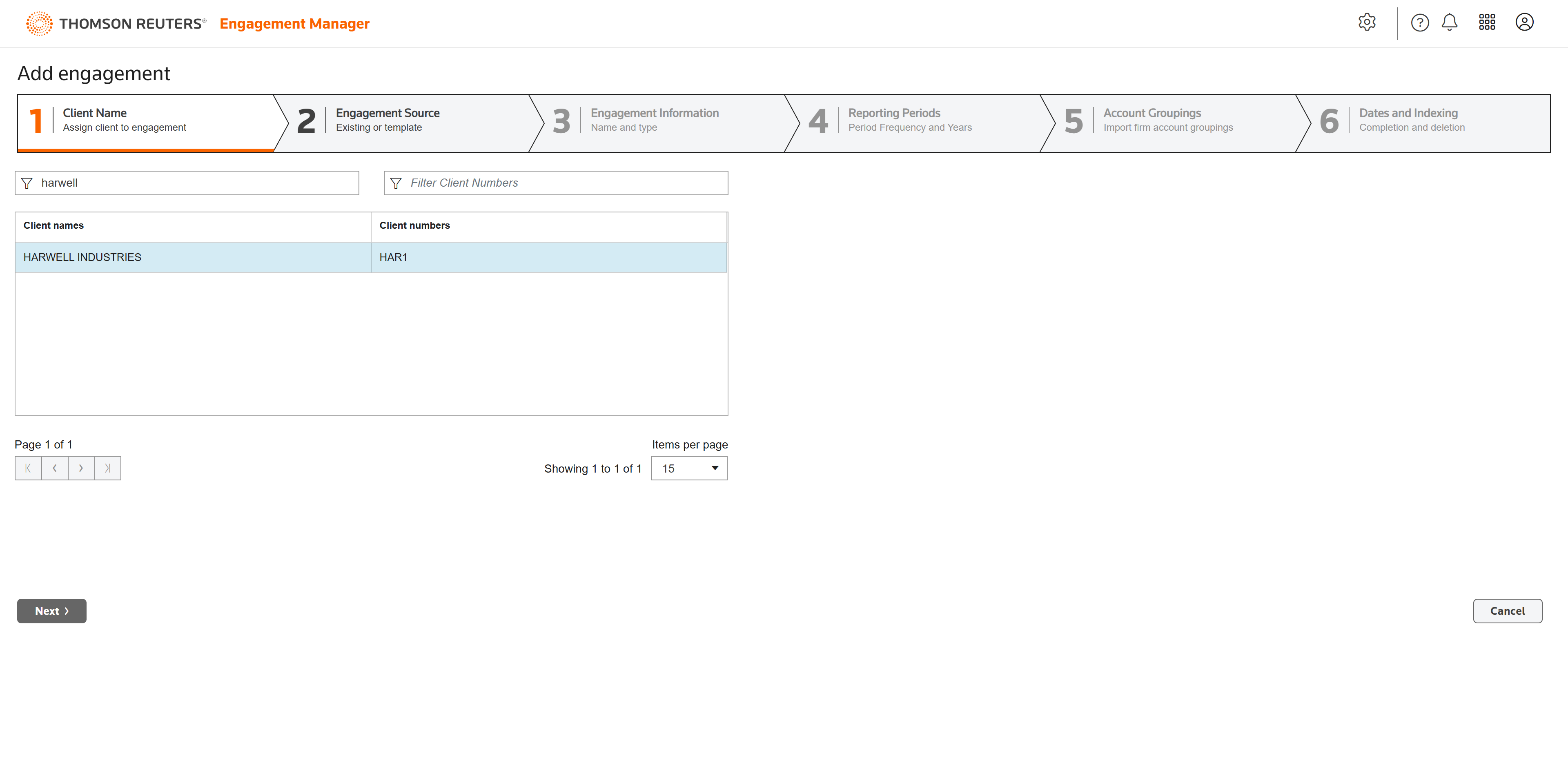
When adding a new engagement, a wizard will walk you through the process. In step 1, you will assign a client to the engagement.
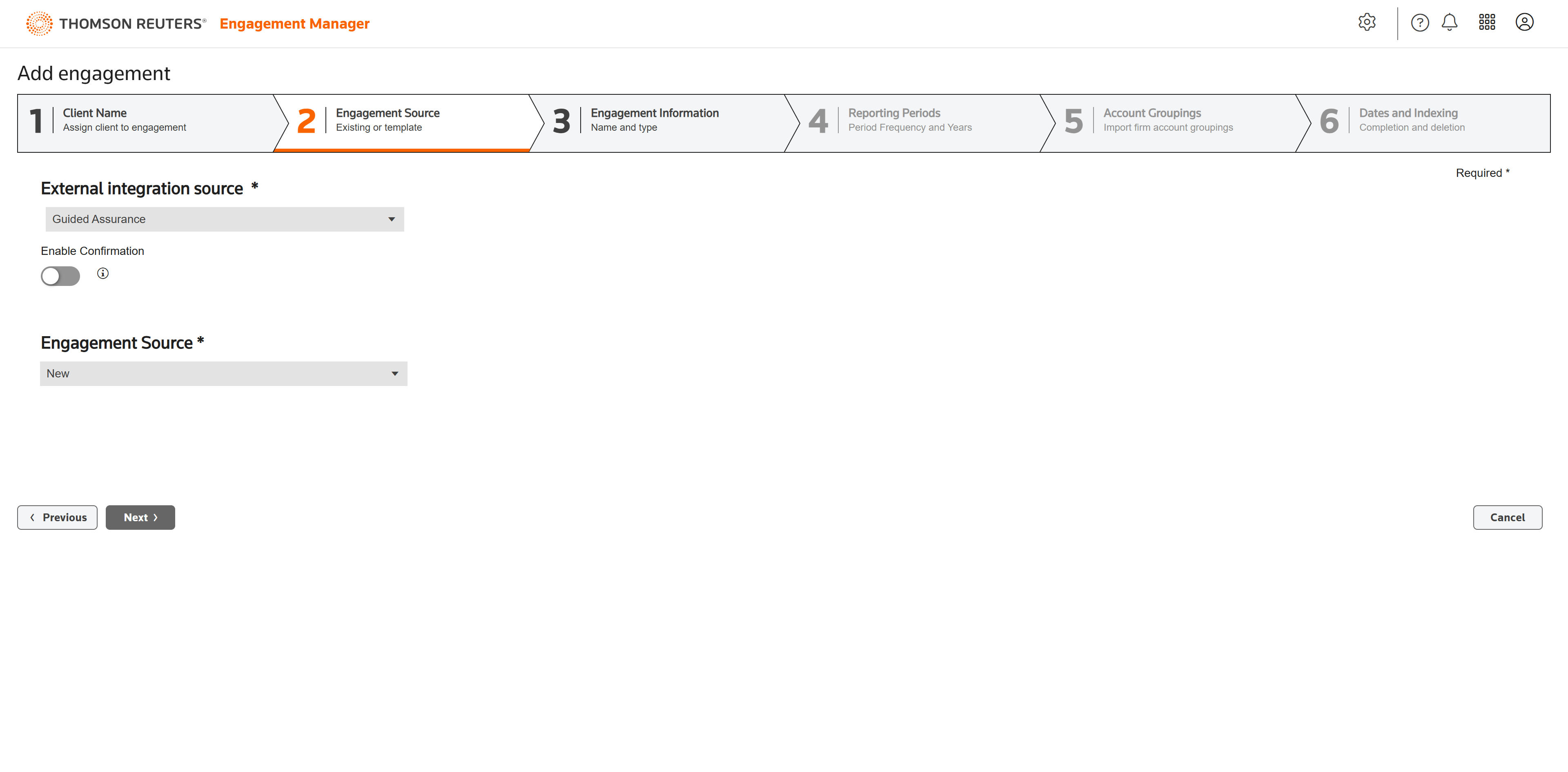
In step 2, you will add an engagement source.
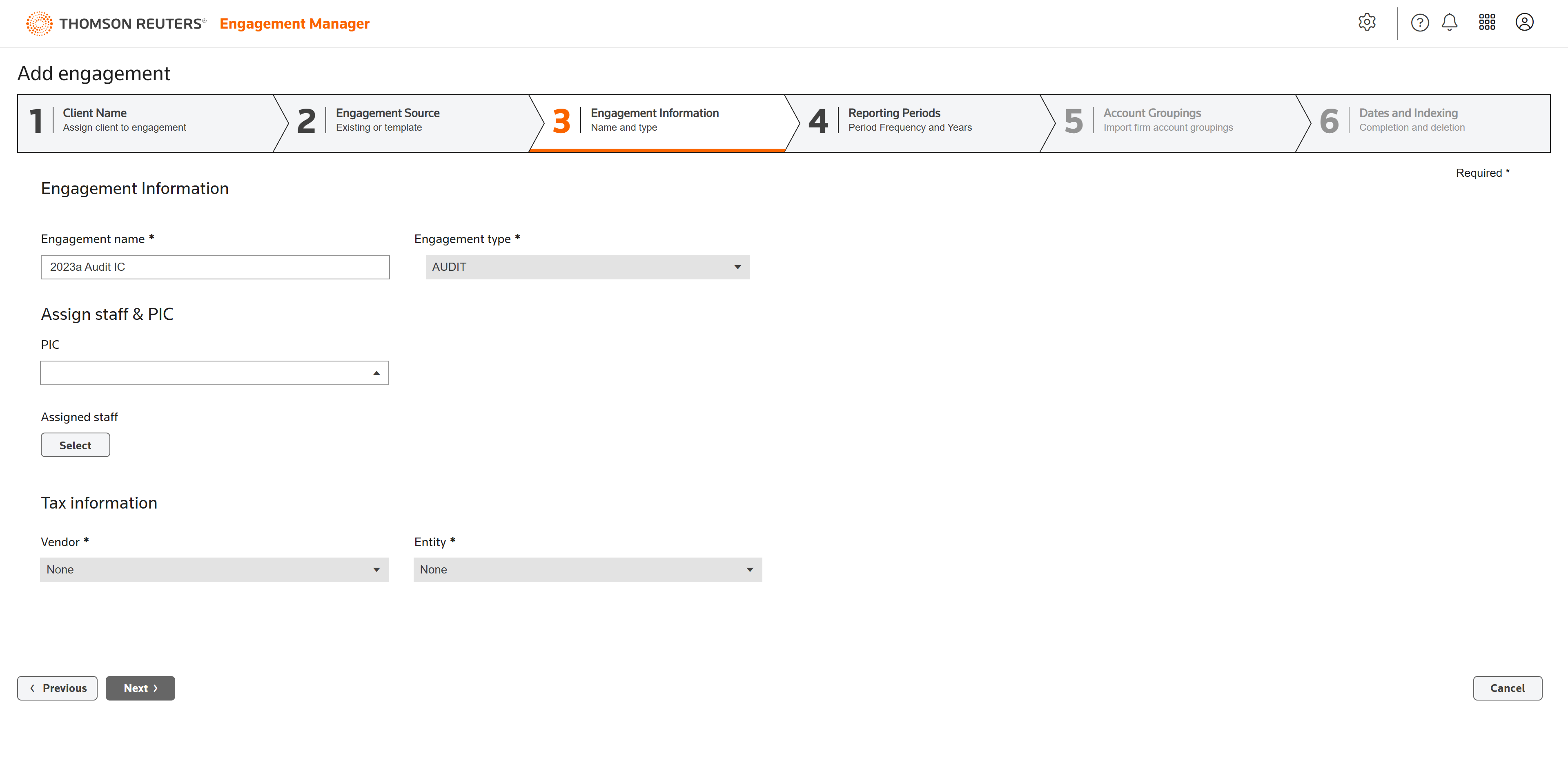
In step 3, you will fill in the engagement information.
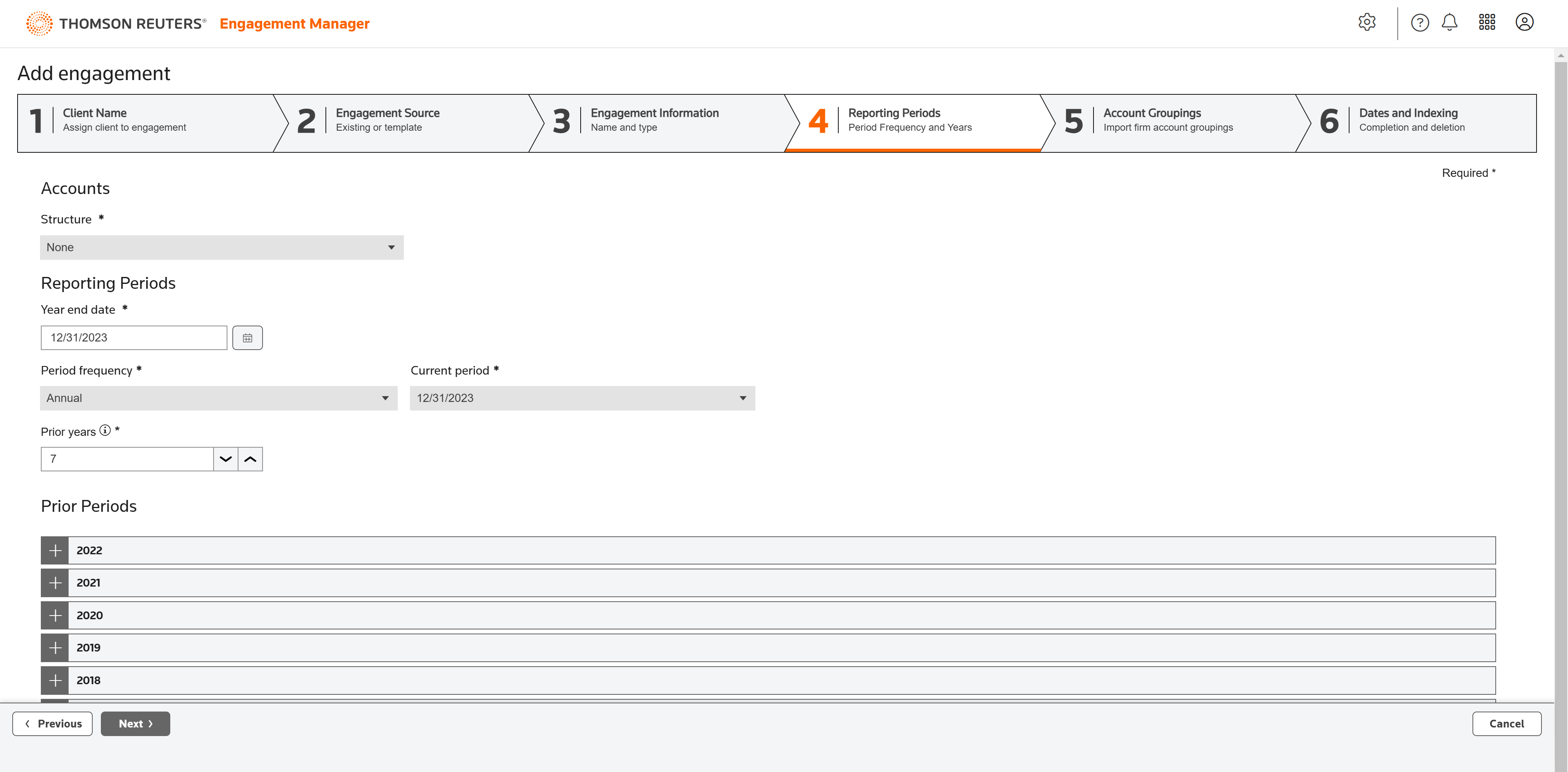
In step 4, you will define the reporting periods.
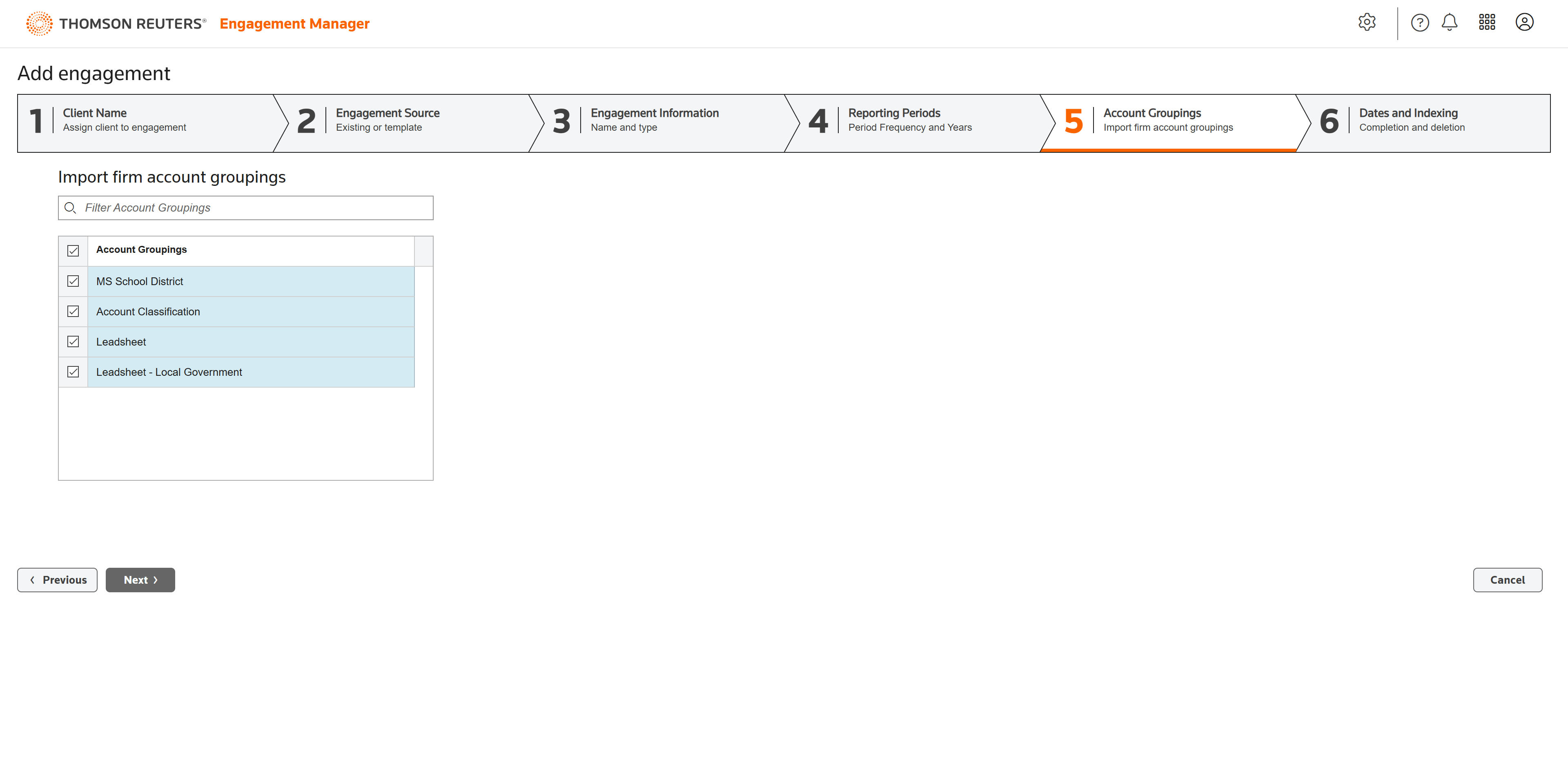
In step 5, you will import firm account groupings. This will enable the automated population of leadsheets, financial statements, and tax returns.
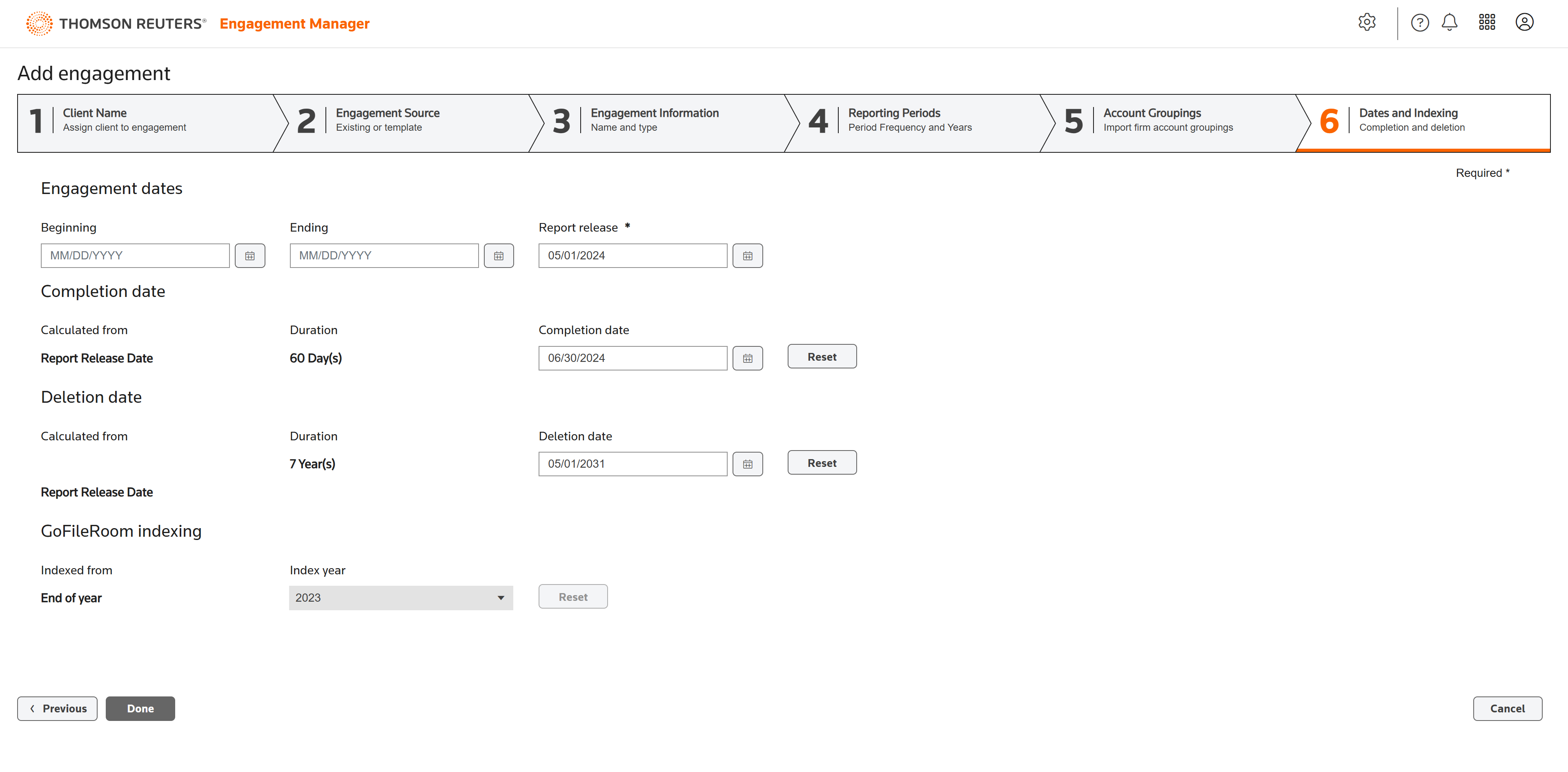
In step 6, you will define the engagement dates. This completes the process of adding an engagement.
Guided Assurance Guided Assurance offers guided, start-to-finish audit preparation, compilation, and review tools. Access the leading PPC audit methodology, risk identification, and process automation, as well as customizable Disclosure Checklists and Single Audit. Bring together the gold standard in audit methodology with the engagement manager of your choice. Guided Assurance offers a PPC file format to gain the benefits of our cloud-based methodology with automatic updates and the flexibility to work from any engagement manager.
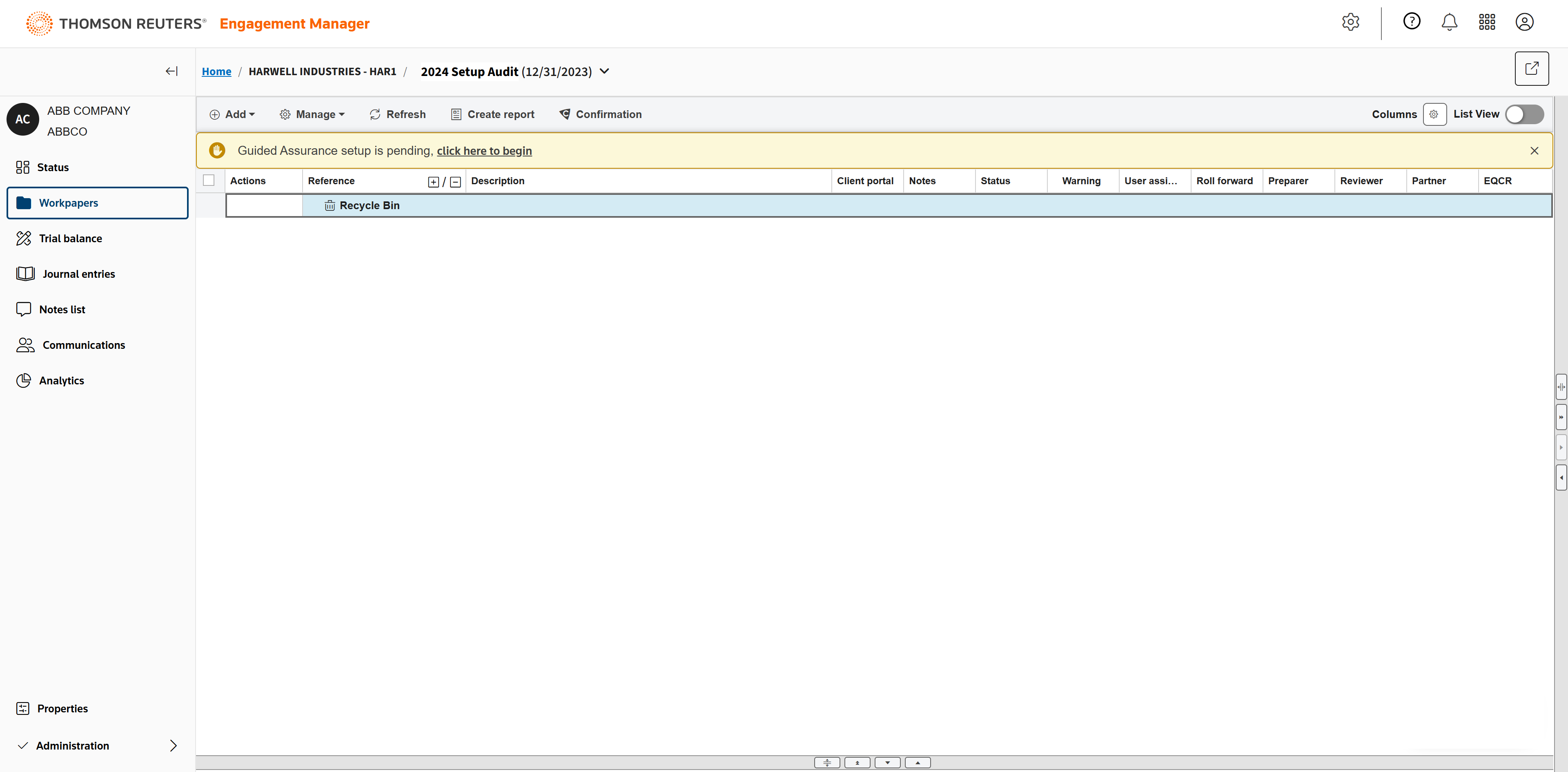
After adding an engagement, the setup is pending. Click the notification to begin the setup.
If you have already started or completed engagements from the locally installed product SMART Practice Aids, you can import them. This import will convert their content into the online Guided Assurance product.
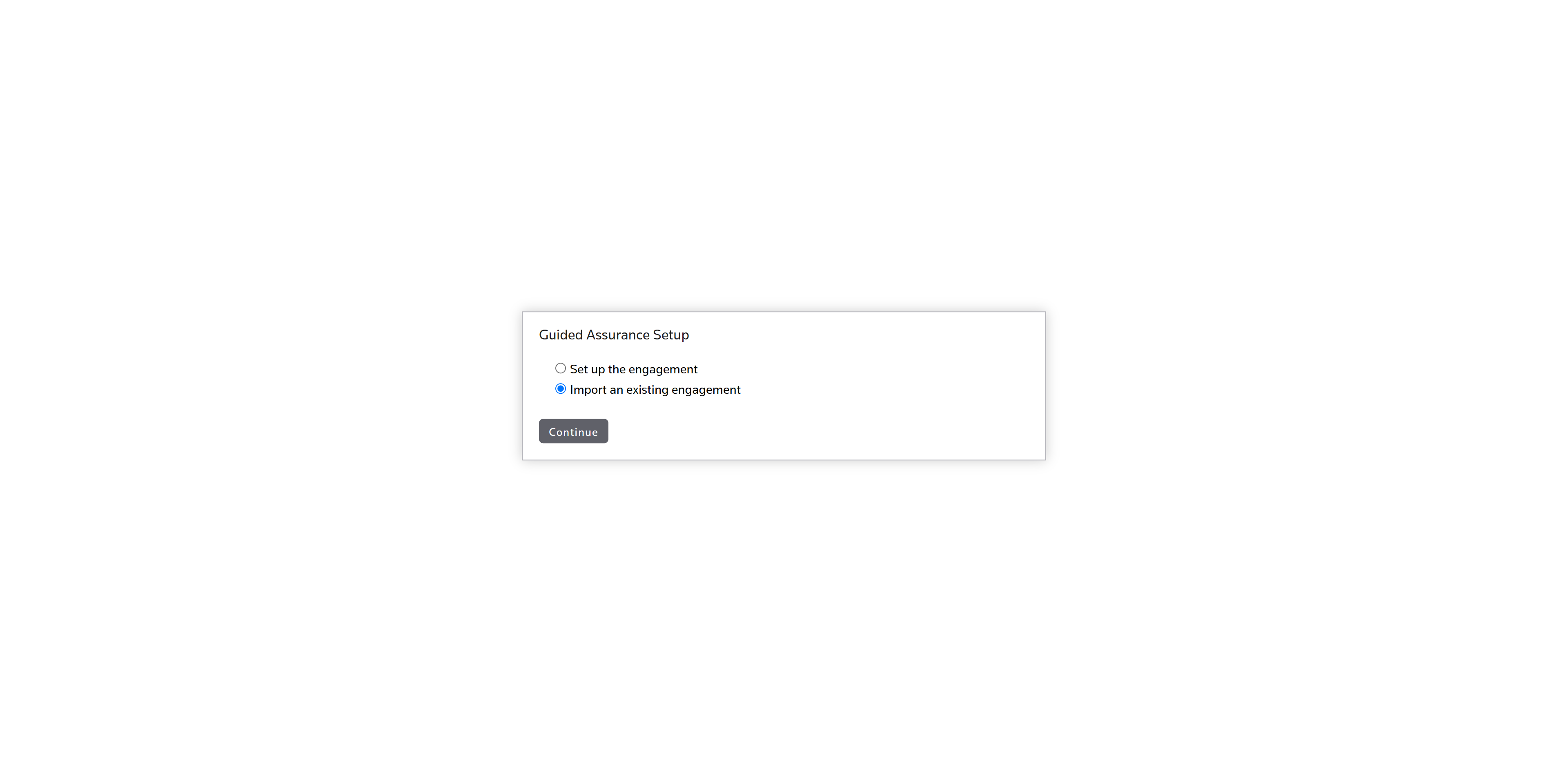
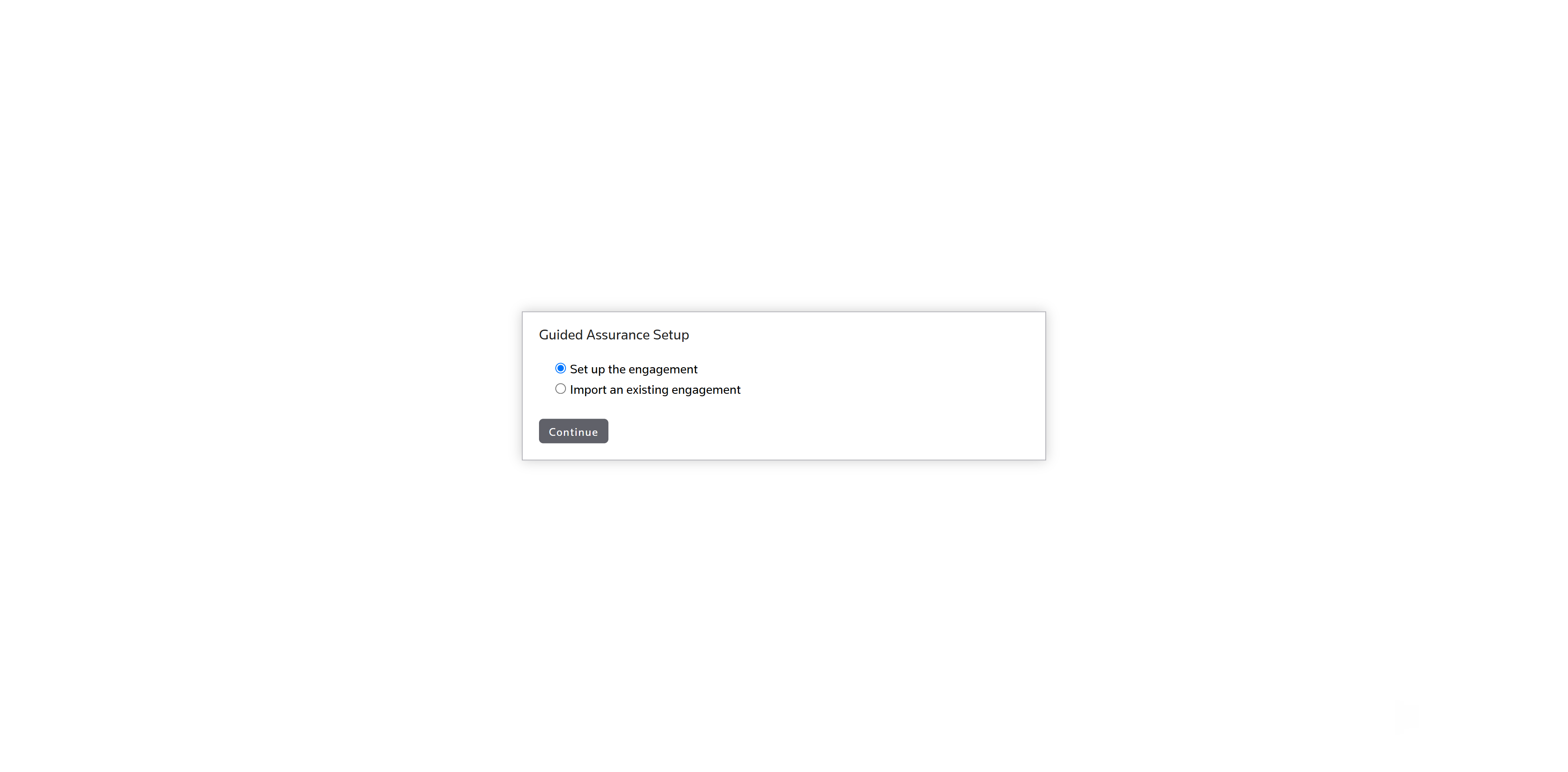
To set up a new engagement, select set up the engagement and click Continue.
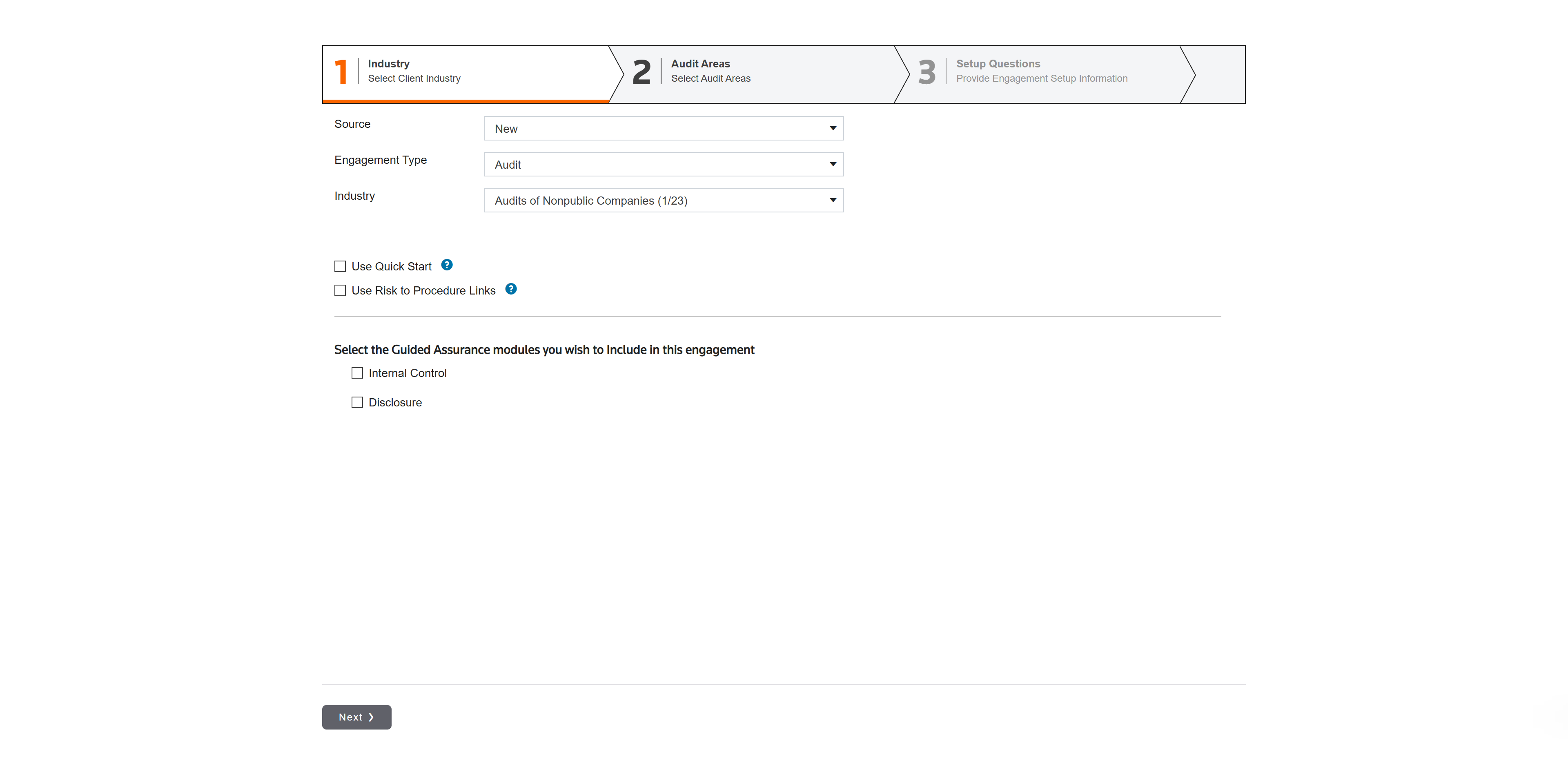
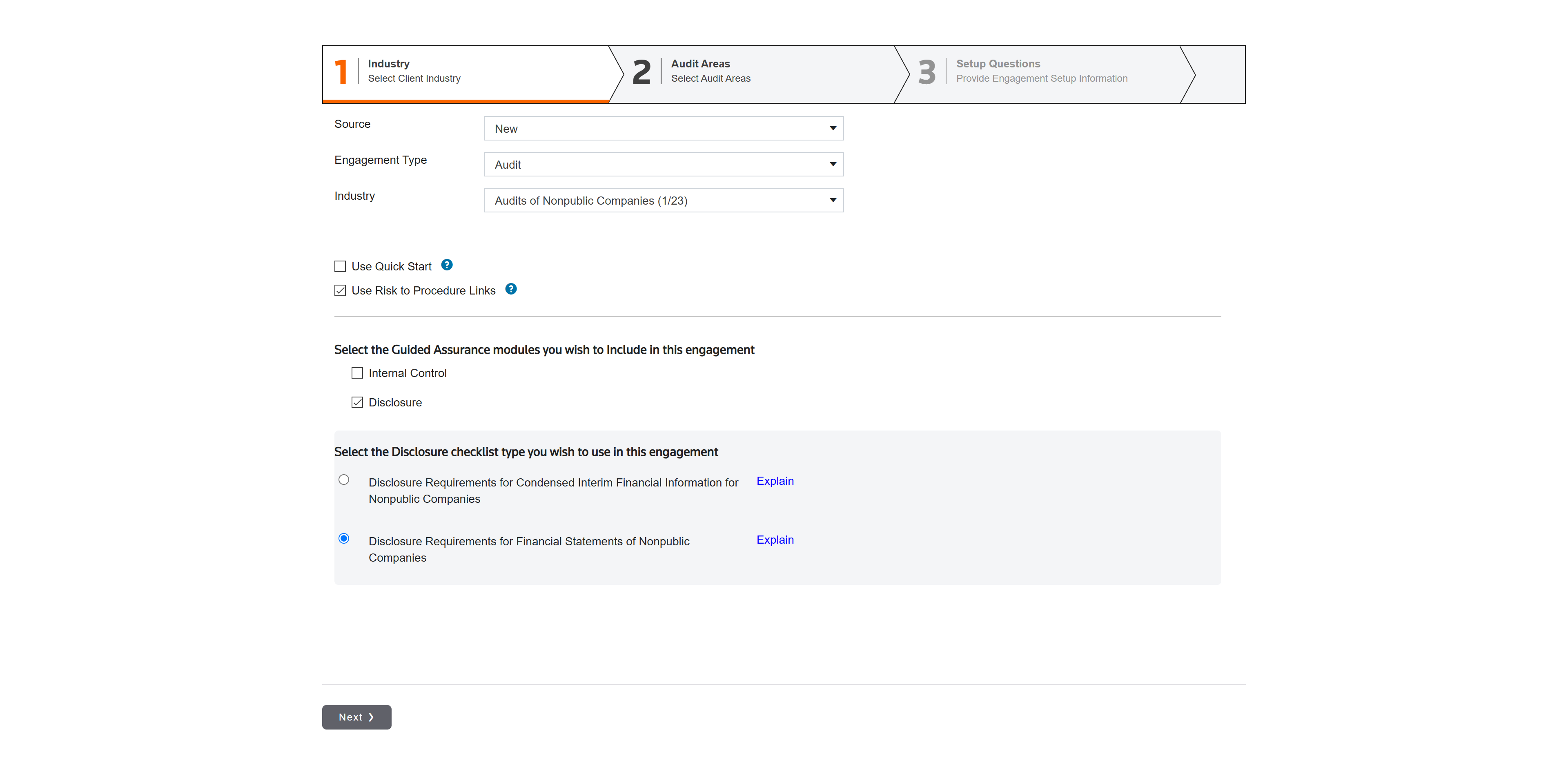
In step 1, select New as the source Audit as the Engagement Type, and Audits of Nonpublic Companies as the Industry.
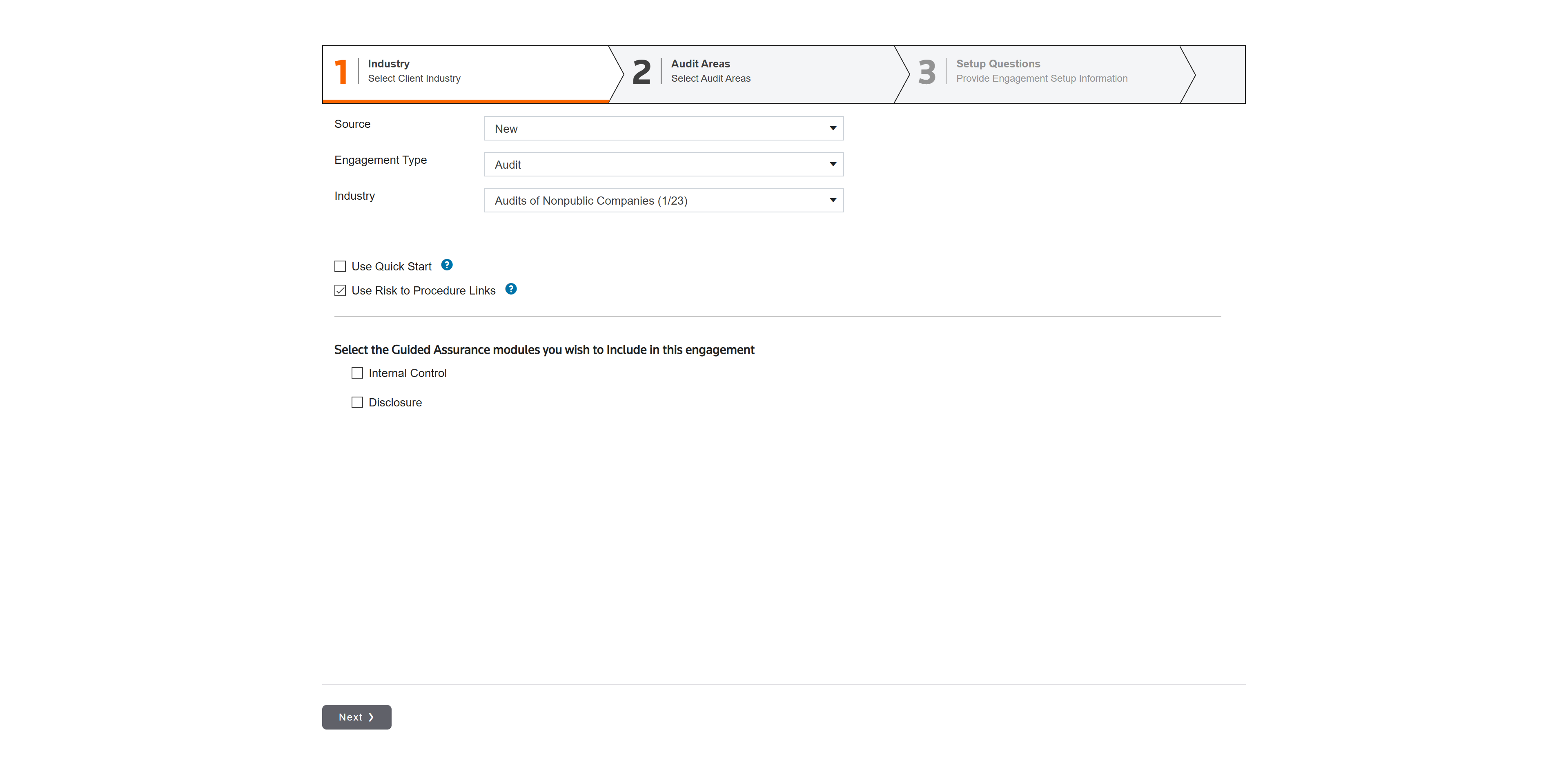
Click to use Risk to Procedure Links.
You can include Internal Control and Disclosure modules. Click Disclosure.
And select which checklist type you want to use in this engagement.
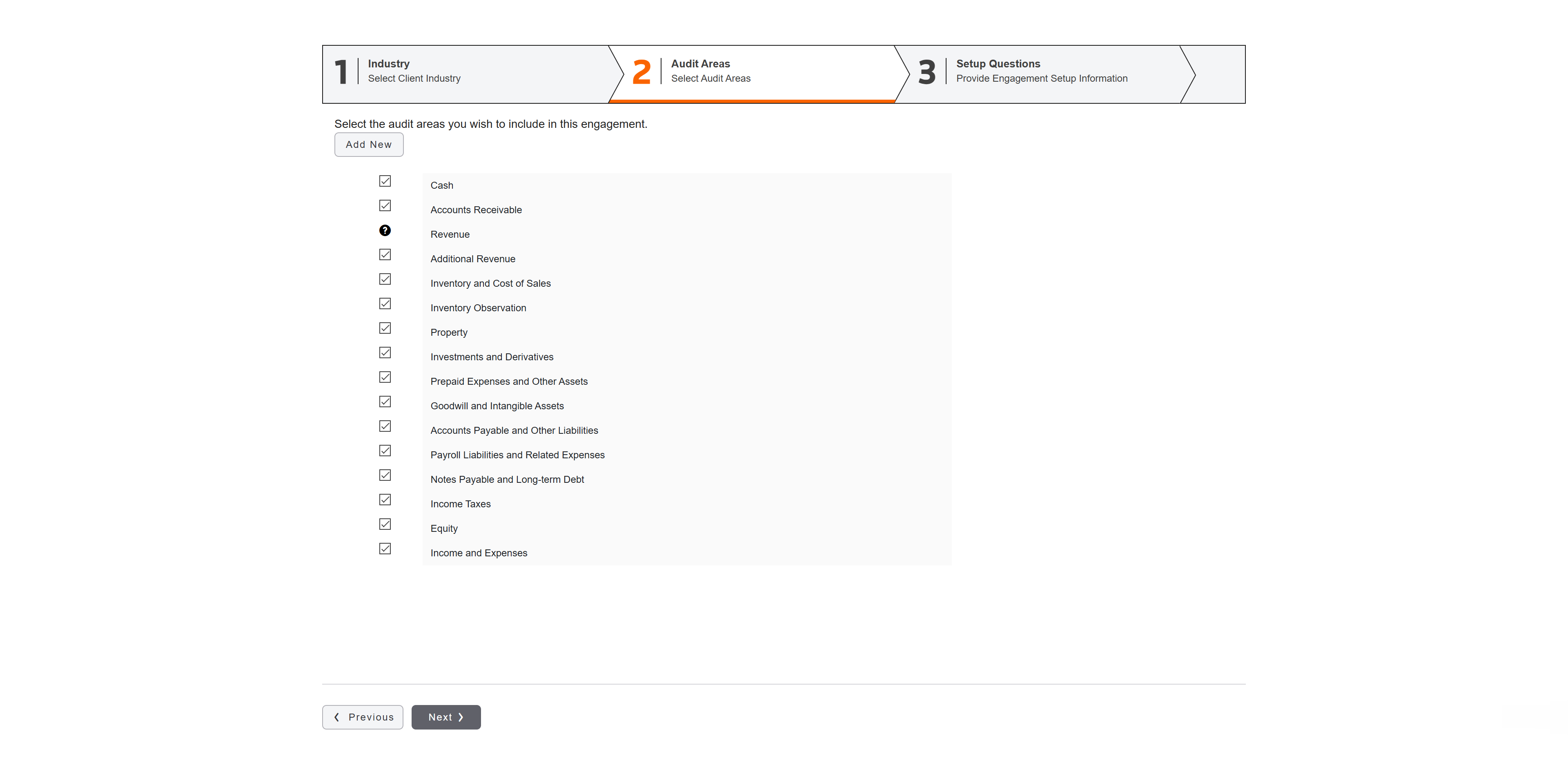
In step 2, you'll select the audit areas. You can uncheck any that don't apply, or add any that are not on the predefined list.
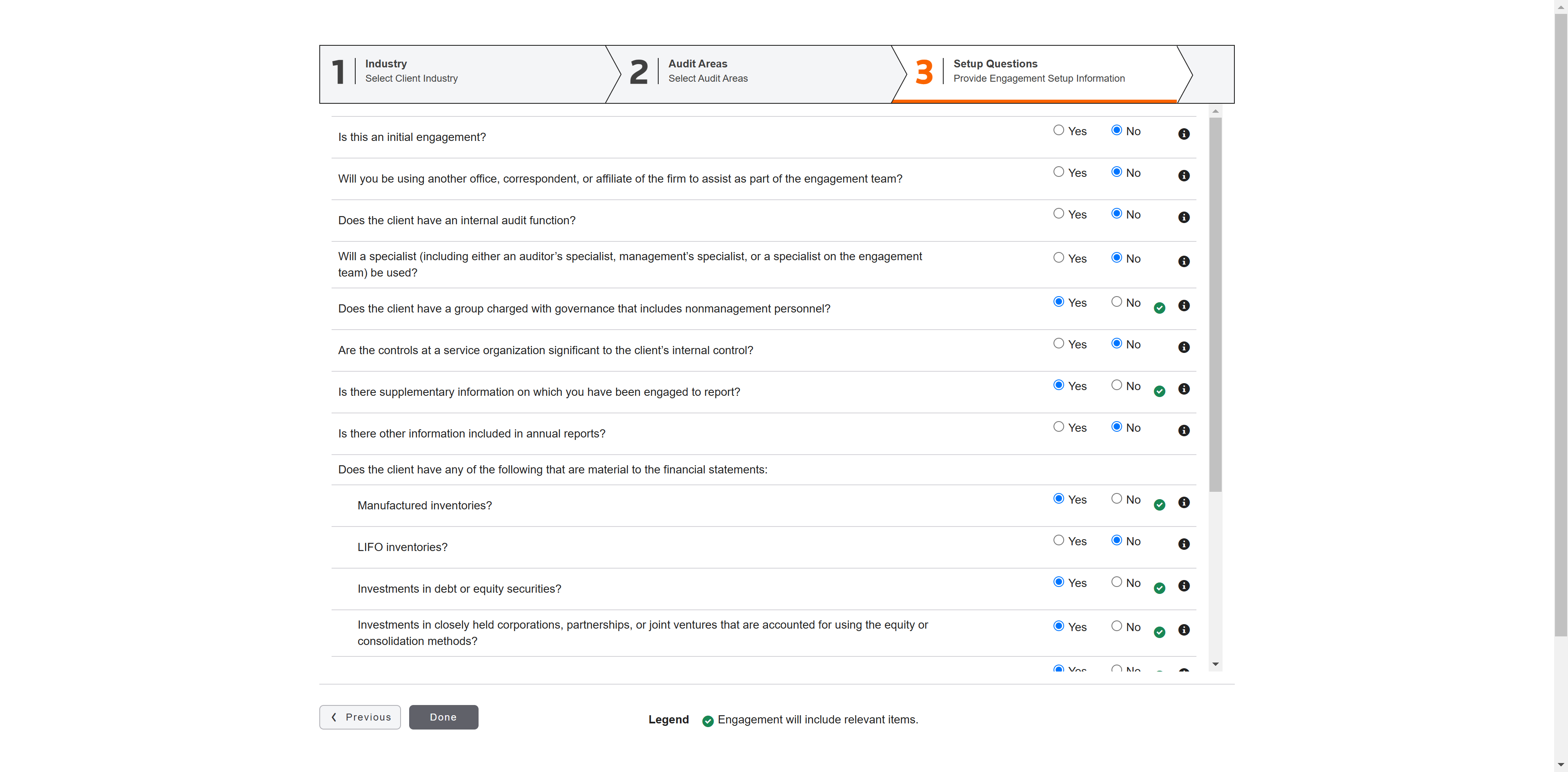
In step 3, complete the setup questions. These questions enable Guided Assurance to pull only the documents you need for this audit, preventing your staff from over auditing and saving your firm time and money.
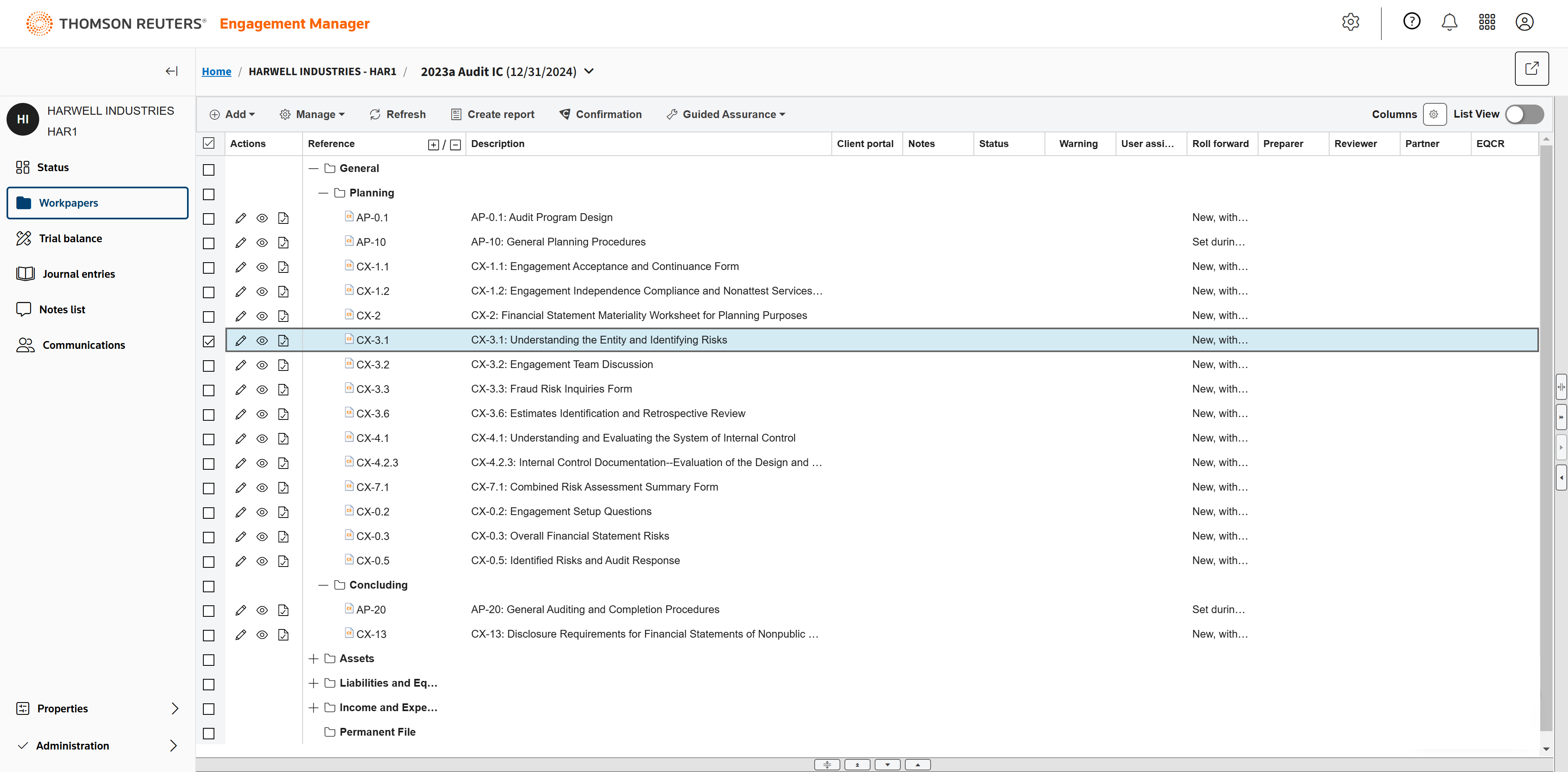
Once you've completed the setup, Guided Assurance populates all the documents you need.
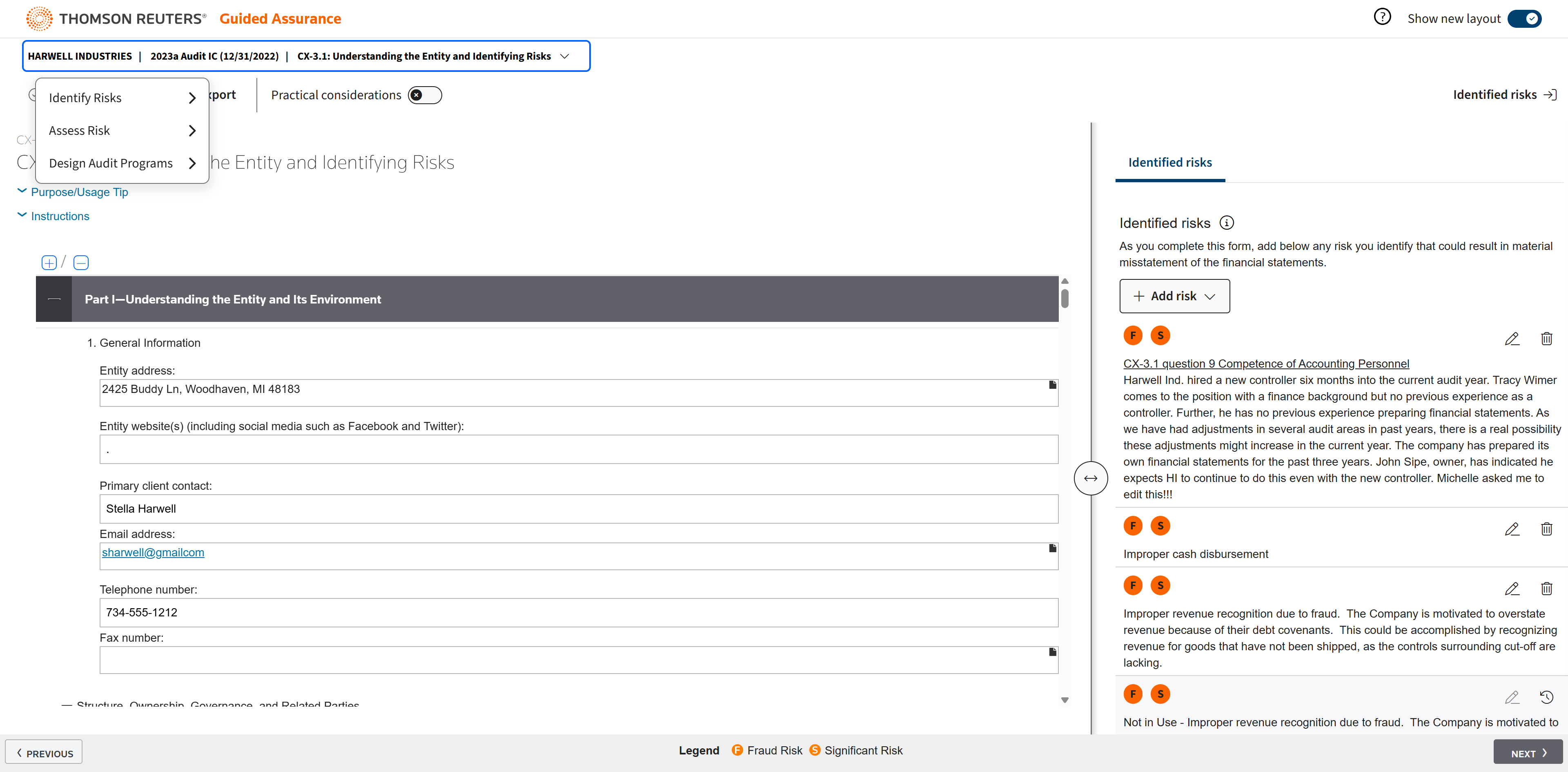
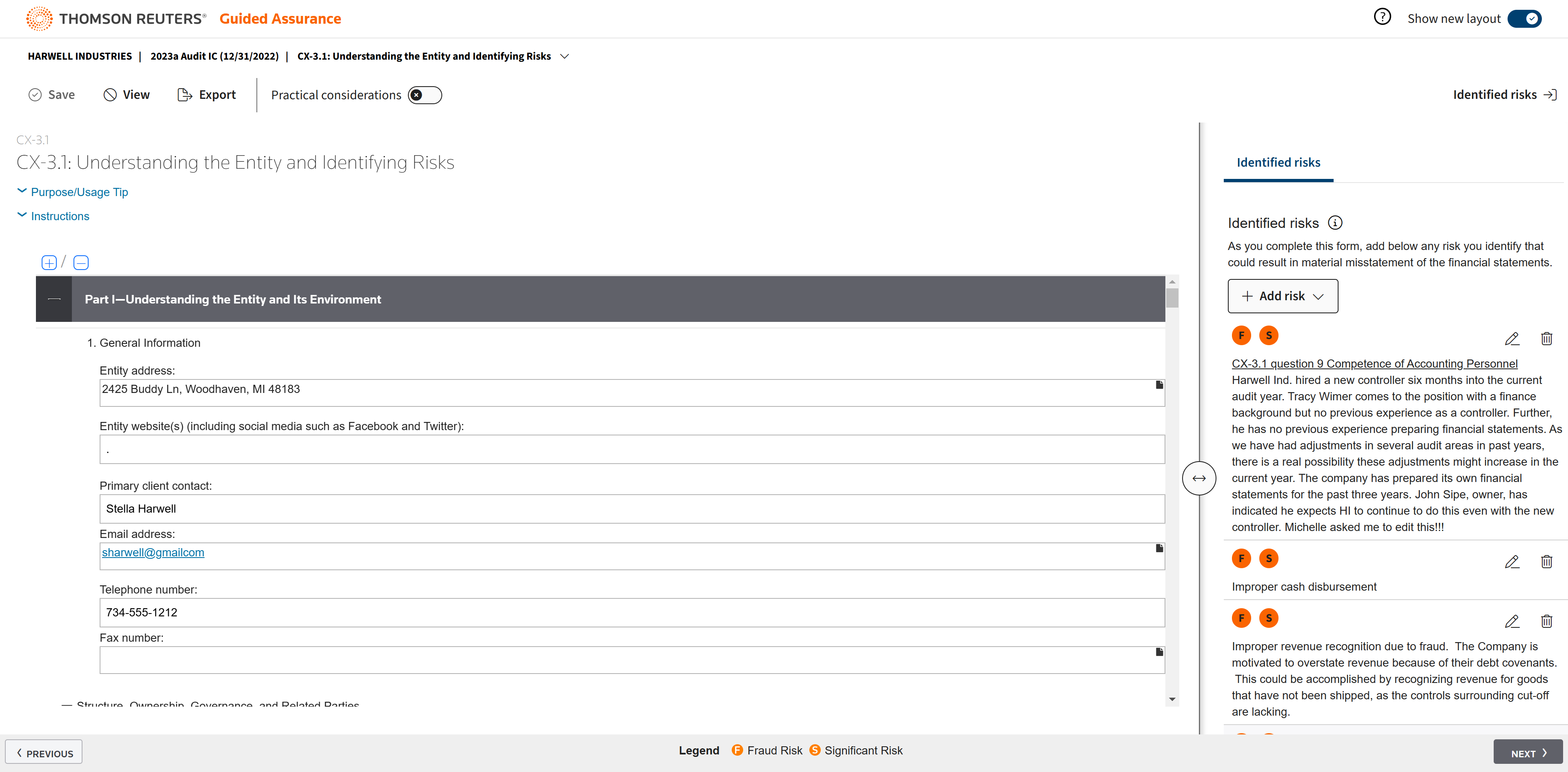
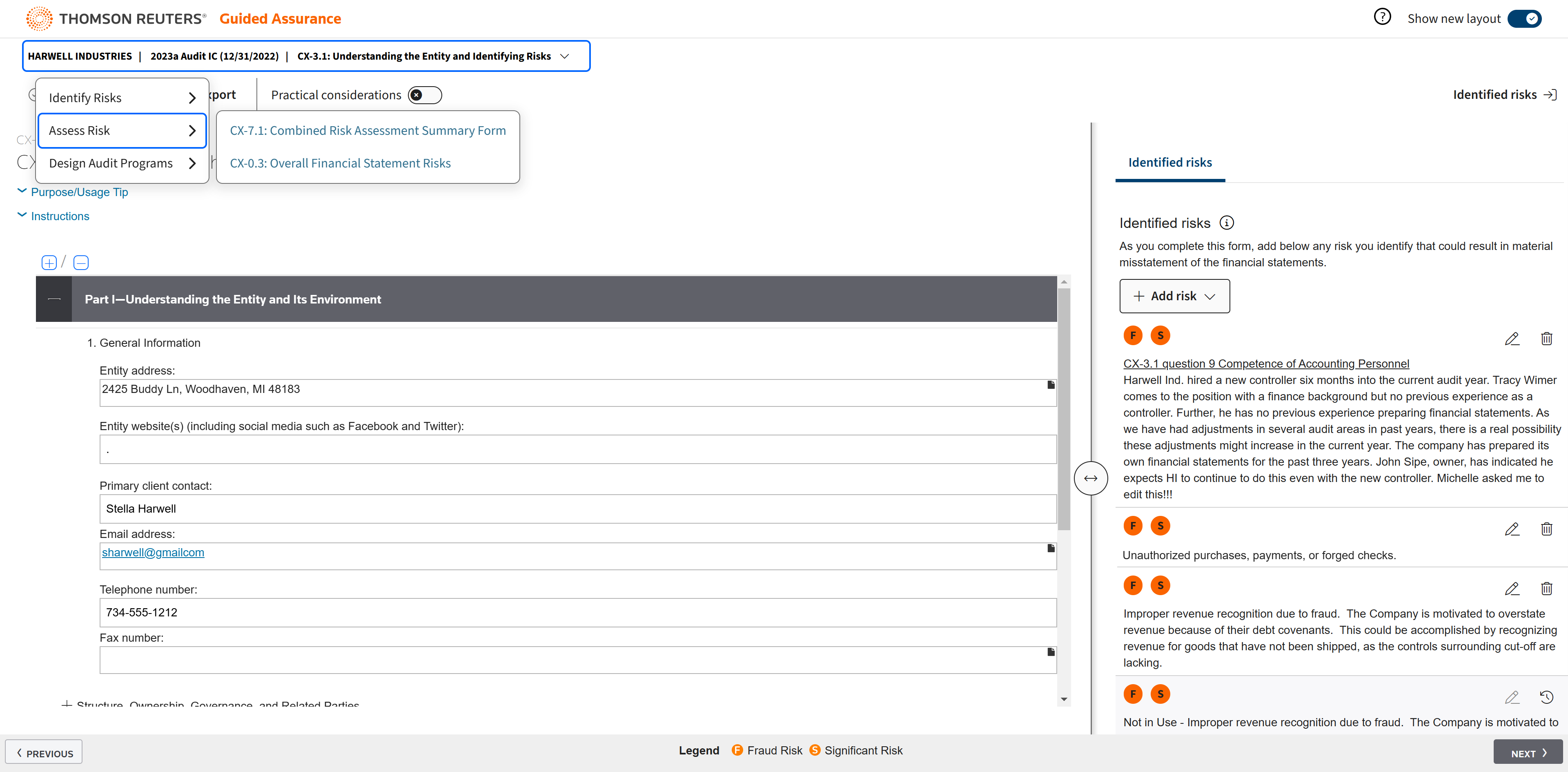
Click the edit icon to open the CX-3.1: Understanding the Entity and Identifying Risks.
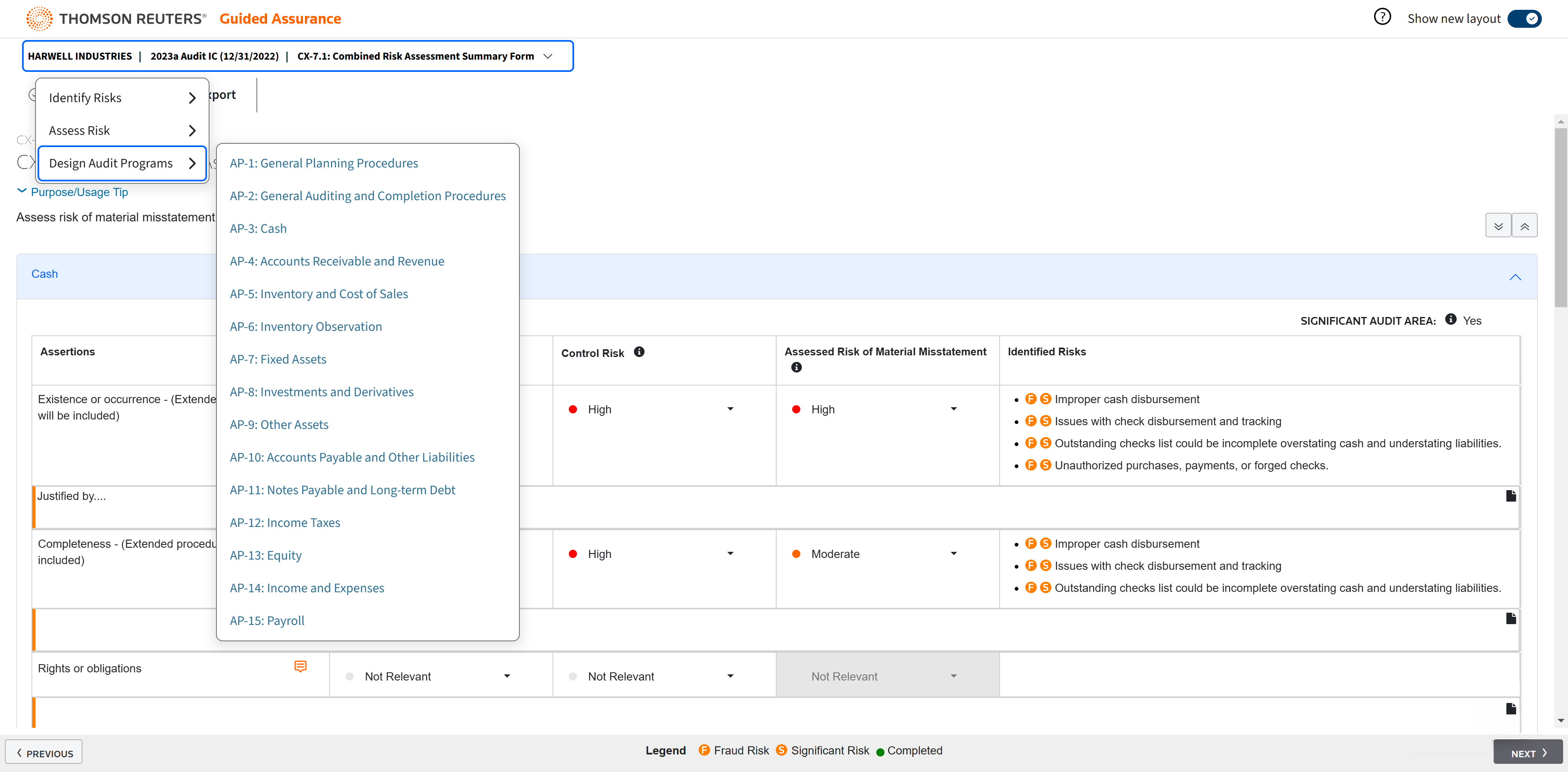
With the PPC Methodology, you will Identify Risks, Assess Risk, and Design Audit Programs.
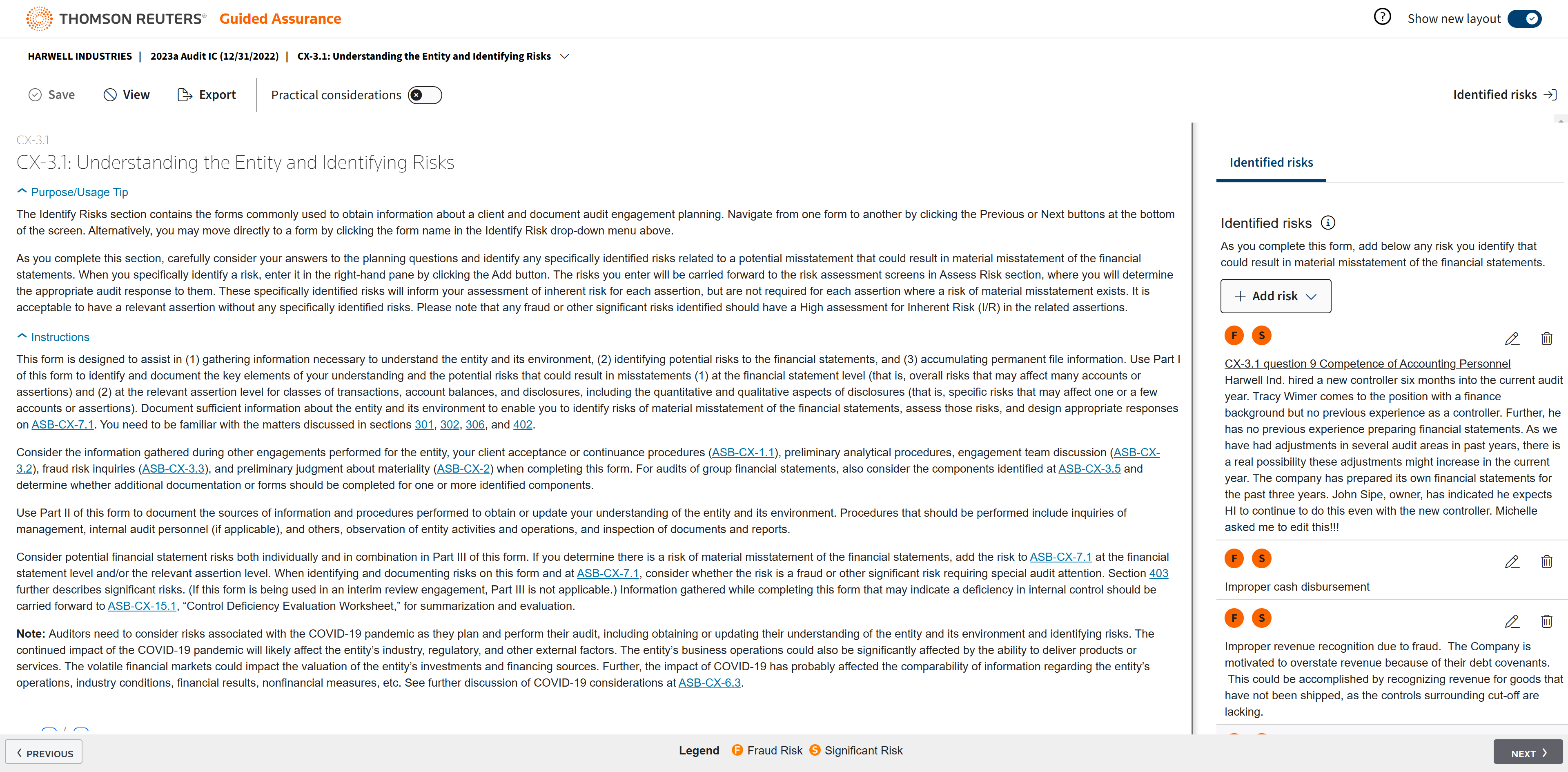
These documents contain Purpose/Usage Tips and Instructions.
The information they contain will roll forward from year to year.
You can collaborate with your staff while working in Guided Assurance in real time from any location.
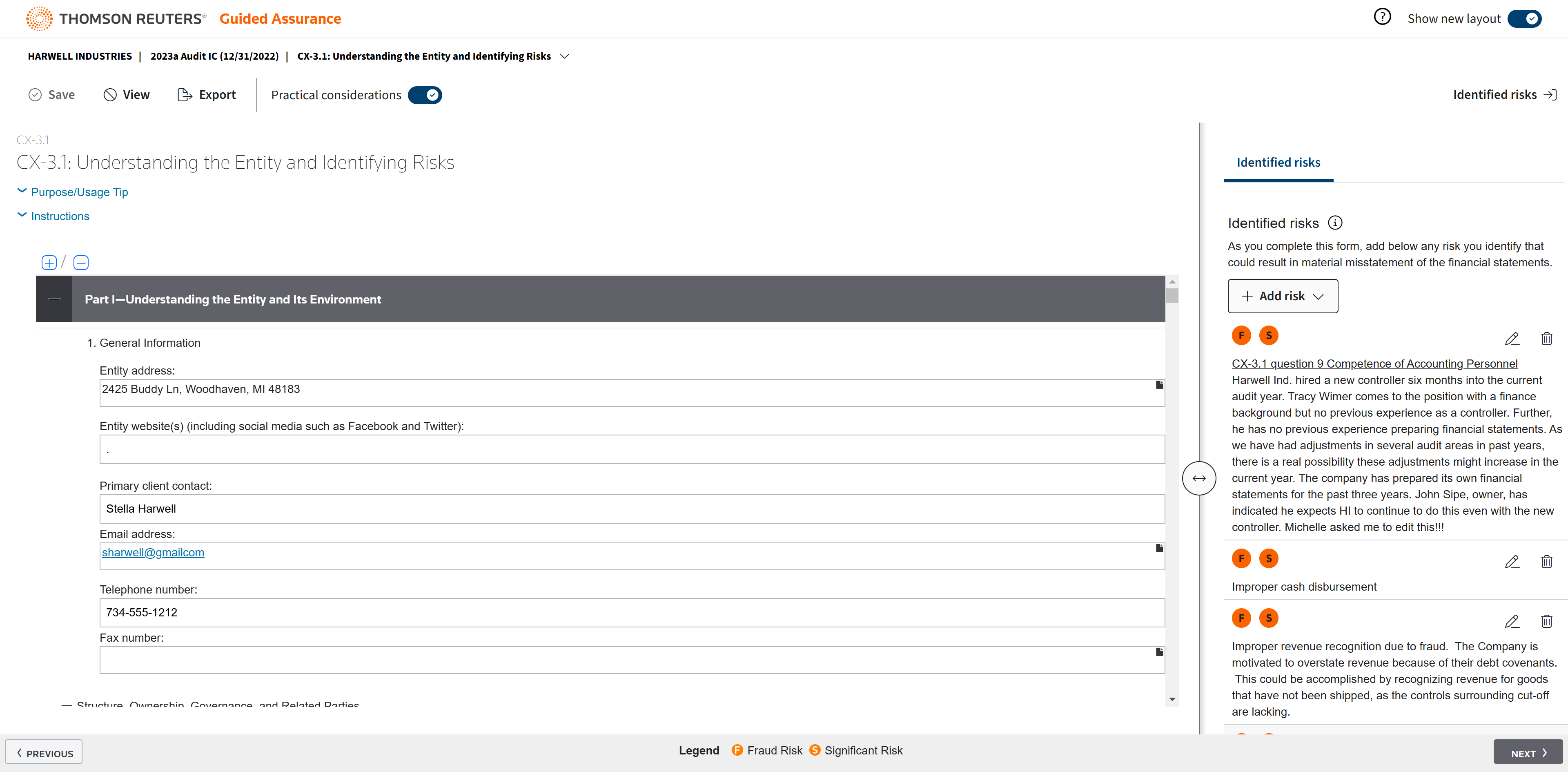
You can display Practical Considerations which will appear inline inside the document.
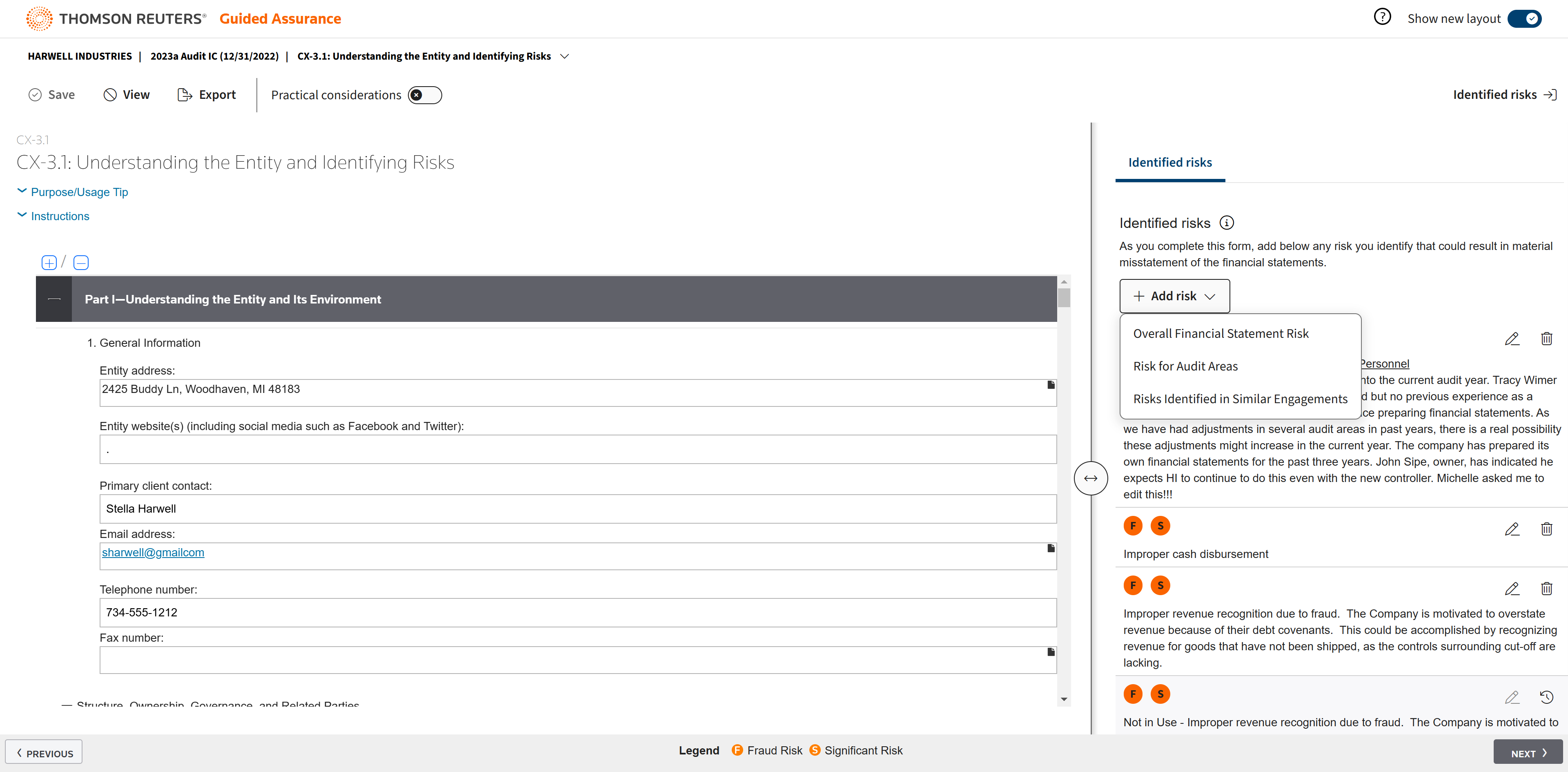
Click to see Risks Identified in Similar Engagements.
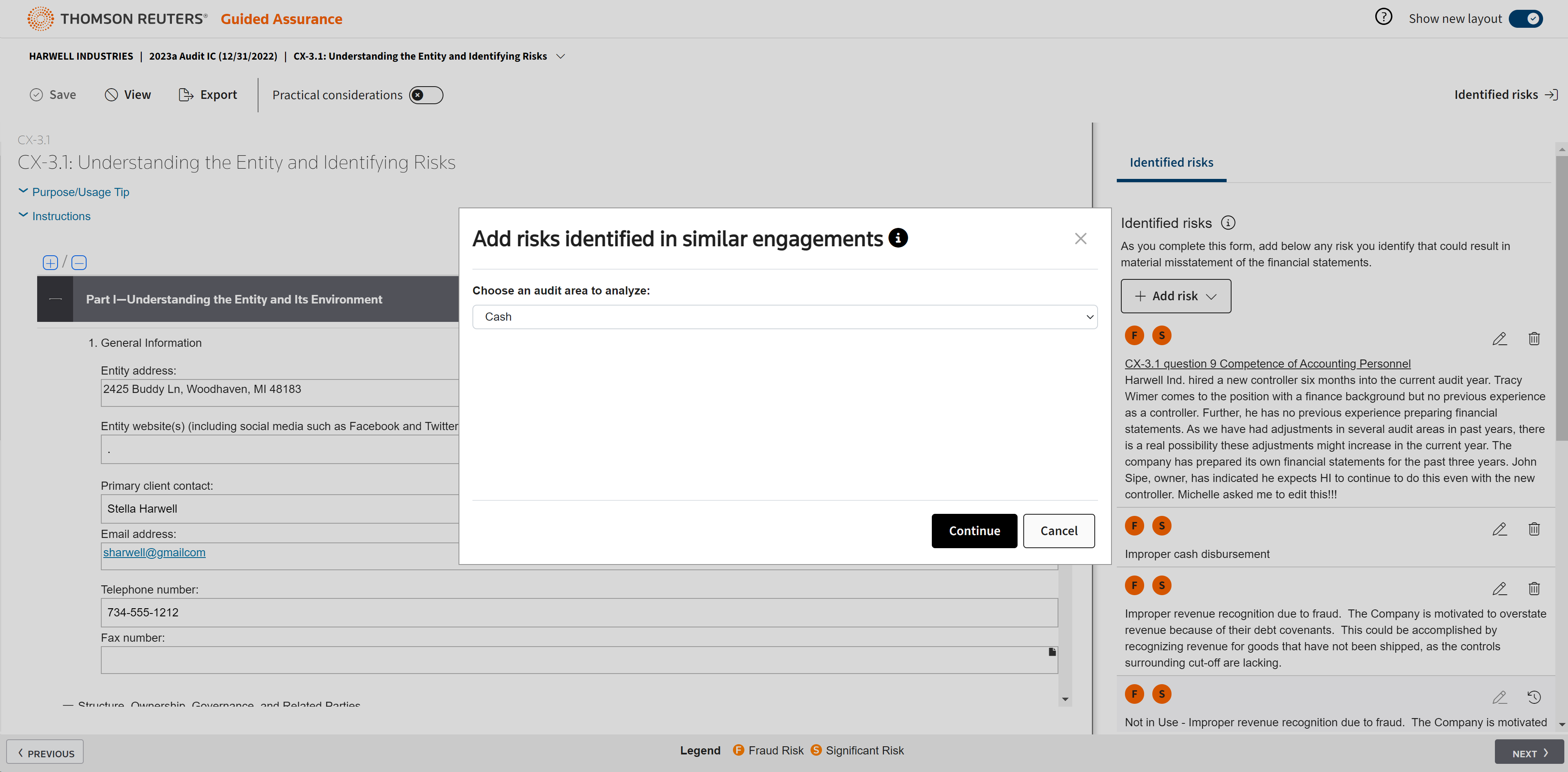
Select the audit area Cash.
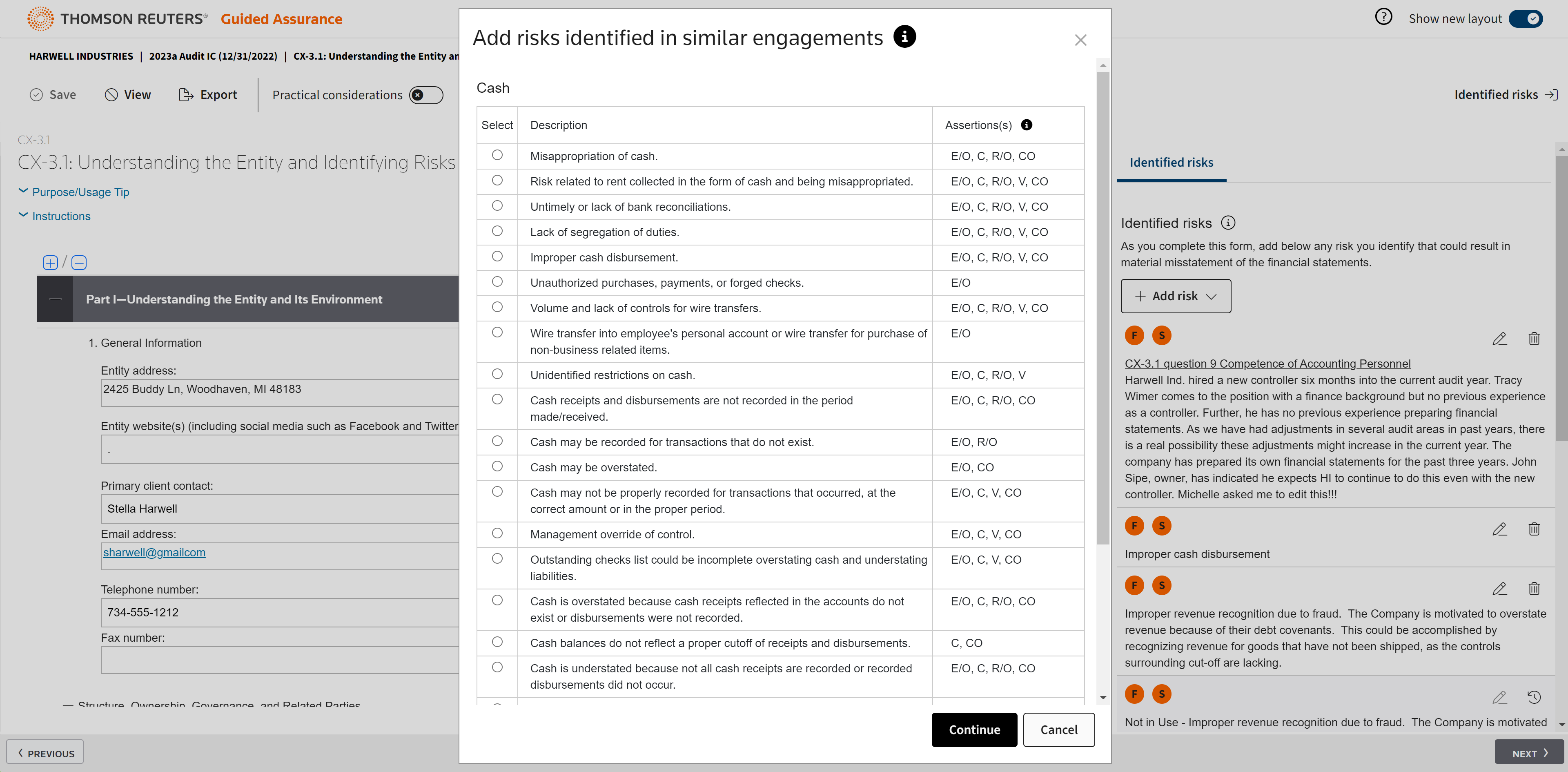
This brings up the risks identified in similar engagements. PPC has aggregated all the engagements of a specific industry, anonymized them, and used AI to organize and identify the data.
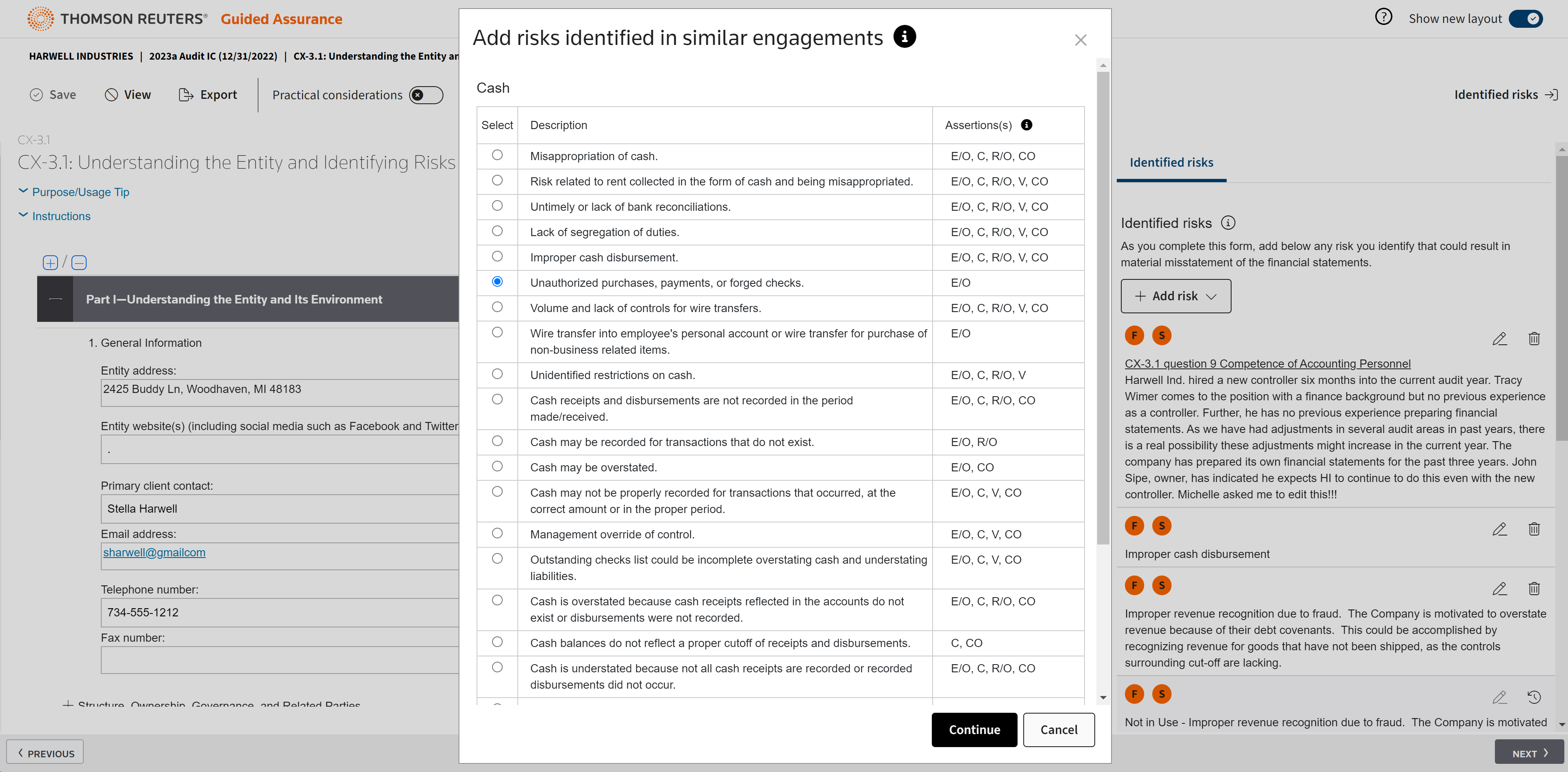
Select one to add it, then Continue.
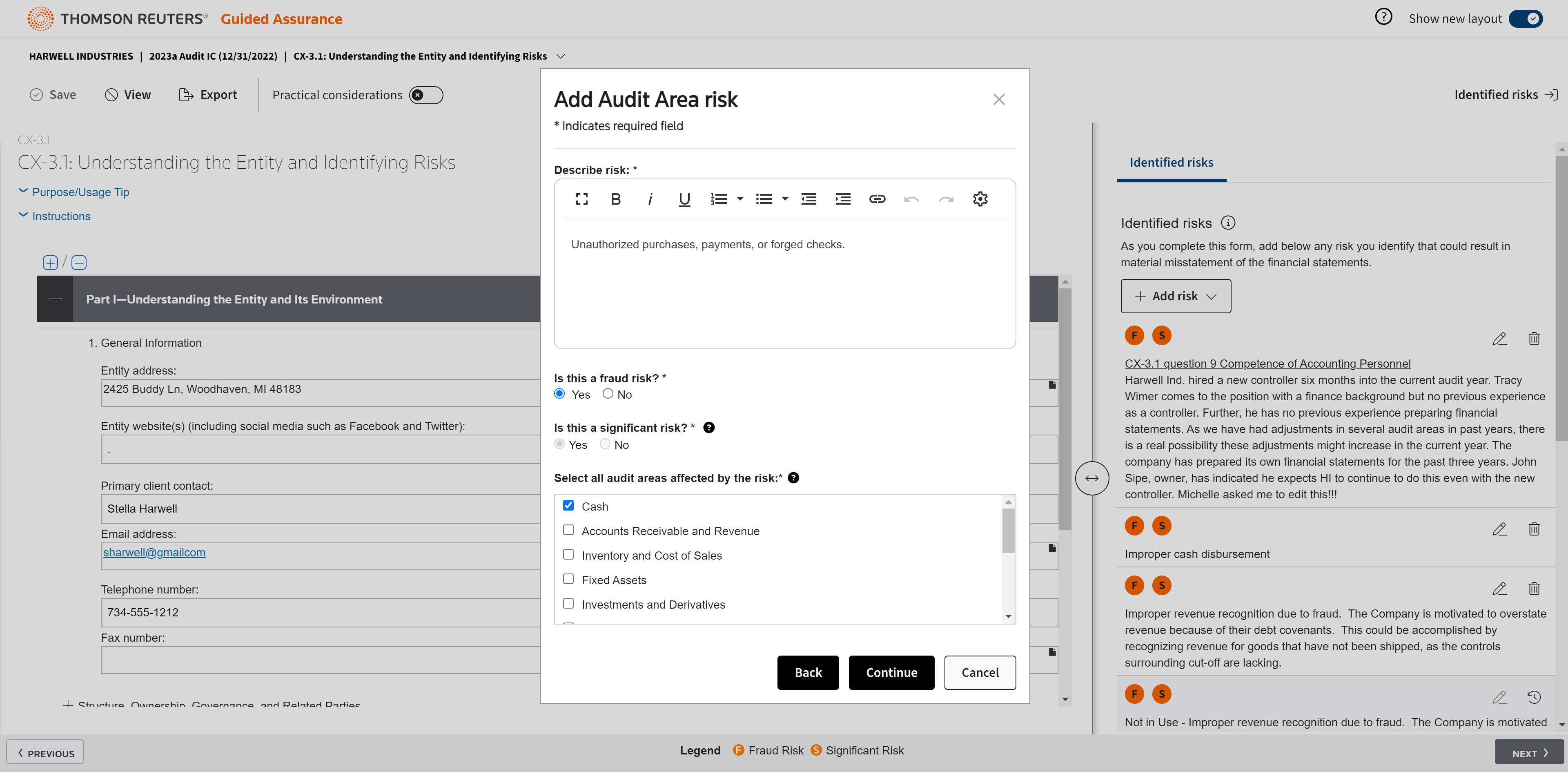
Edit the risk's description, identify whether it's a fraud risk, and select the audit areas affected.
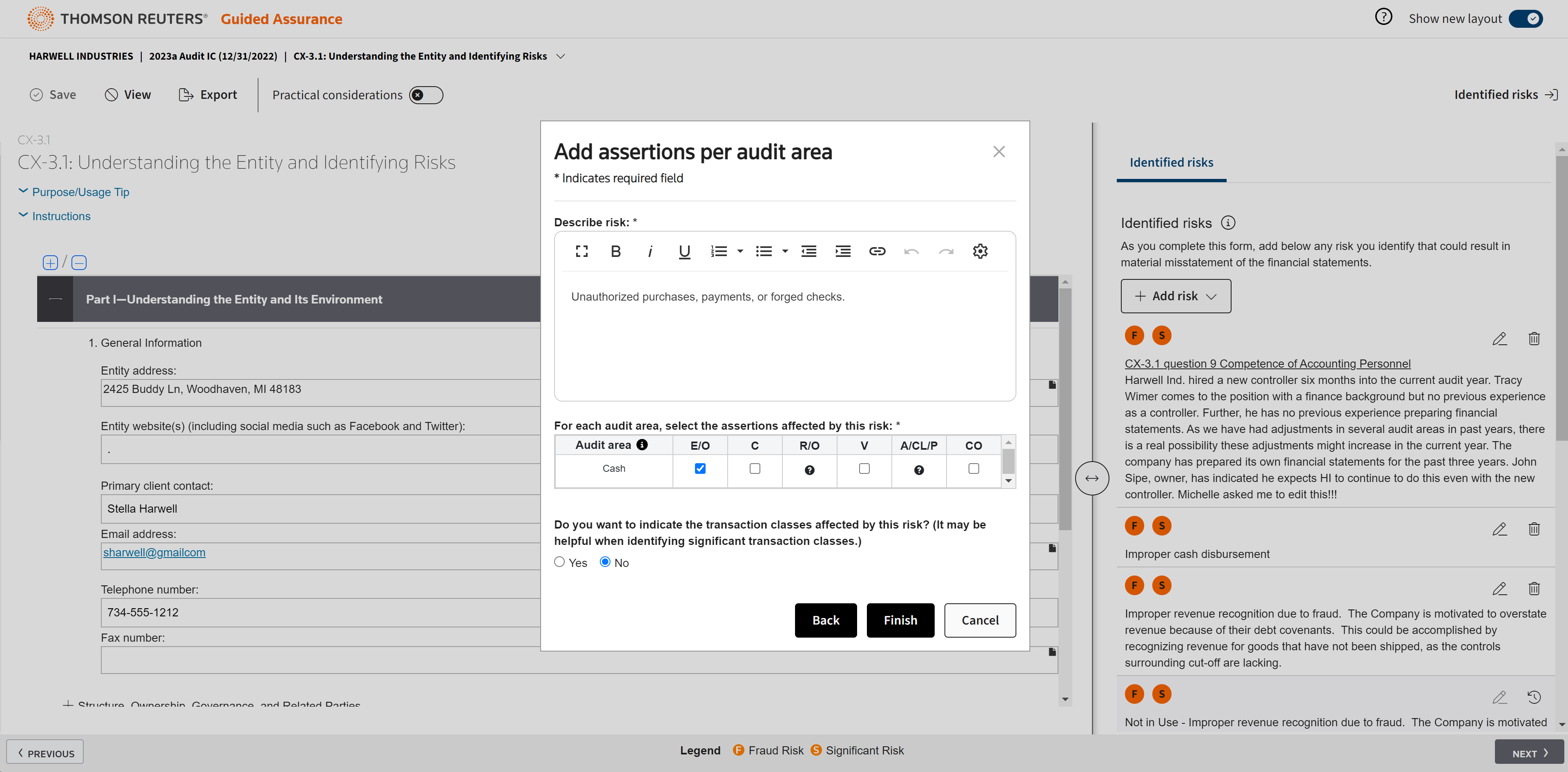
You will select the assertions affected by the risk and whether you want to indicate the transaction classes affected.
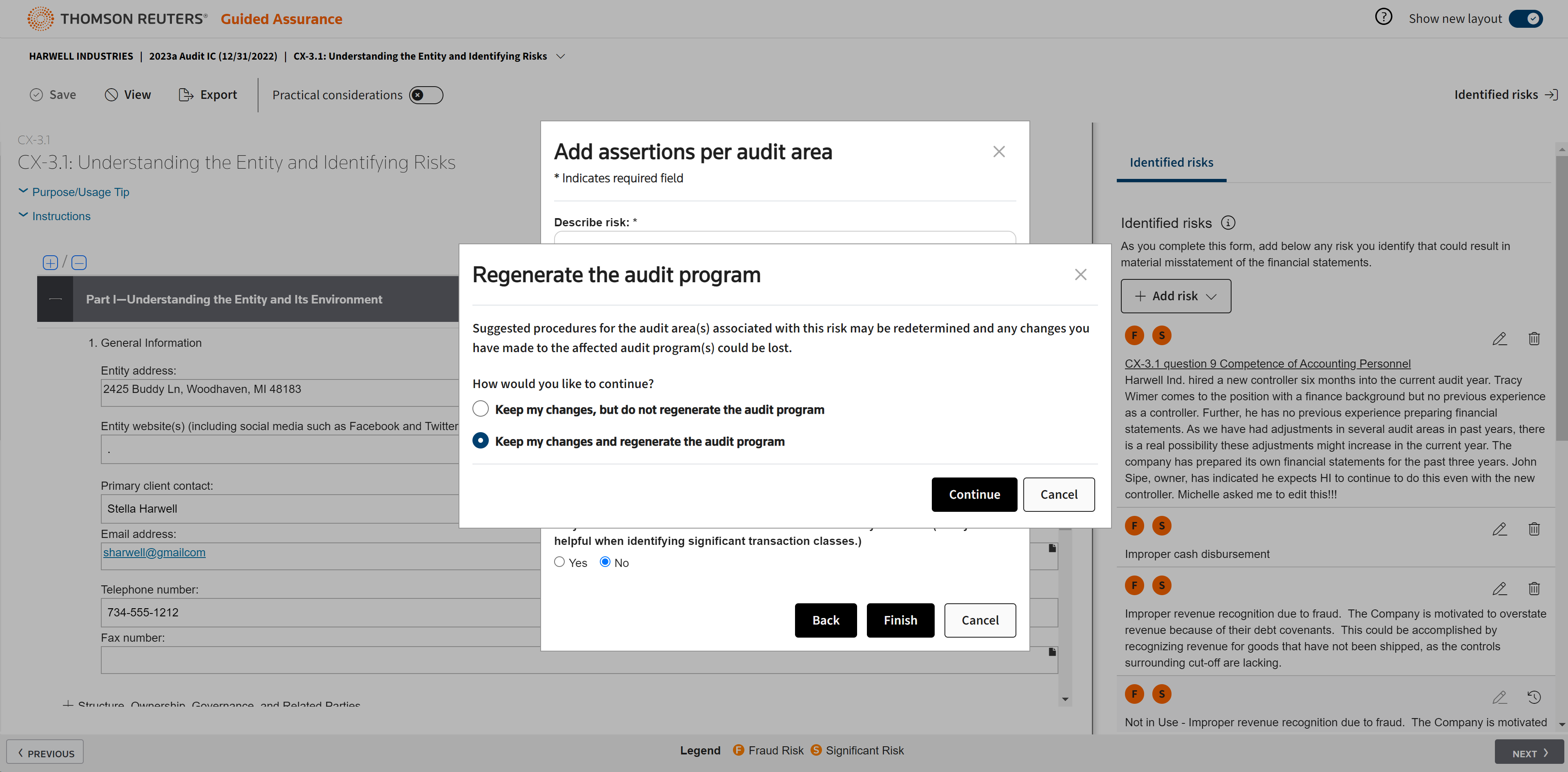
Select Continue to keep your changes and regenerate the program.
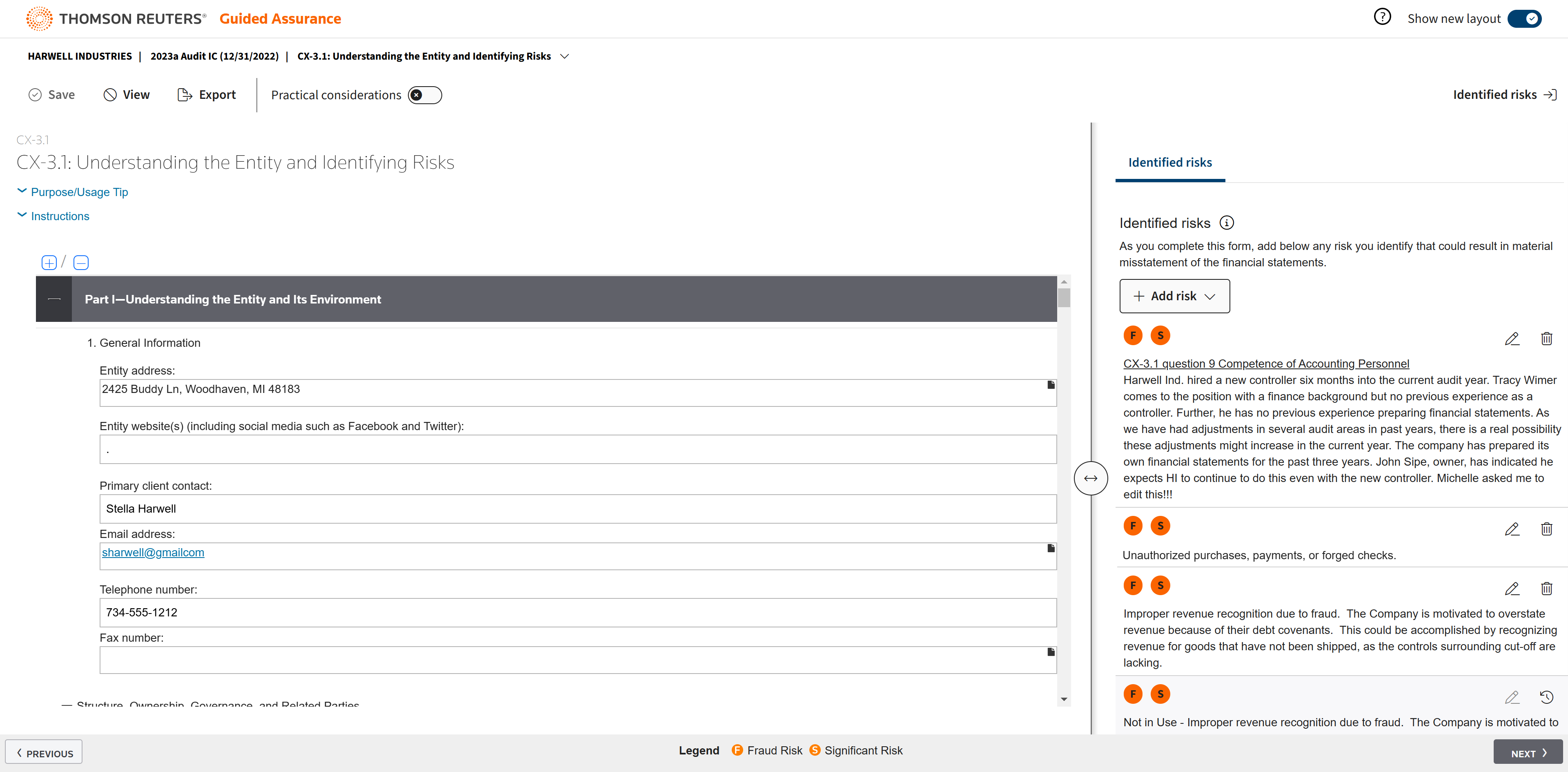
The risk will be added to the program list.
In the next section, you will assess the risk.
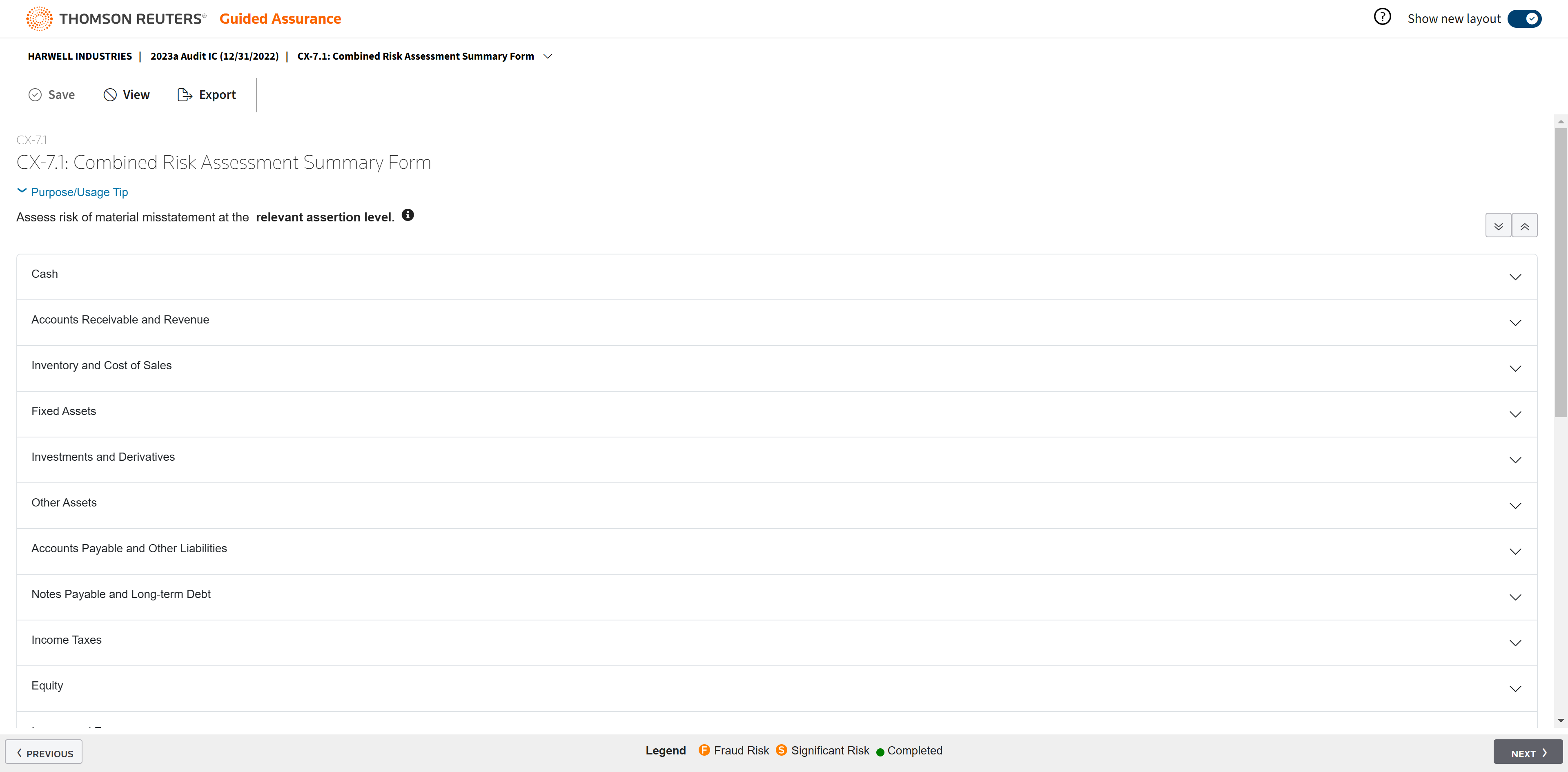
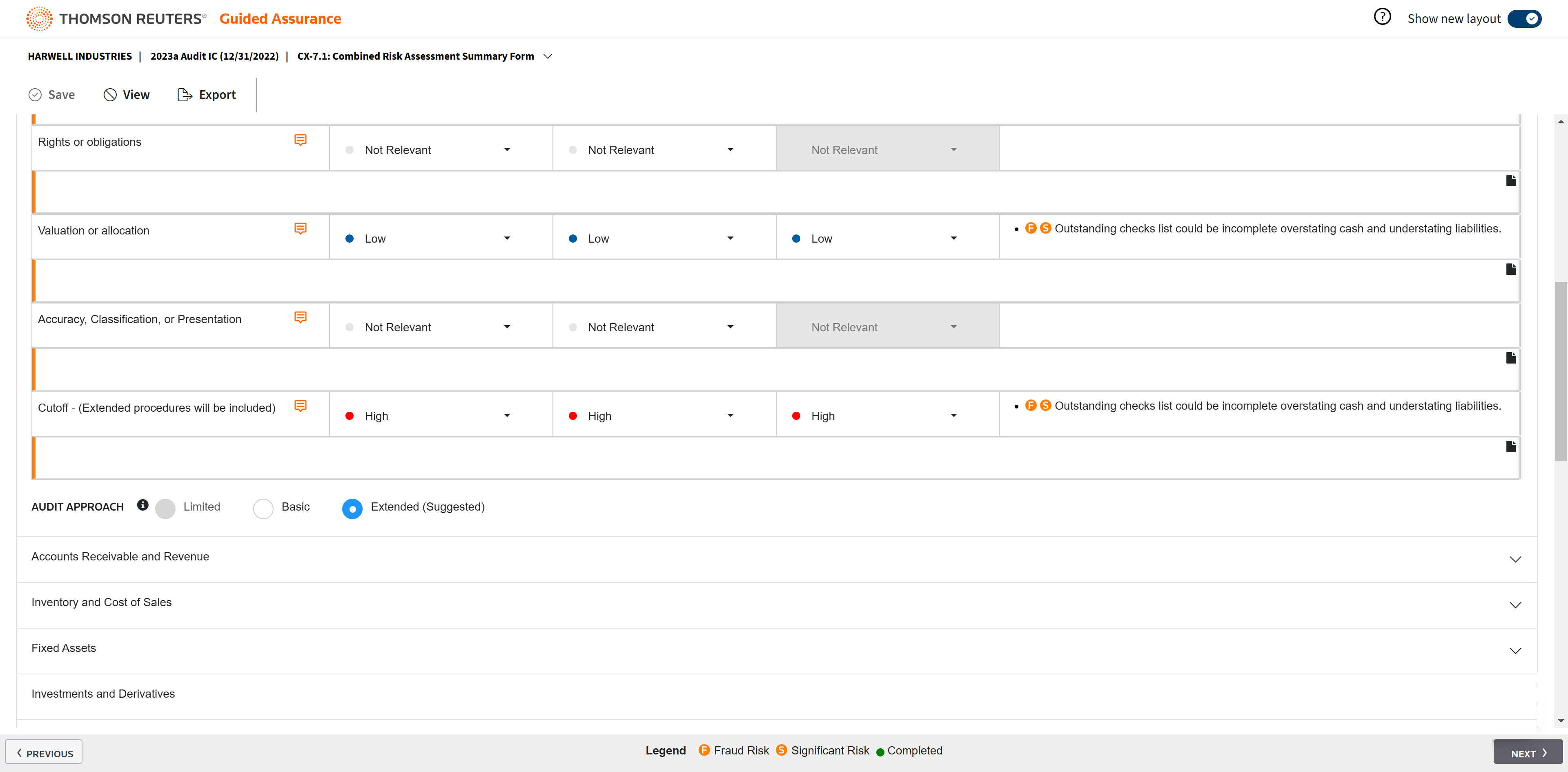
The Combined Risk Assessment Summary Form contains all different risk assessments.
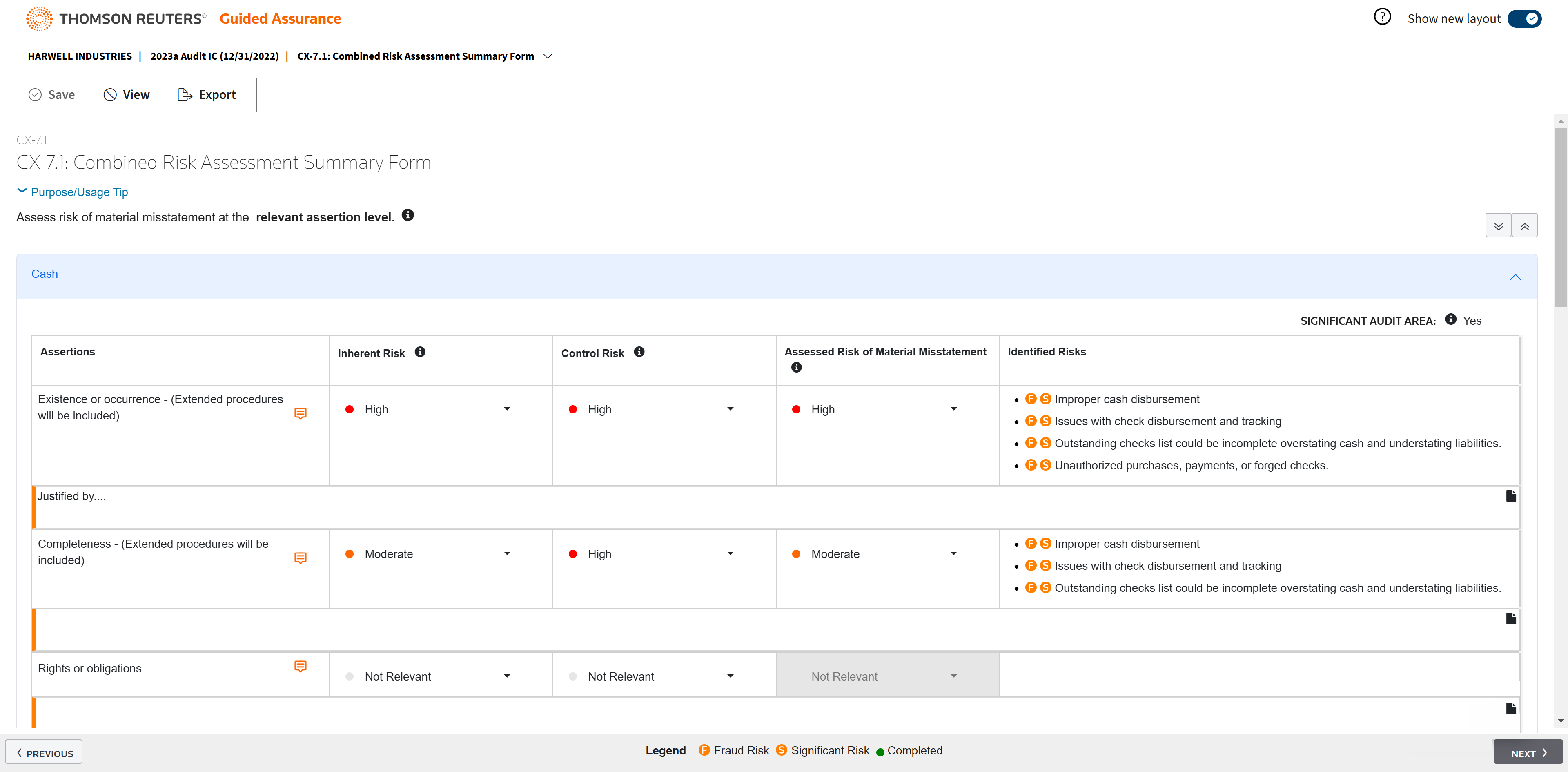
Click to expand Cash.
Assertions are located on the left.
Identified Risks are located on the right.
Guided Assurance will determine whether this is a significant audit area.
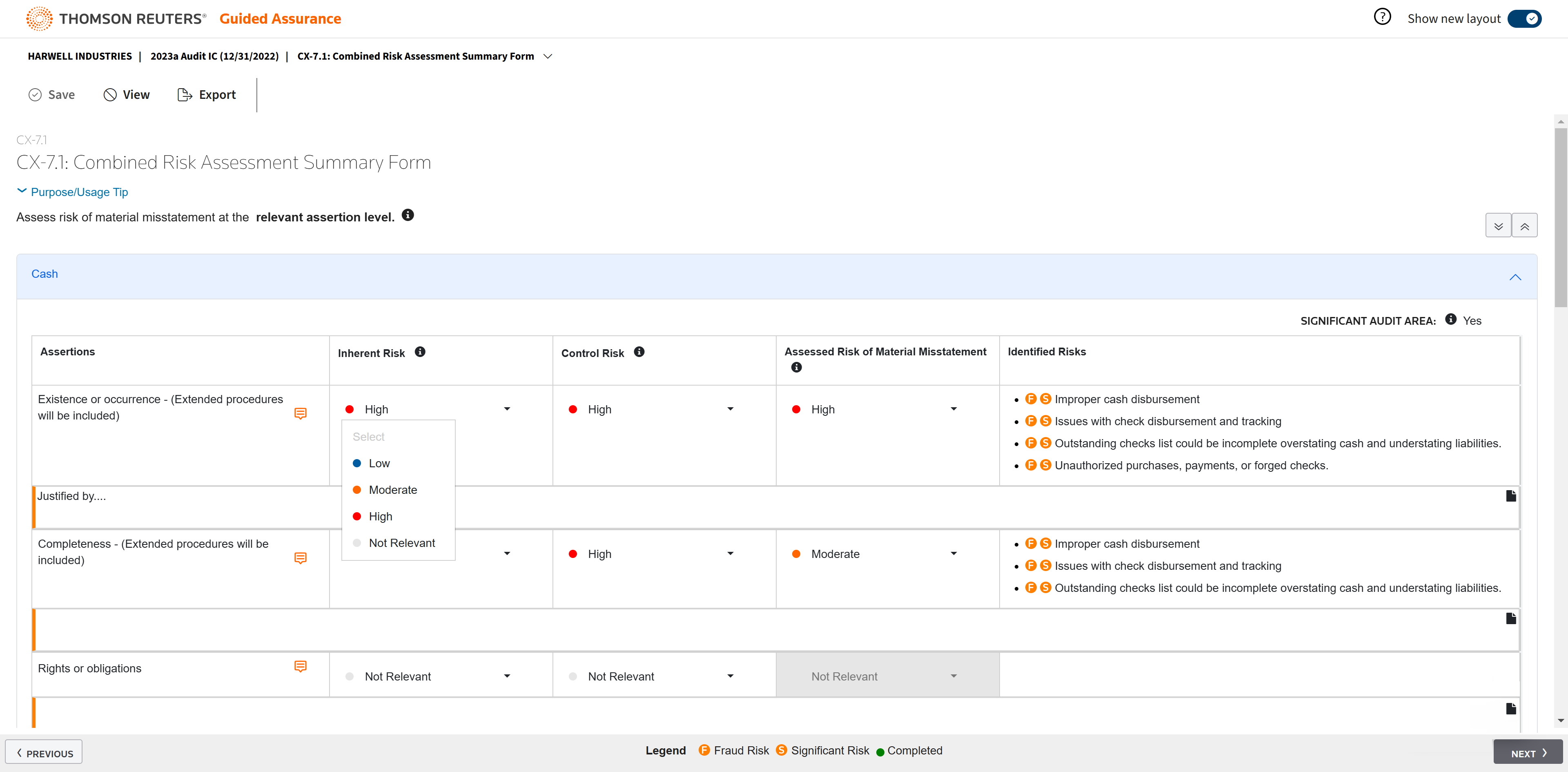
Your staff will give it an Inherent Risk and a Control Risk.
They can choose from multiple options.
PPC will then give it the Assessed Risk of Material Misstatement.
Your staff can edit this if they disagree. PPC will then notify reviewers and peer reviewers if you've changed it from what PPC assessed.
Once you've ranked everything, PPC will suggest an audit approach, either Limited, Basic, or Extended.
Once you've finished going through all the audit areas, you'll move on to Design Audit Programs.
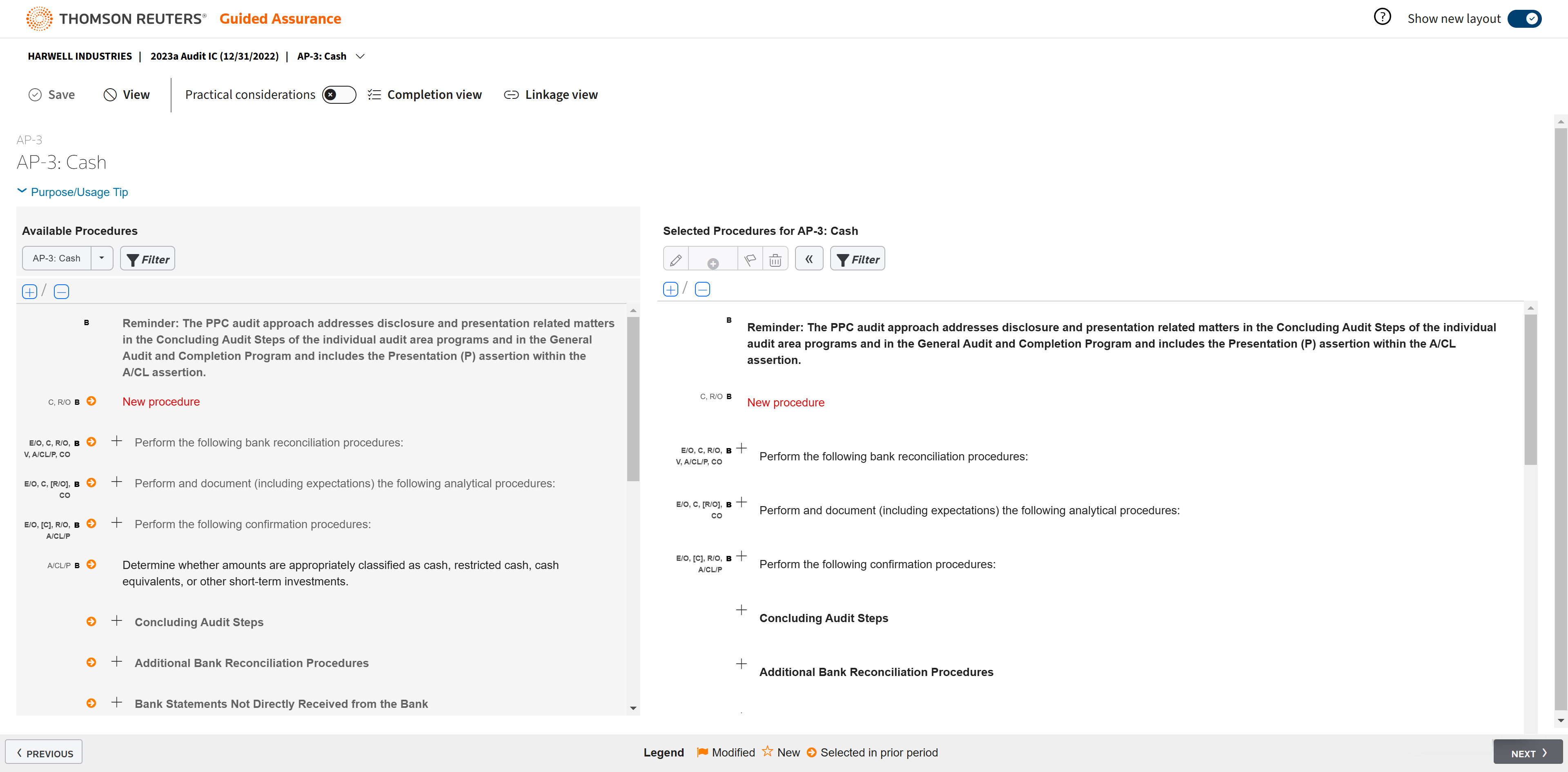
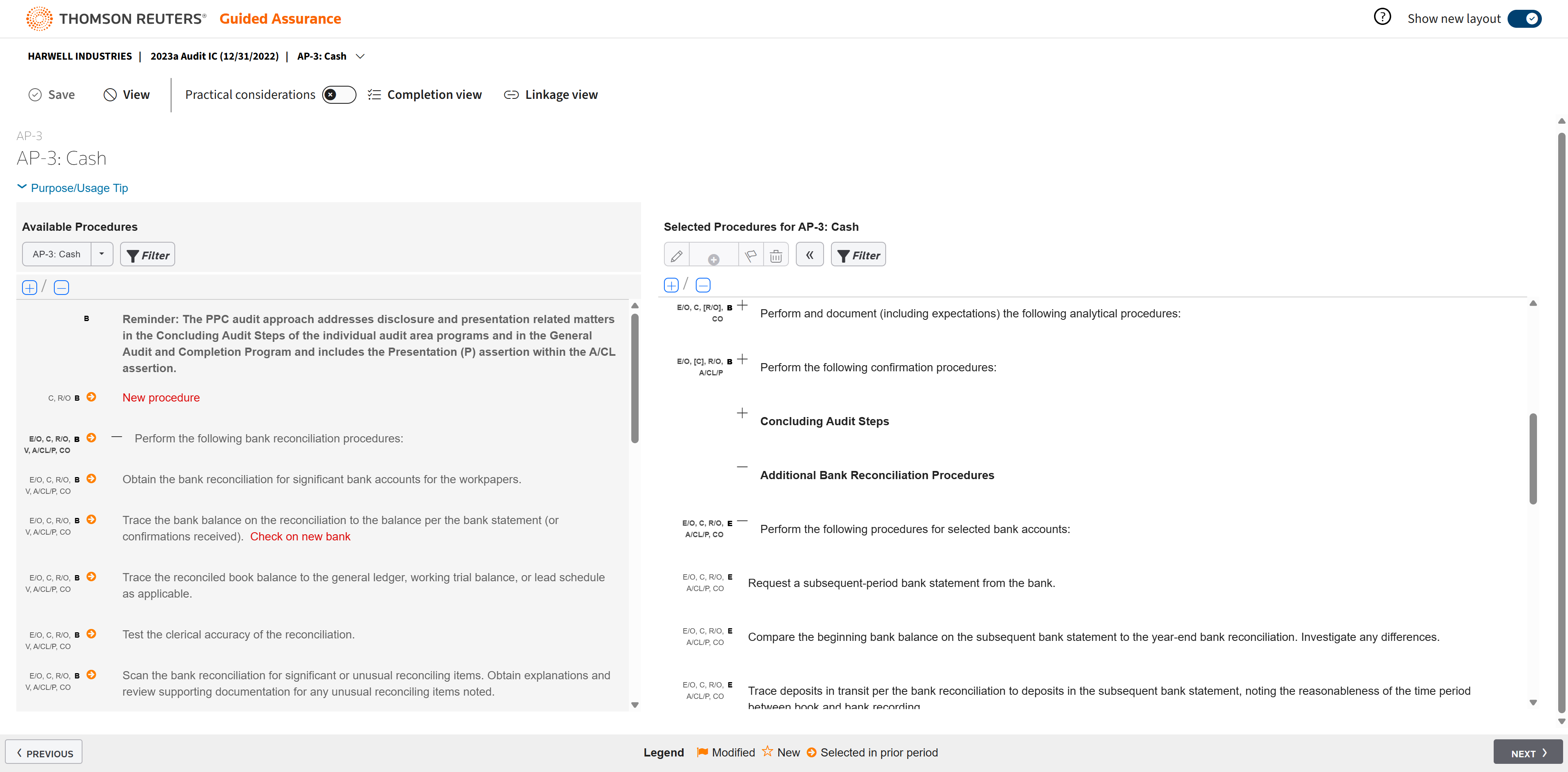
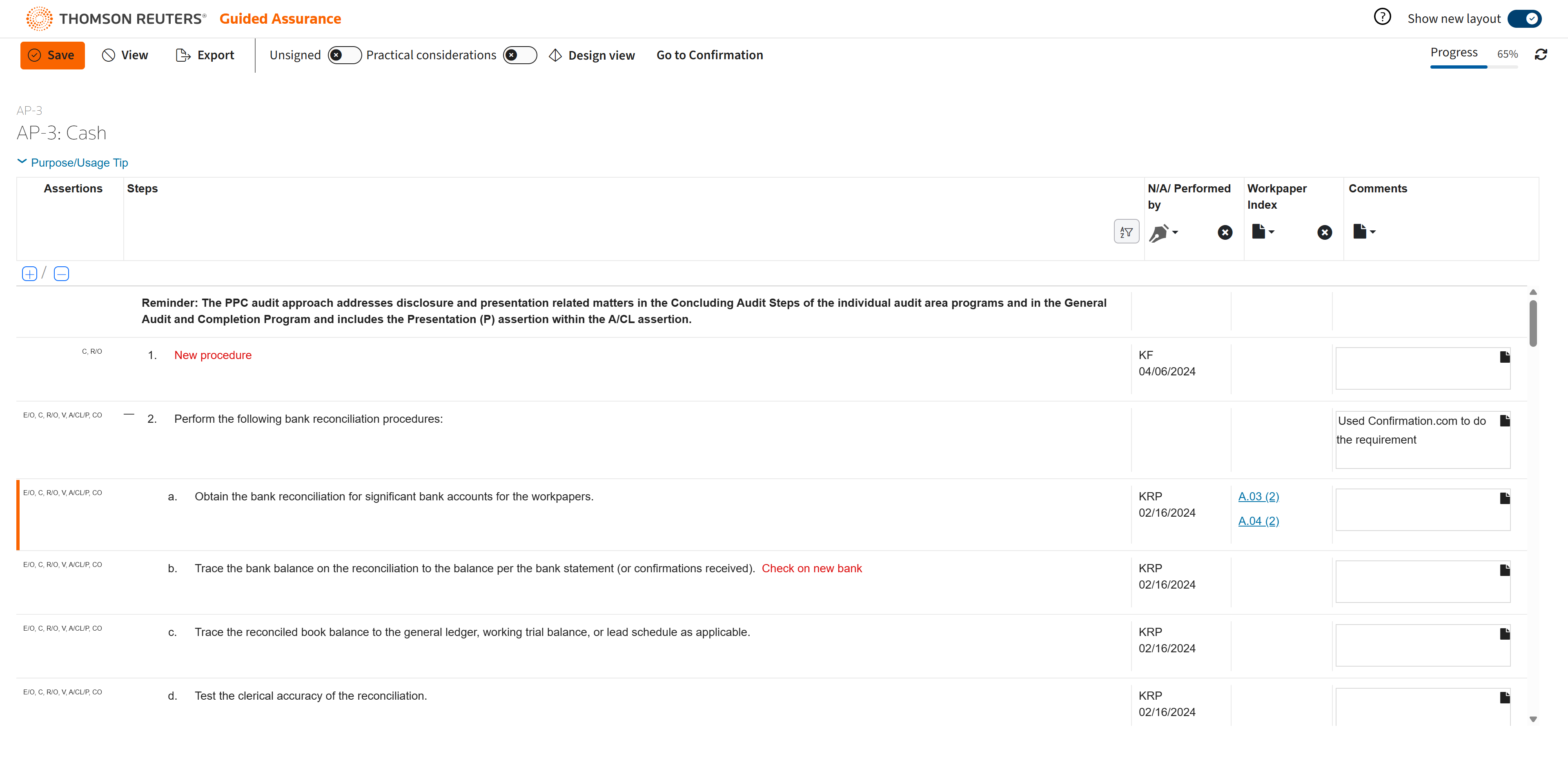
On this page, you will design what you want your staff to do in this particular audit area.
In the design view, all the Available Procedures are listed on the left.
And all the Selected Procedures are listed on the right.
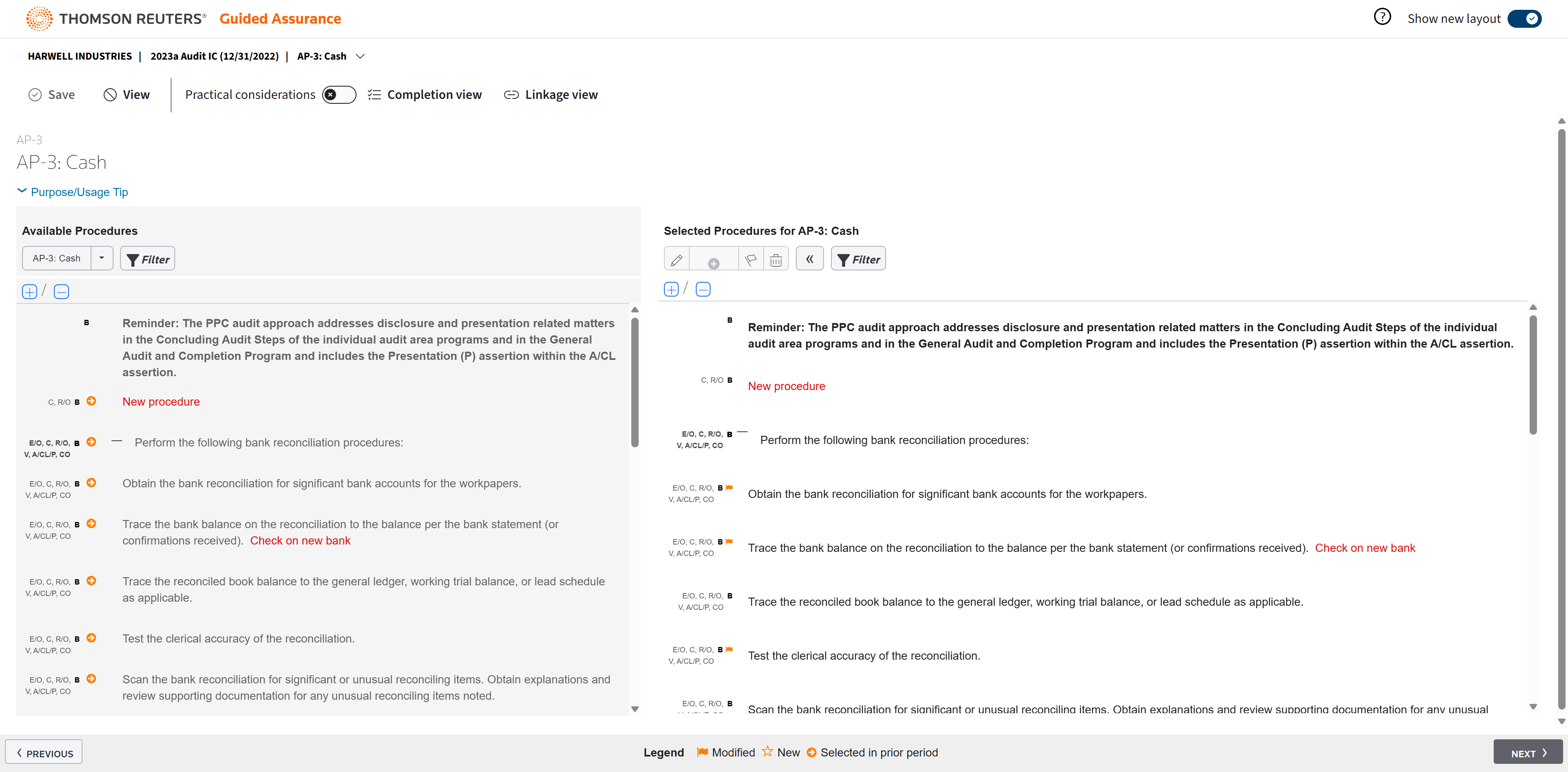
At the bottom of the document is a legend. Many of the procedures in this example were selected in a prior period and rolled forward.
You can edit a procedure or add new ones.
Edits display in red.
So do additions.
Basic procedures are listed as B.
Extended procedures are listed as E.
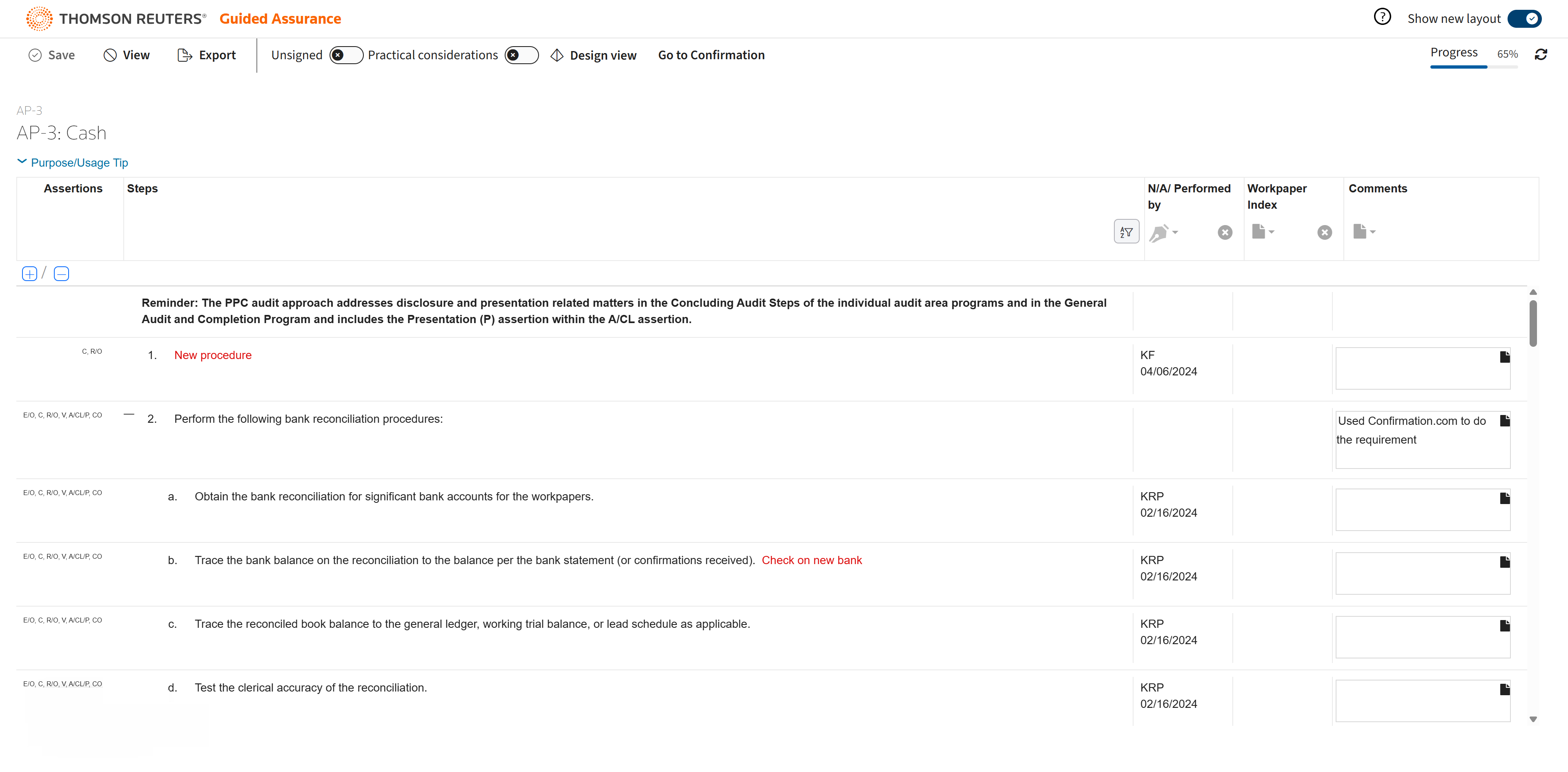
When done editing the procedures, you will go to the Completion View.
This is where your staff begins their work.
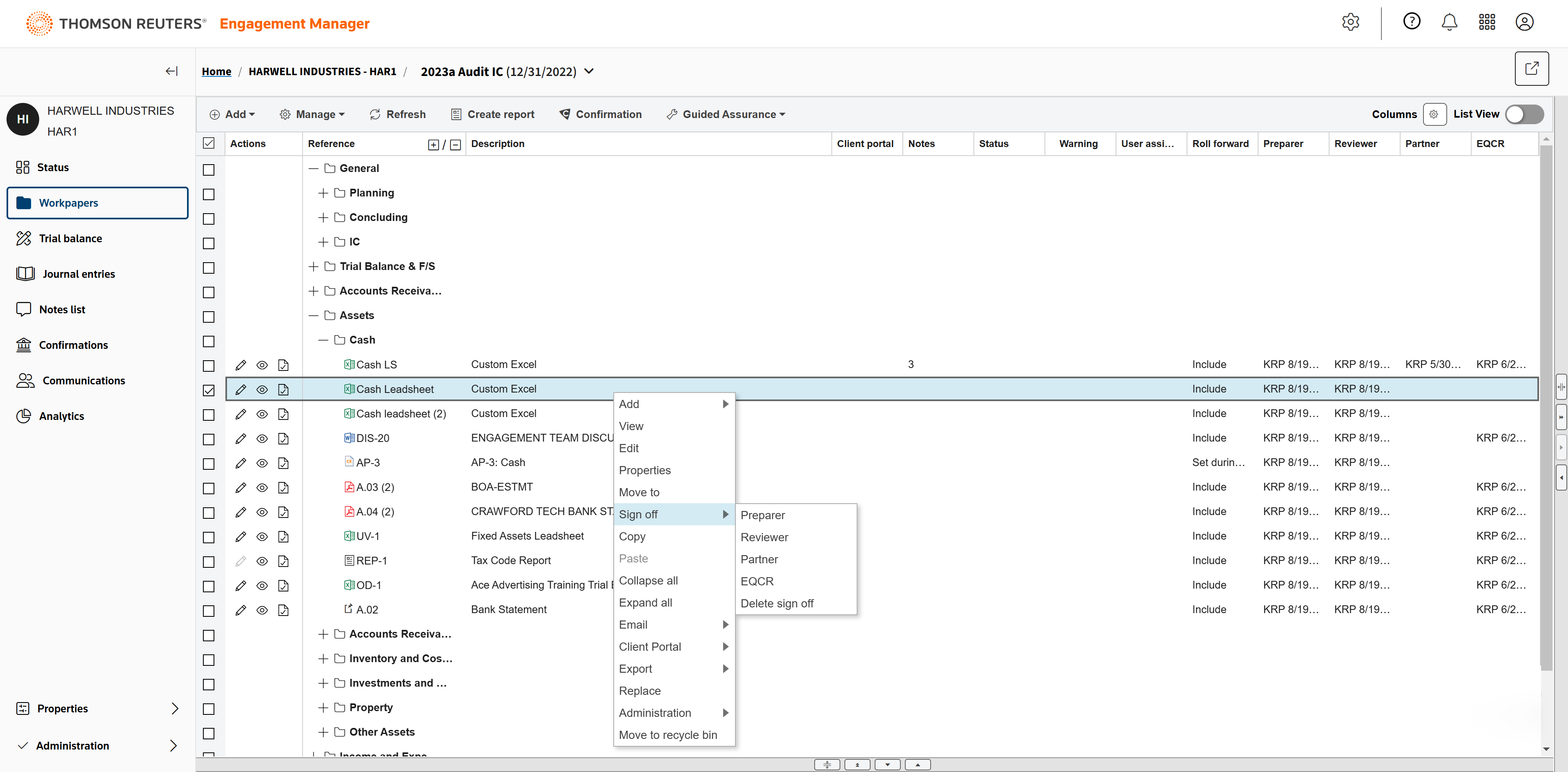
You can sign off on one or multiple steps at a time.
Auditors track progress on the engagement at the top of the page.
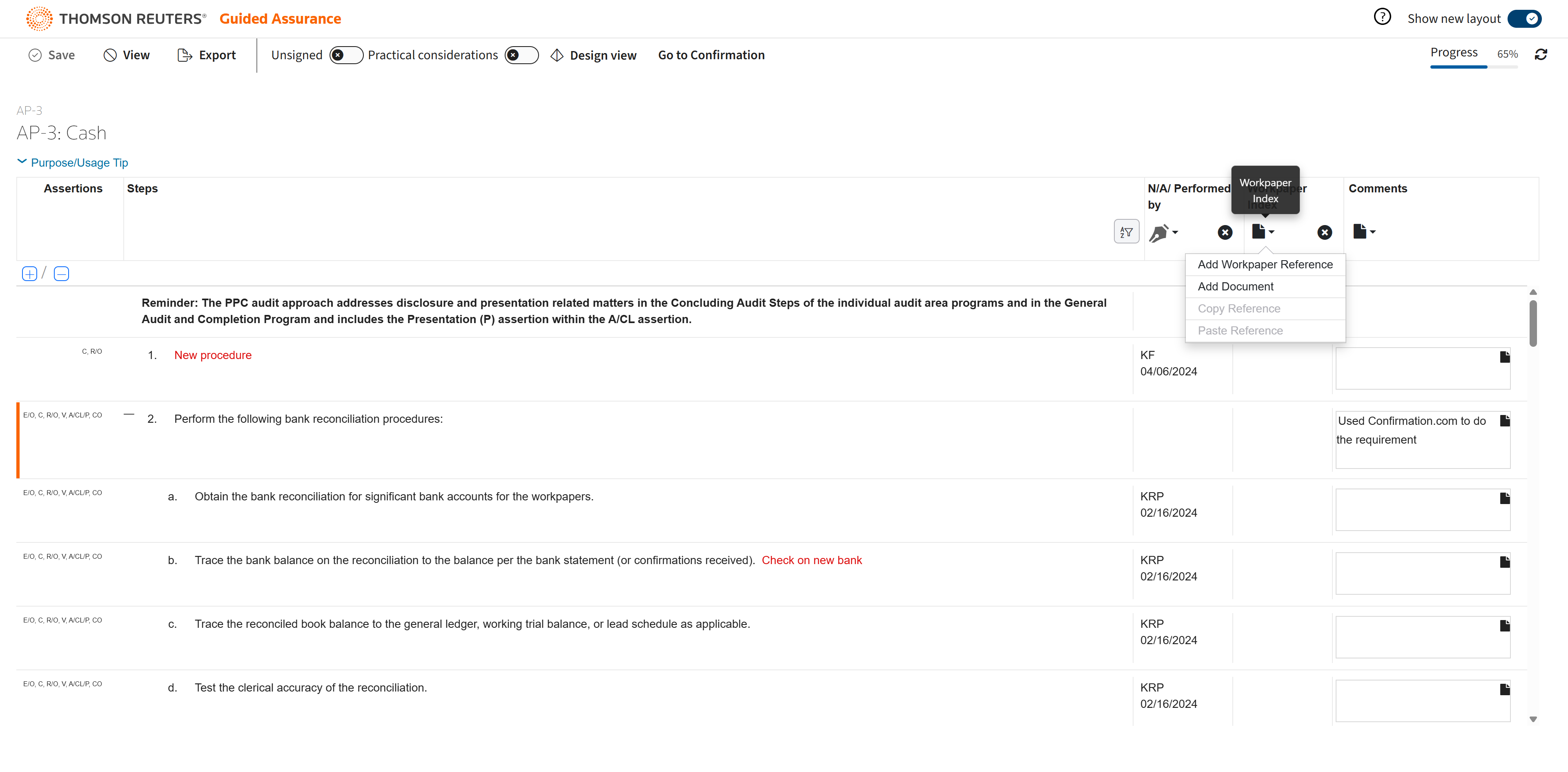
Click to add a workpaper reference.
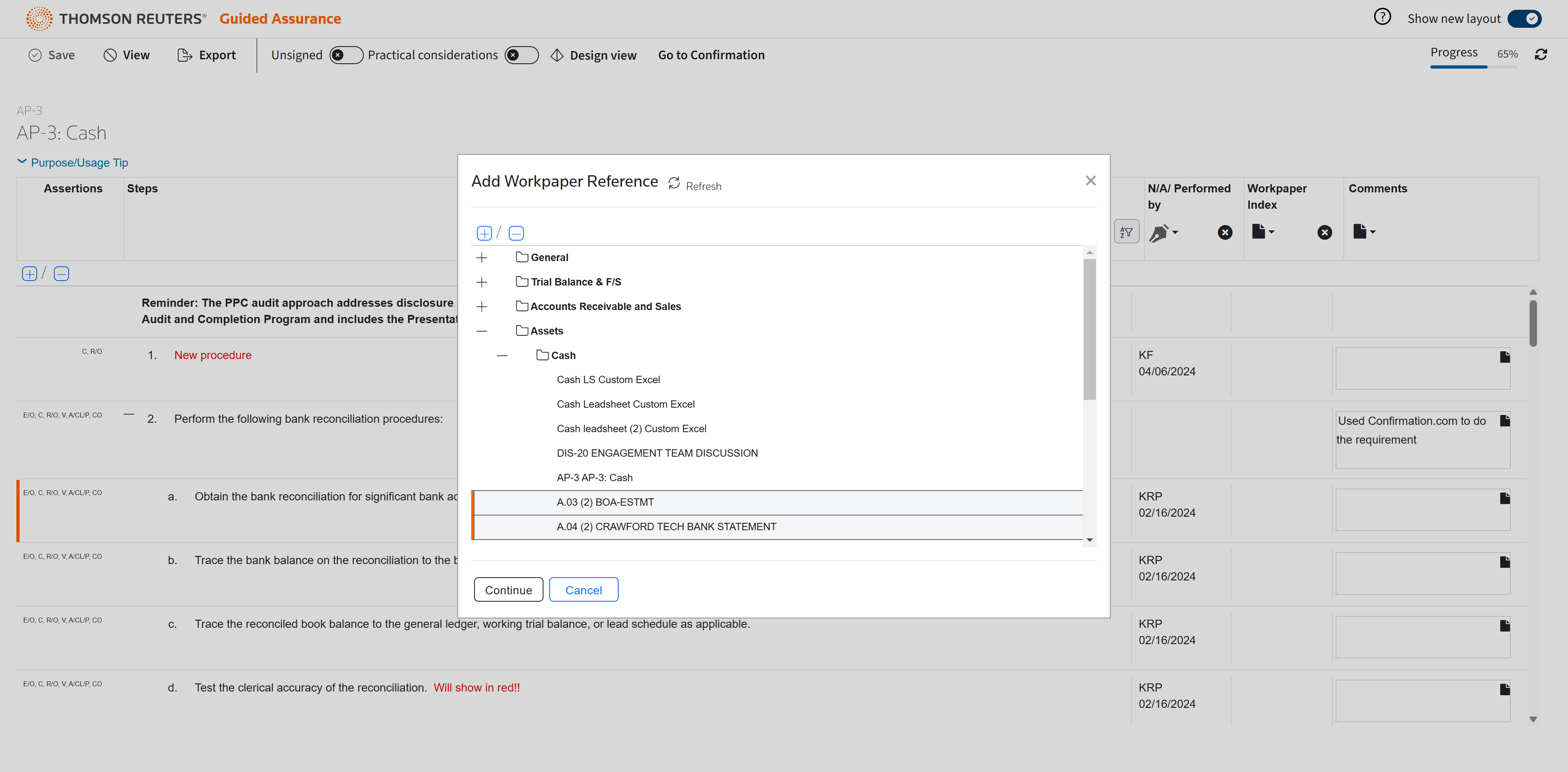
Select the workpaper references you'd like to add: in this case BOA and Crawford Bank. Anything in the binder can be a workpaper reference.
The workpaper references have been added and will remain here year to year. These are the most recent versions of the documents.
You can add comments with a high level of detail — as many words as you need.
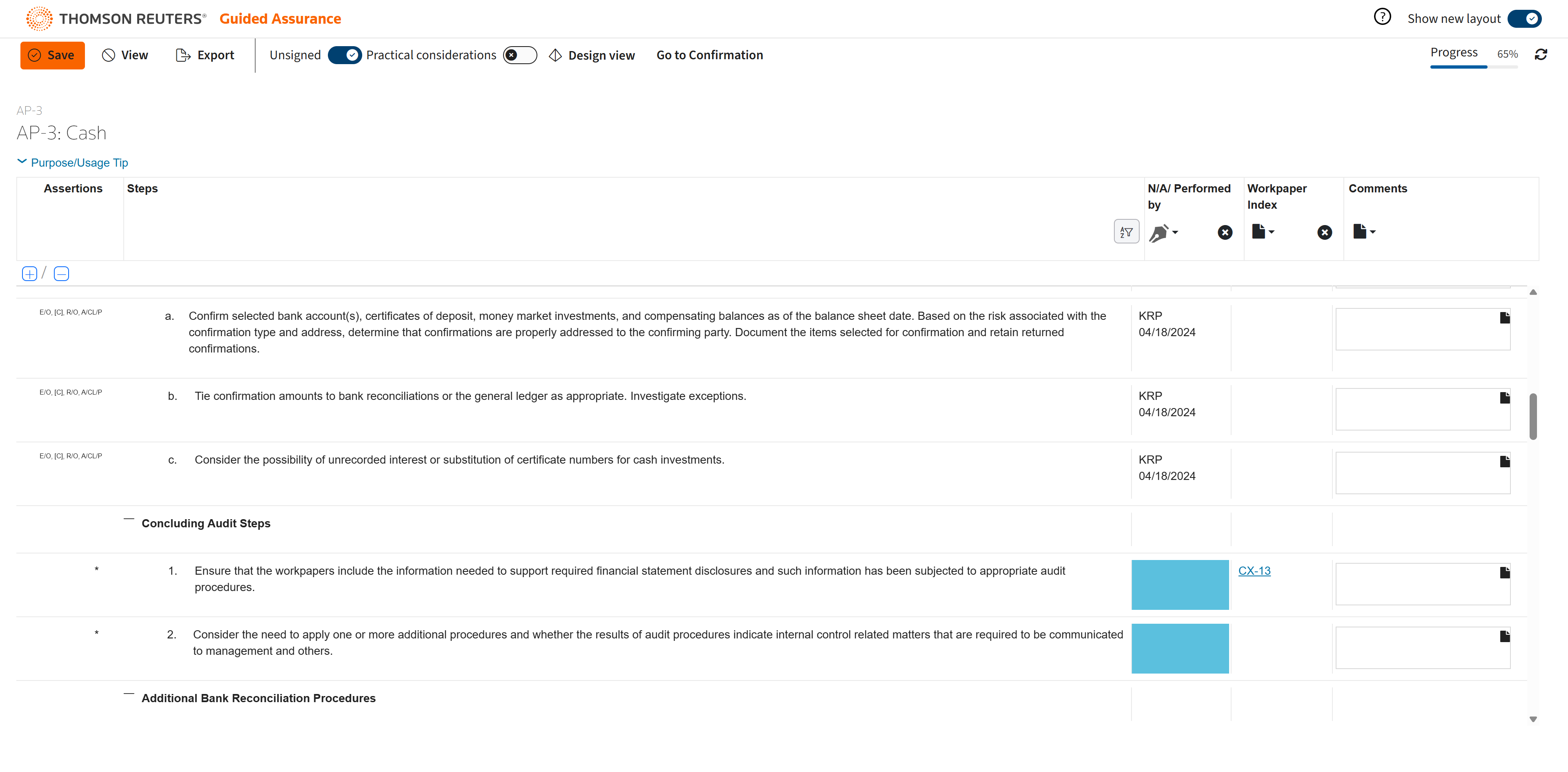
When you're nearly complete and need to see what procedures are left unsigned, click Unsigned.
All unsigned procedures will be highlighted.
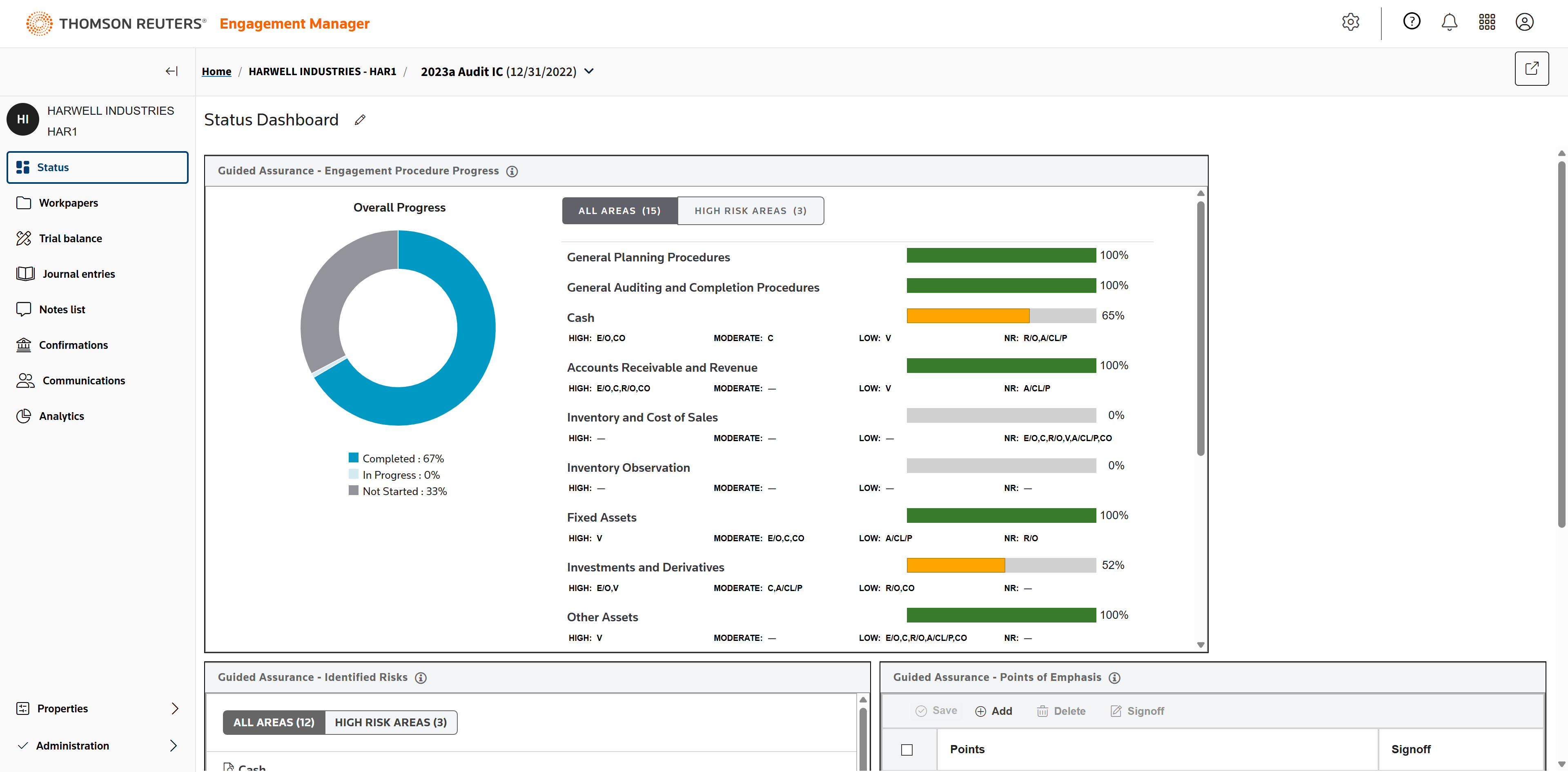
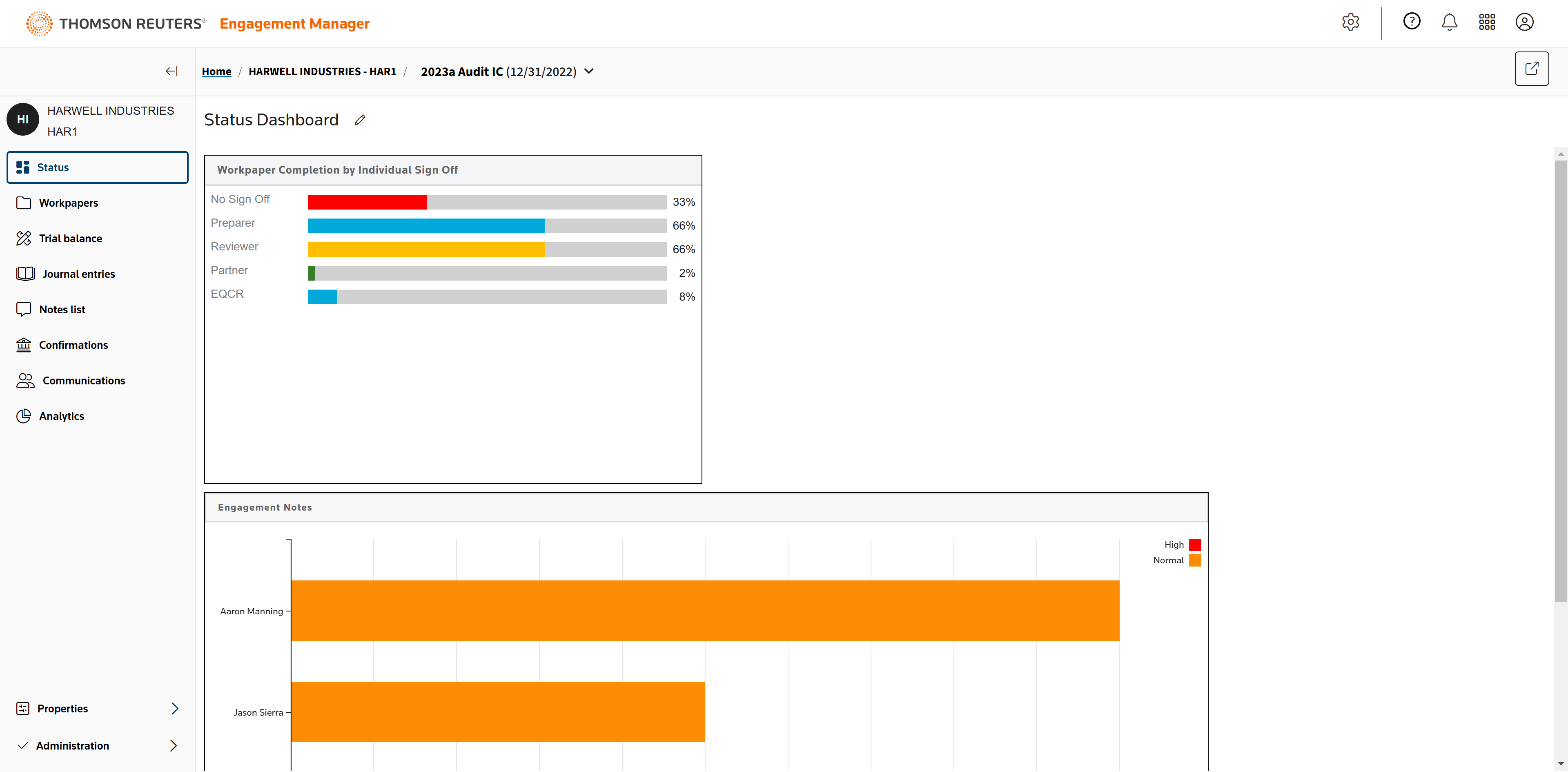
As auditors work, managers can use the Status Dashboard to check on the overall progress of an engagement.
They can also check progress of the engagement, and progress of all engagements, from the Engagement dashboard.
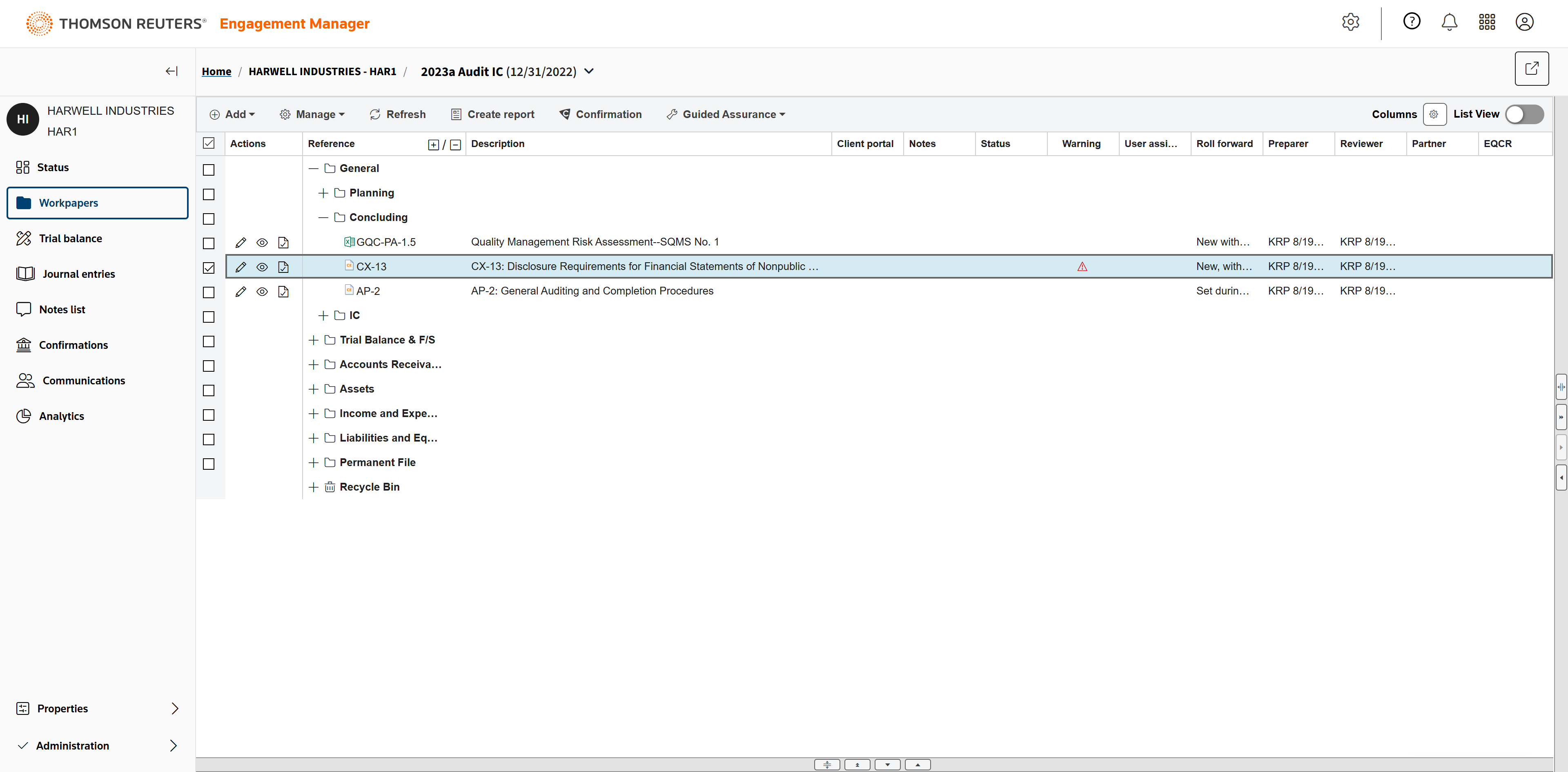
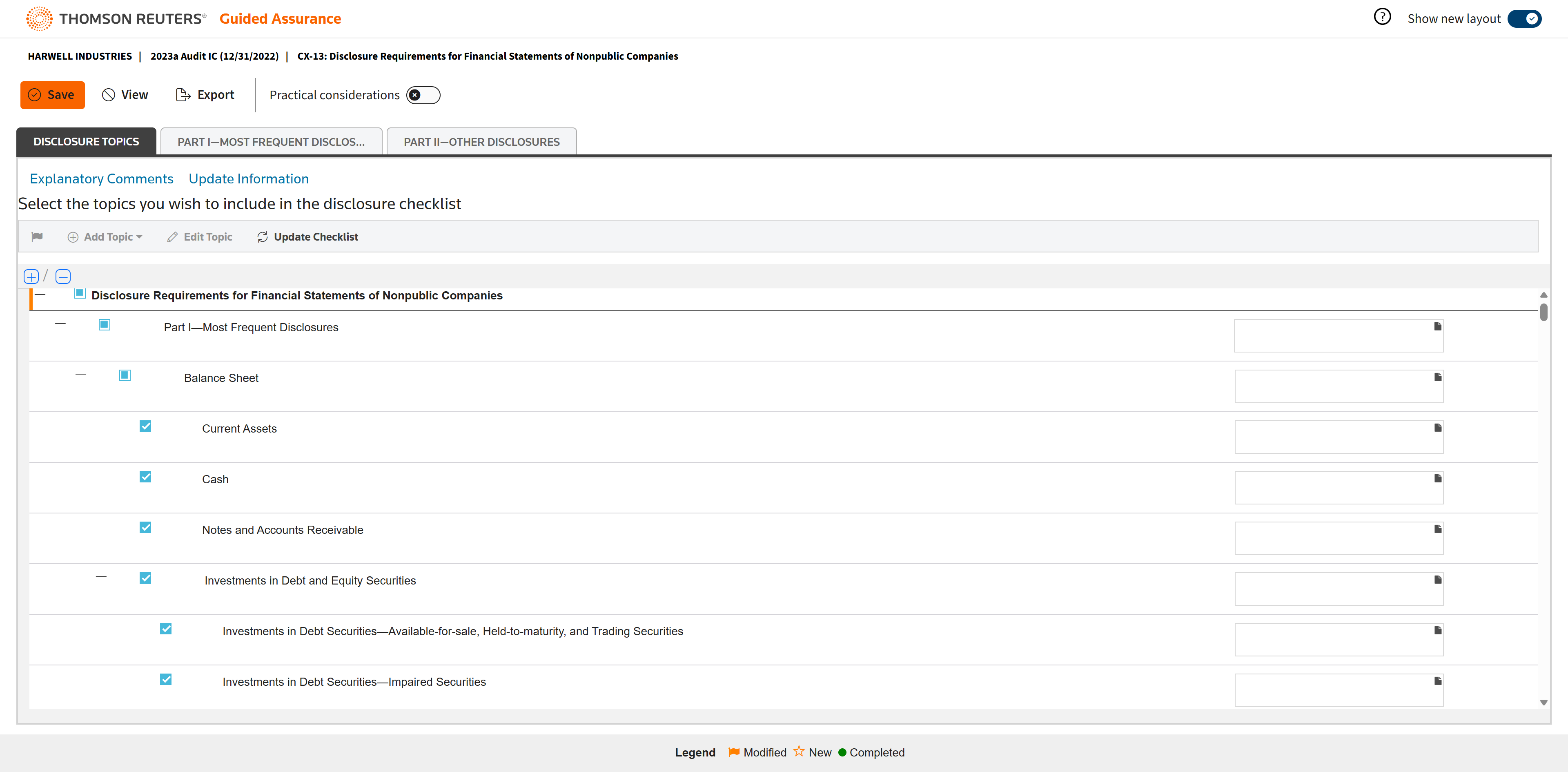
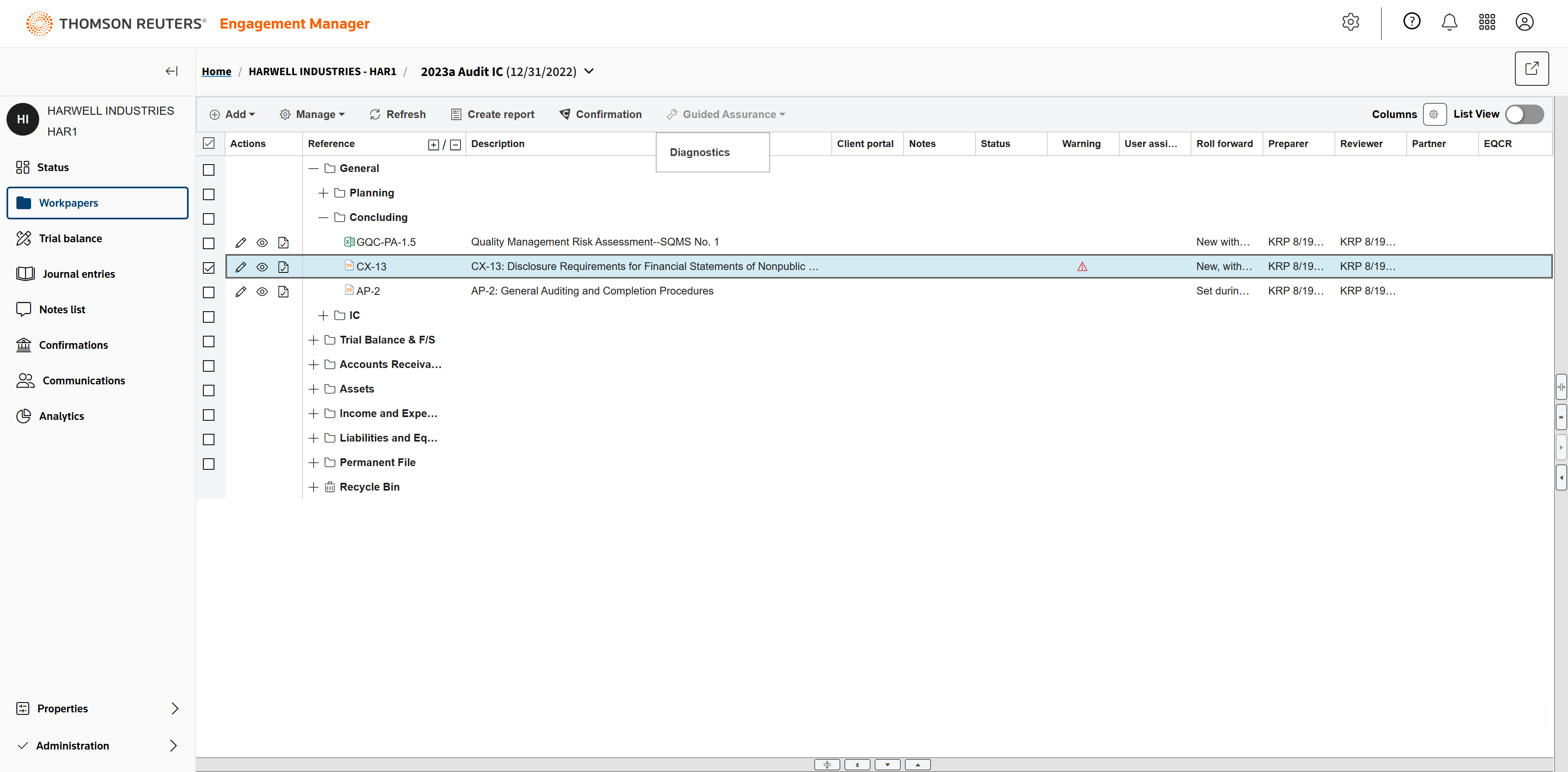
Back in Workpapers, open the Disclosure Requirements checklist.
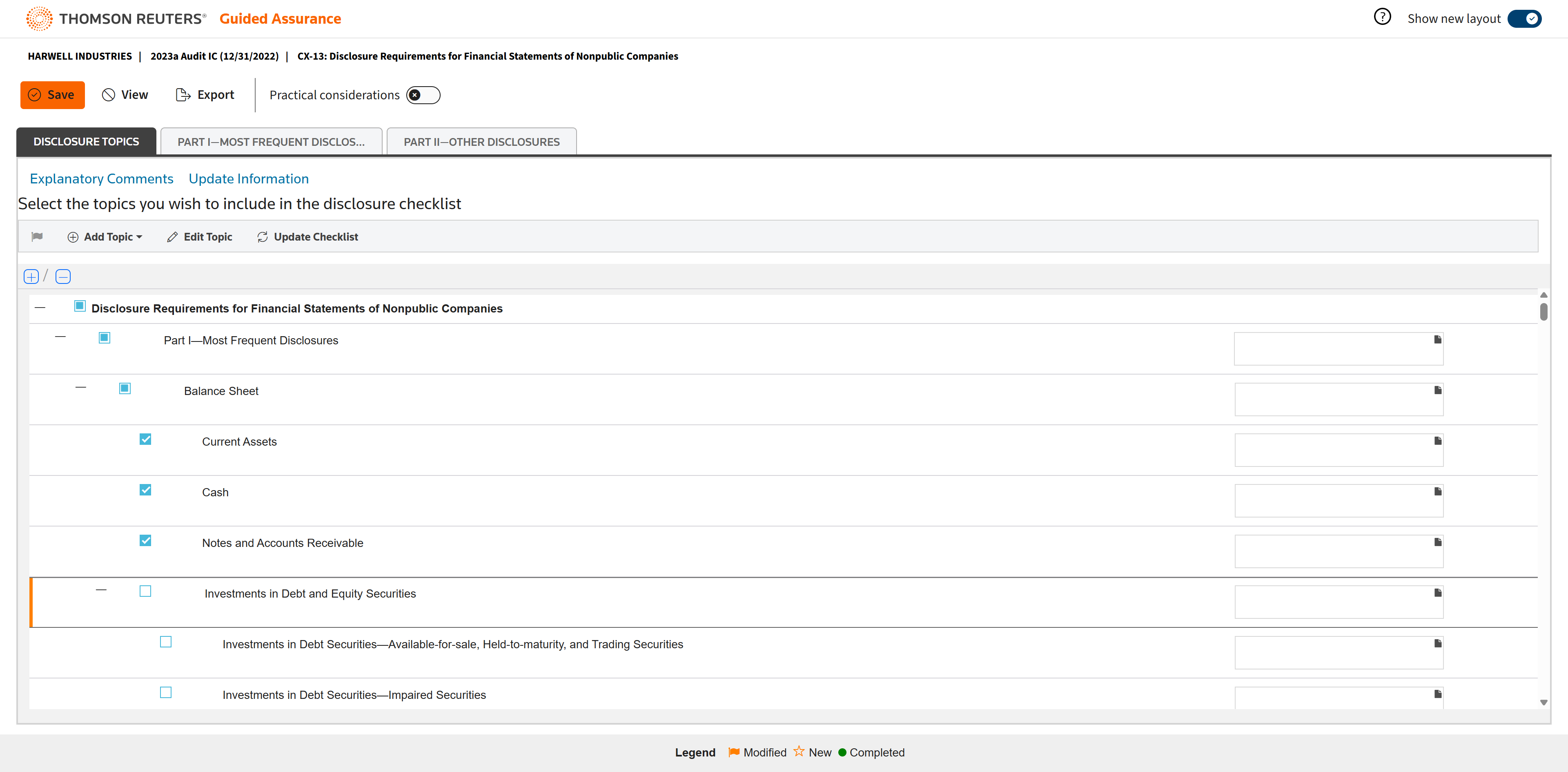
In the disclosure checklist, your staff can uncheck anything that doesn't apply to this particular engagement.
Instead of the checklist being 130 or more pages, you can reduce it to 40 to 50. Optionally, your choices can roll forward from year to year.
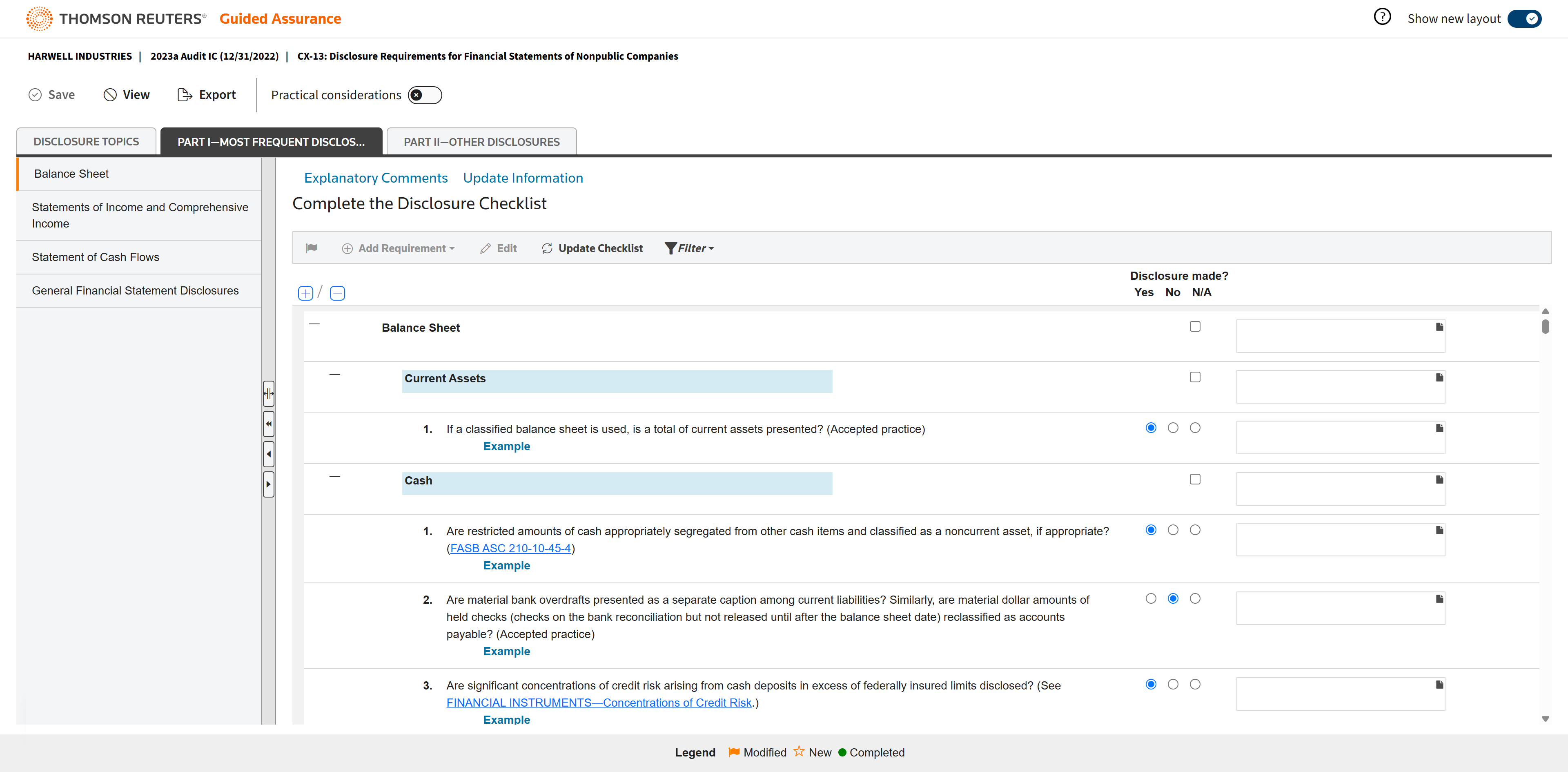
Once you've finished the disclosure checklist, you'll move to the Most Frequent Disclosures.
Guided Assurance provides examples under each disclosure for the main three audits (nonpublic, non-profit, and governmental) so you don't have to find them.
Click to download an example.
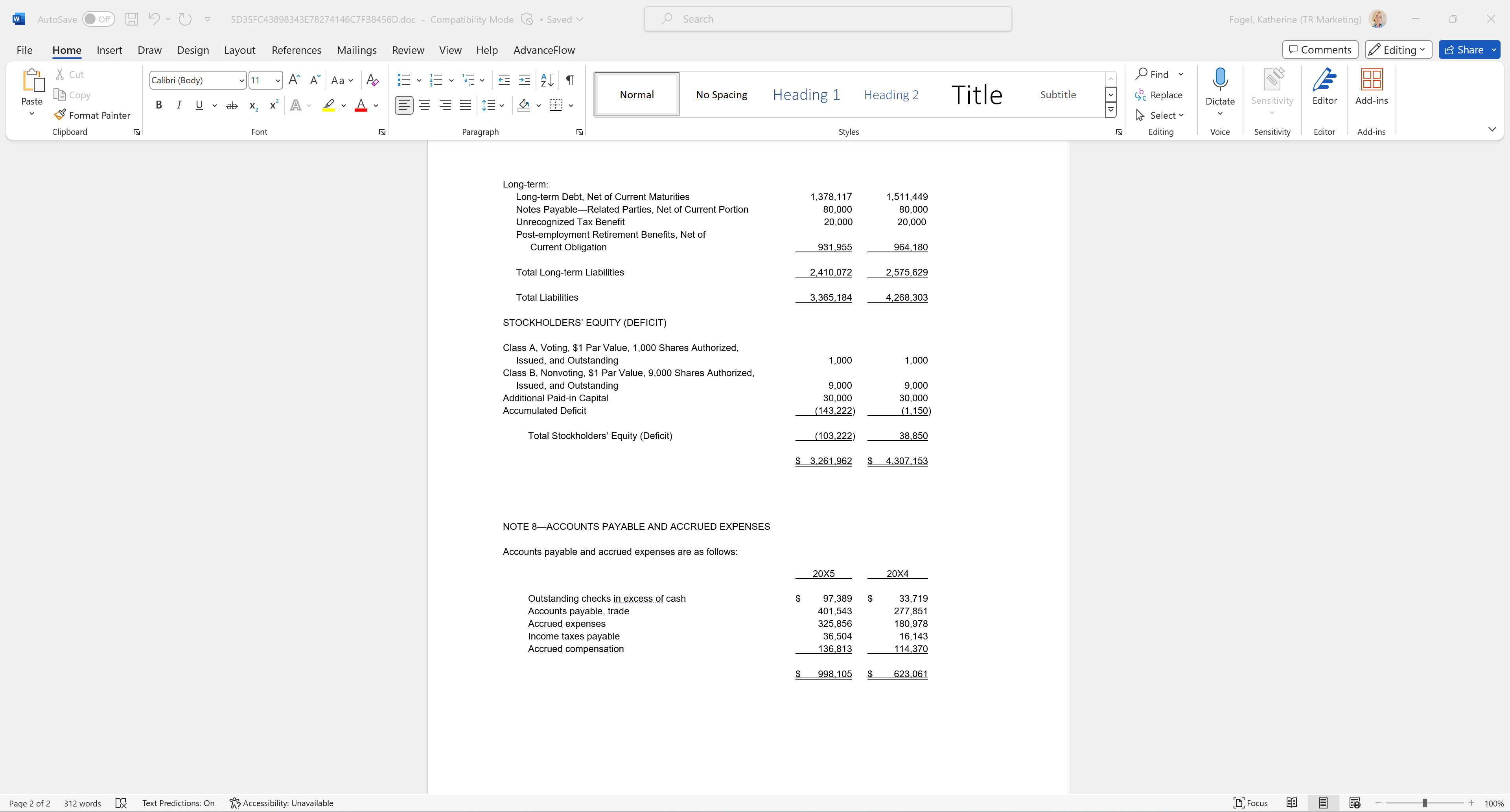
The example will download in a Word document. From here you can copy and paste the one you want to use into the footnotes for your financials. This process can save up to an hour on an engagement.
The information in this document links directly to Engagement Manager. Every year the dates and numbers will update.
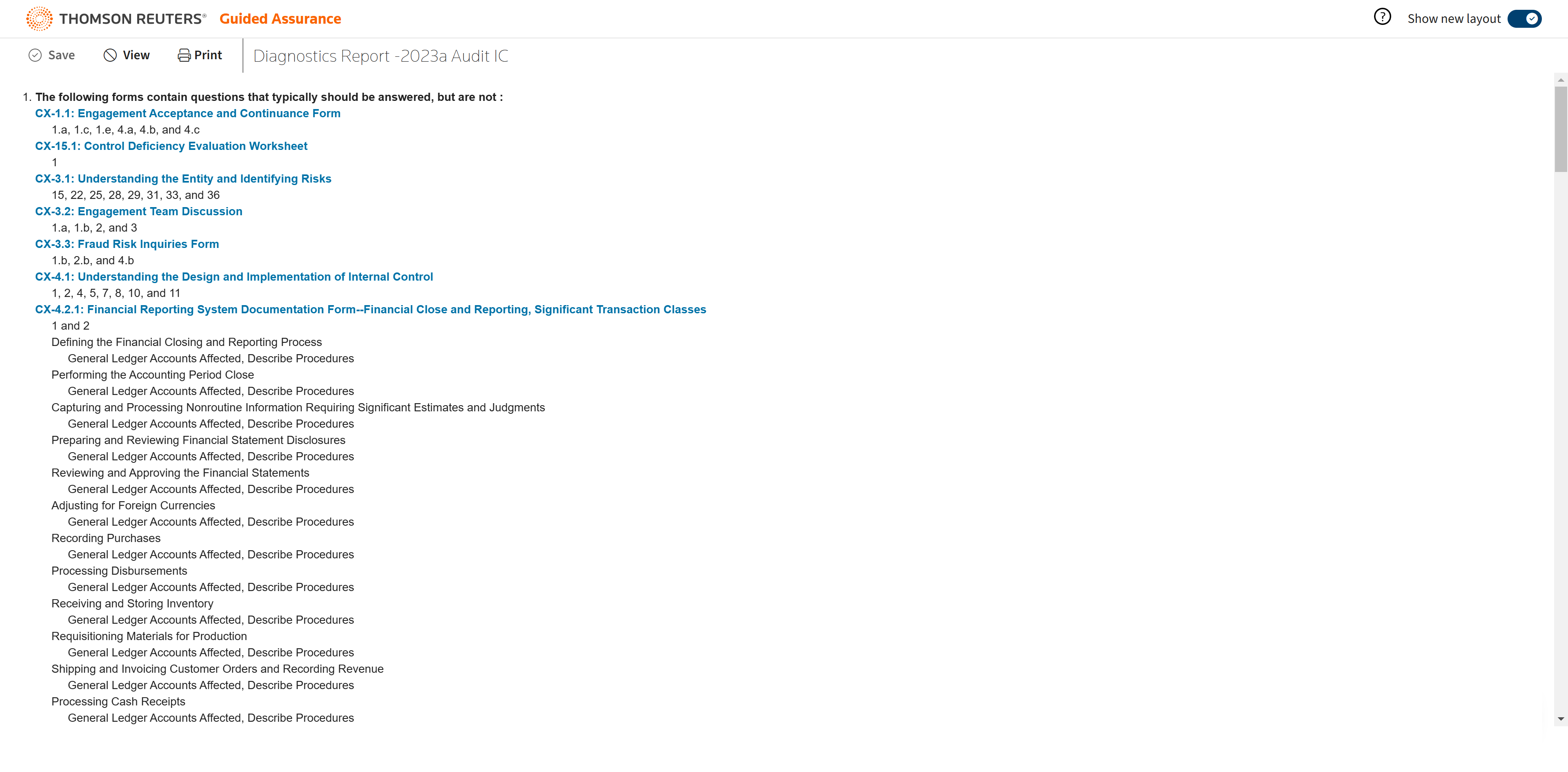
Last in Guided Assurance, navigate to Diagnostics.
The Diagnostics Report shows both the auditor and the manager what questions in the engagement are left to answer. Once the engagement nears completion, only a few will remain.
Engagement Manager Engagement Manager is a comprehensive, cloud-based audit engagement management tool with full trial balance capabilities, work paper management, financial statement reporting functionality, client communications, and more. It includes unlimited storage capabilities for every engagement you ever do: audits, compilations, reviews, and tax. If you're coming from another platform, it offers a conversion tool to import your existing folder structures, workpapers, and account groupings.
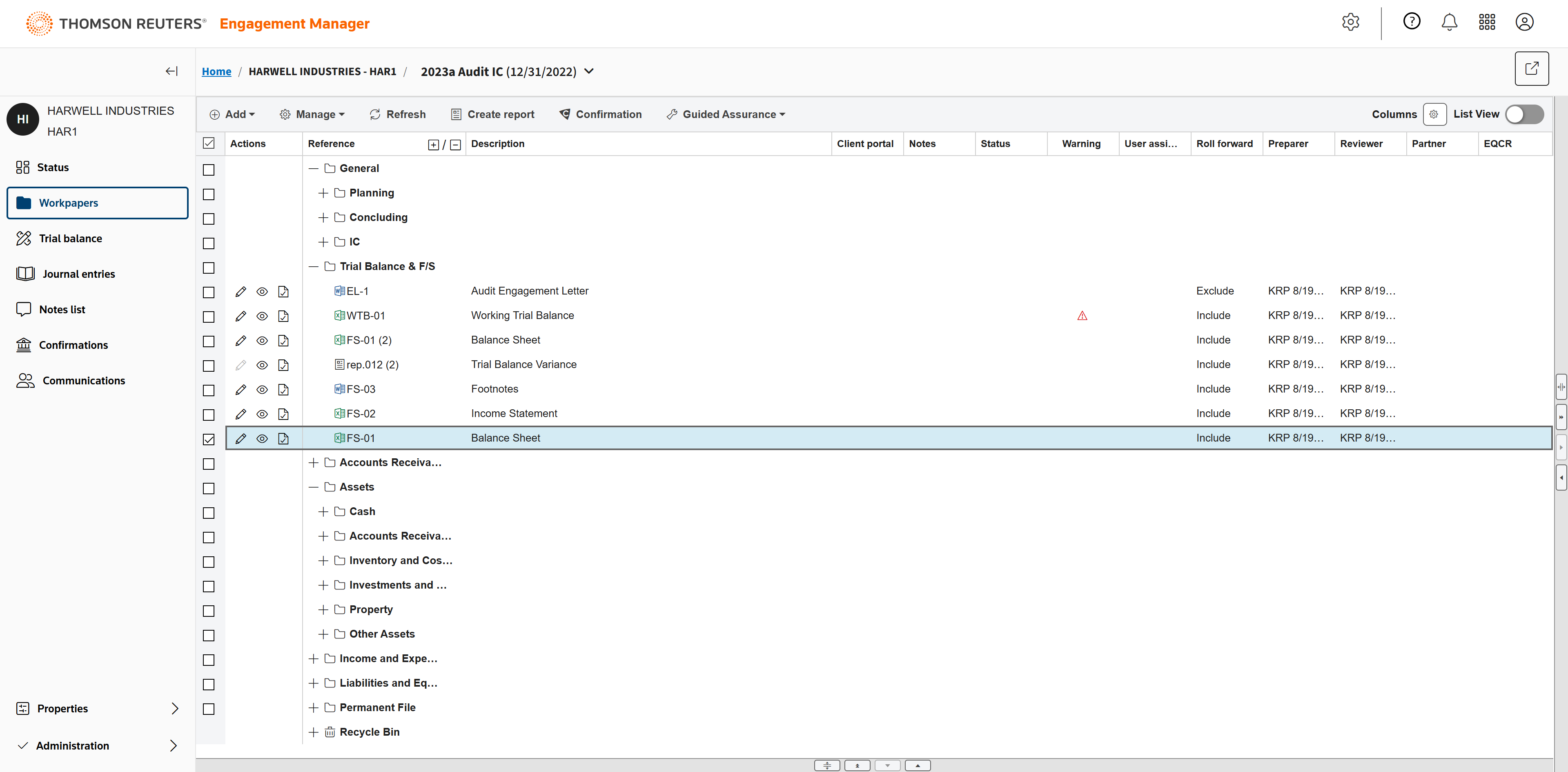
Engagement Manager consists of workpaper management, trial balance, journal entries, notes, confirmations, and client communications.
View the engagement progress at a glance in the Status Dashboard.
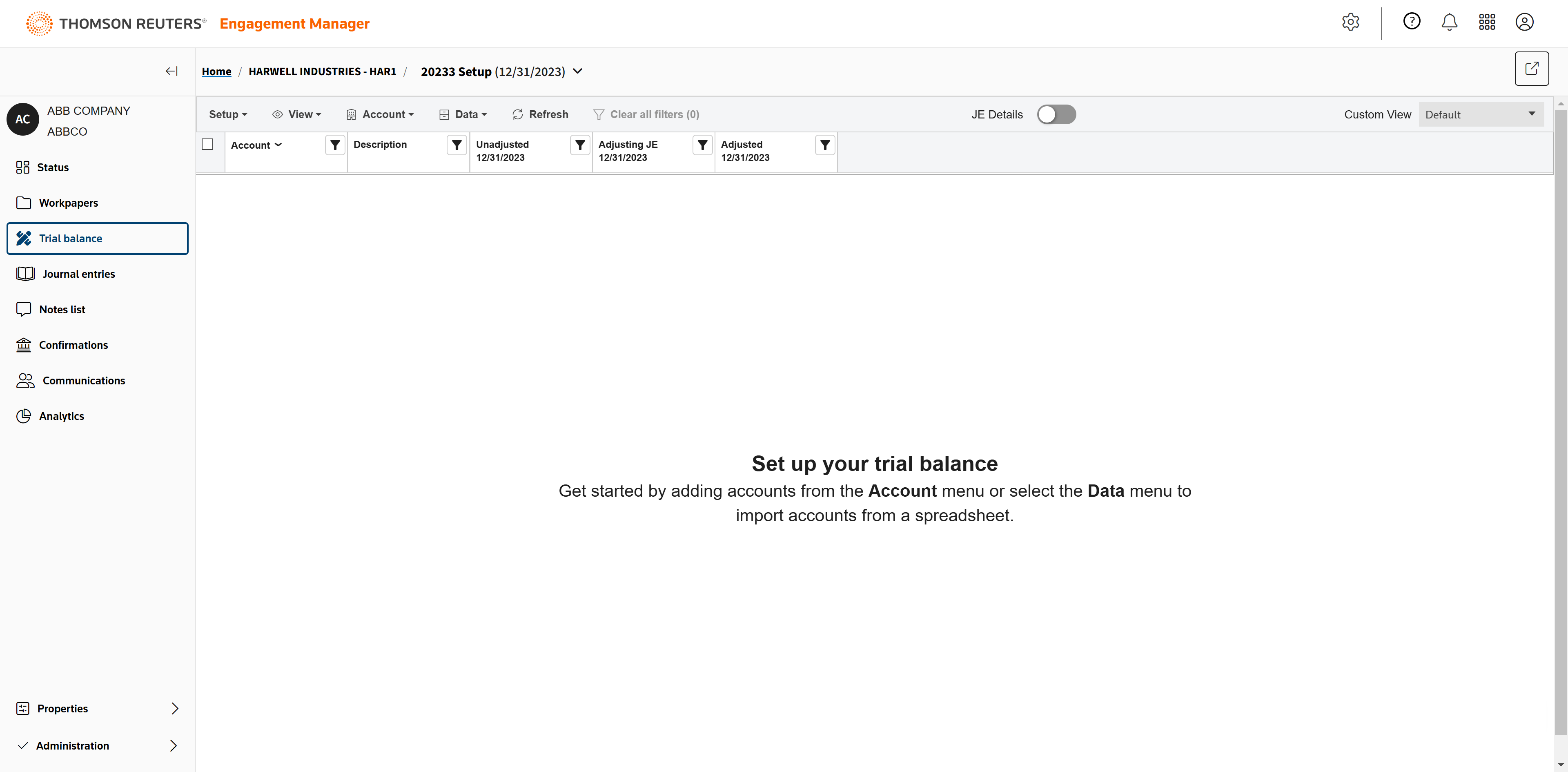
Trial balance in Engagement Manager Prepare financial statements quickly and accurately with fast imports and customizable features. Engagement Manager allows multiple users to work in a trial balance at the same time. You do not have to check in and check out the trial balance in order to make changes. Engagement Manager handles consolidations extremely efficiently, including multi-tiered consolidations. The trial balance can export to the 4 major tax softwares: UltraTax CS, GoSystem Tax RS, CCH ProSystem fx Tax, CCH Axcess Tax, and Lacerte.
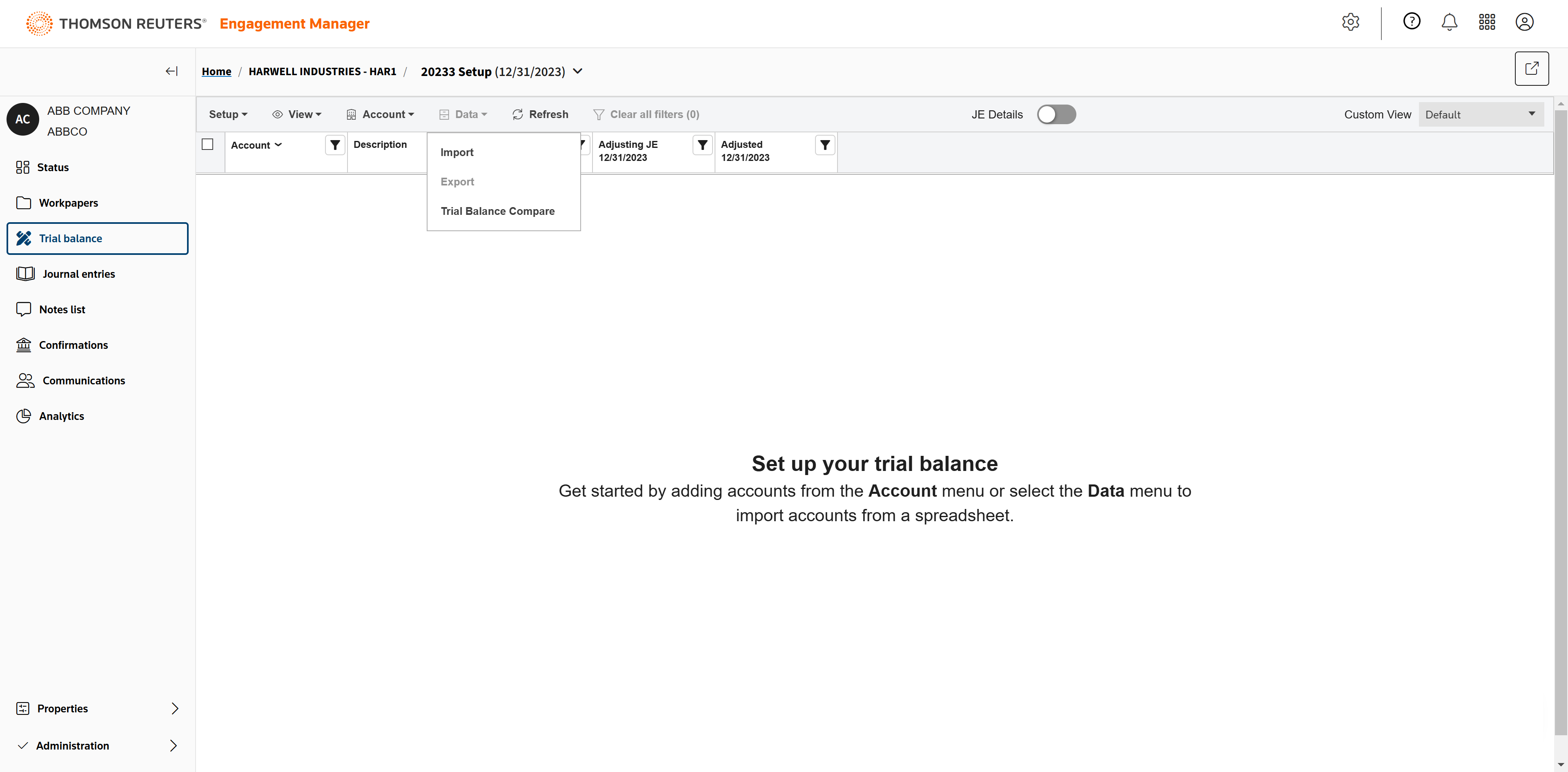
The trial balance can be imported from Excel. For this method, choose Data, then Import. (Alternatively, you can add accounts one at a time, and enter balances and group accounts directly in the Trial balance grid.)
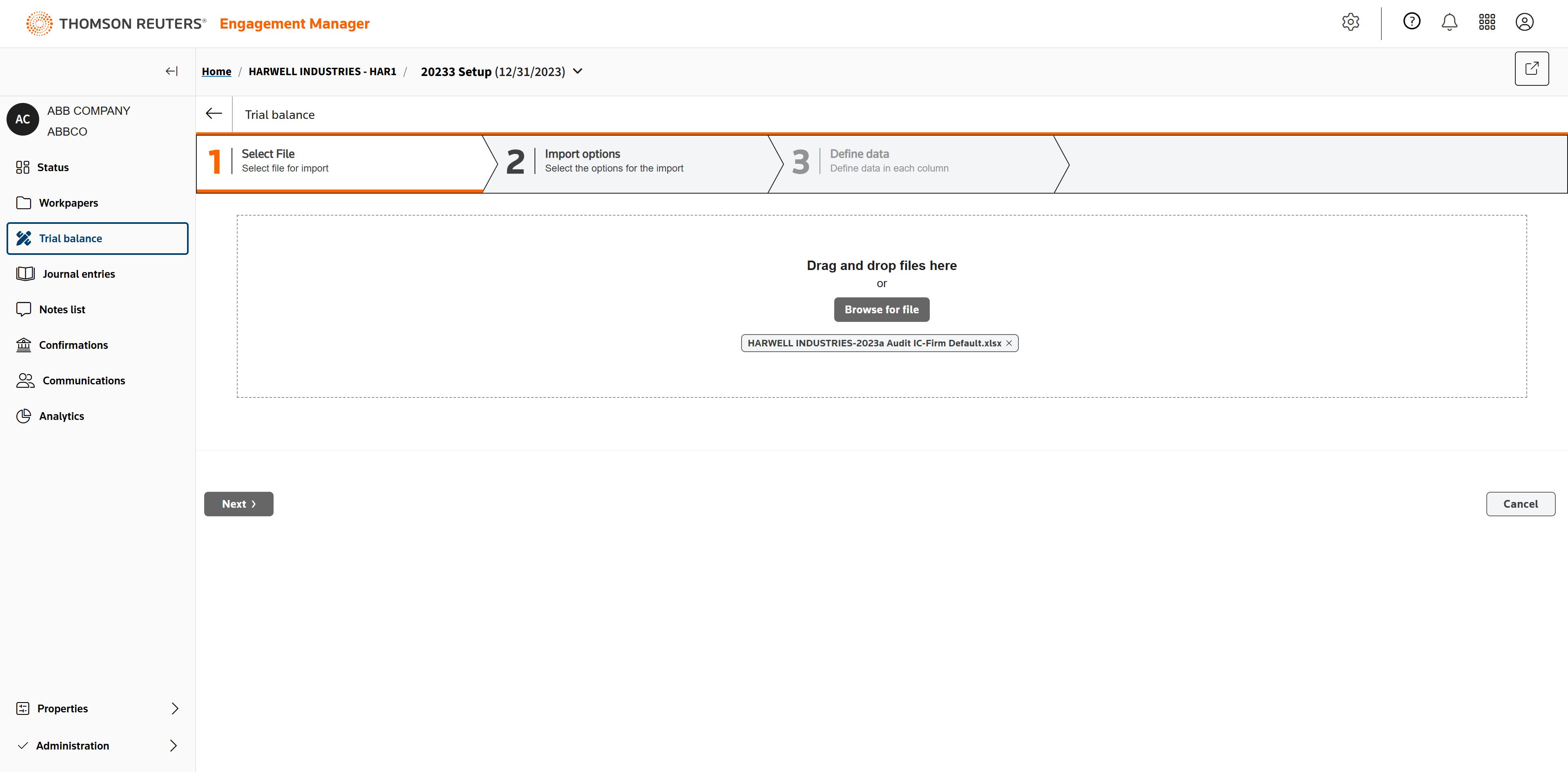
Drag and drop the Excel file here, or click Browse for file and navigate to its location to upload the file.
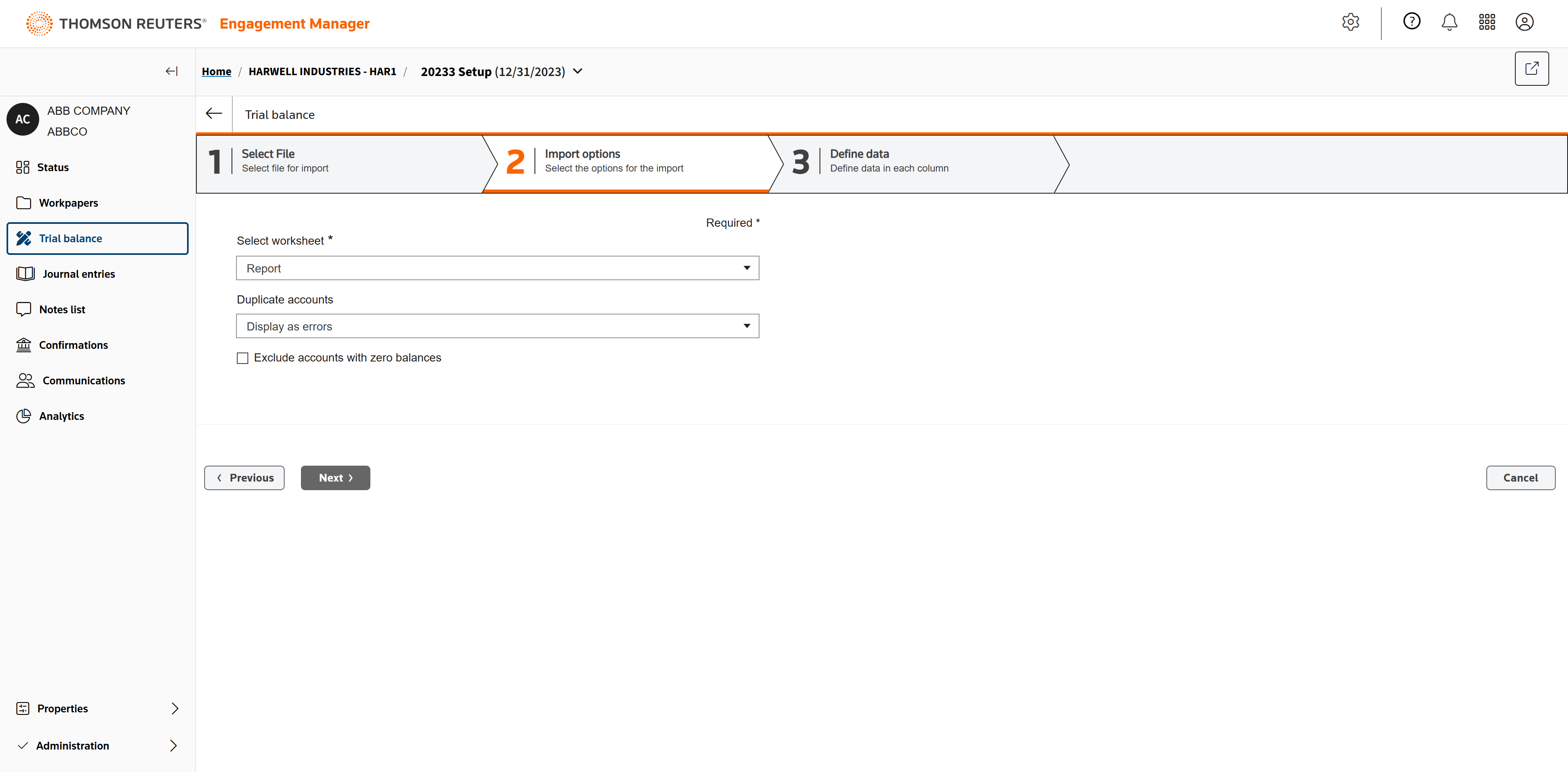
Select Report.
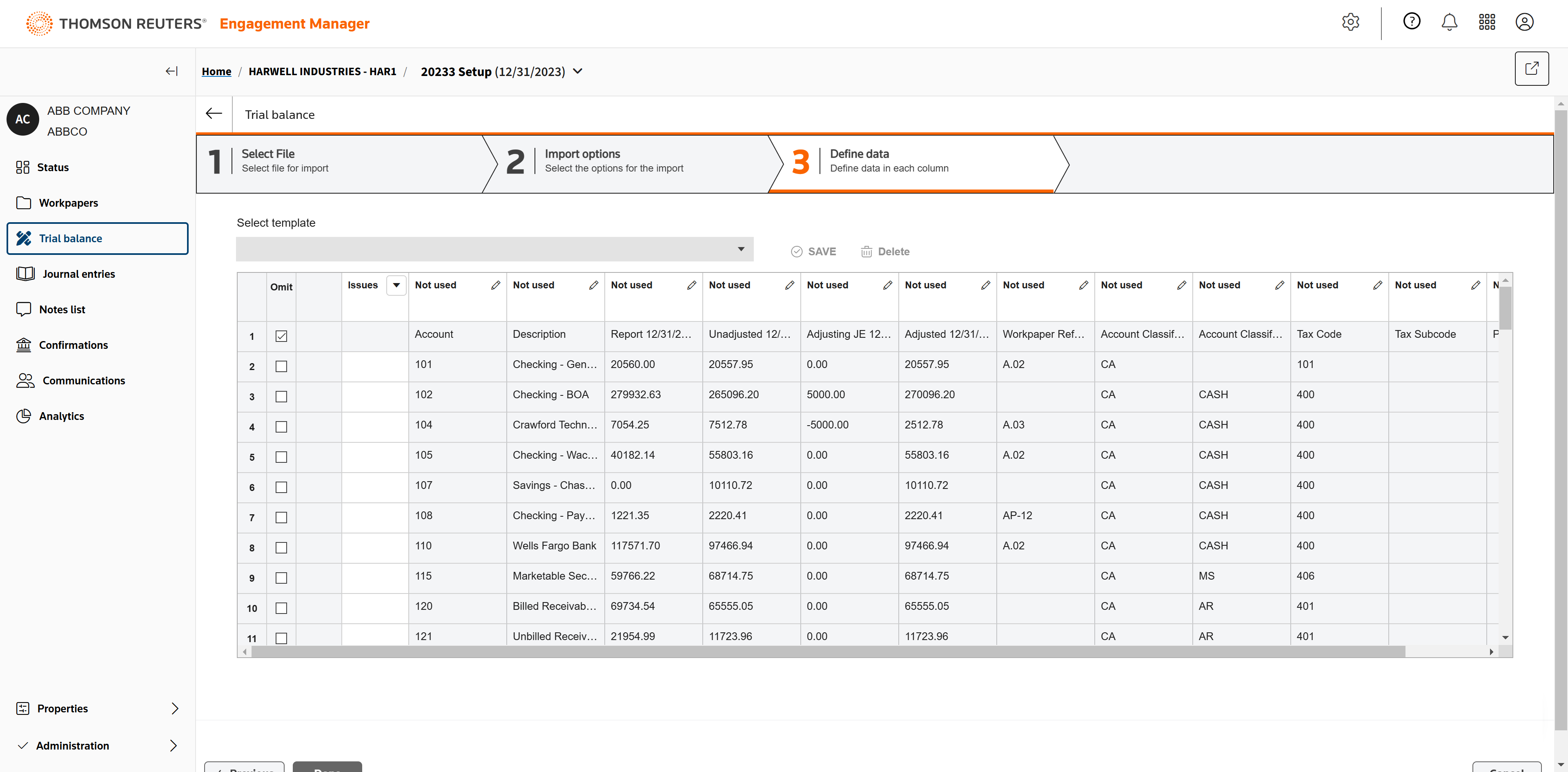
Map the columns you want for your import. (We provide instruction for this step.)
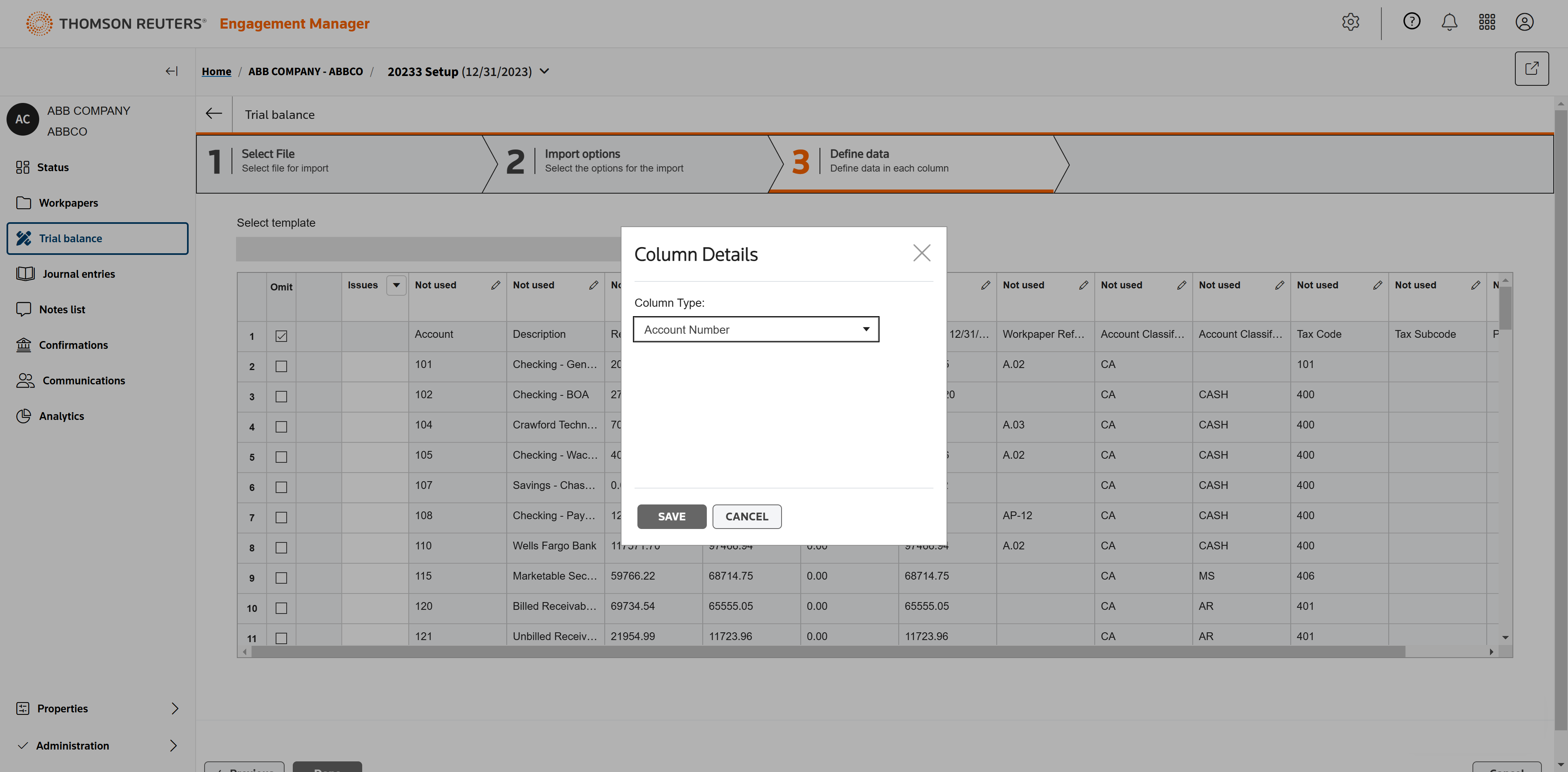
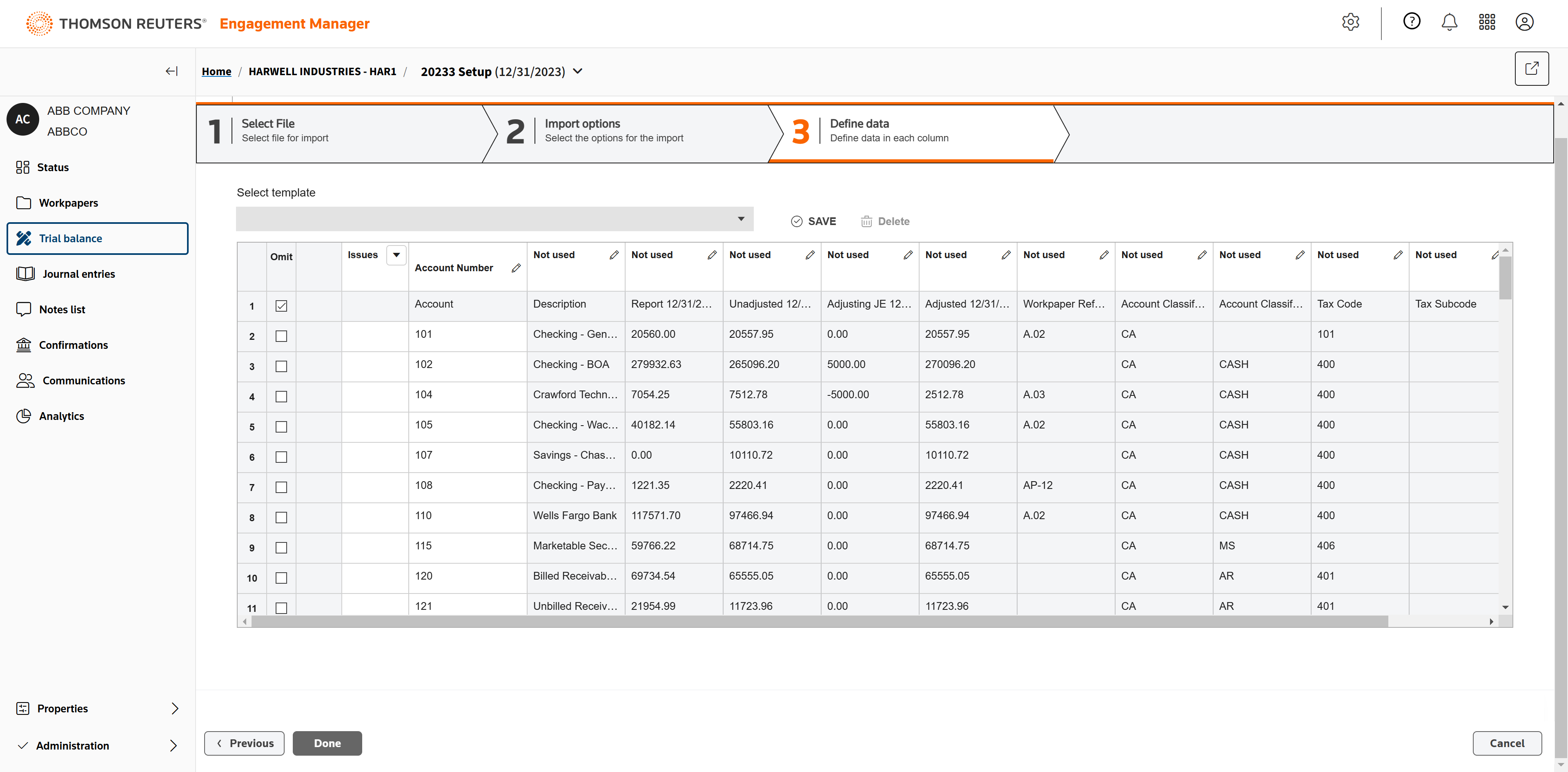
Map Account Number for the first column.
When all columns needed are mapped, click Done.
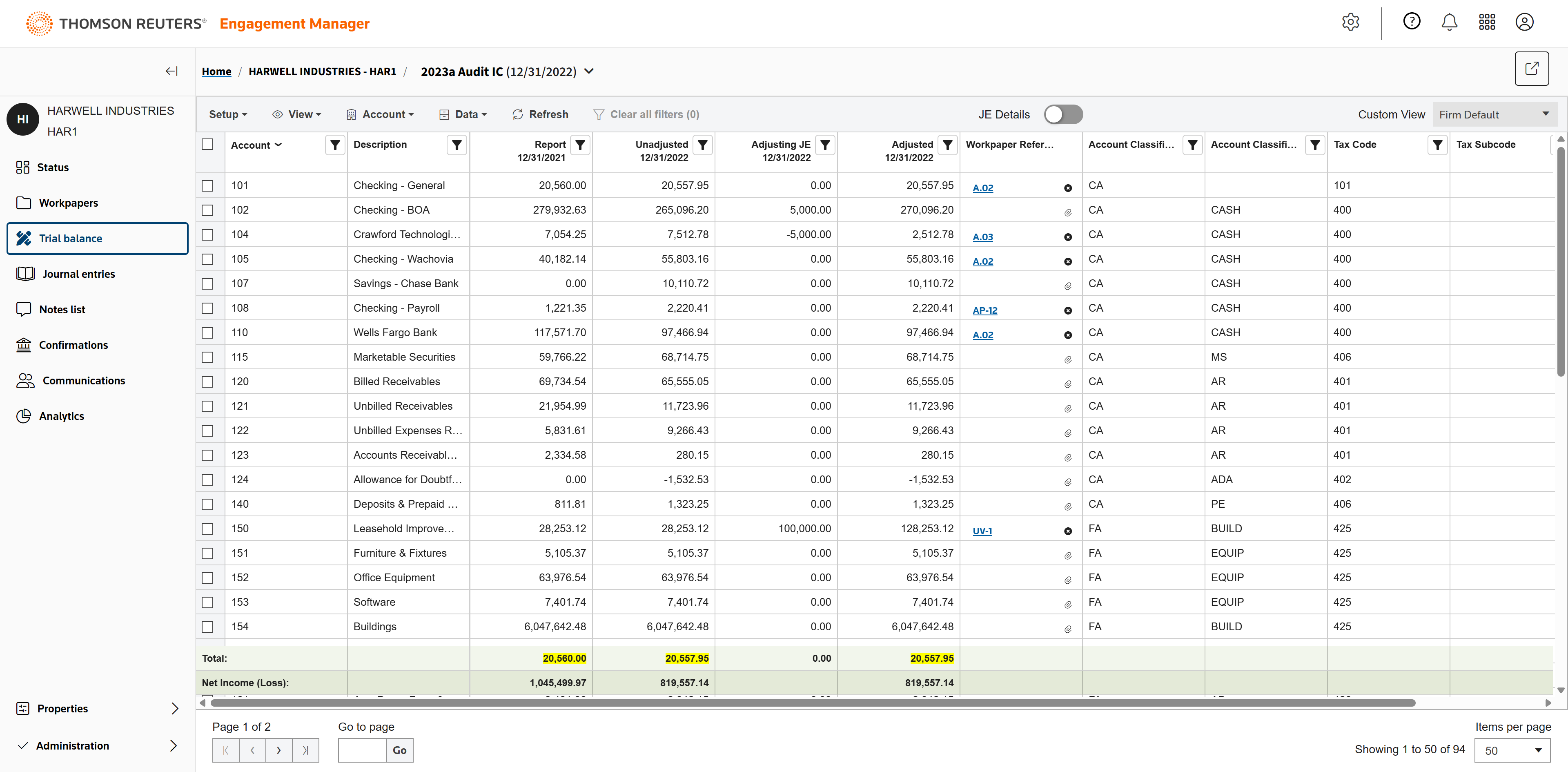
The file has been imported into the trial balance. Even with large imports, this process takes seconds.
You can filter the trial balance data as needed.
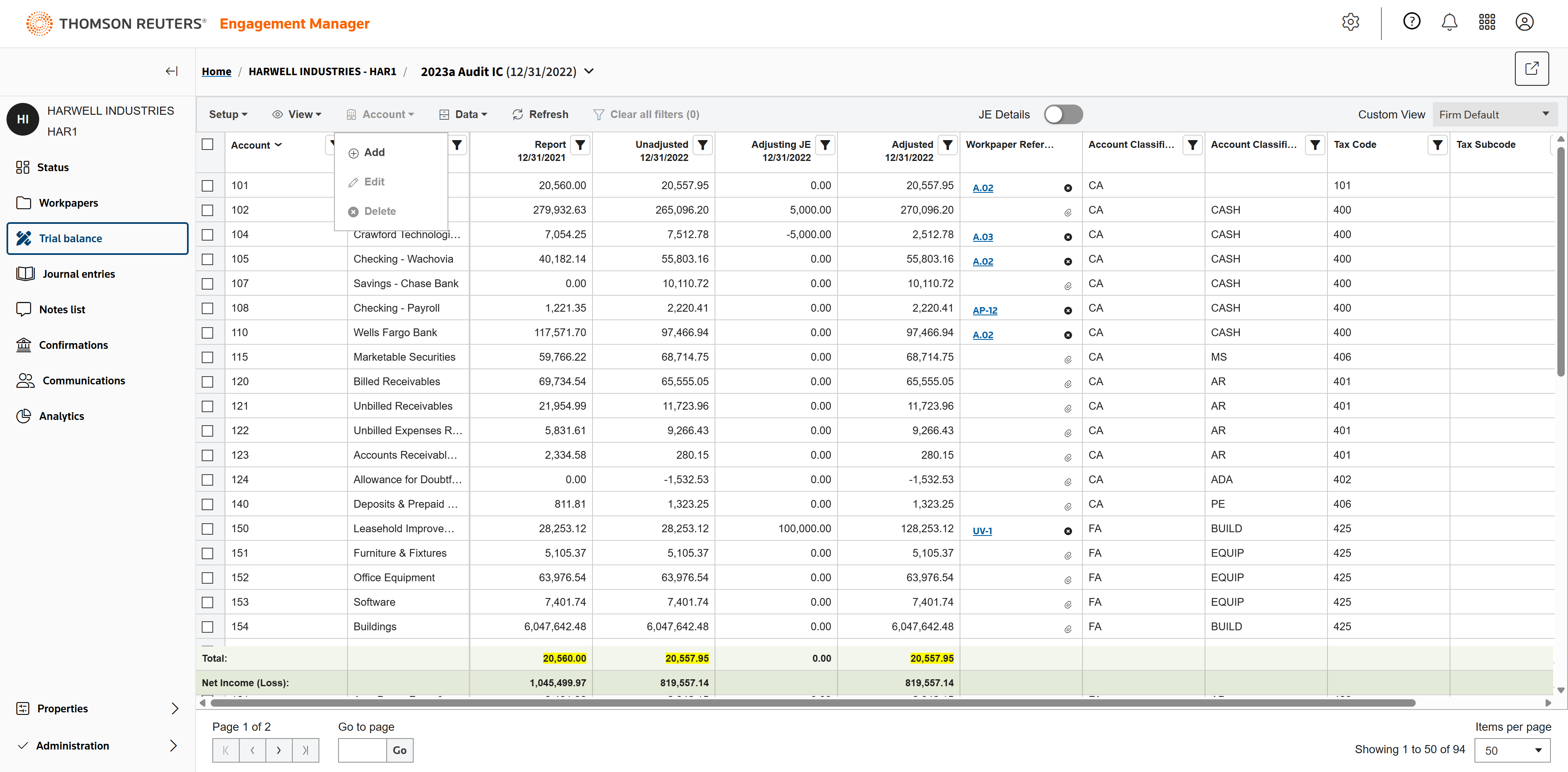
If you need to manually add accounts, select Account, then Add.
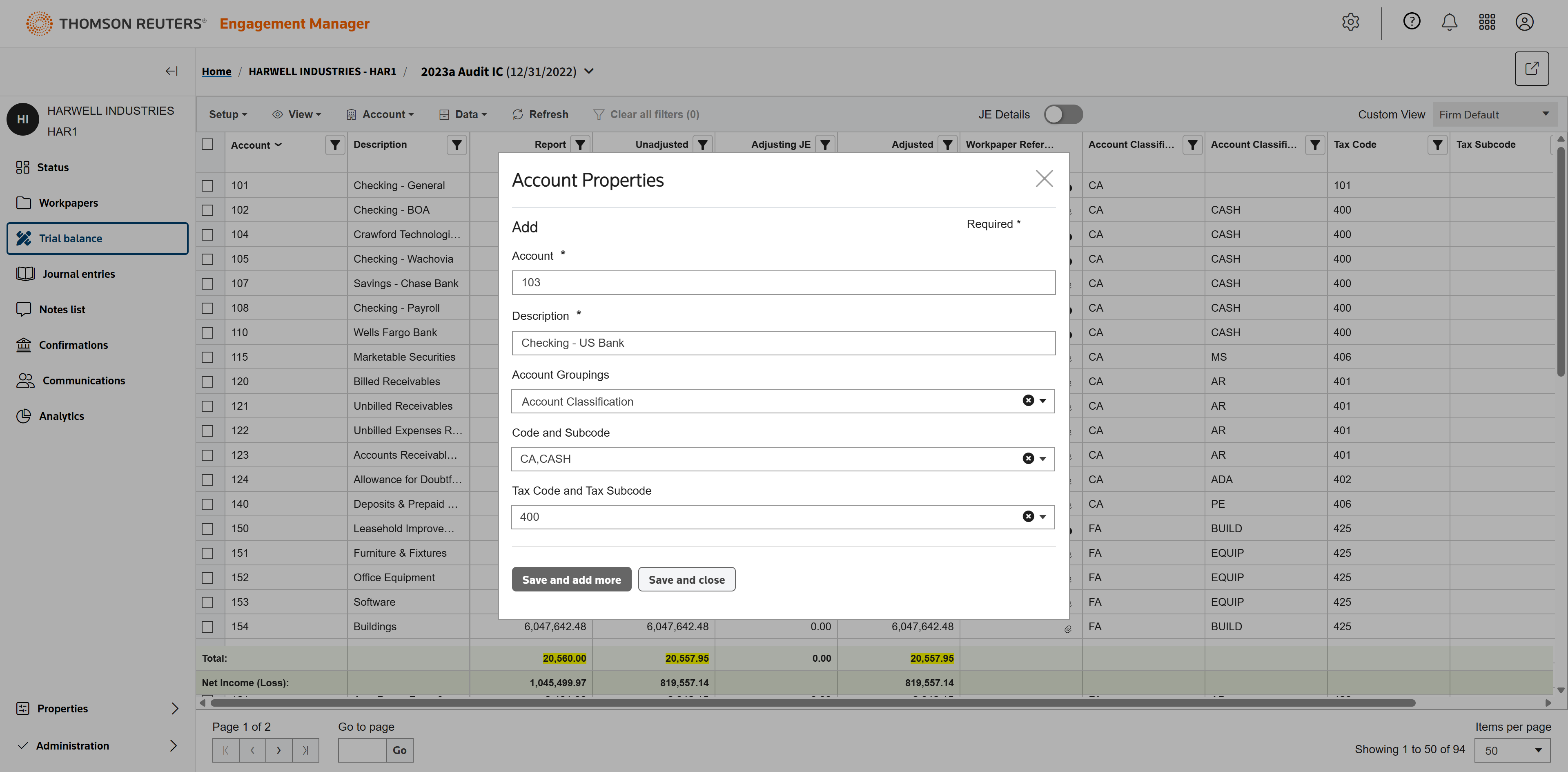
Fill in the account properties, then save.
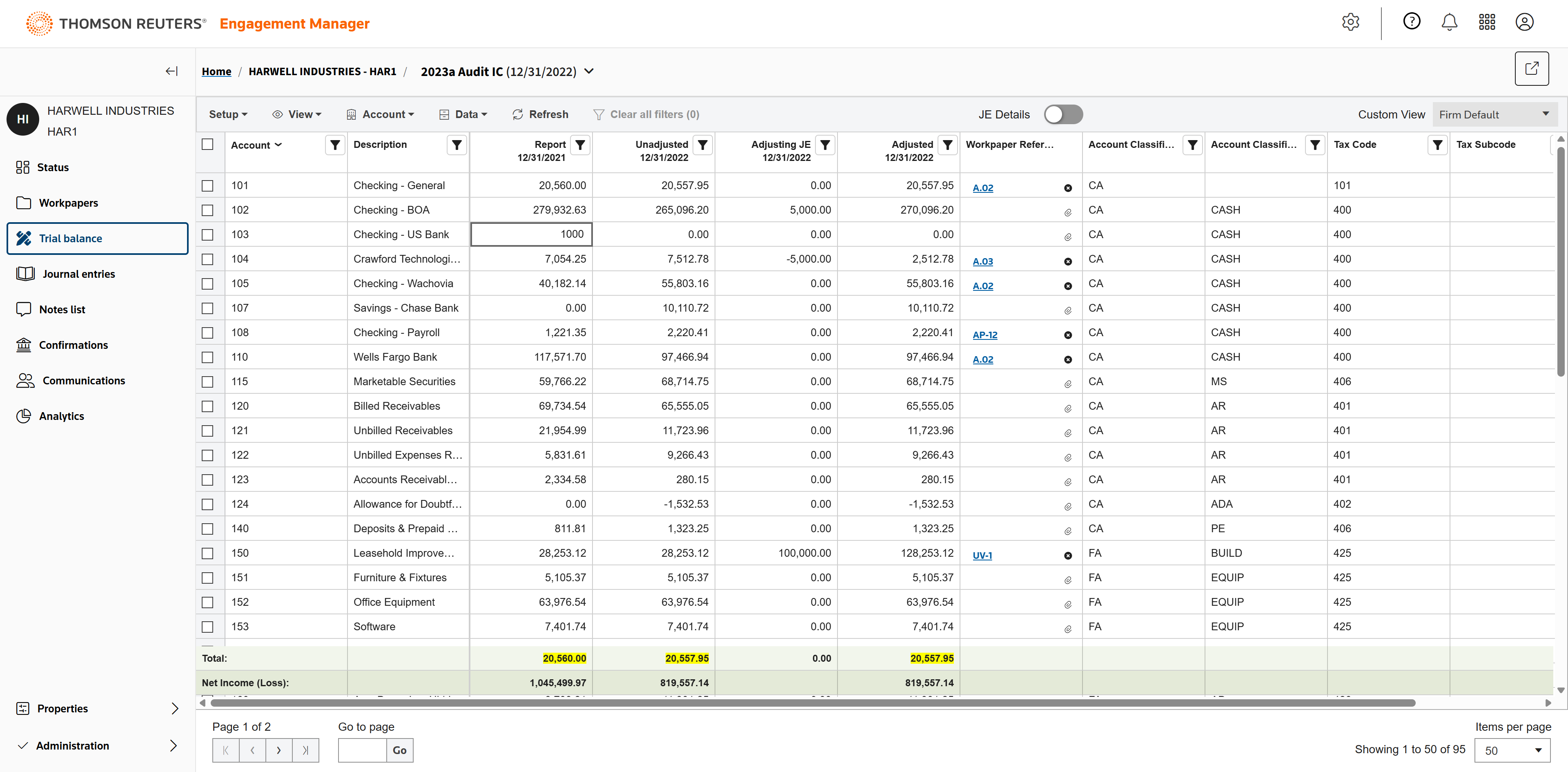
Once the account is added, you can enter balances.
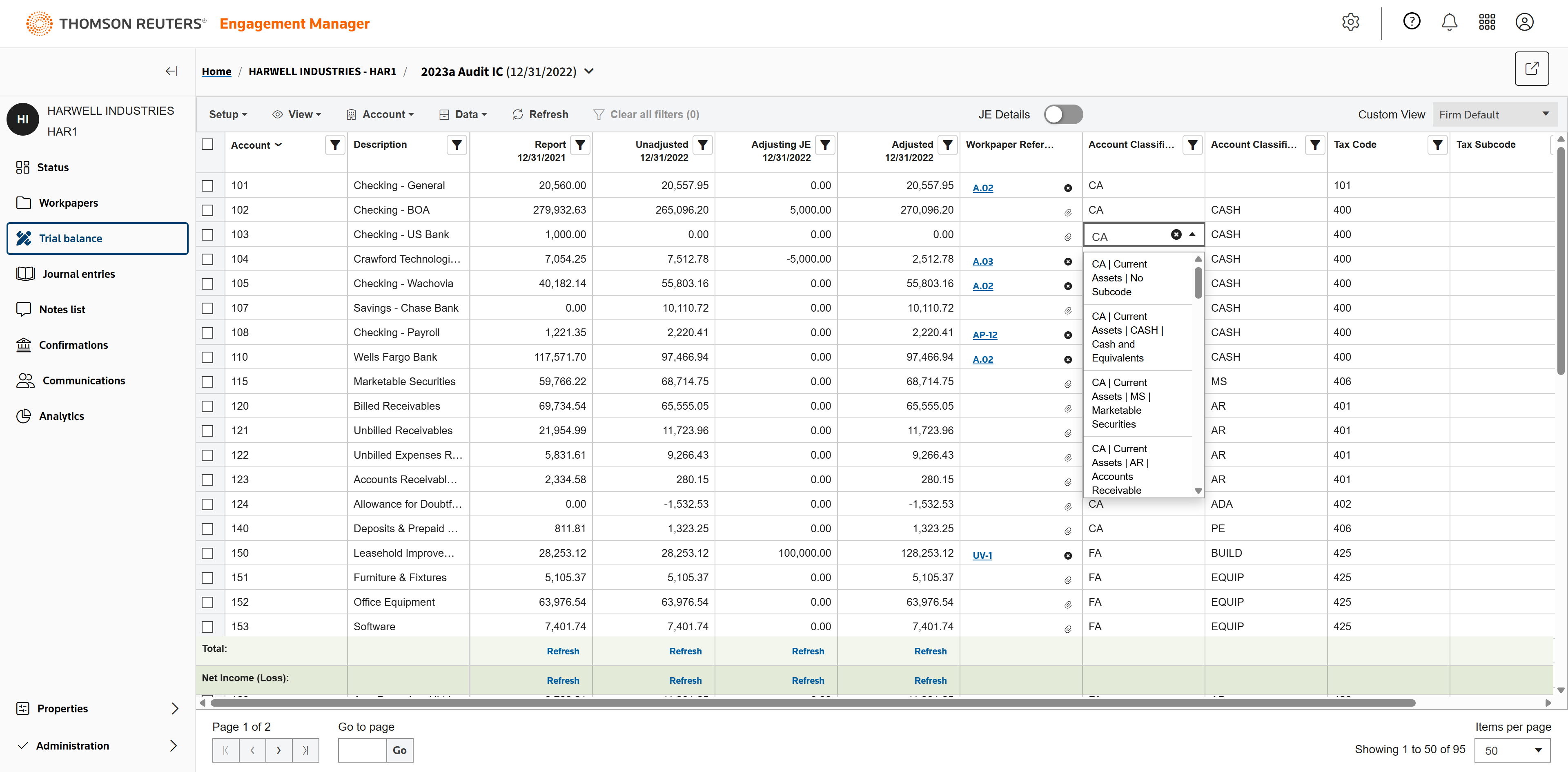
And enter or edit account classification codes, subcodes, and more.
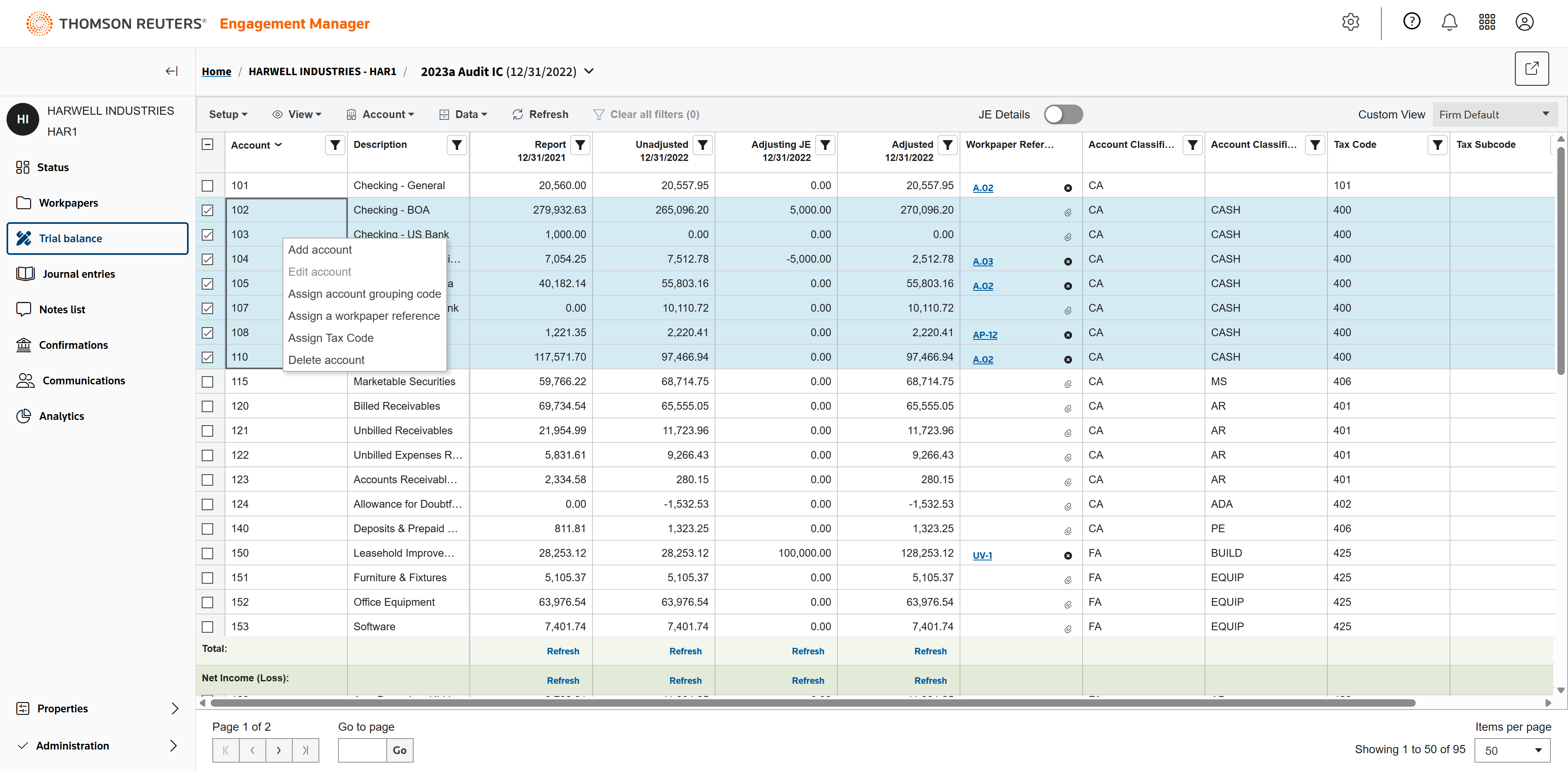
You can select multiple accounts and assign grouping codes and tax codes.
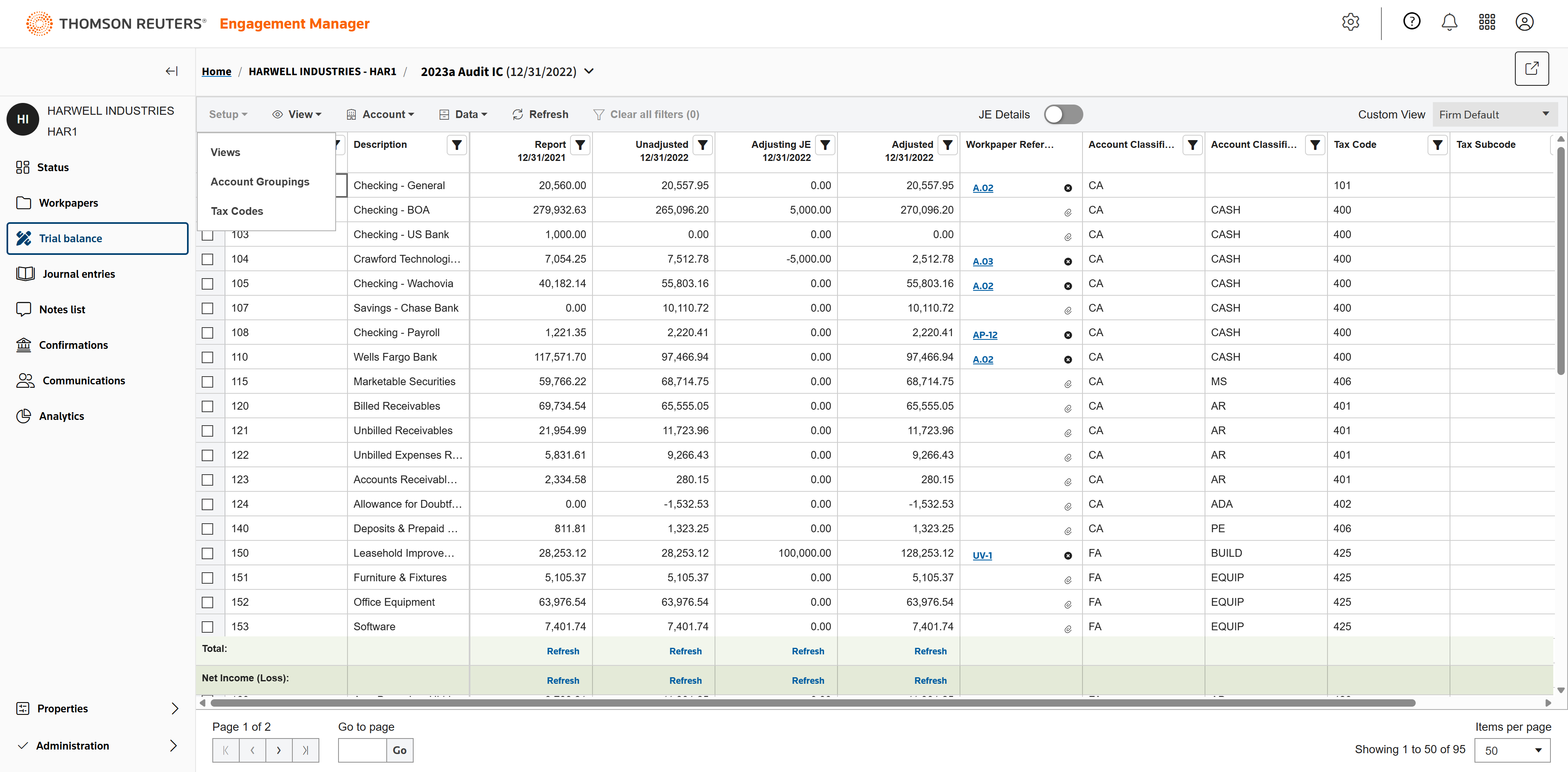
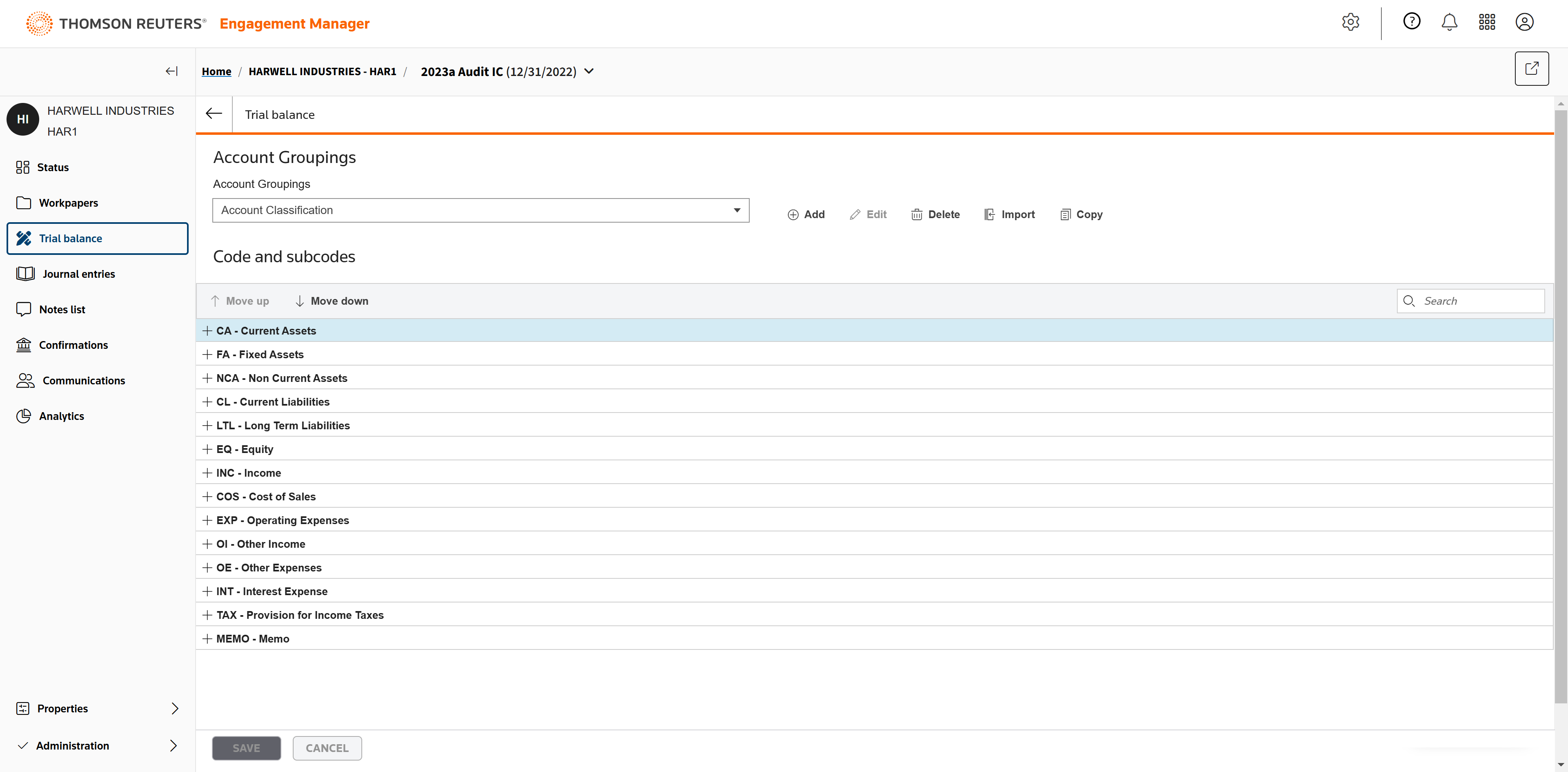
To view account groupings, go to Setup, then Account groupings.
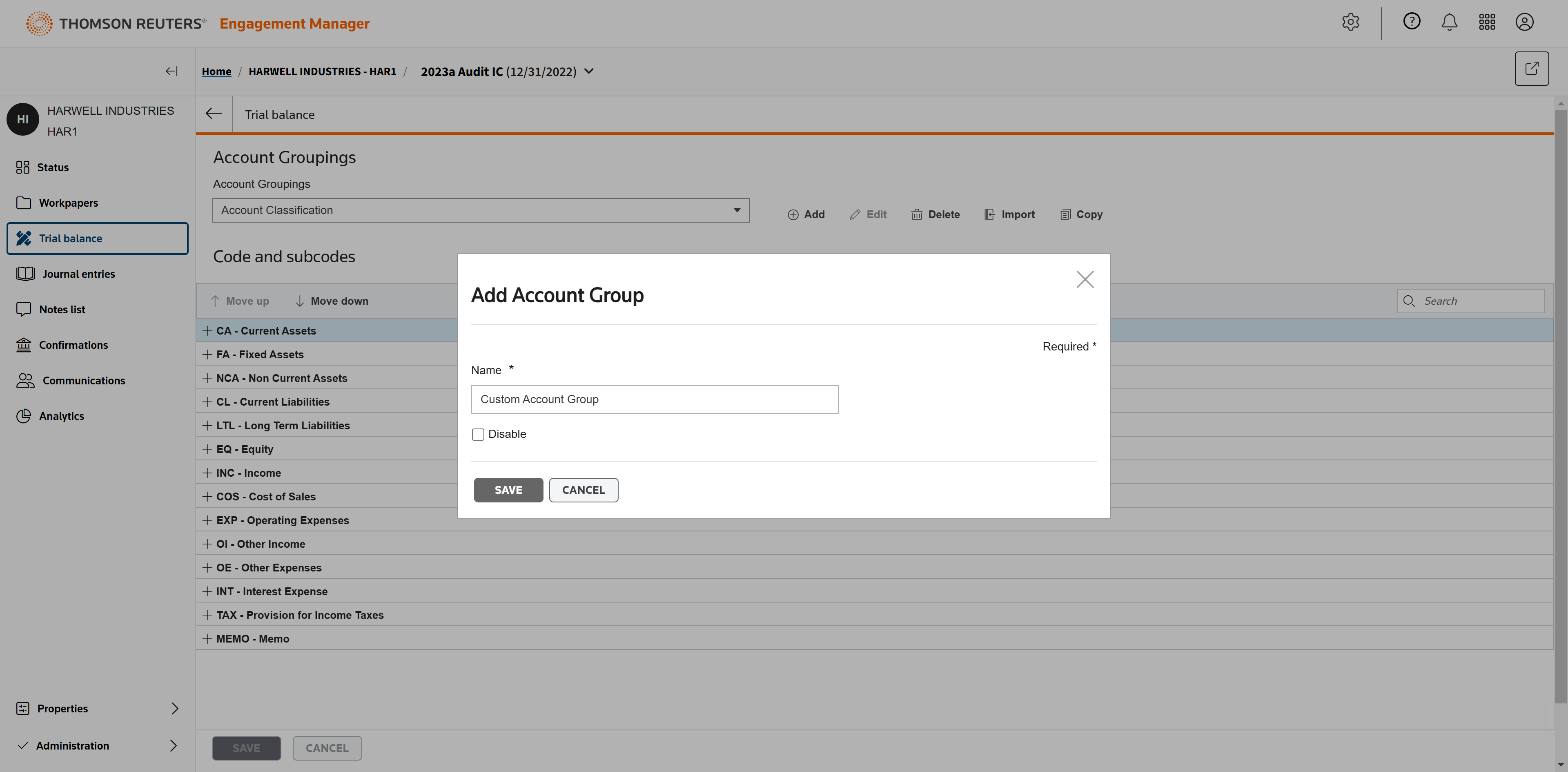
To add your own grouping, click Add.
Enter the grouping name, then Save. These can be used in custom excel reports with your own codes and descriptions.
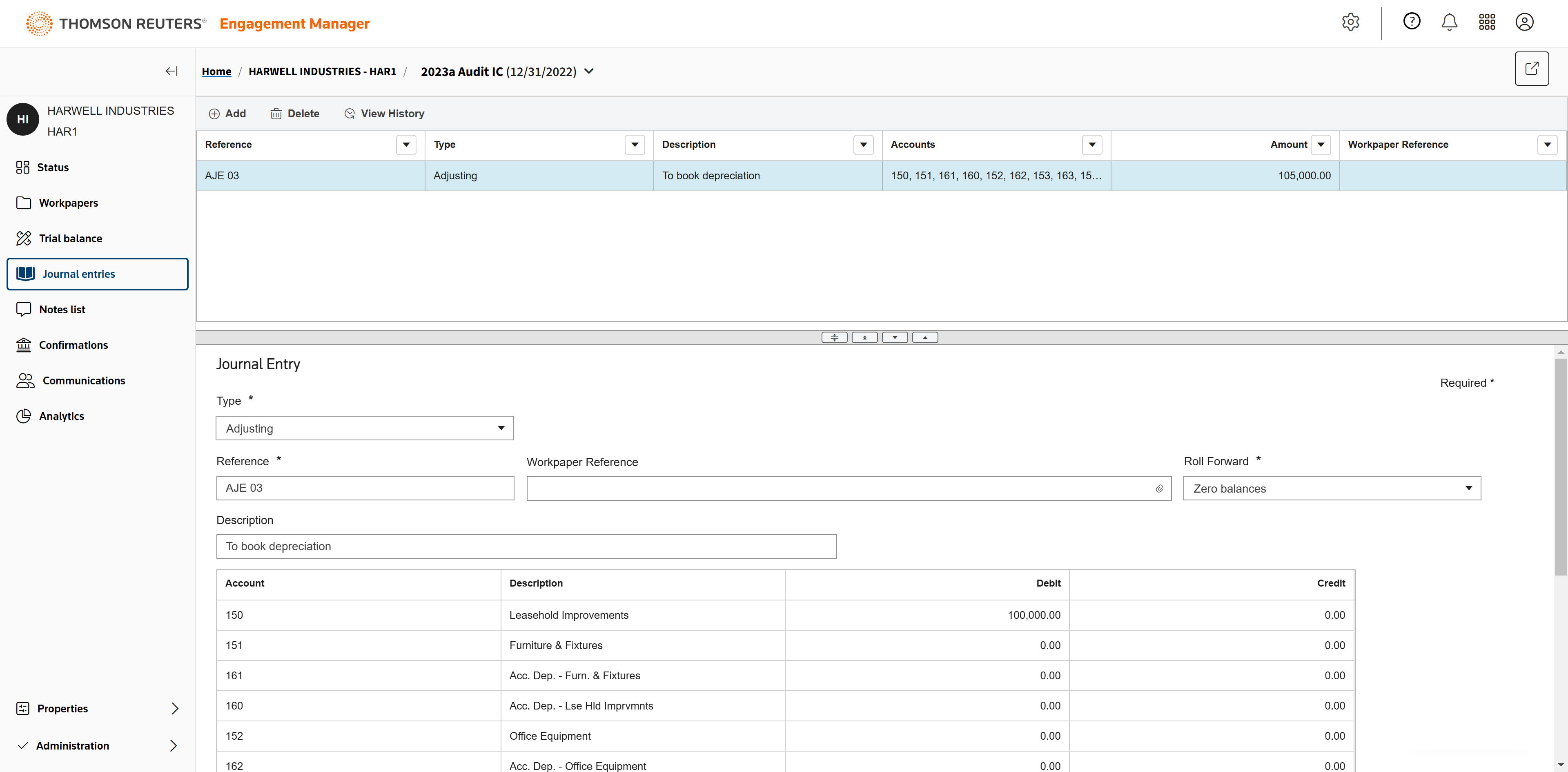
Click Journal entries to begin a journal entry.
To add a journal entry, select the type.
Add your reference number.
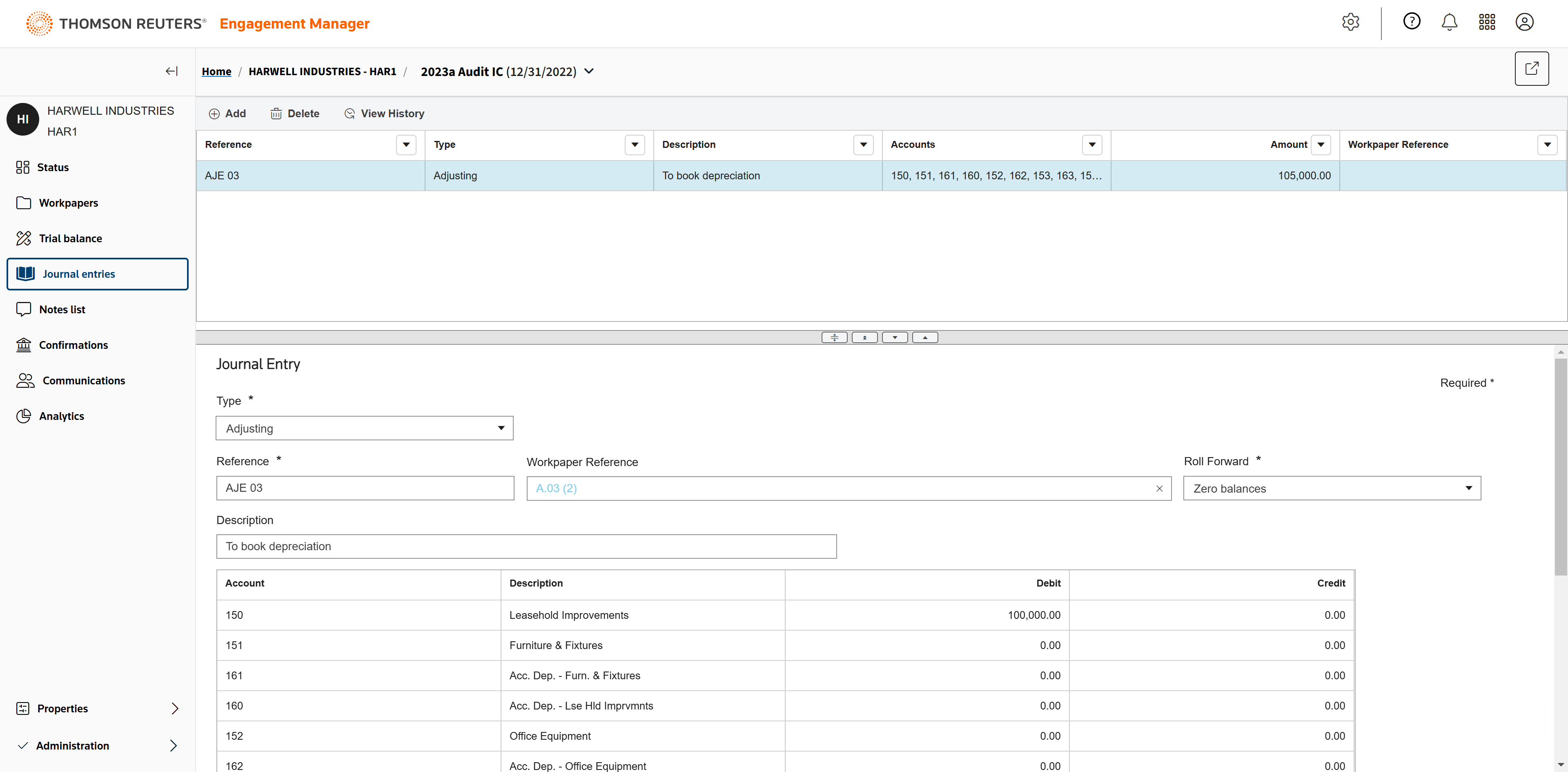
Add a workpaper reference, which can be beneficial to peer reviewers.
And choose how to roll forward. This includes Exclude, Include, Reverse, and Zero balances.
Integration with tax software For those firms whose tax team also uses the trial balance, you can import it into your tax software.
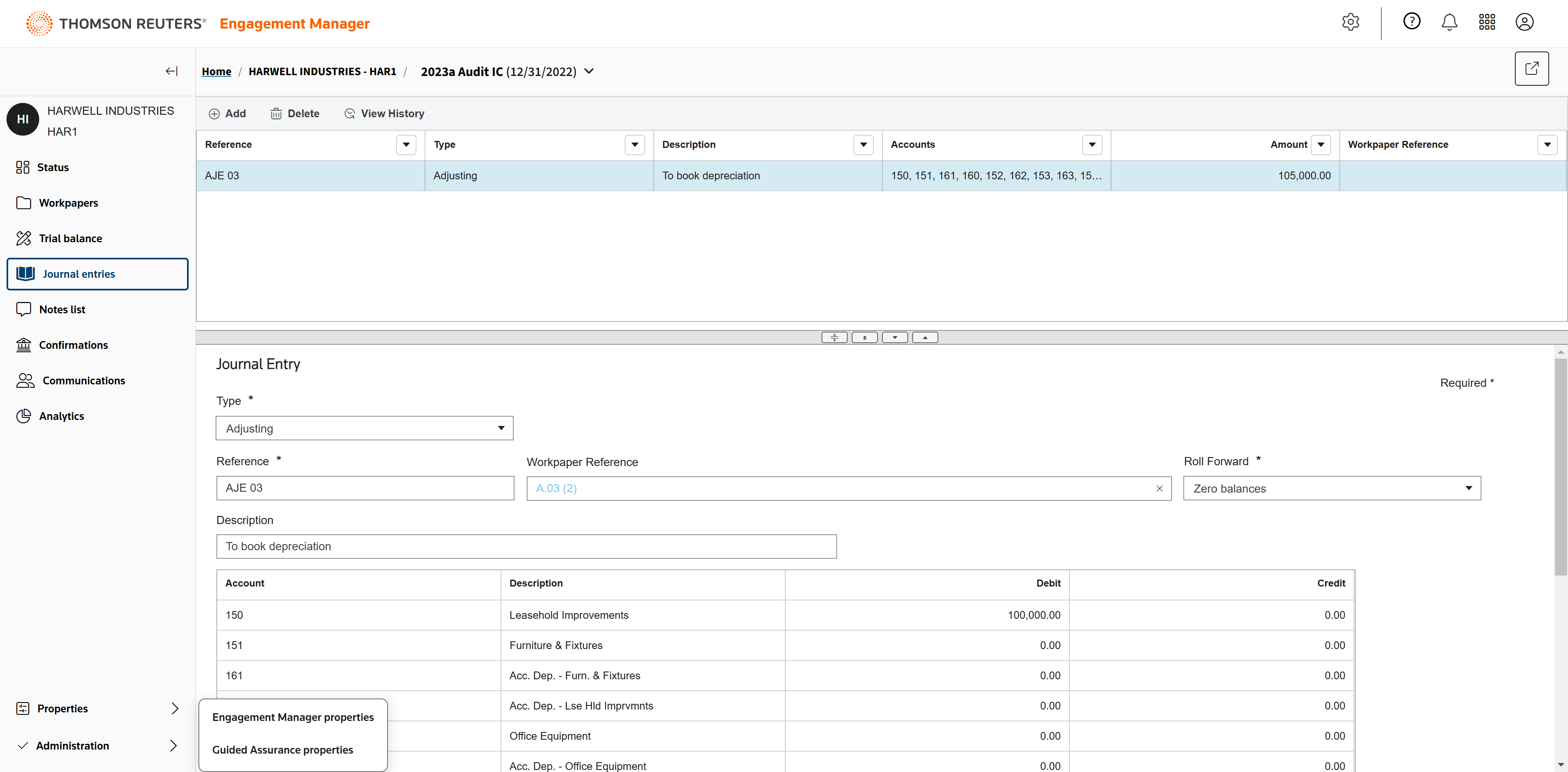
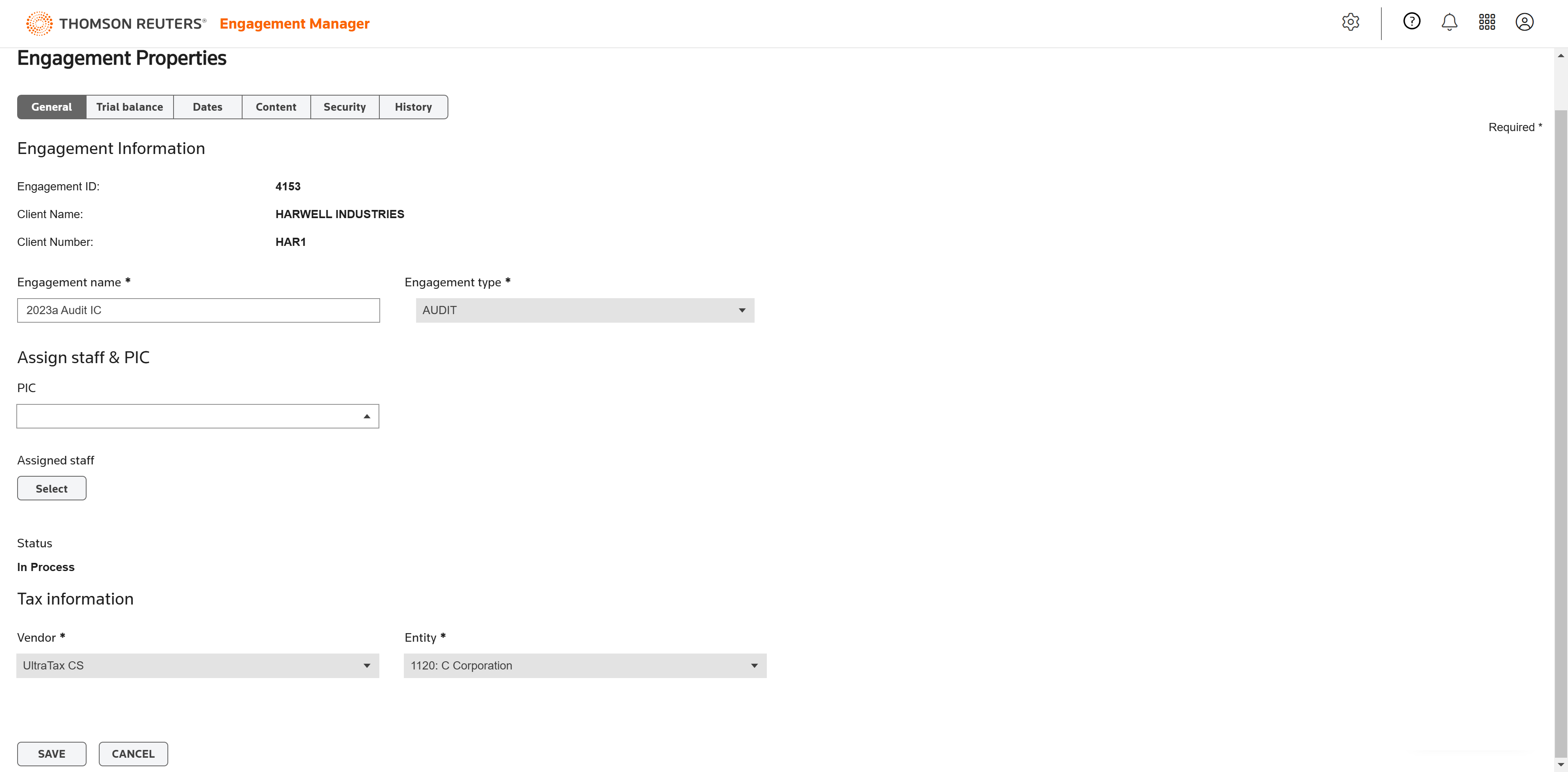
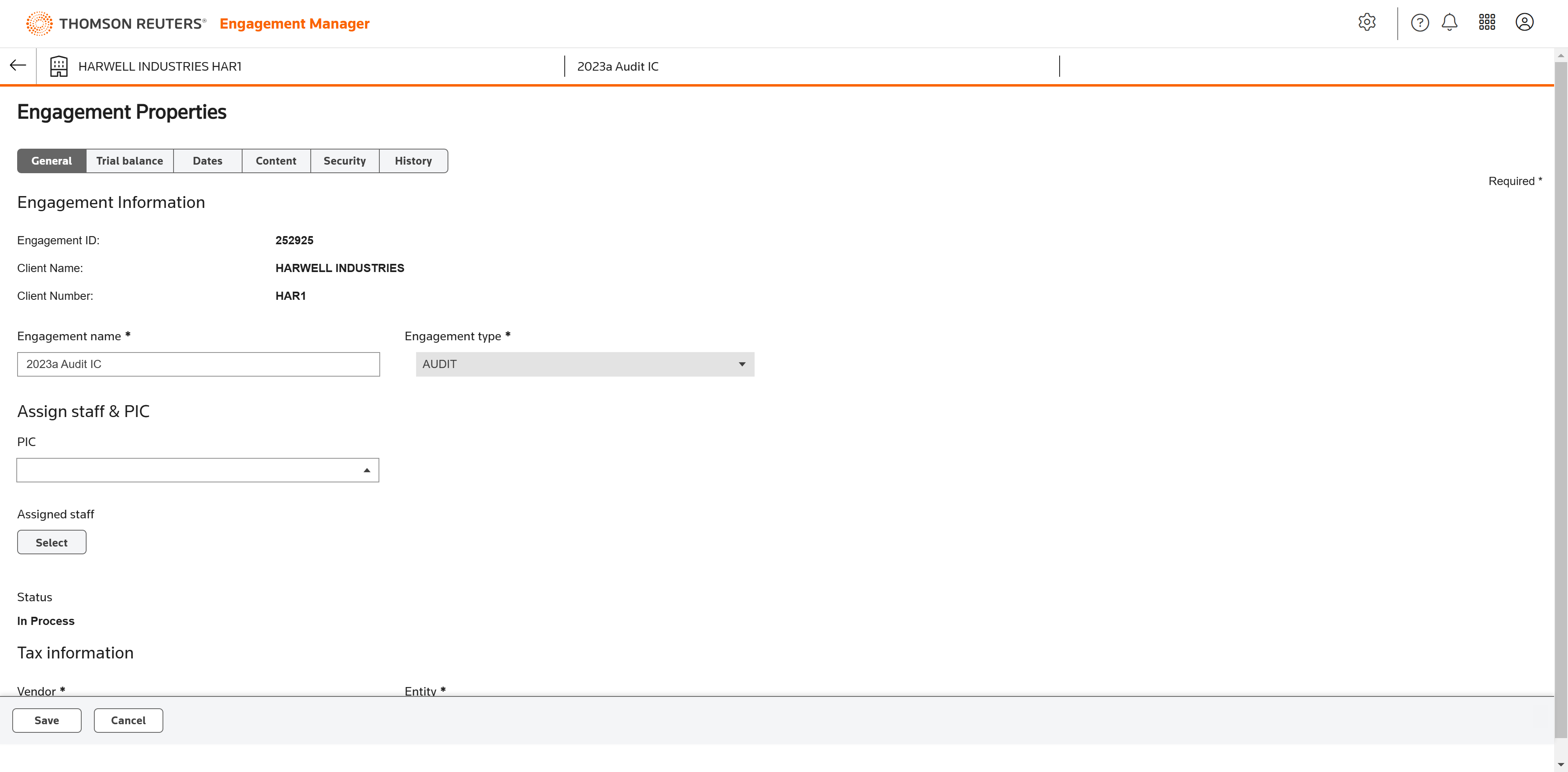
Under Properties, select Engagement Manager properties.
The trial balance integrates with: CCH ProSystem fx Tax, CCH Axcess Tax, GoSystem Tax RS, Lacerte, and UltraTax CS.
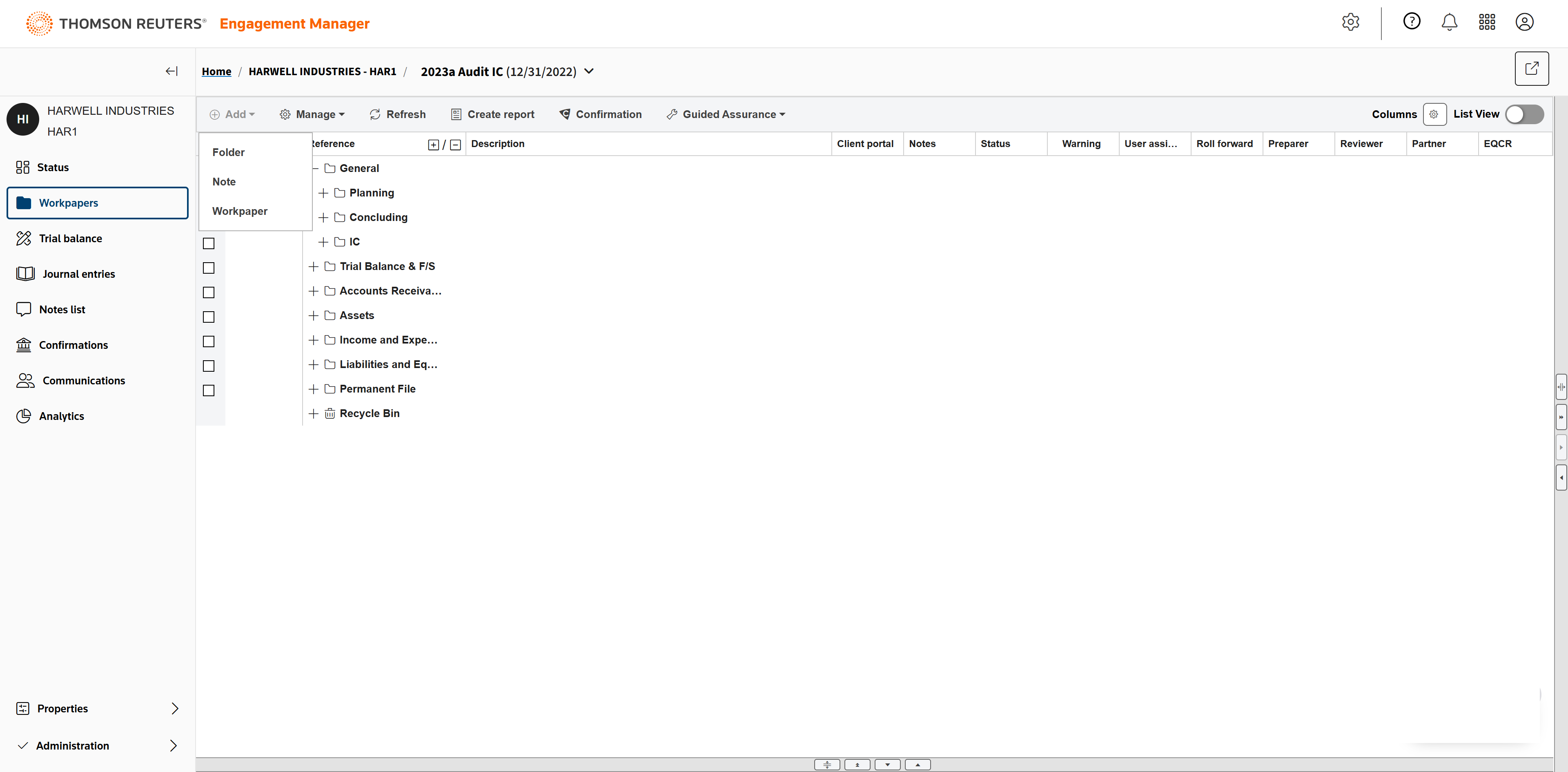
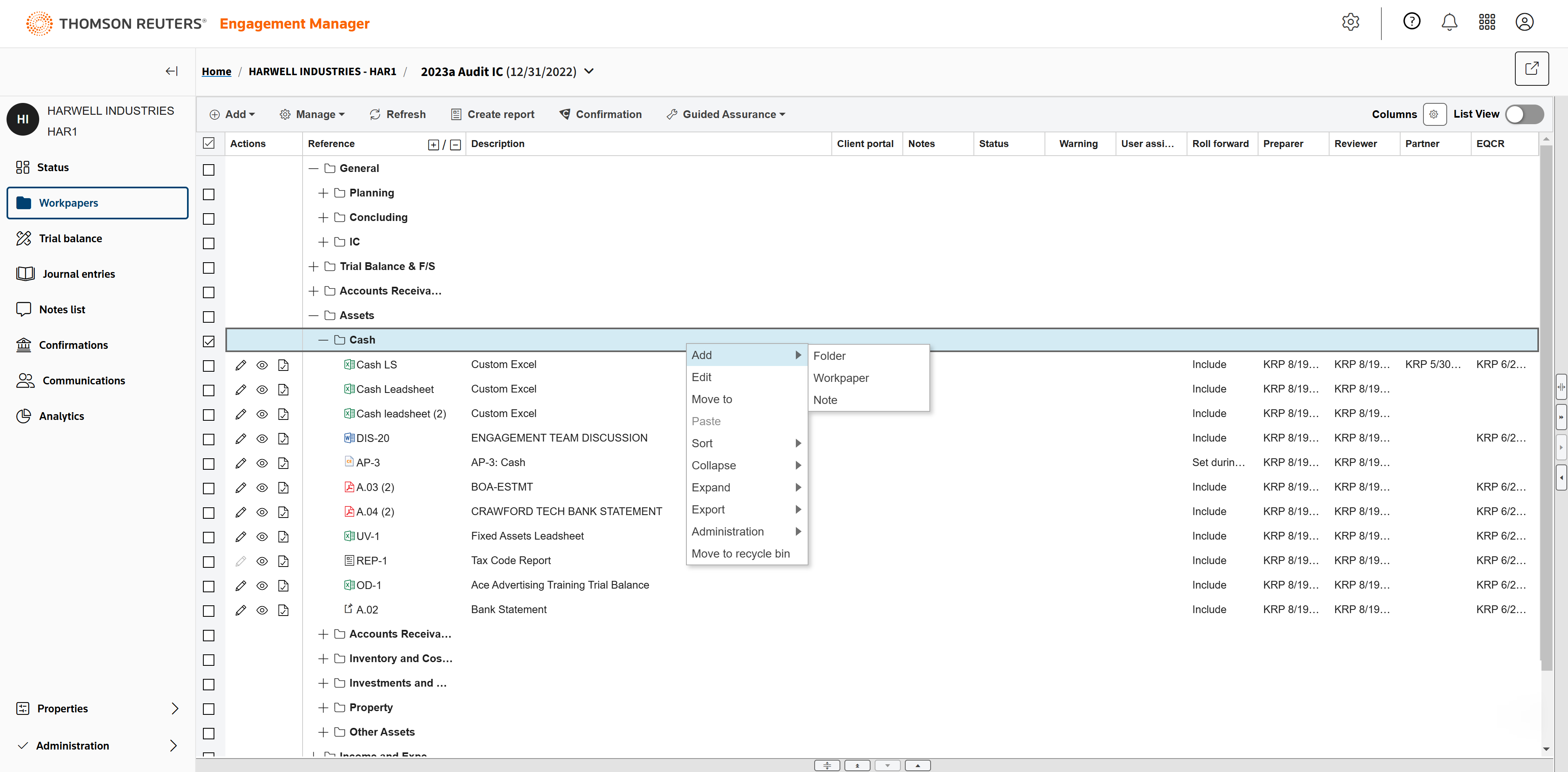
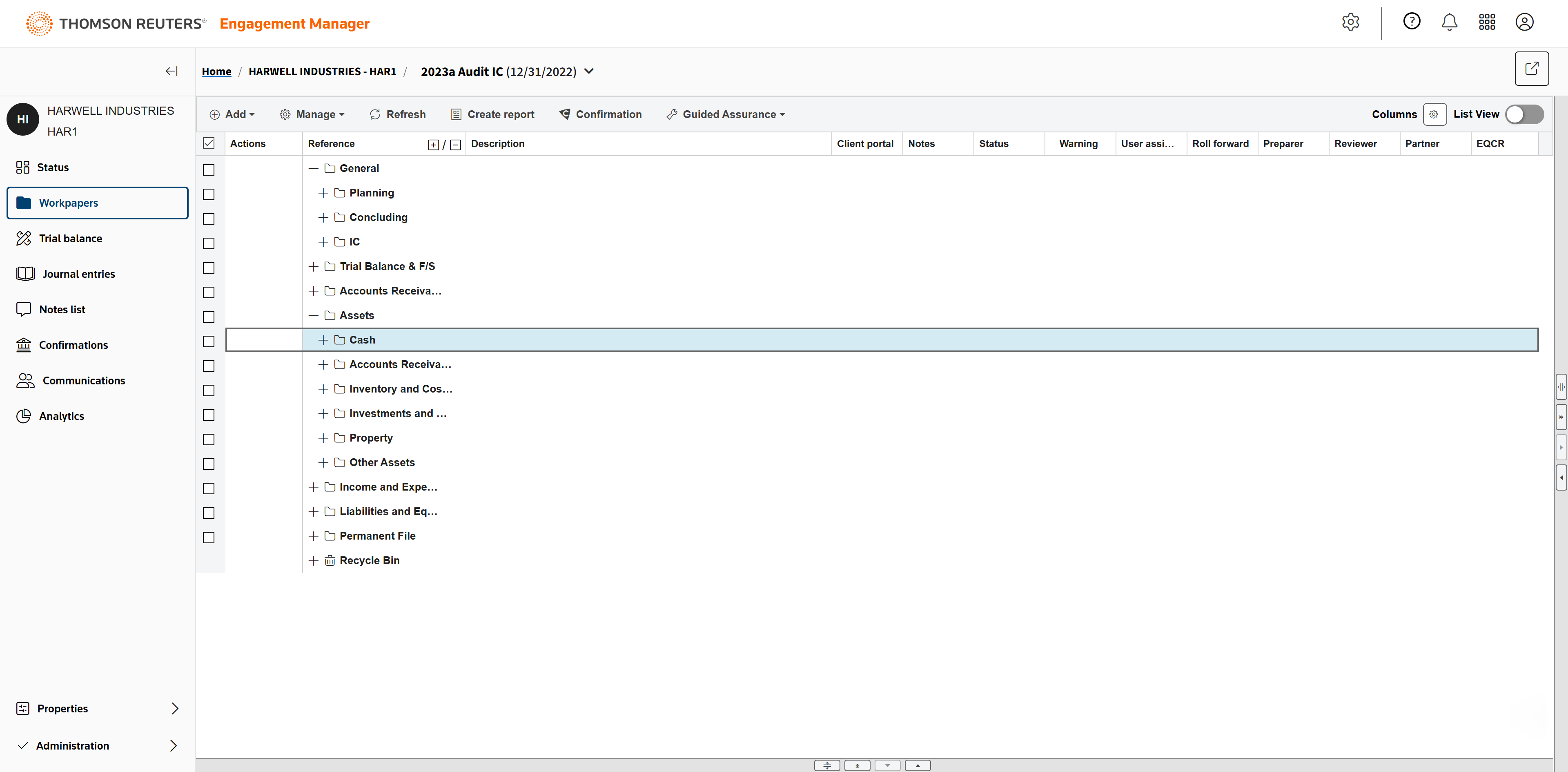
In Workpapers, you can add a variety of documents.
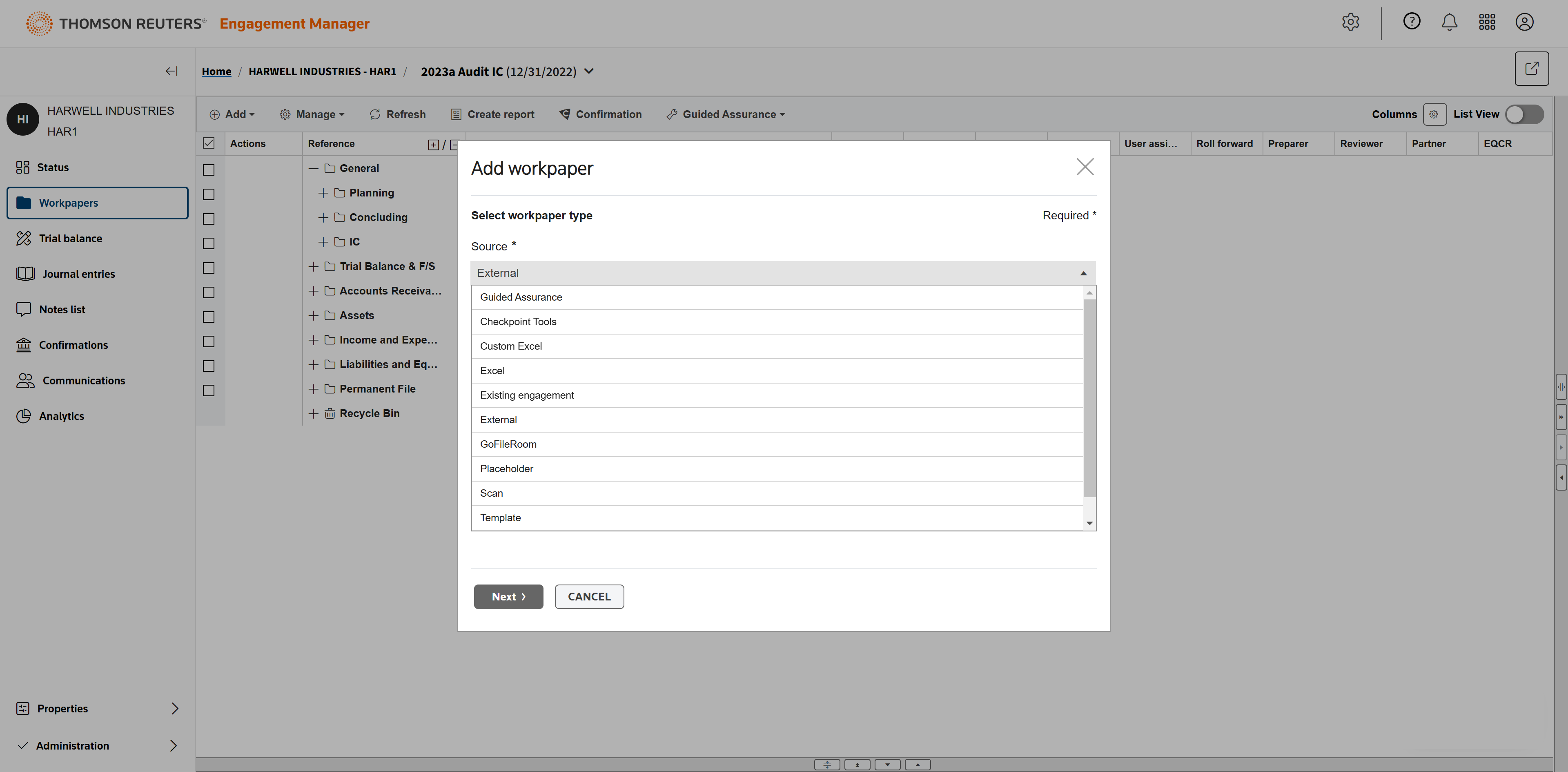
Custom Excel, blank Excel, Word, documents from an Existing engagement, and many more are available.
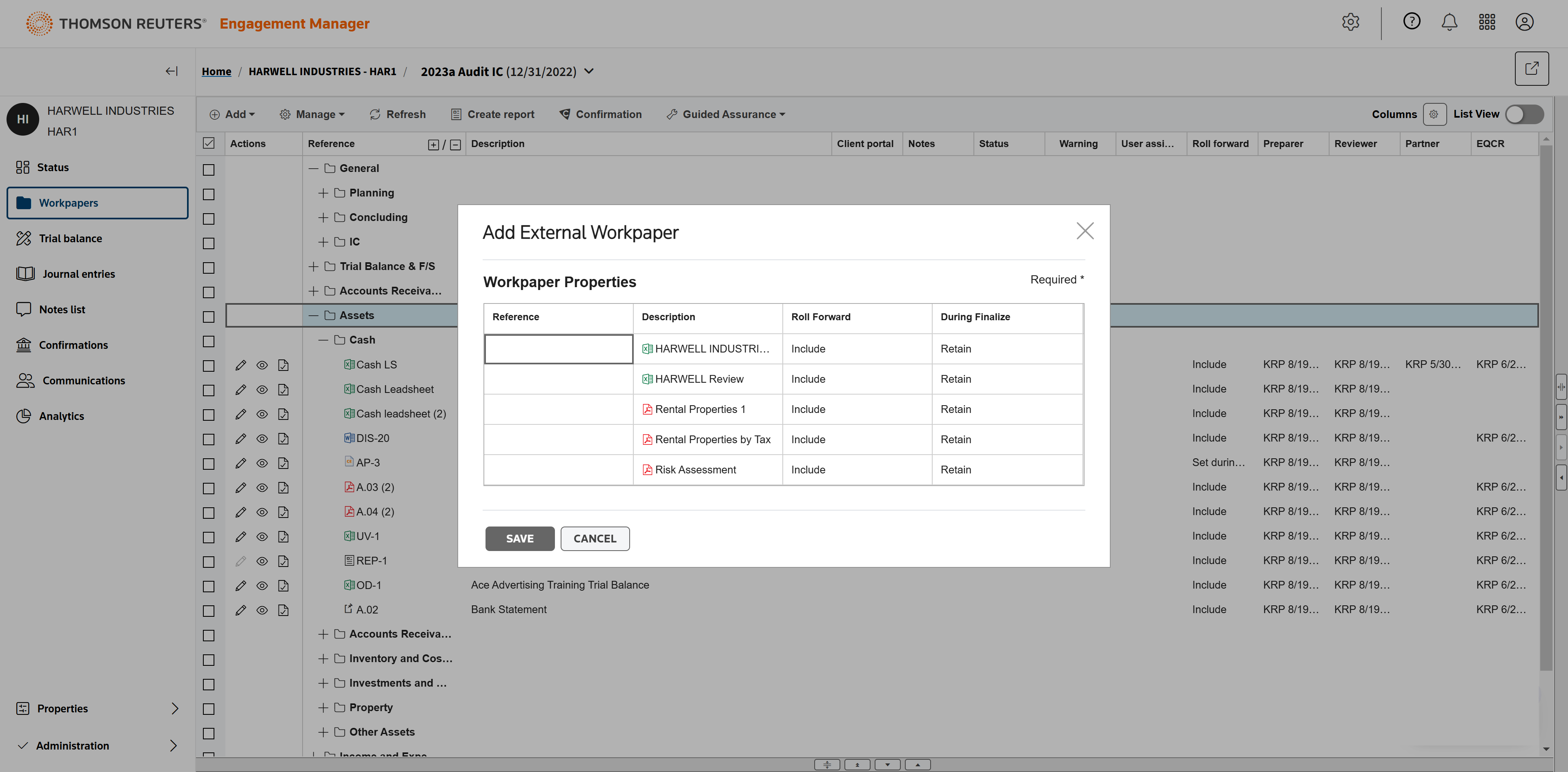
You can also drag and drop multiple documents directly from your local computer into the workpapers tab to add them at once.
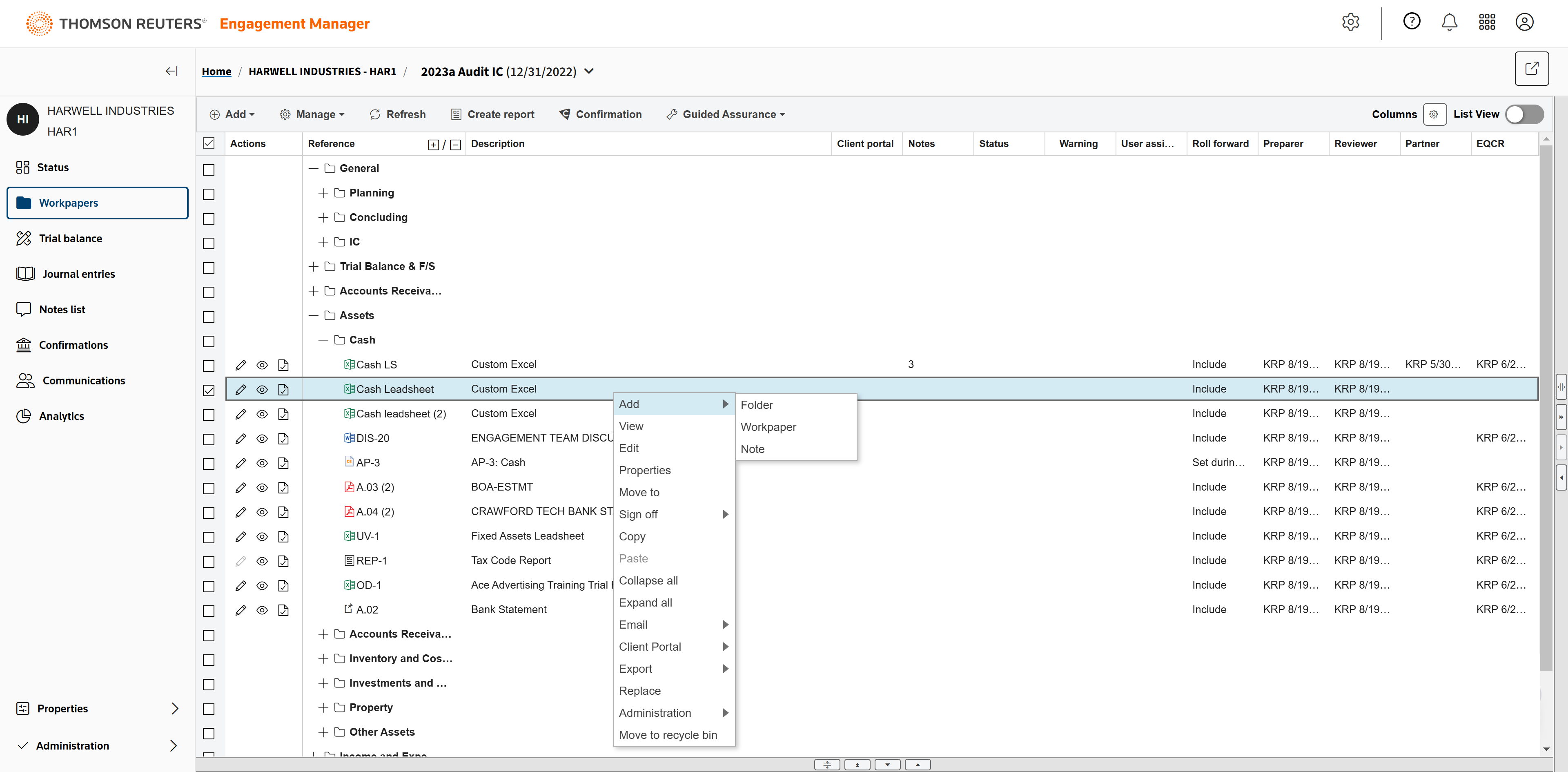
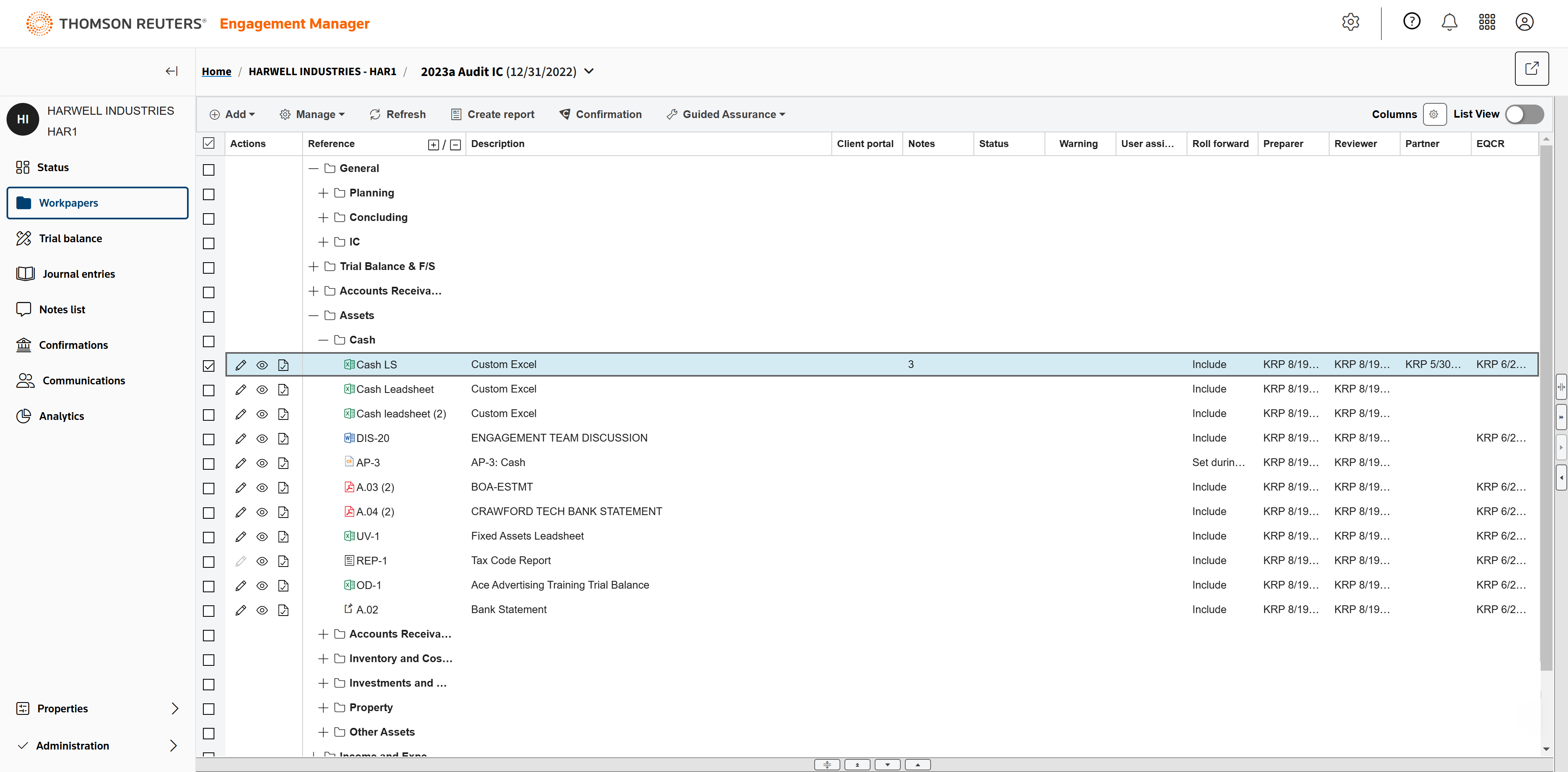
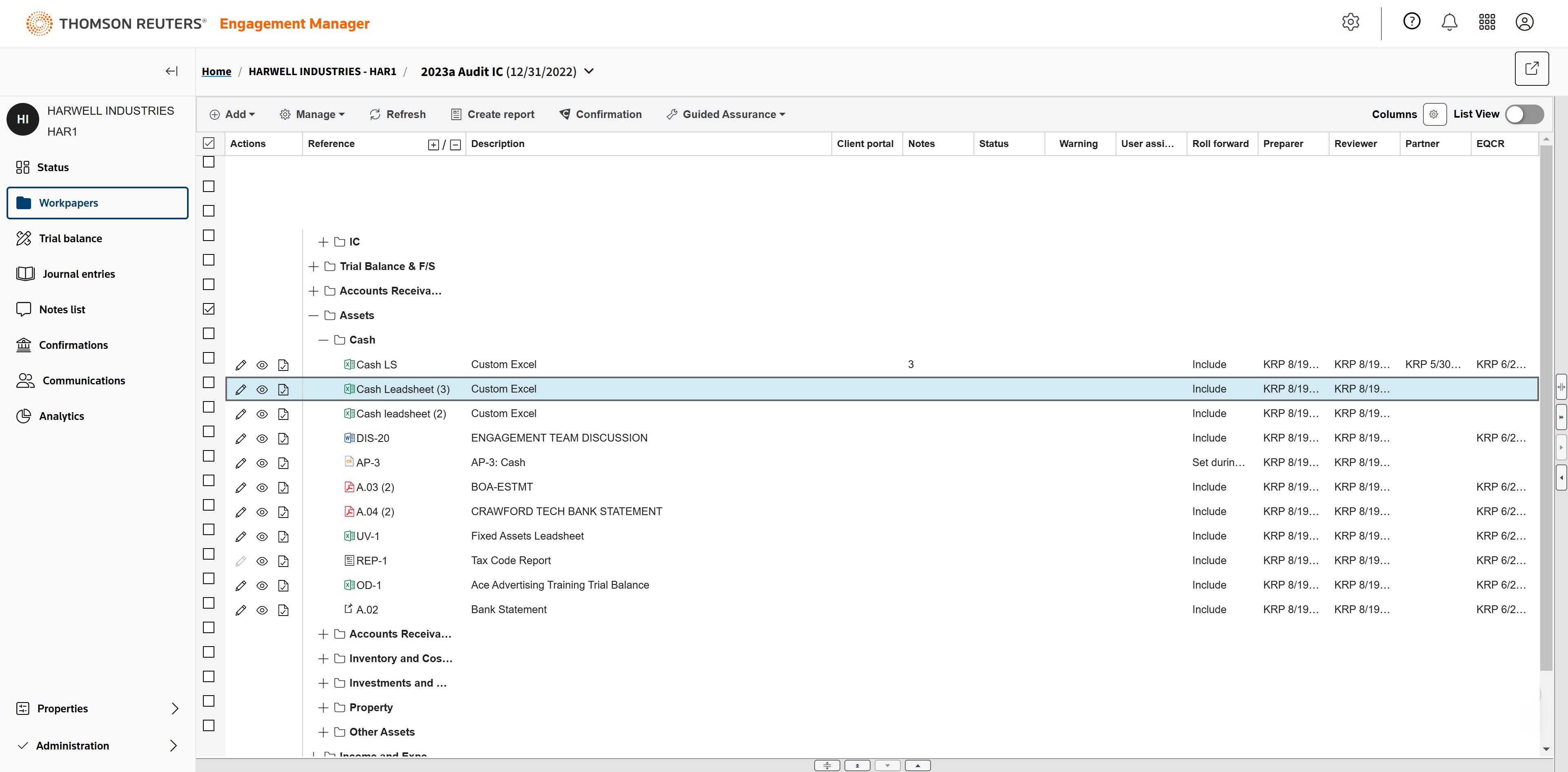
Notes are available on all workpapers.
As are multi-level sign offs.
The count of notes on each workpaper is displayed in the Notes column.
The sign offs are displayed in the relevant columns by sign off level.
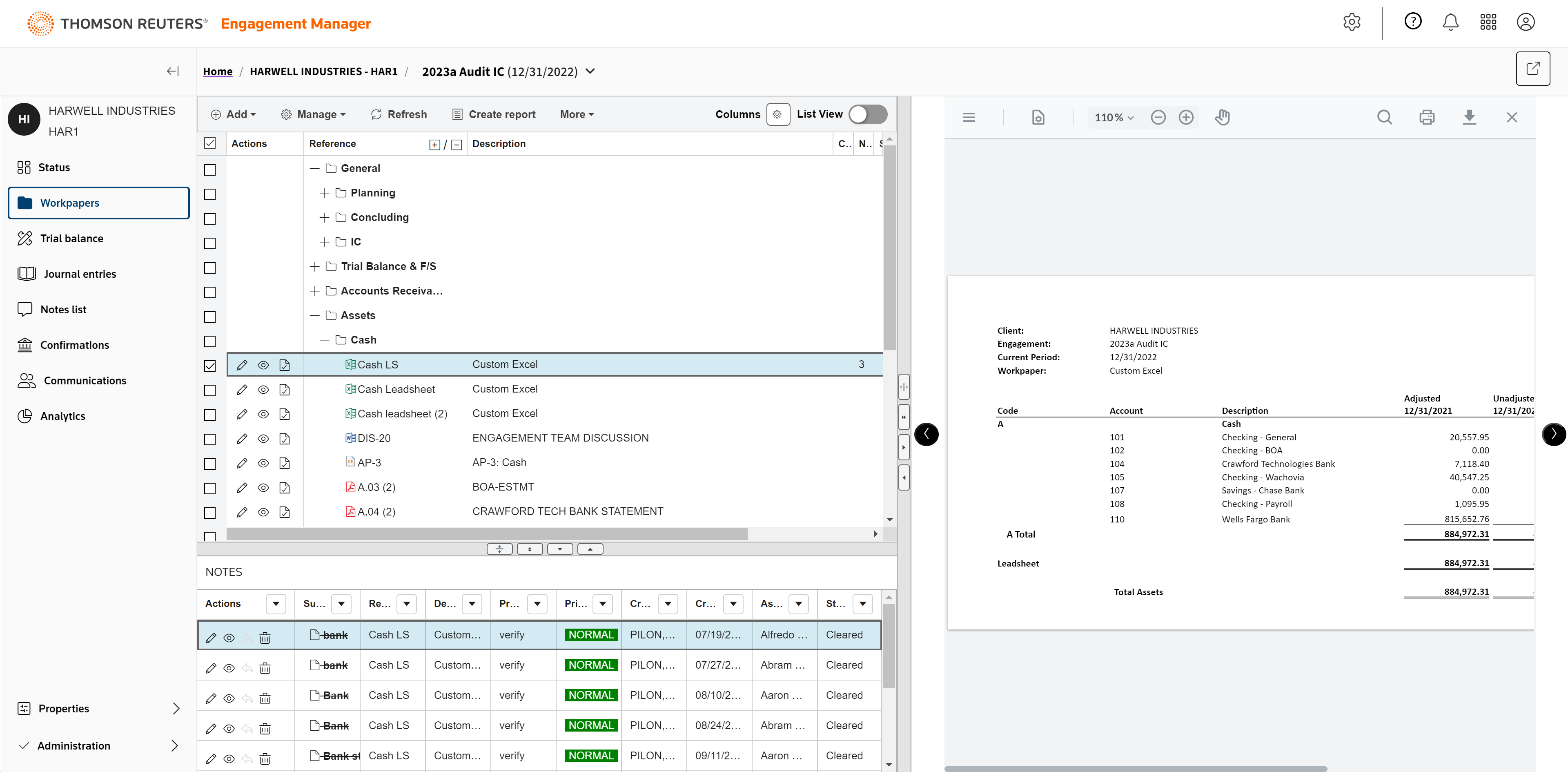
The workpaper preview panel lets you see the contents of a document directly in the browser while reviewing without having to open the document in its native application.
Highlighting a workpaper will also show you any open notes for the workpaper in the Notes panel.
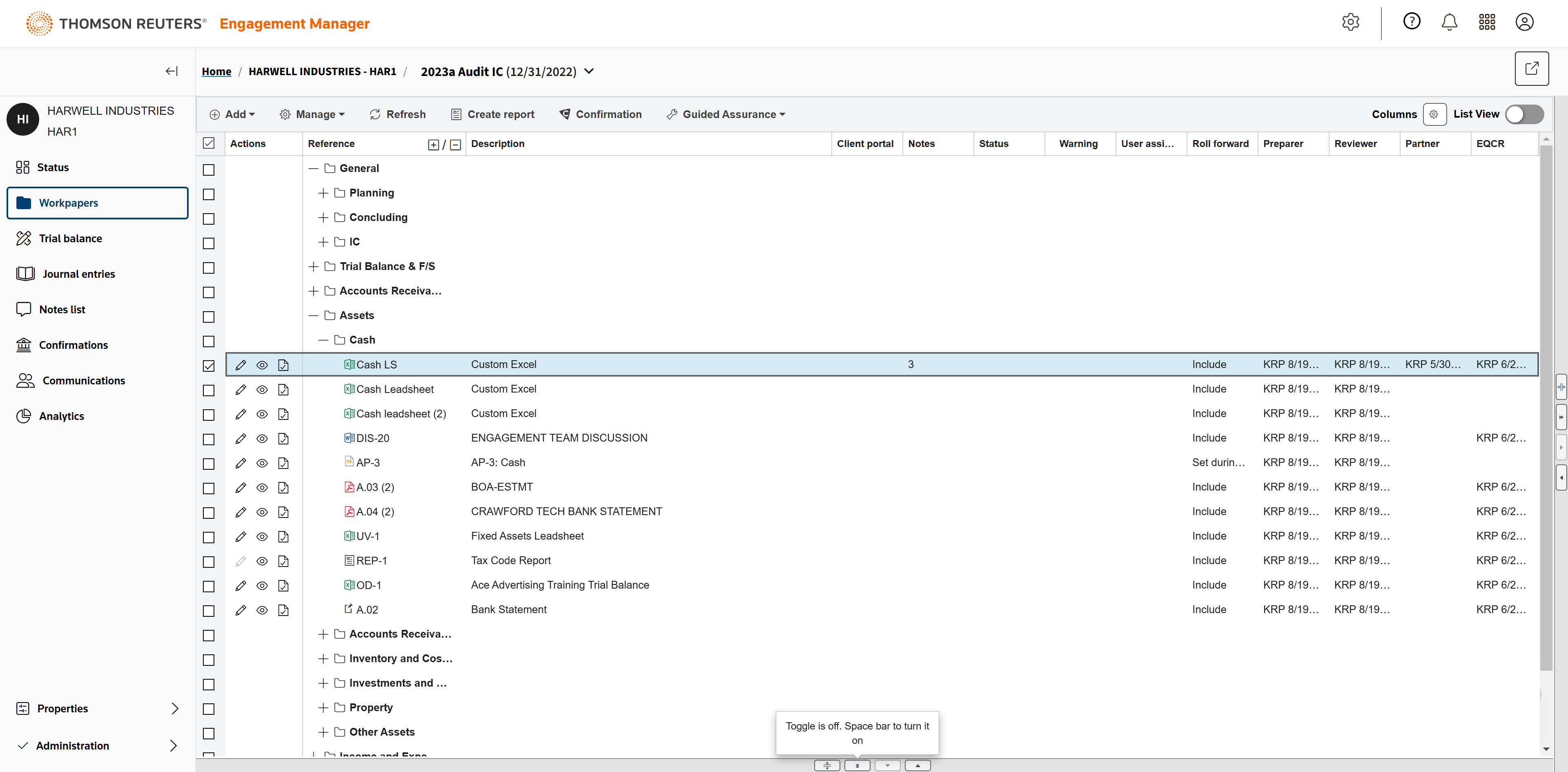
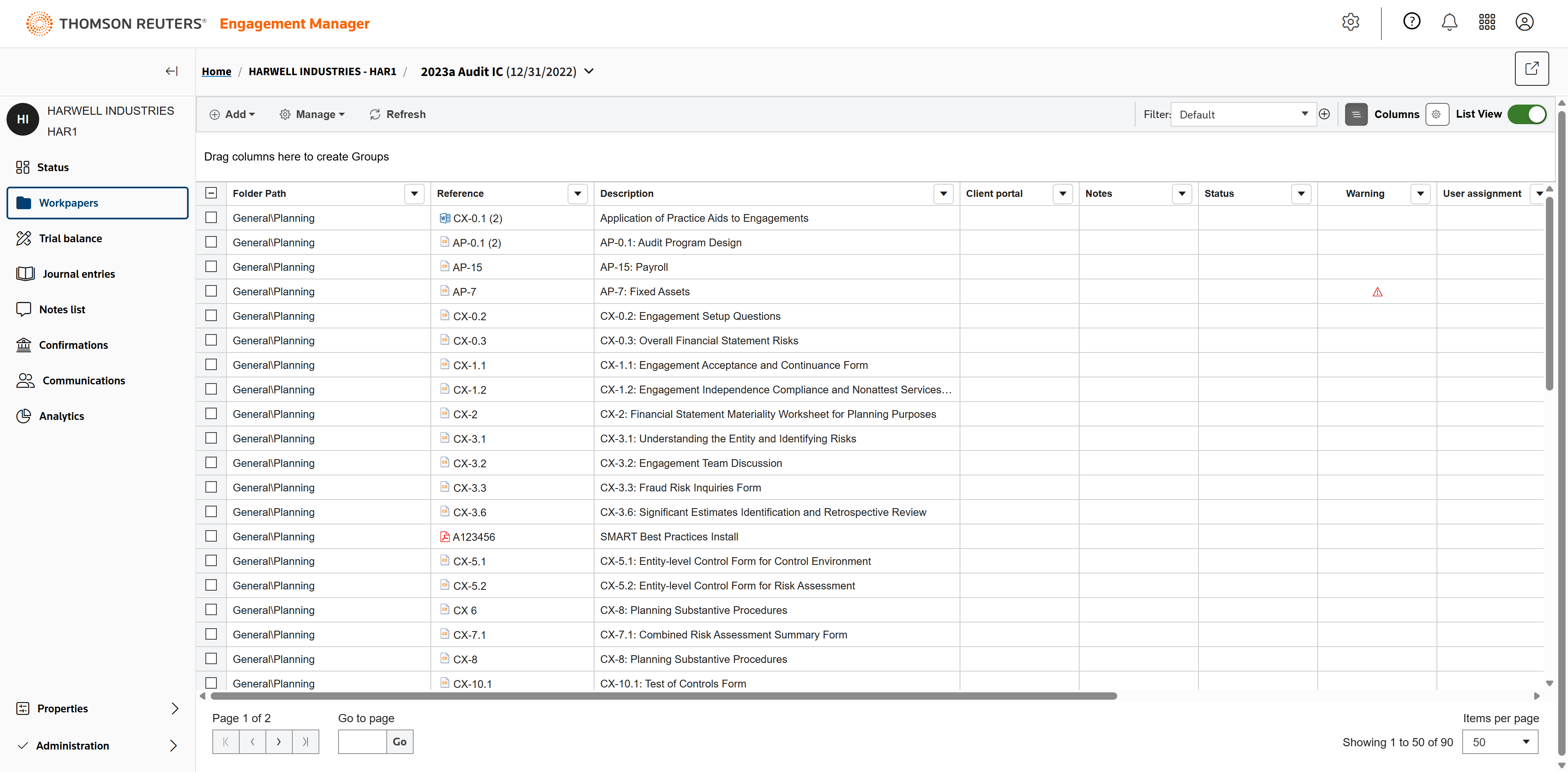
Click List View to switch to viewing workpapers by list.
This view allows you to search for a specific workpaper name using filters. Then, you can set sorting and filtering options on this list to help find your pending work.
Let's create a custom Excel cash leadsheet.
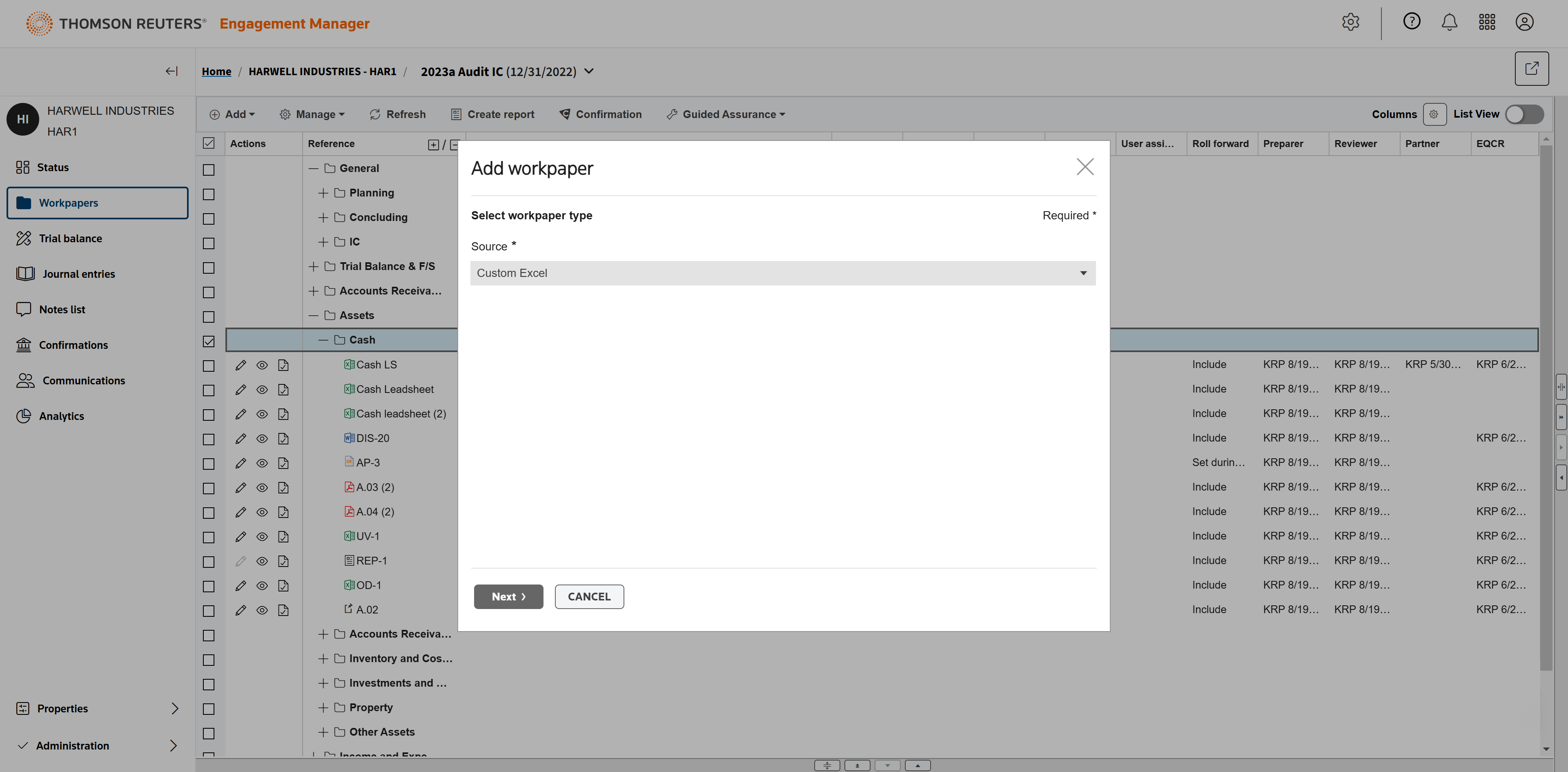
The workpaper type will be Custom Excel.
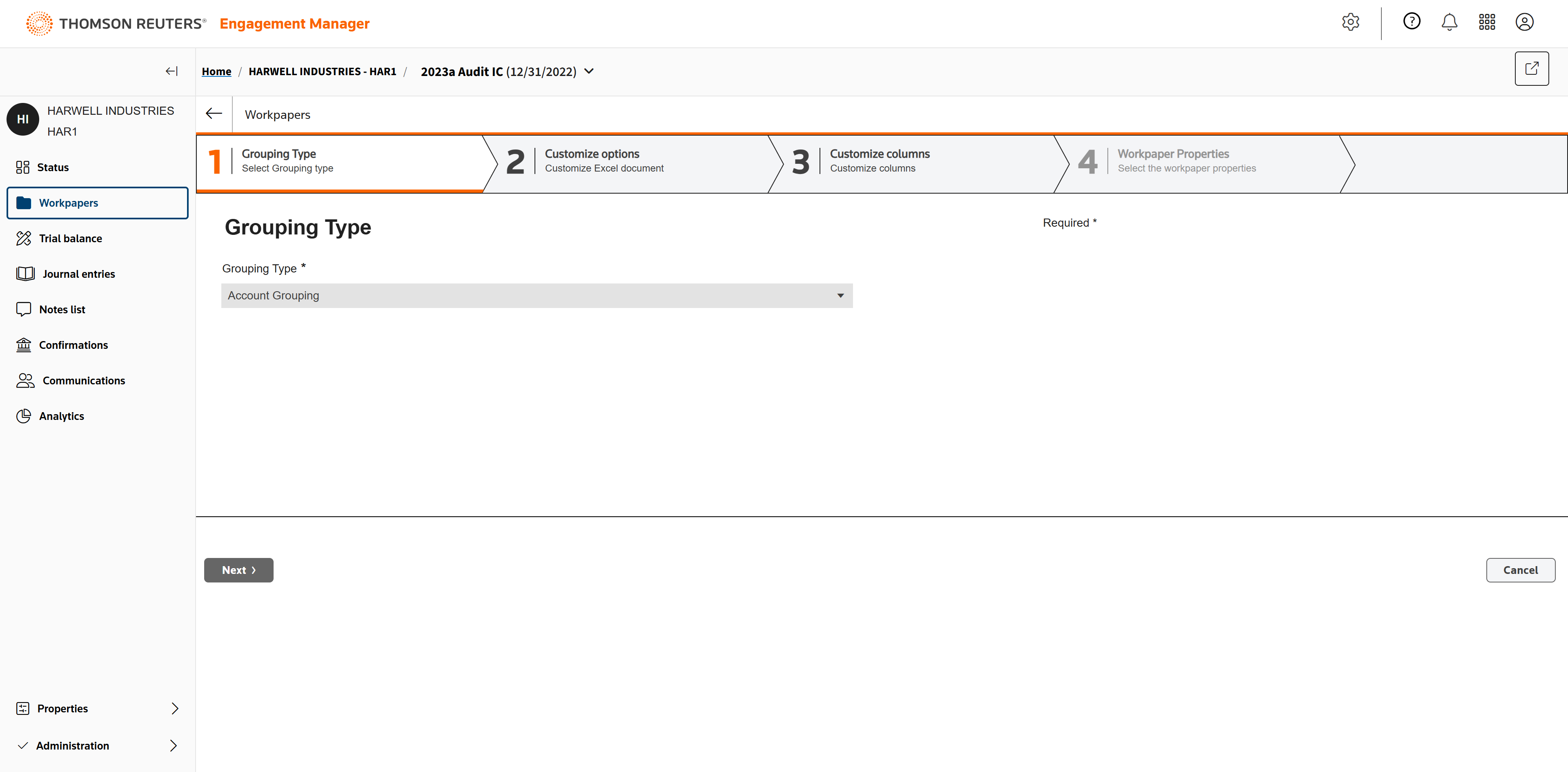
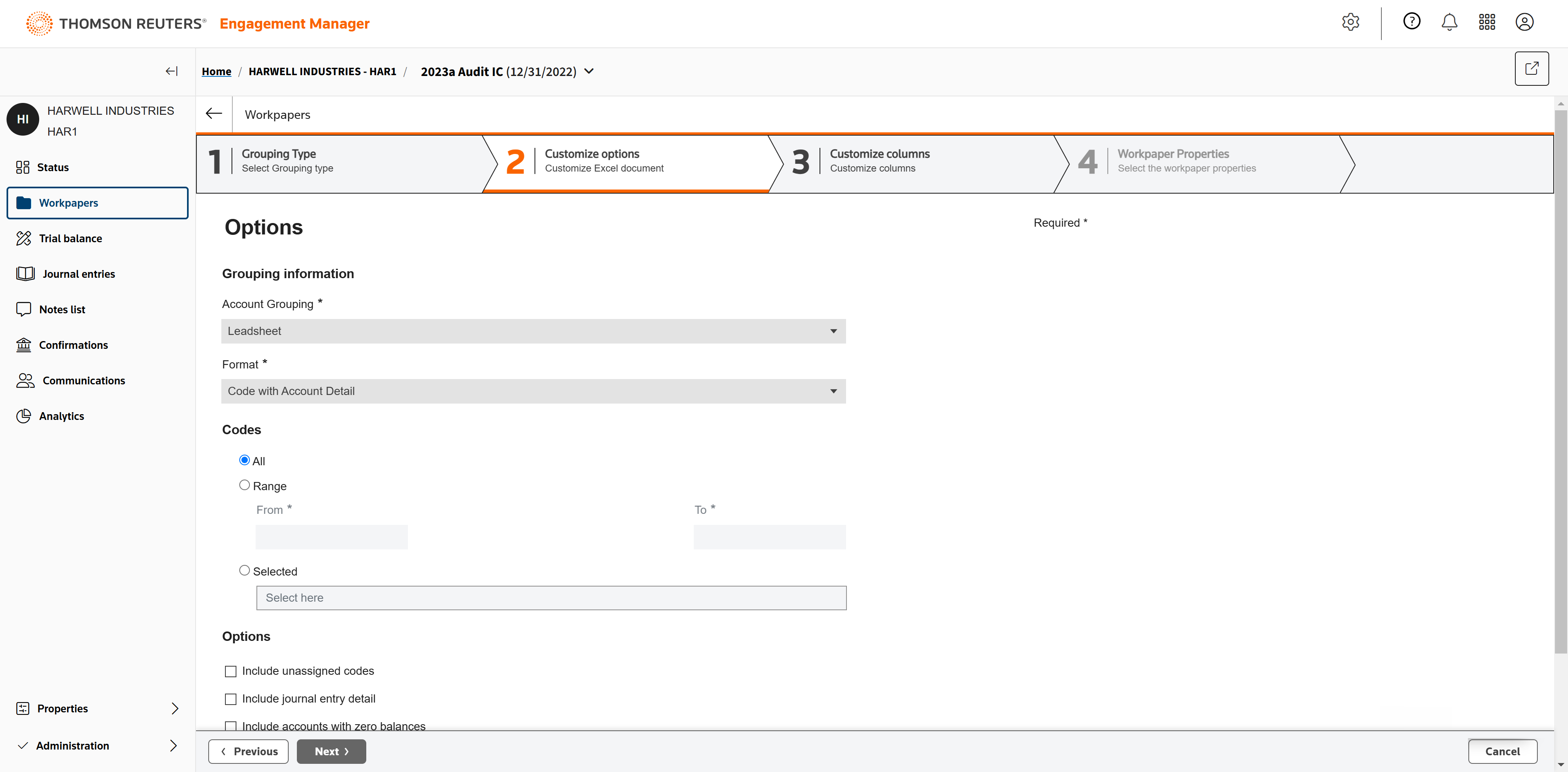
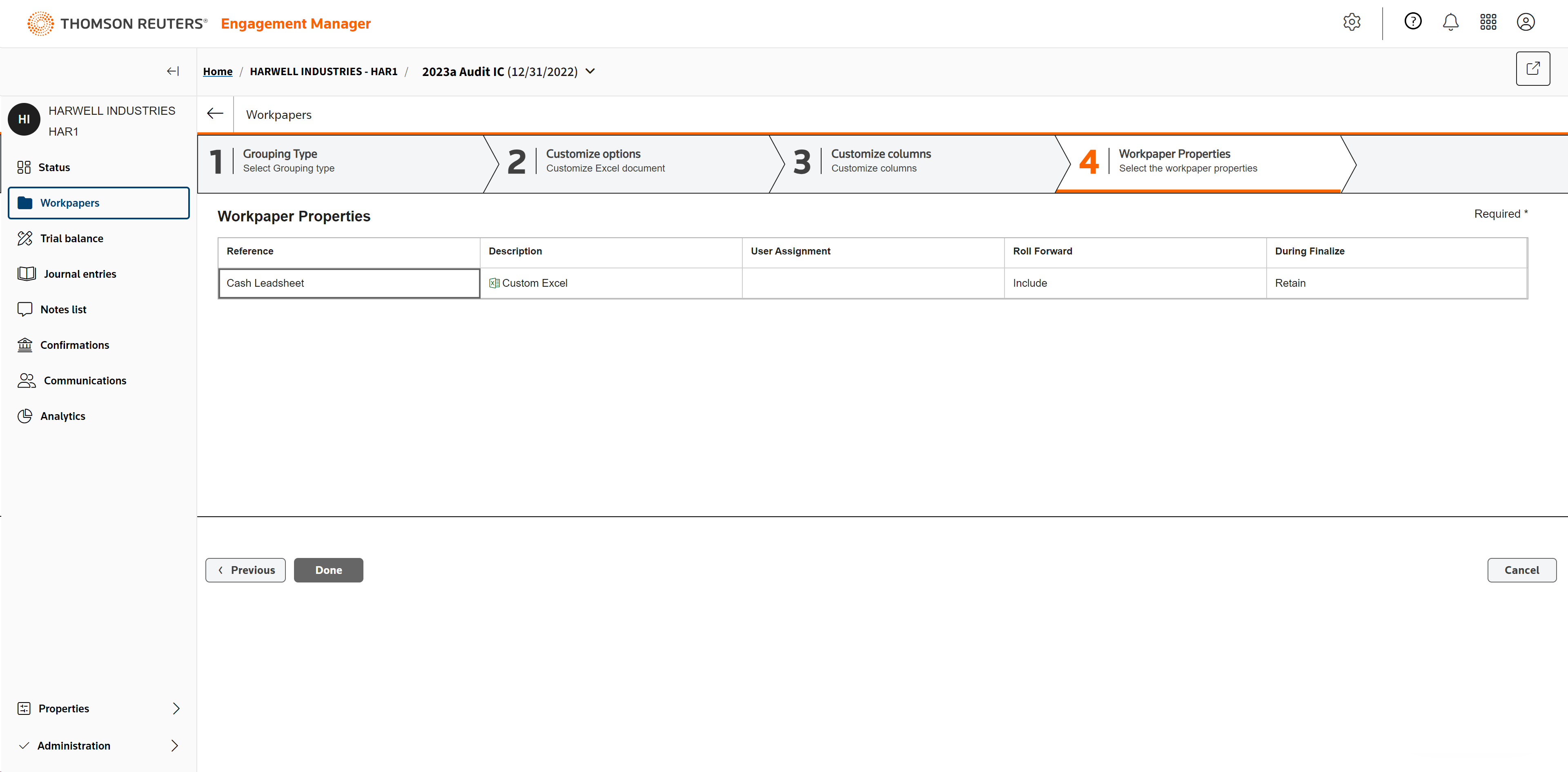
In step 1, select the grouping type.
In step 2, select Leadsheet in Account Grouping and Code with Account Detail in Format.
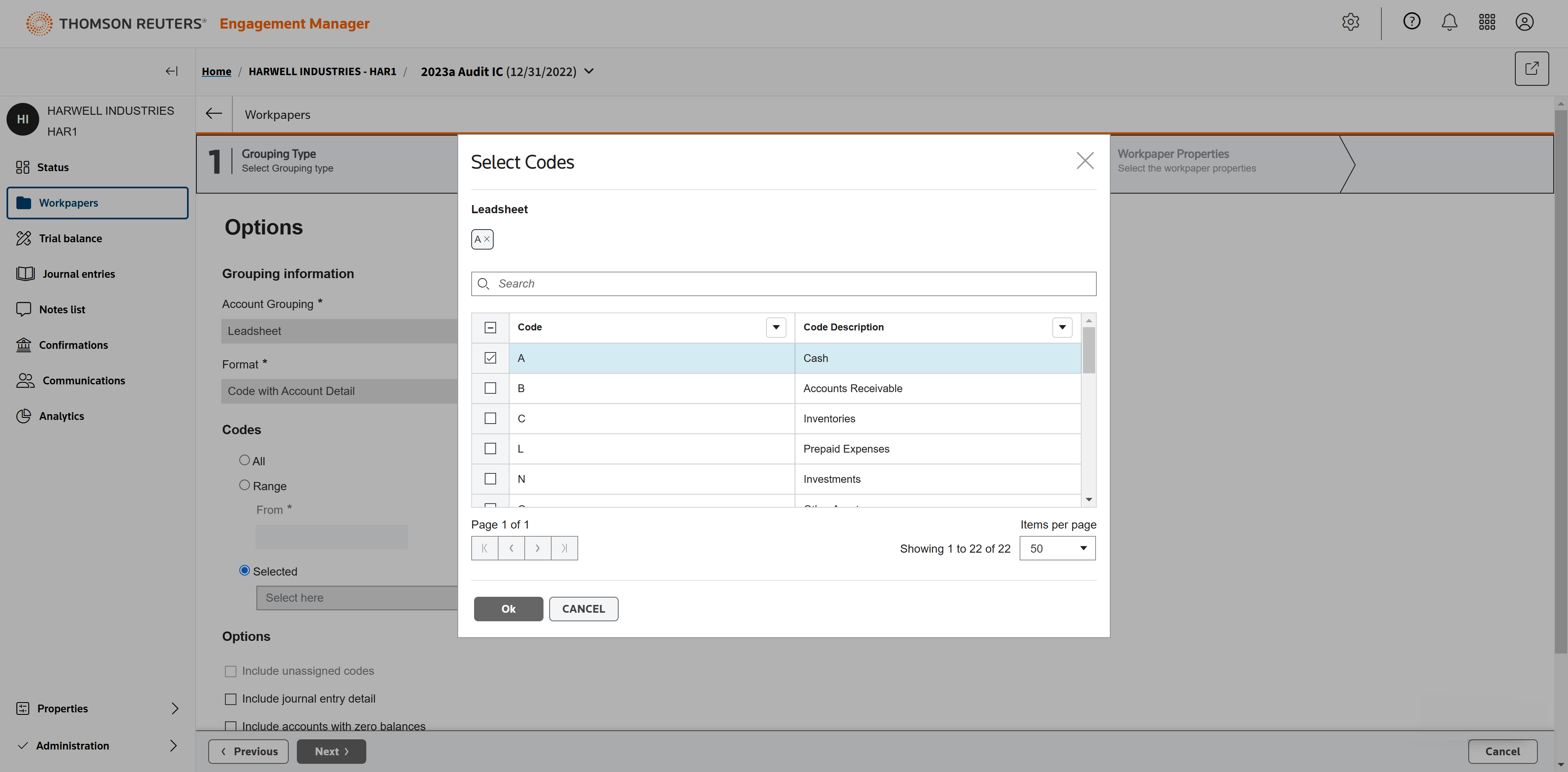
Select A for Cash.
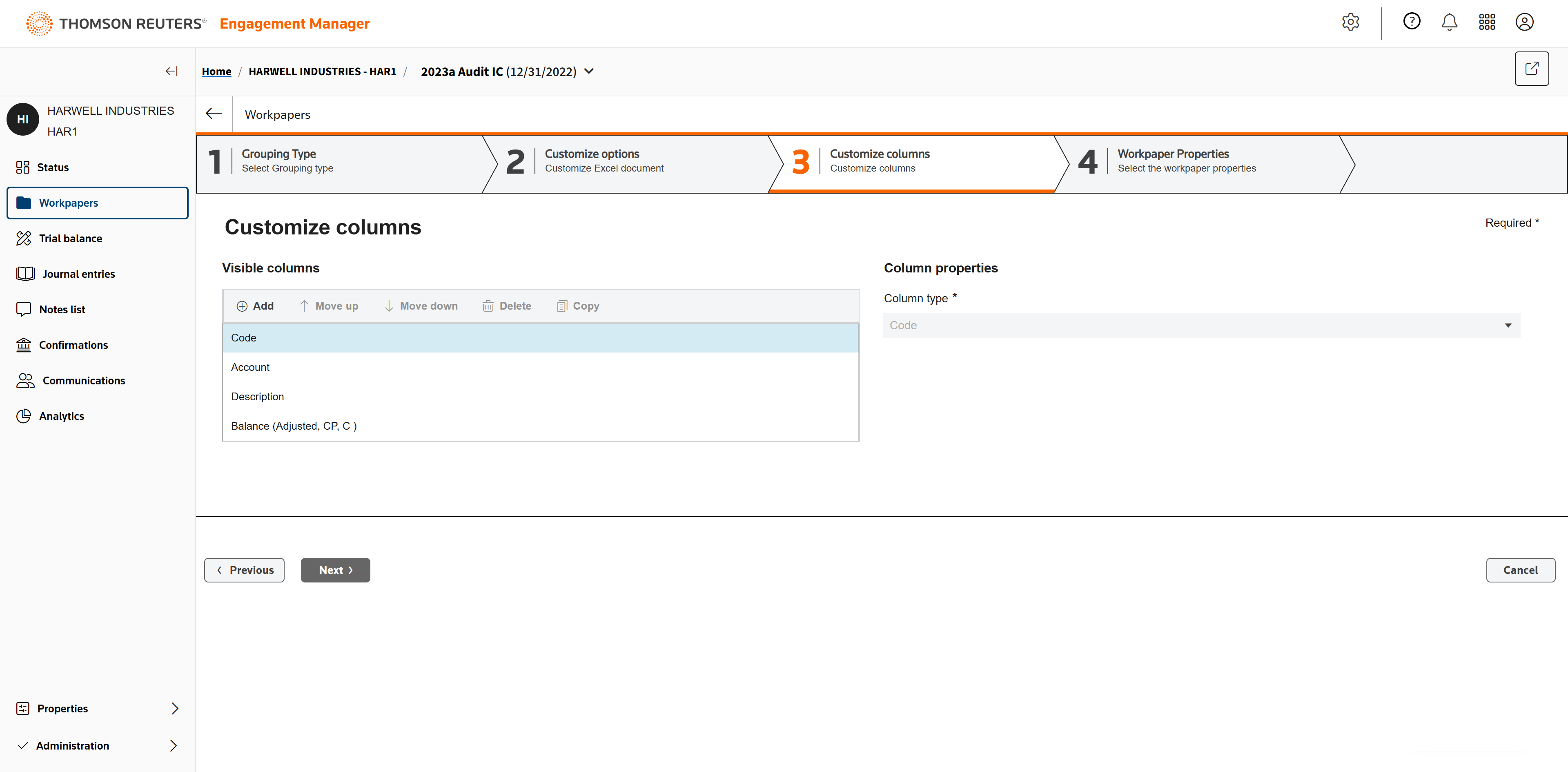
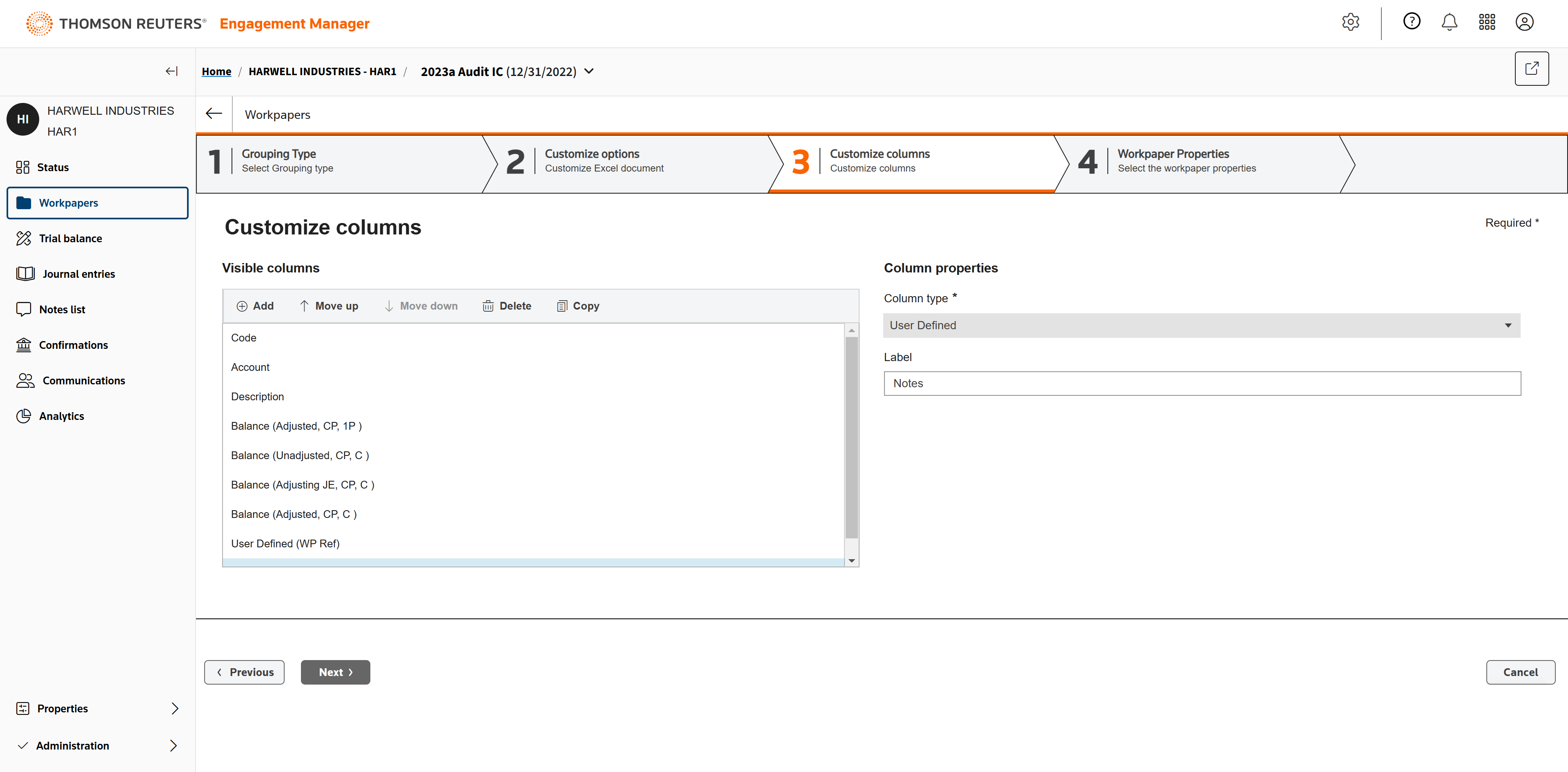
In step 3, click Add to add columns to the leadsheet. You can add as many as you need.
Once you've finished adding columns, click Next.
In step 4, finish by defining the last details of the leadsheet such as Reference and Description.
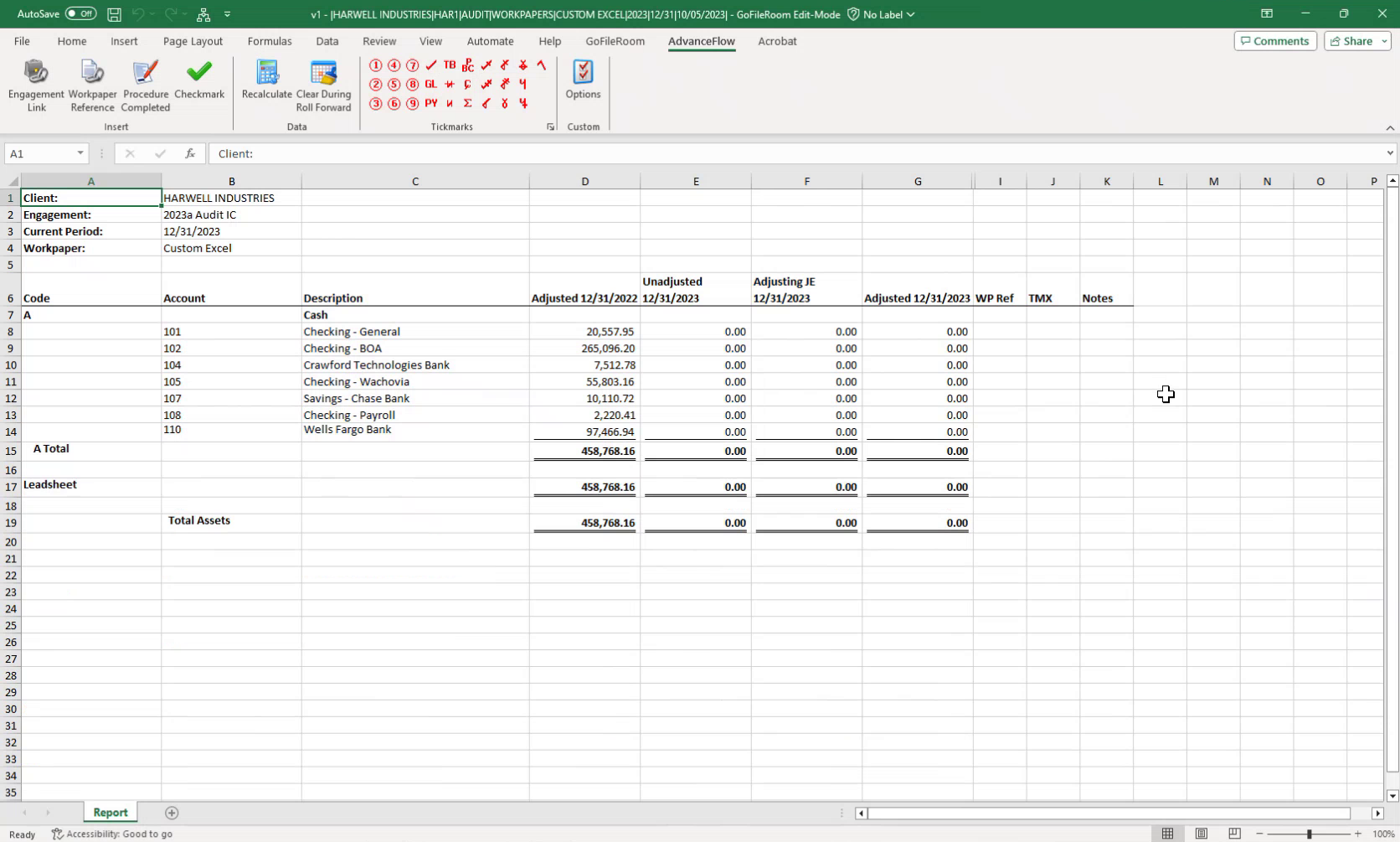
The new leadsheet has been saved successfully. Click to open it.
All numbers are linked directly to the trial balance. New numbers will display for this year and prior numbers from the previous year. You can use this leadsheet from engagement to engagement. It will roll forward year to year.
If you have new accounts next year, they will be added automatically — no need to add them manually.
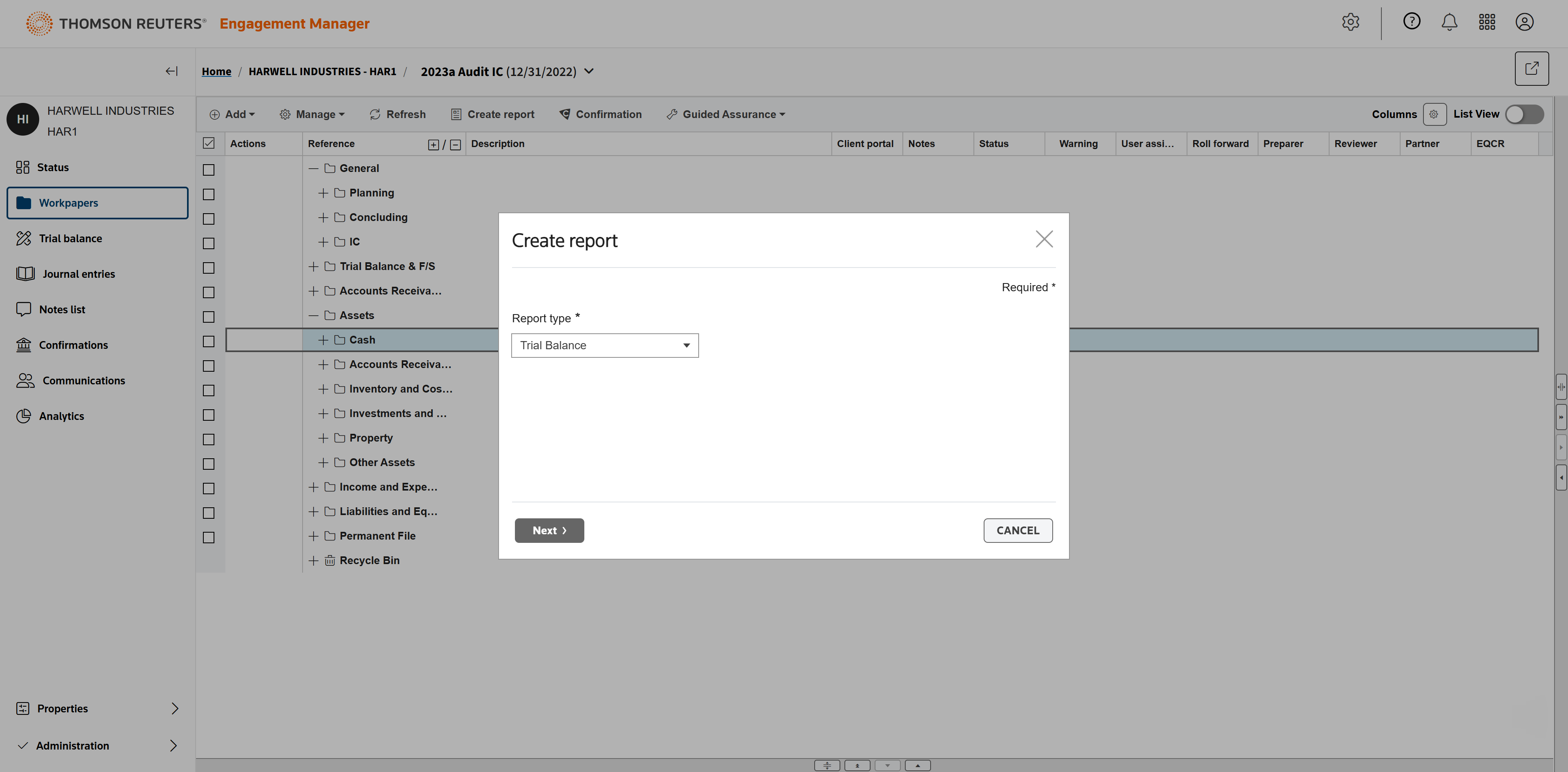
To create a report, click Create Report in Workpapers.
Select Trial Balance as the report type. In this case, you'll create a trial balance variance report.
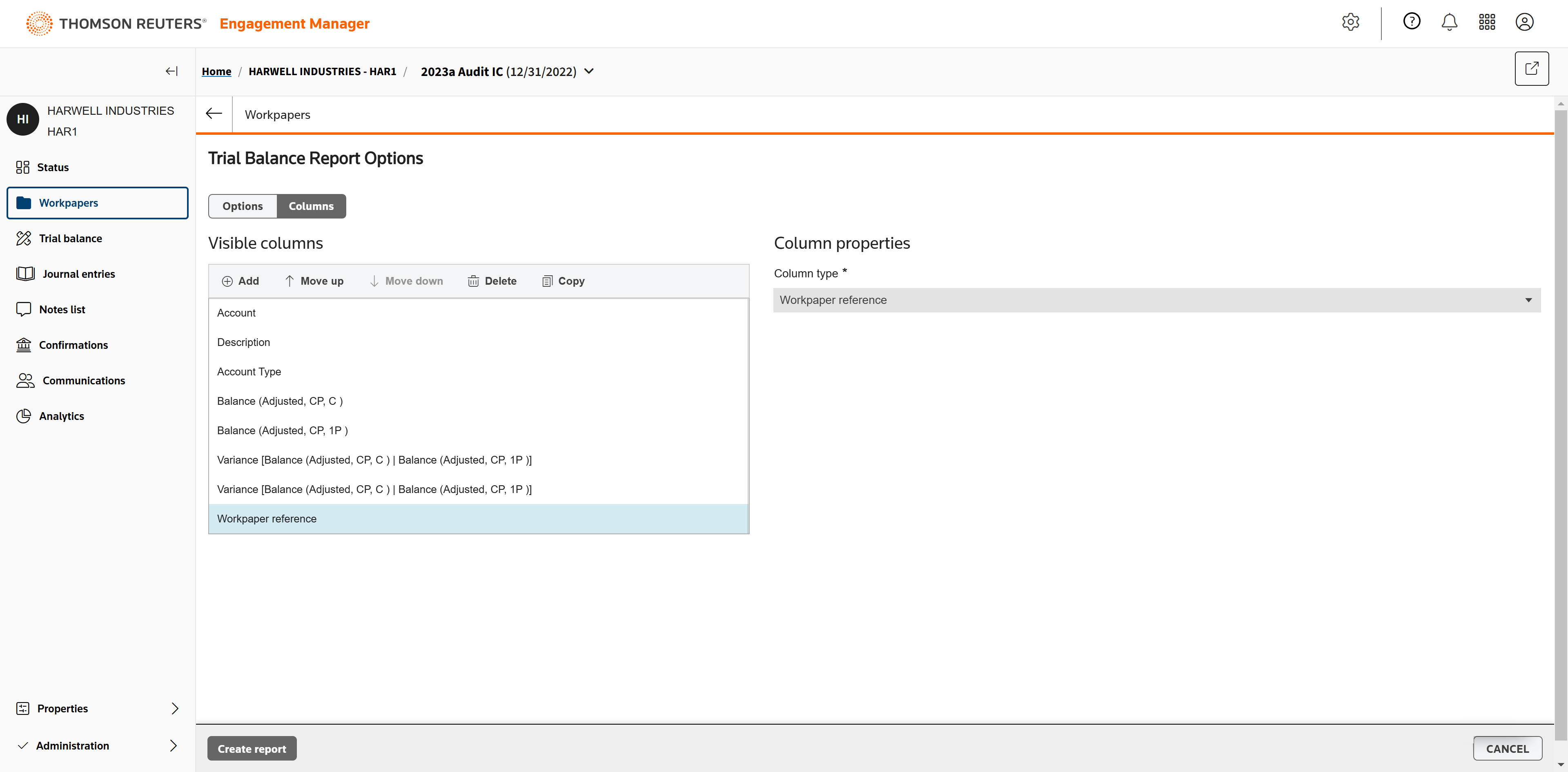
In the same way you created the custom Excel leadsheet, you will add columns you'd like to include in the report.
Create the report.
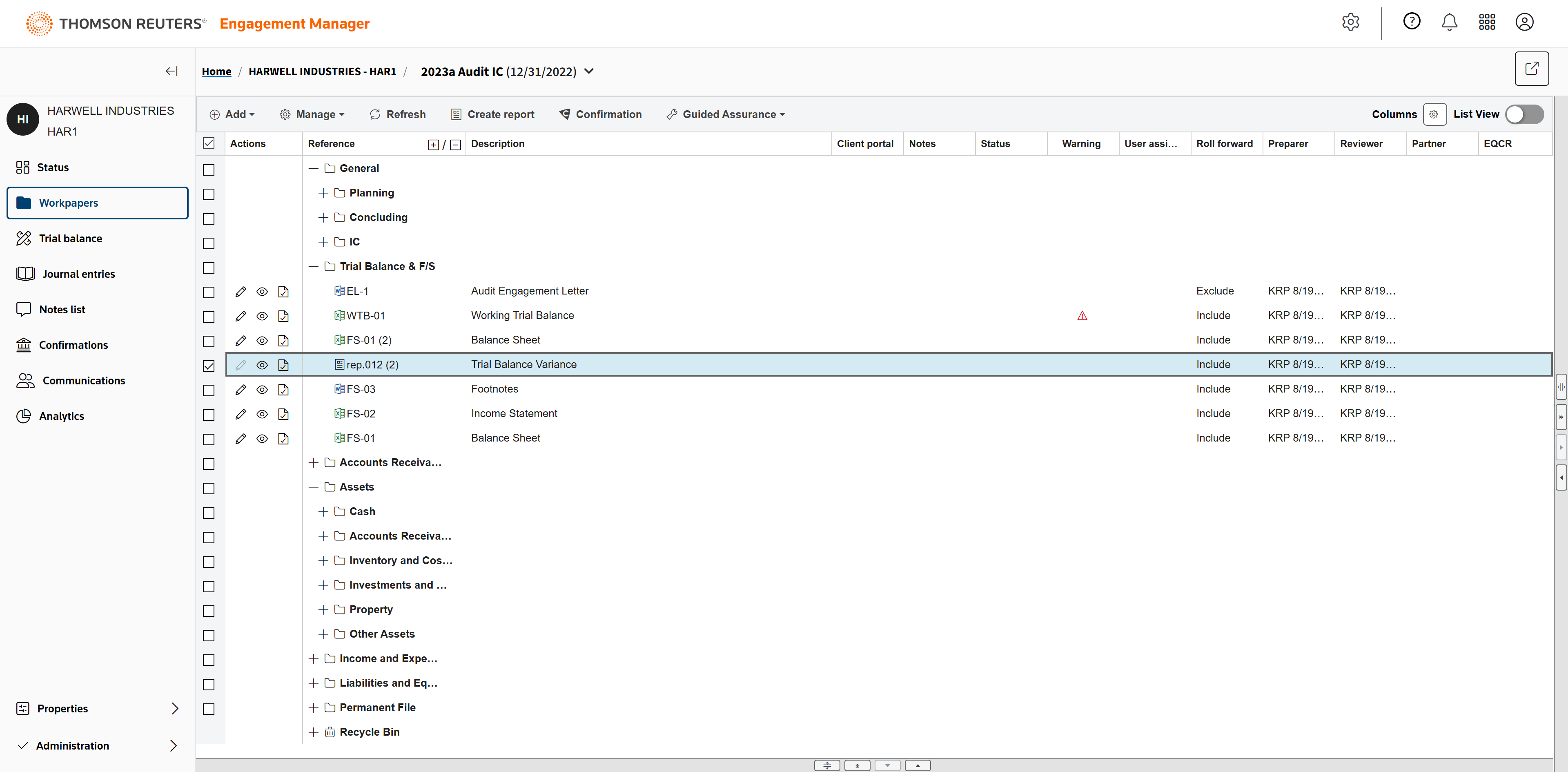
The report has been created. Click to open it.
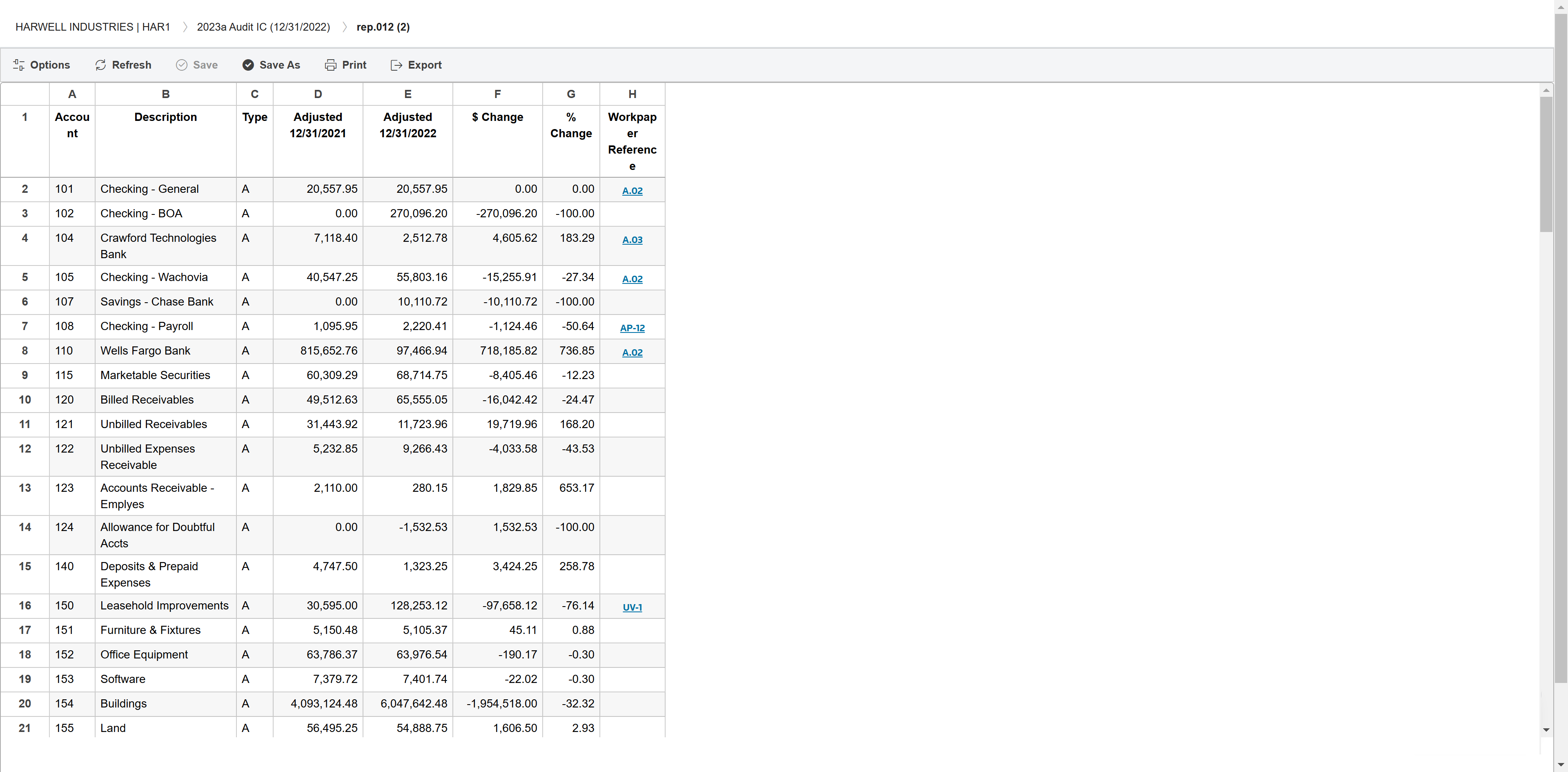
The information you selected will display in the report: current period, one year prior, dollar value change, and percent change.
You can make changes to this report as needed, and it will roll forward from year to year. All data pulls from the trial balance, so the years and numbers will update automatically. You can also use this same report from one engagement to another.
Next, open the Balance Sheet.
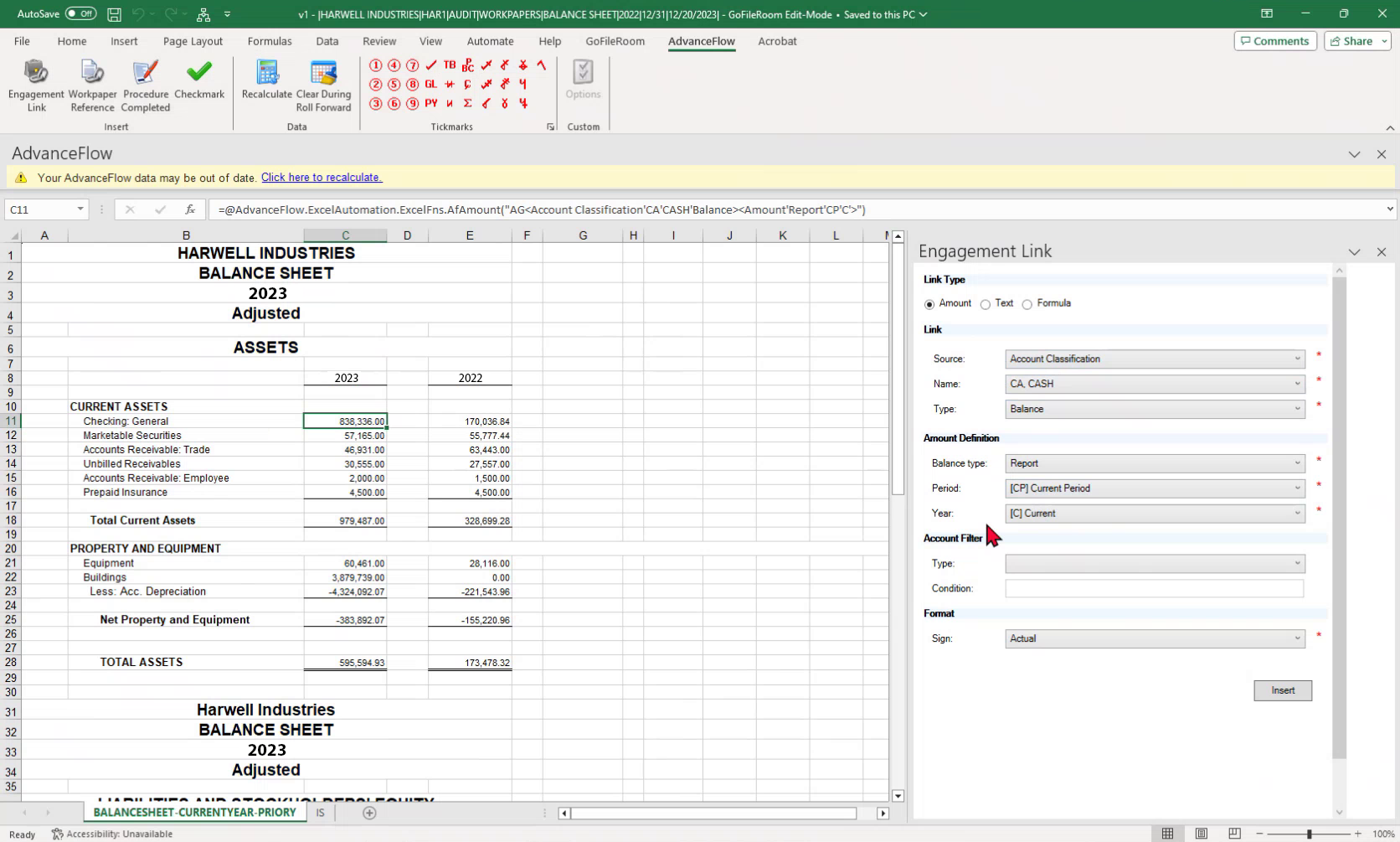
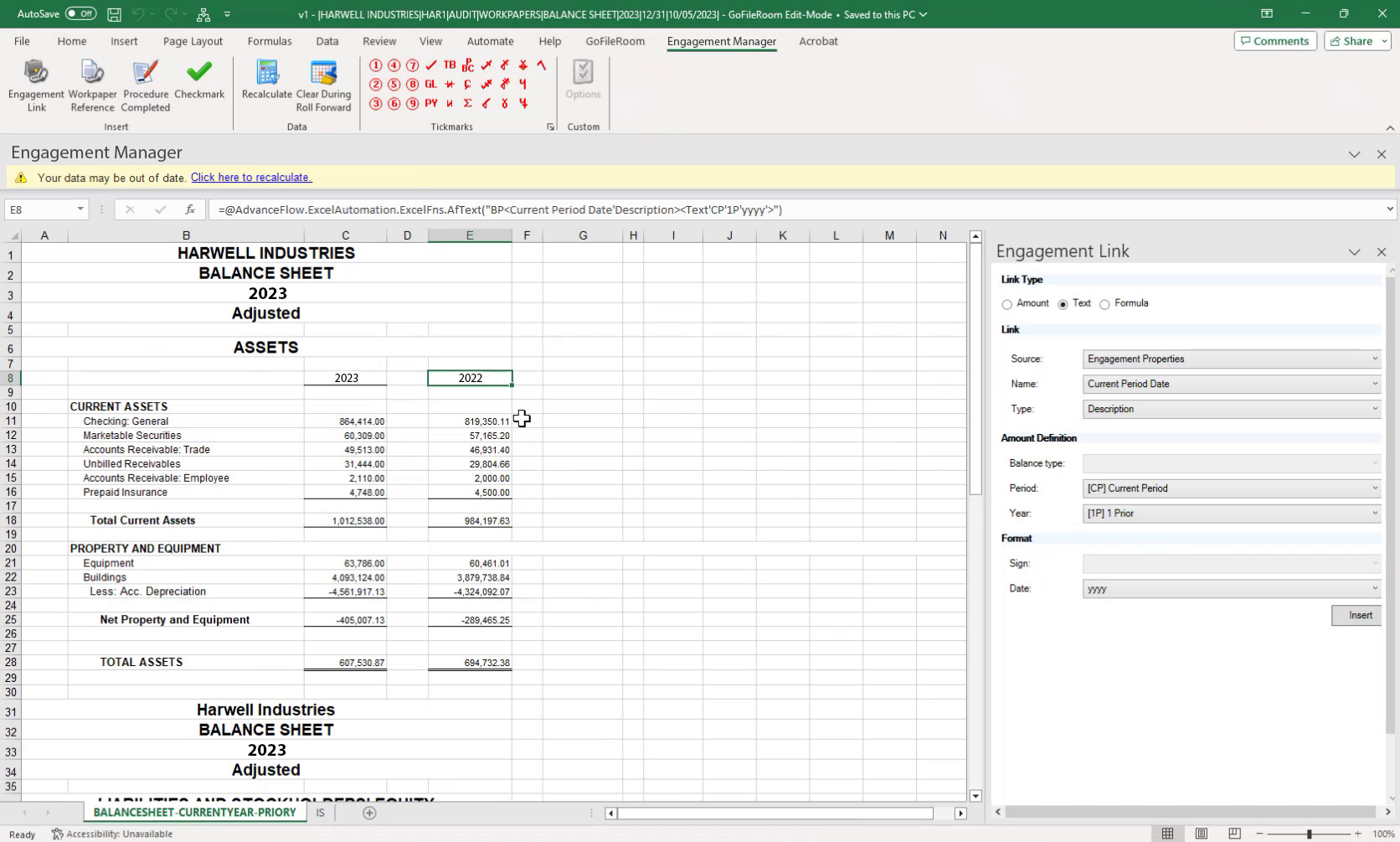
You have the same integration between the trial balance and the balance sheet. All cells in the sheet are linked by the Engagement Link.
We have Current Period and 1 Year Prior. You can also add to the sheet, for example if you need to add a previous year. All numbers will continue to link to the trial balance.
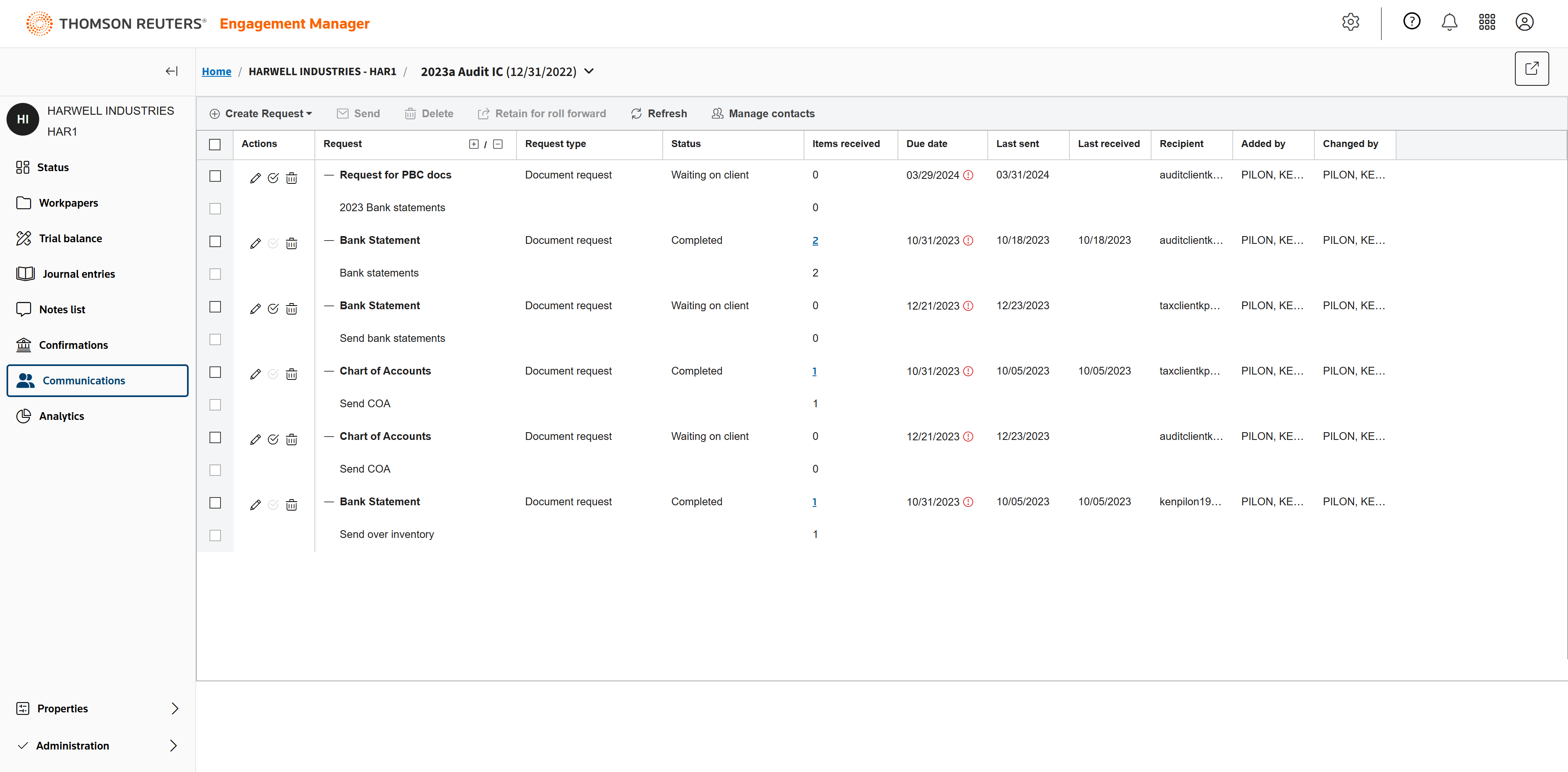
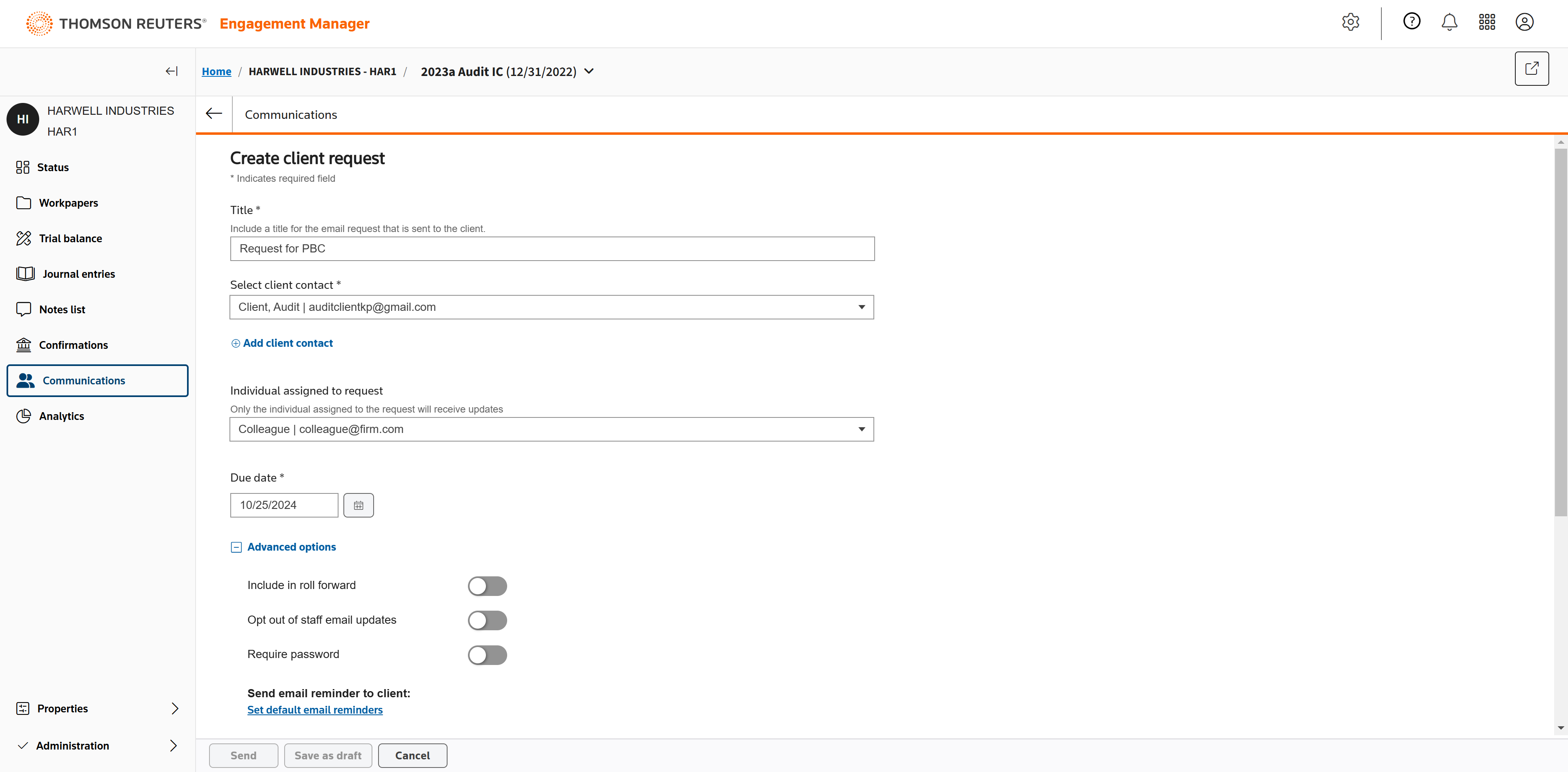
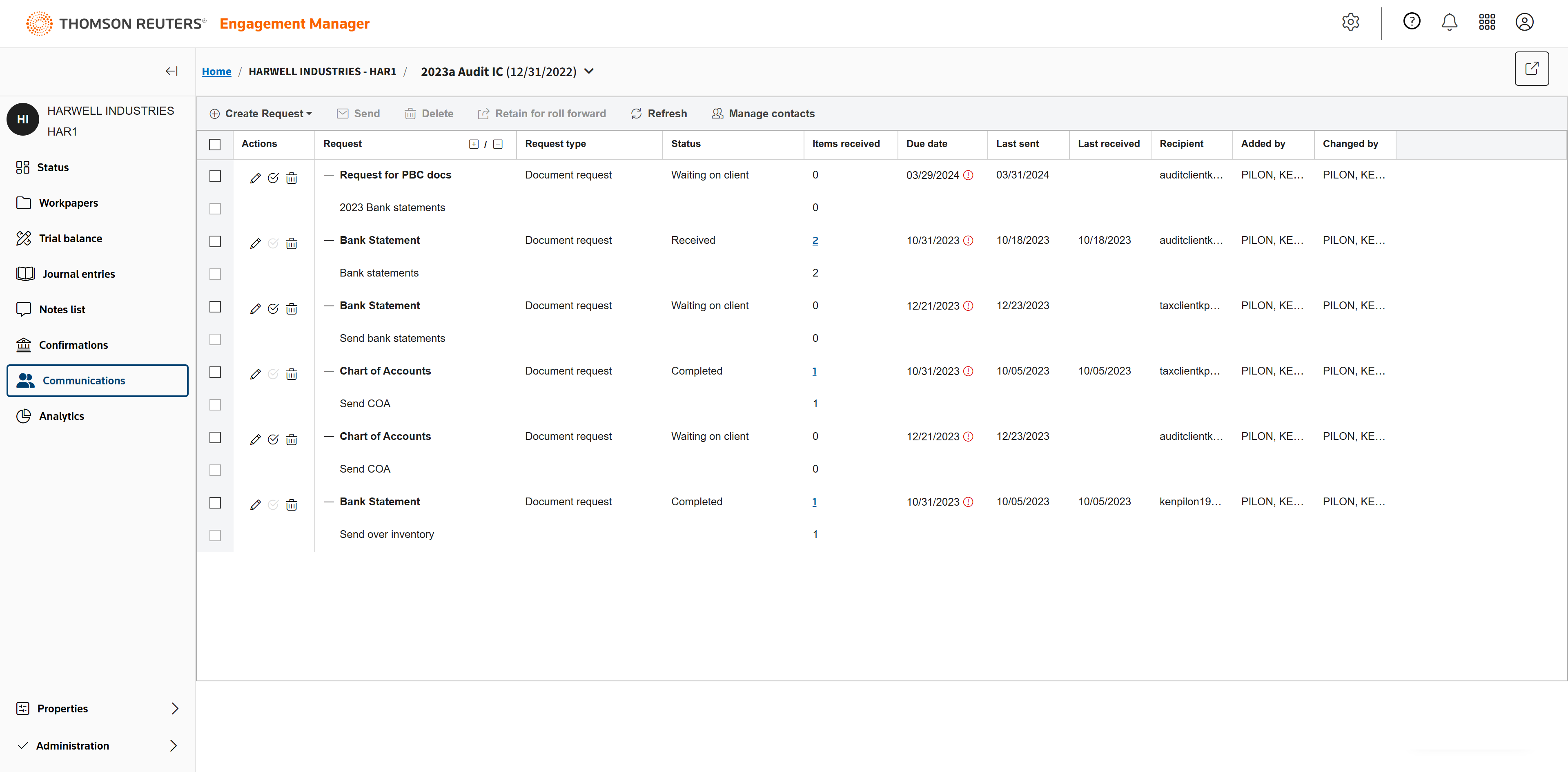
The Communications tabs allow you to request and track all client communications.
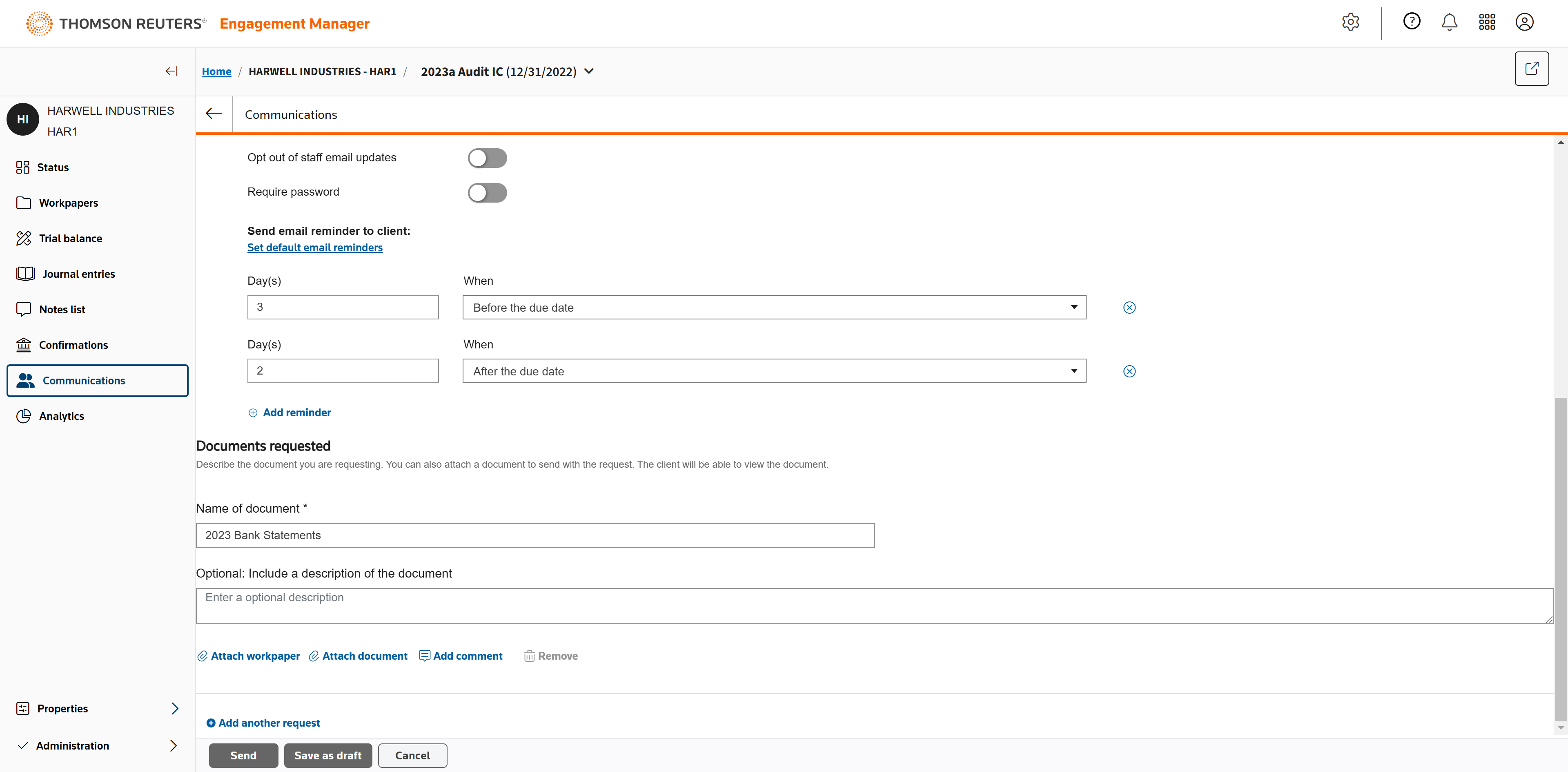
Click Create request to begin a client request.
Enter a title for the request, select a client, assign an individual to receive updates, and set a due date.
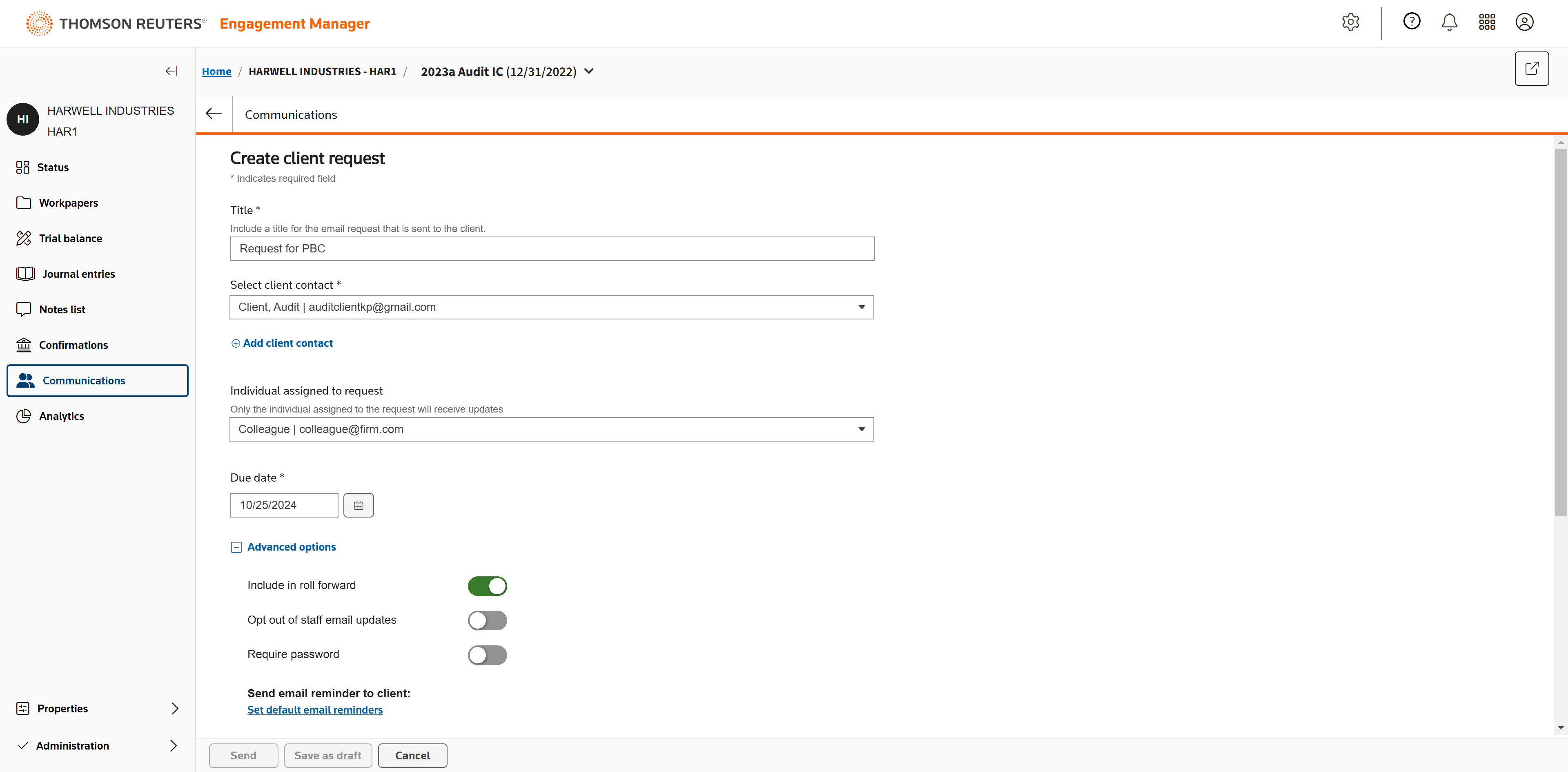
Toggle to include in roll forward.
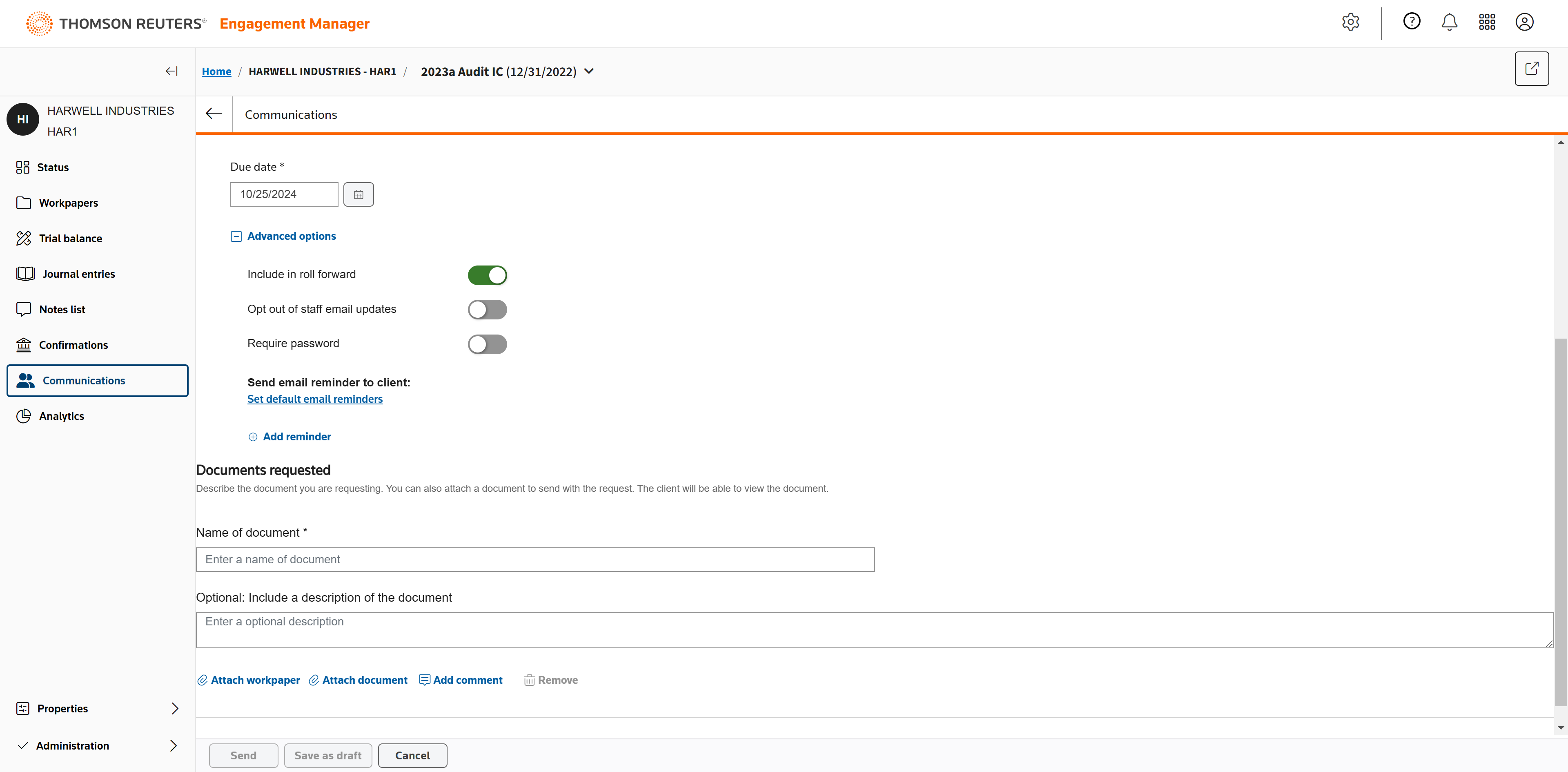
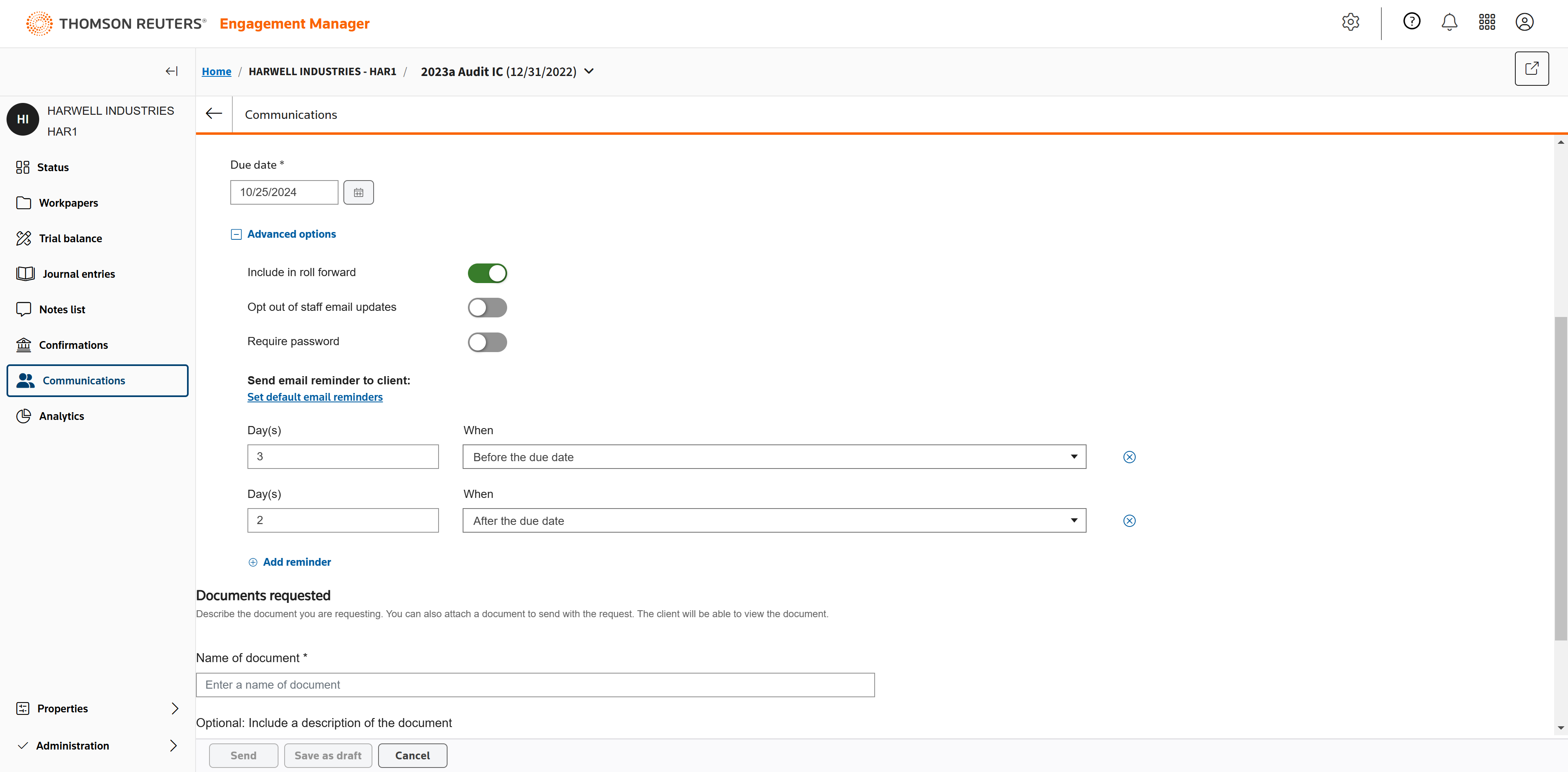
Click Add reminder to set up email reminders for the client.
Add the reminders you need before, on, or after the due date.
Enter the name of the document requested and, when finished, click Send.
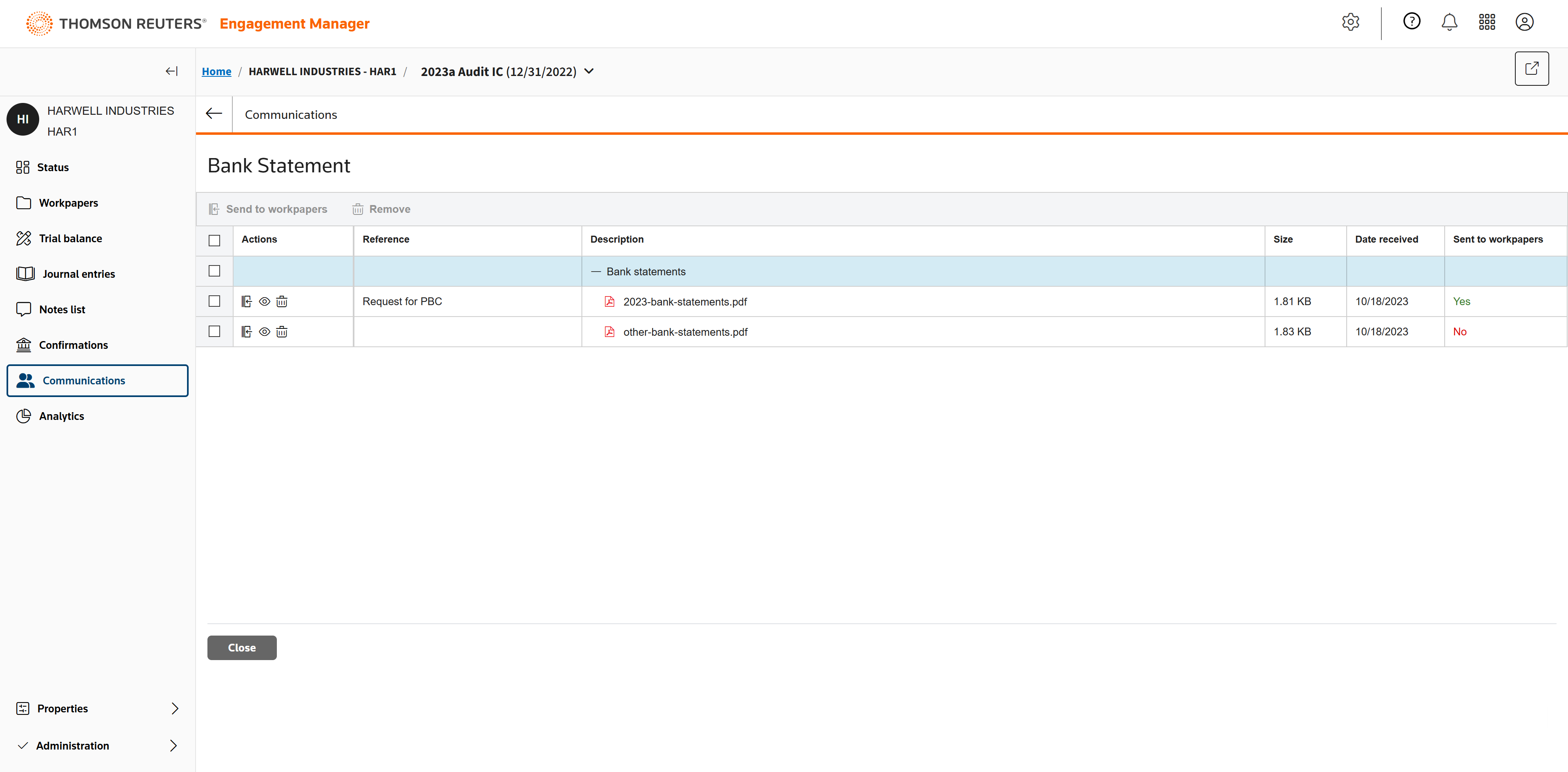
Once received, documents will be listed here. Click the number to view them.
The documents are listed by reference and description.
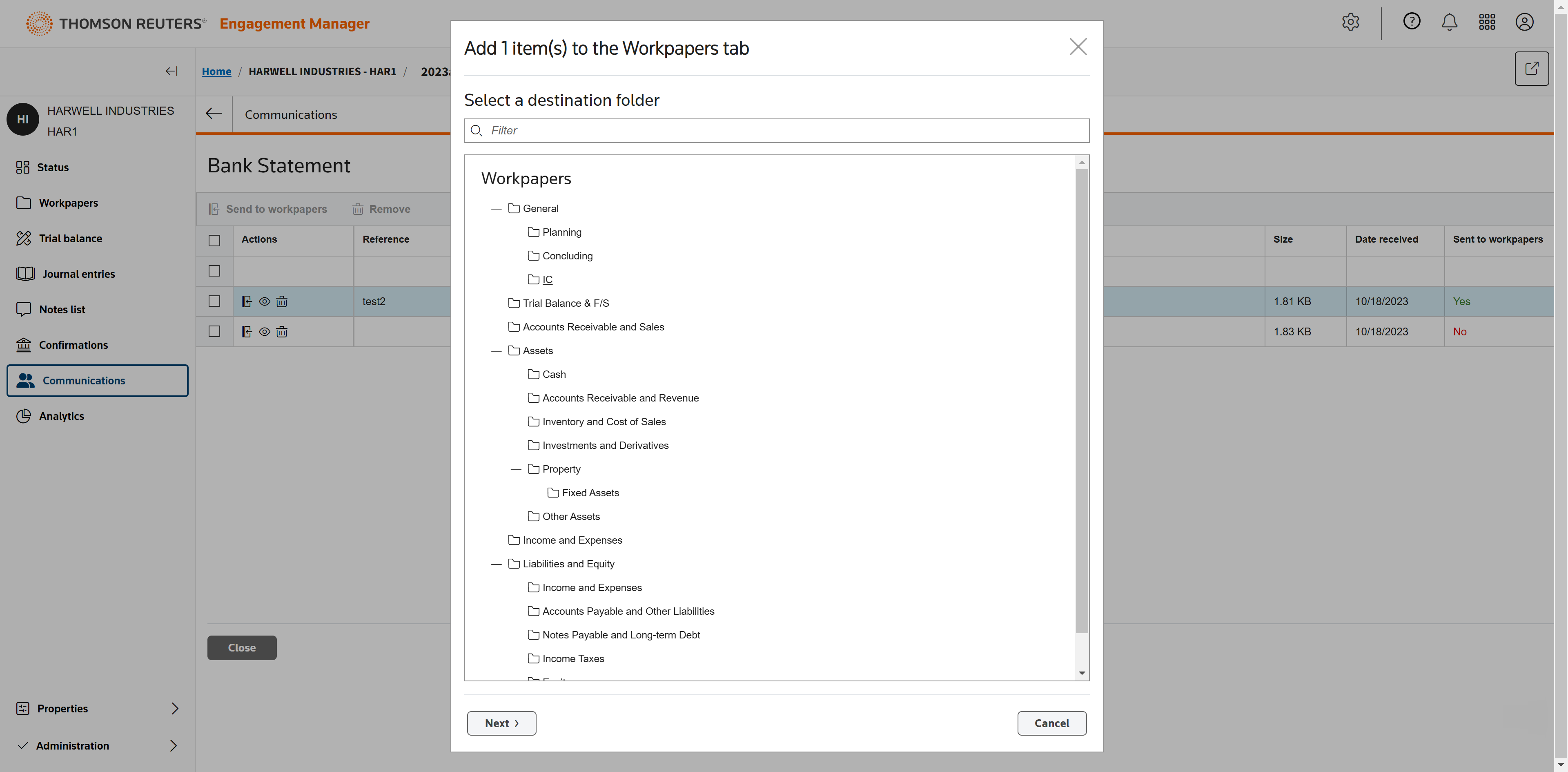
You can view the document to make sure it's correct and send it directly to workpapers.
Sending a document to workpapers allows you to select the correct folder where it will be placed.
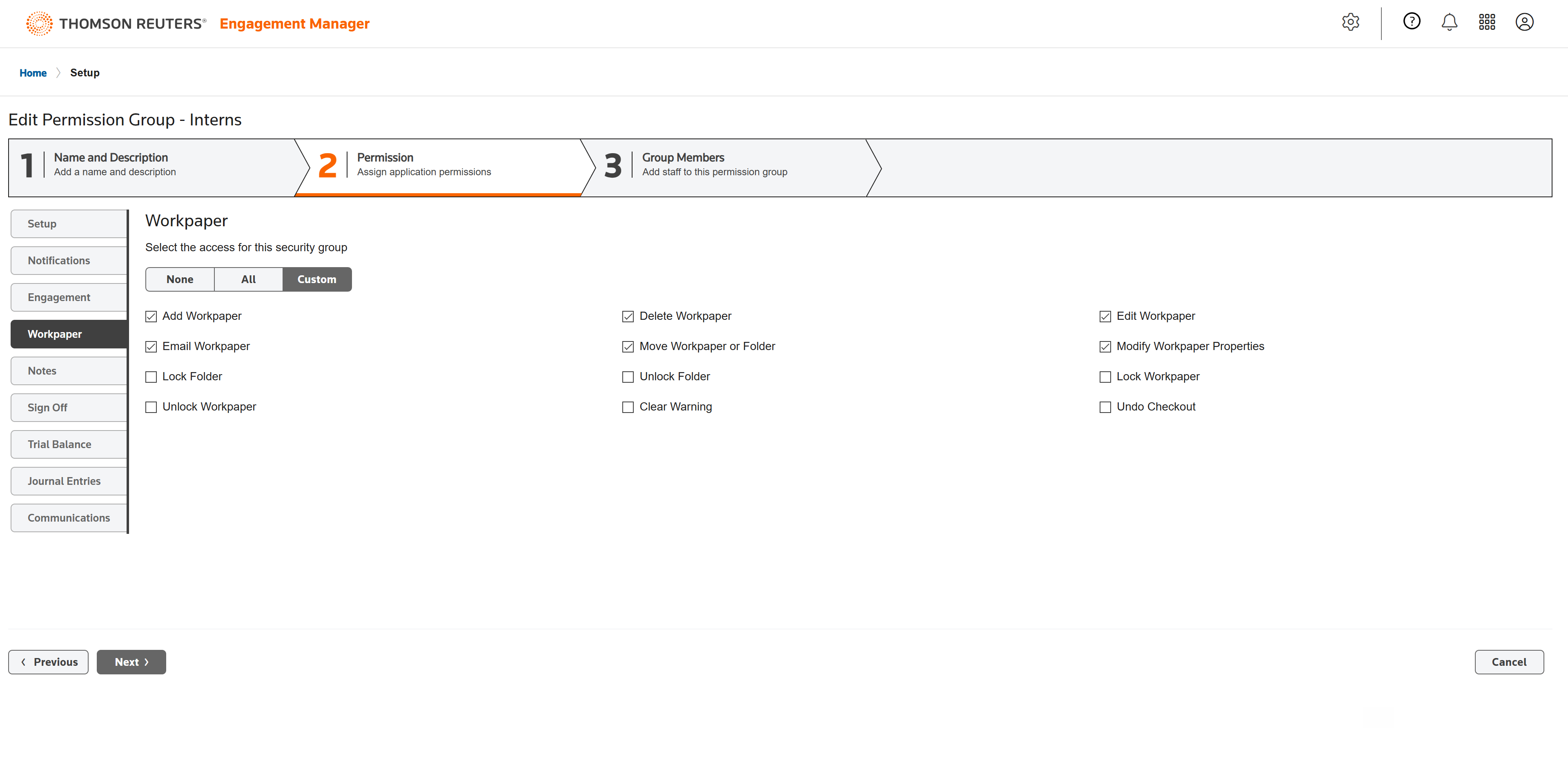
Permission groups All users in Engagement Manager can be assigned to and organized by permission groups.
Confirmation Confirmation provides an easy, fast, and secure way to send more than 100 confirmation types to anyone, anywhere in the world, eliminating traditional methods that are prone to error and even fraud. Confirmation provides a global network of validated responders that ensures users are who they say they are, and guarantees you get a response.
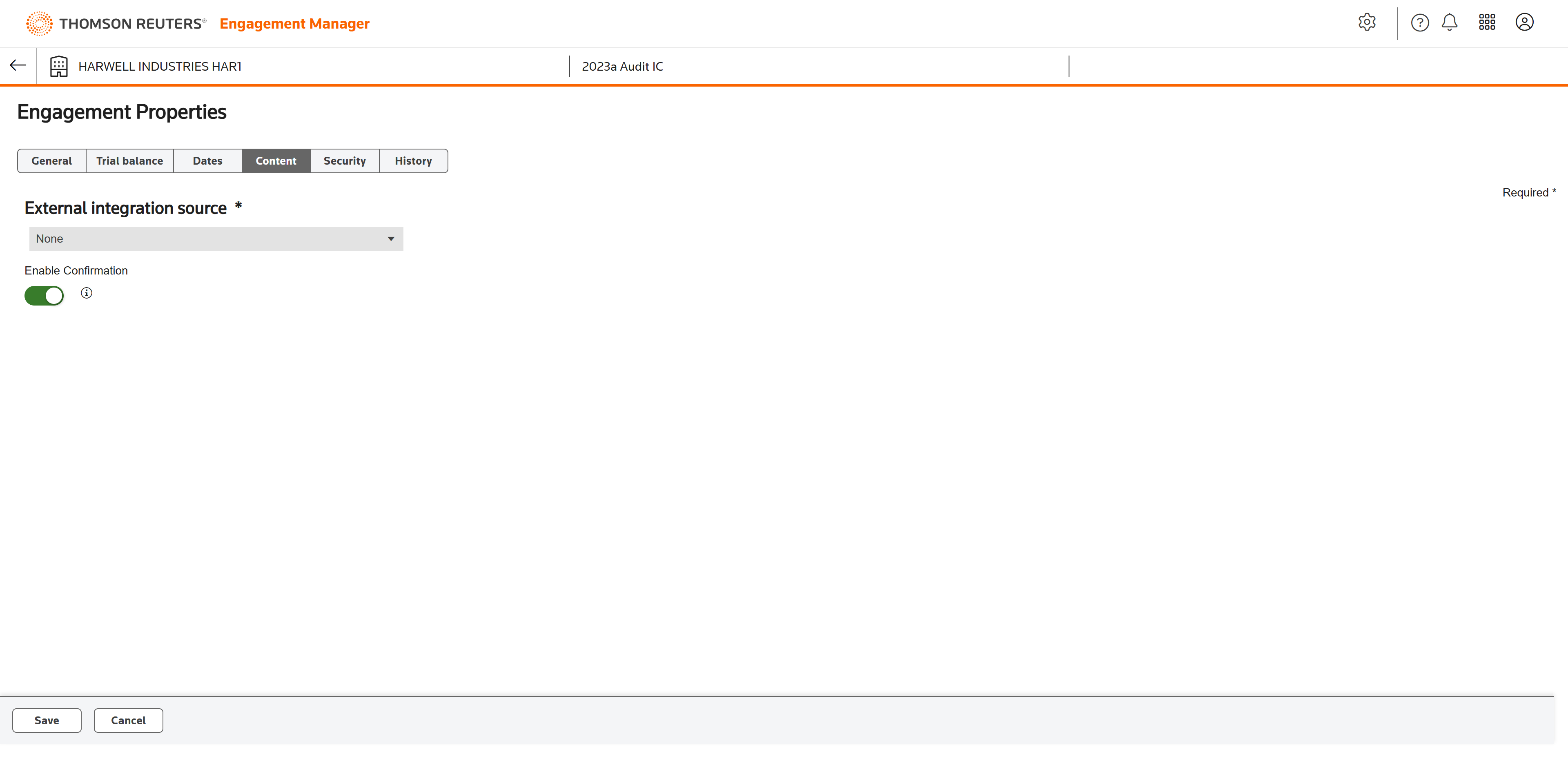
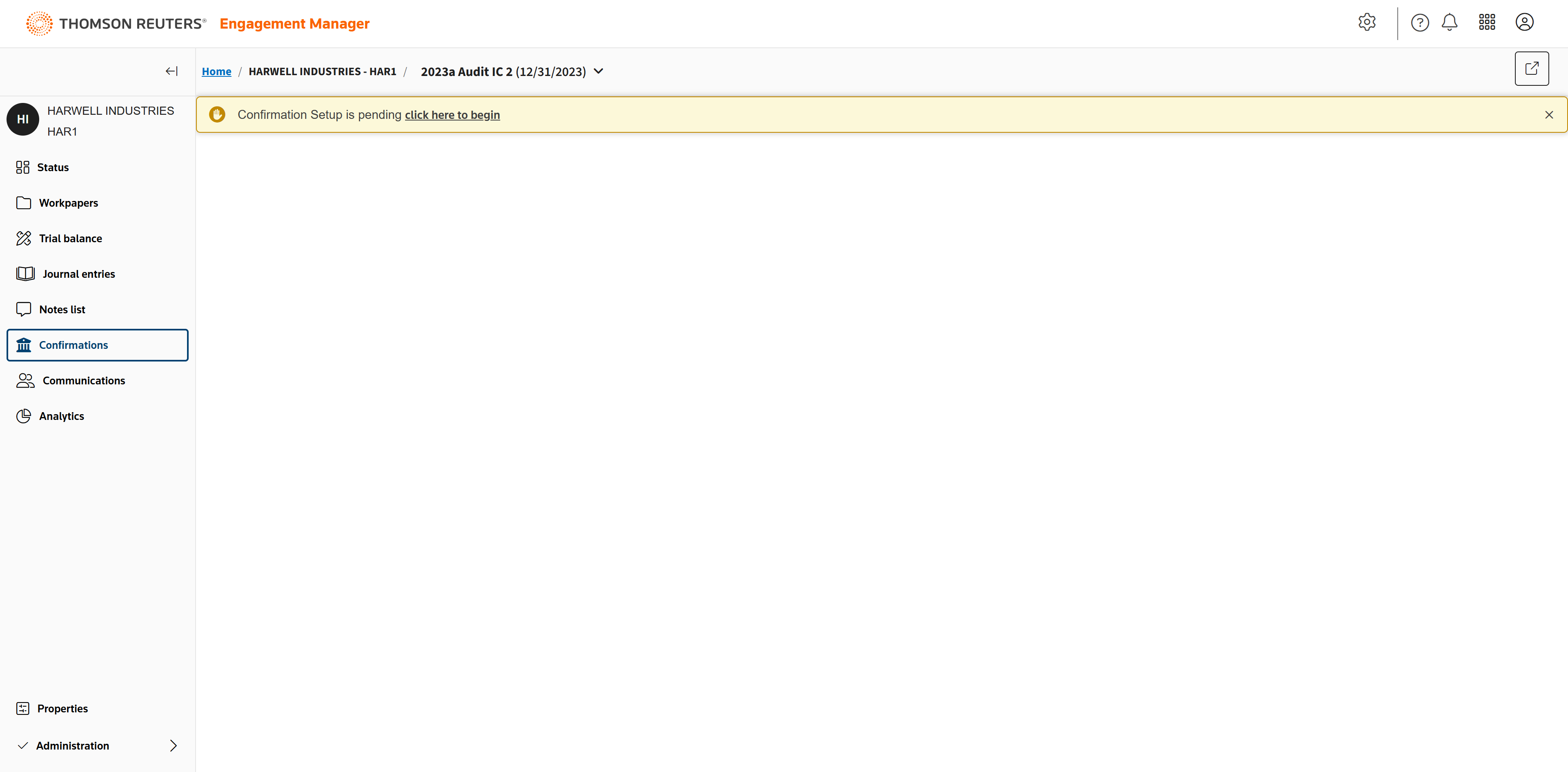
If you haven't already done so, you'll need to enable Confirmation on the engagement. You will do so under Engagement Properties.
Click the Content tab.
Toggle the slider to enable Confirmation and then Save.
Begin the Confirmation setup by clicking the notification bar at the top of the Confirmations tab.
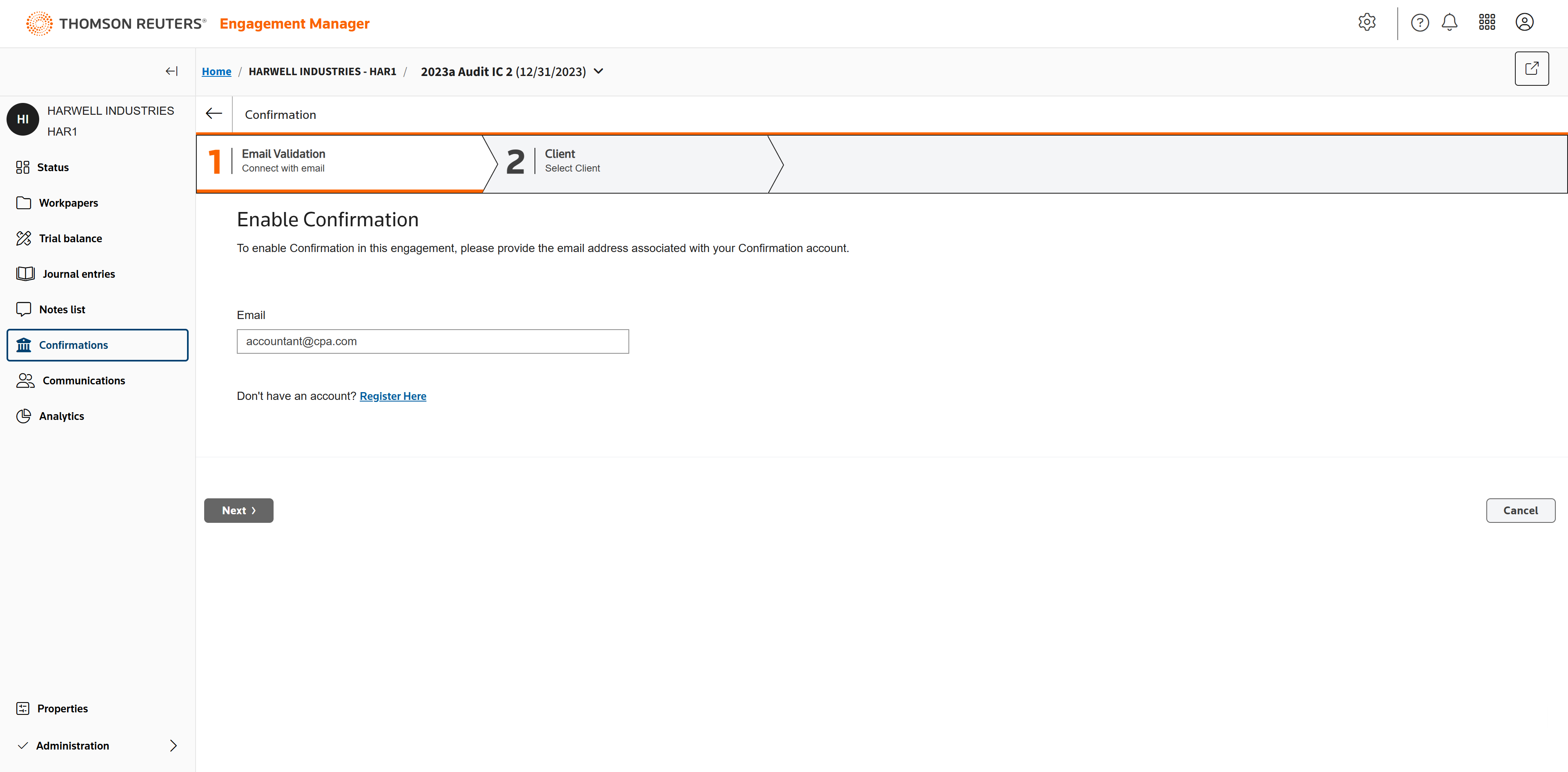
Enter the email address associated with your Confirmation account.
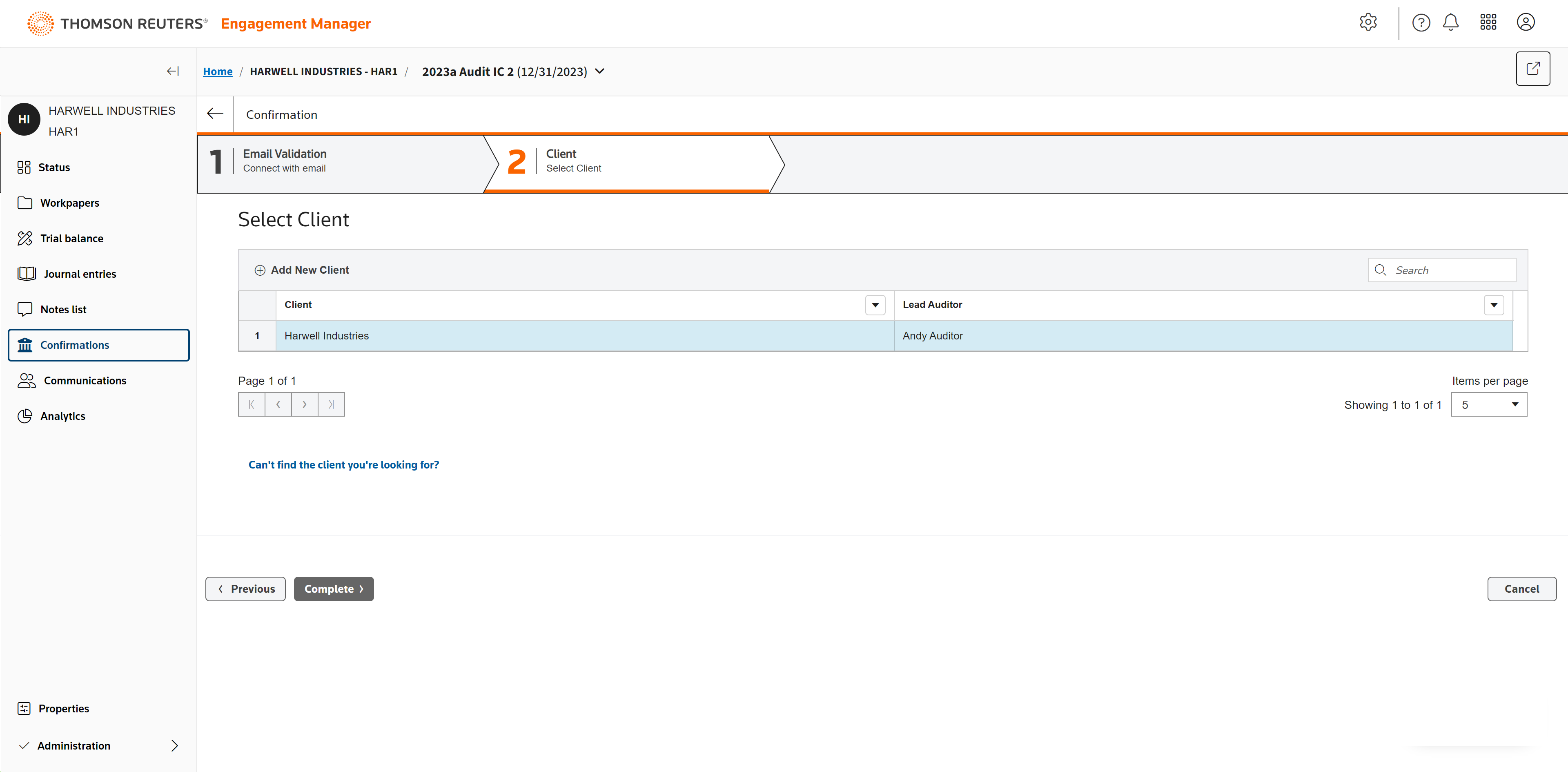
Select the Client or add a new one, then Complete.
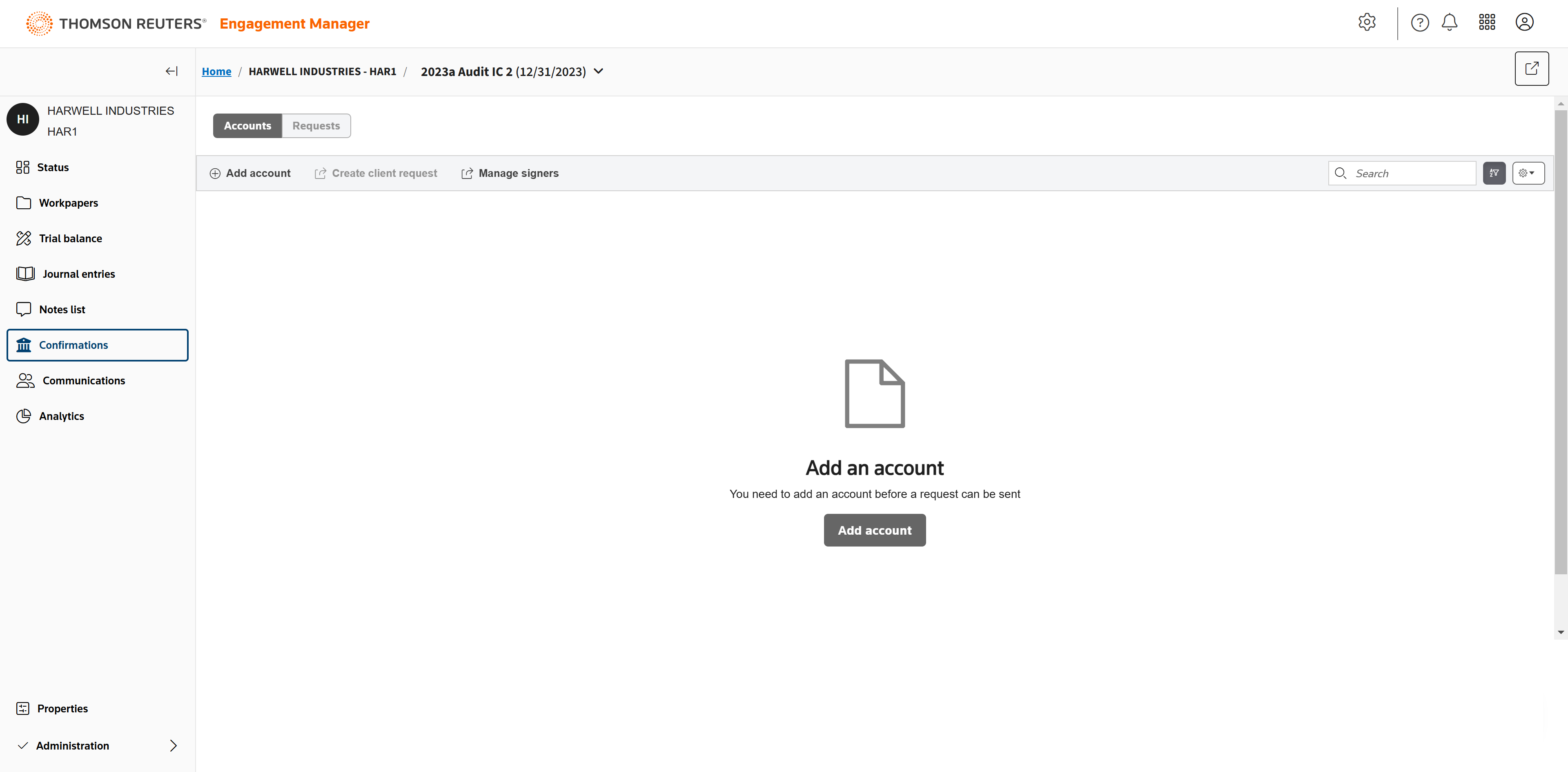
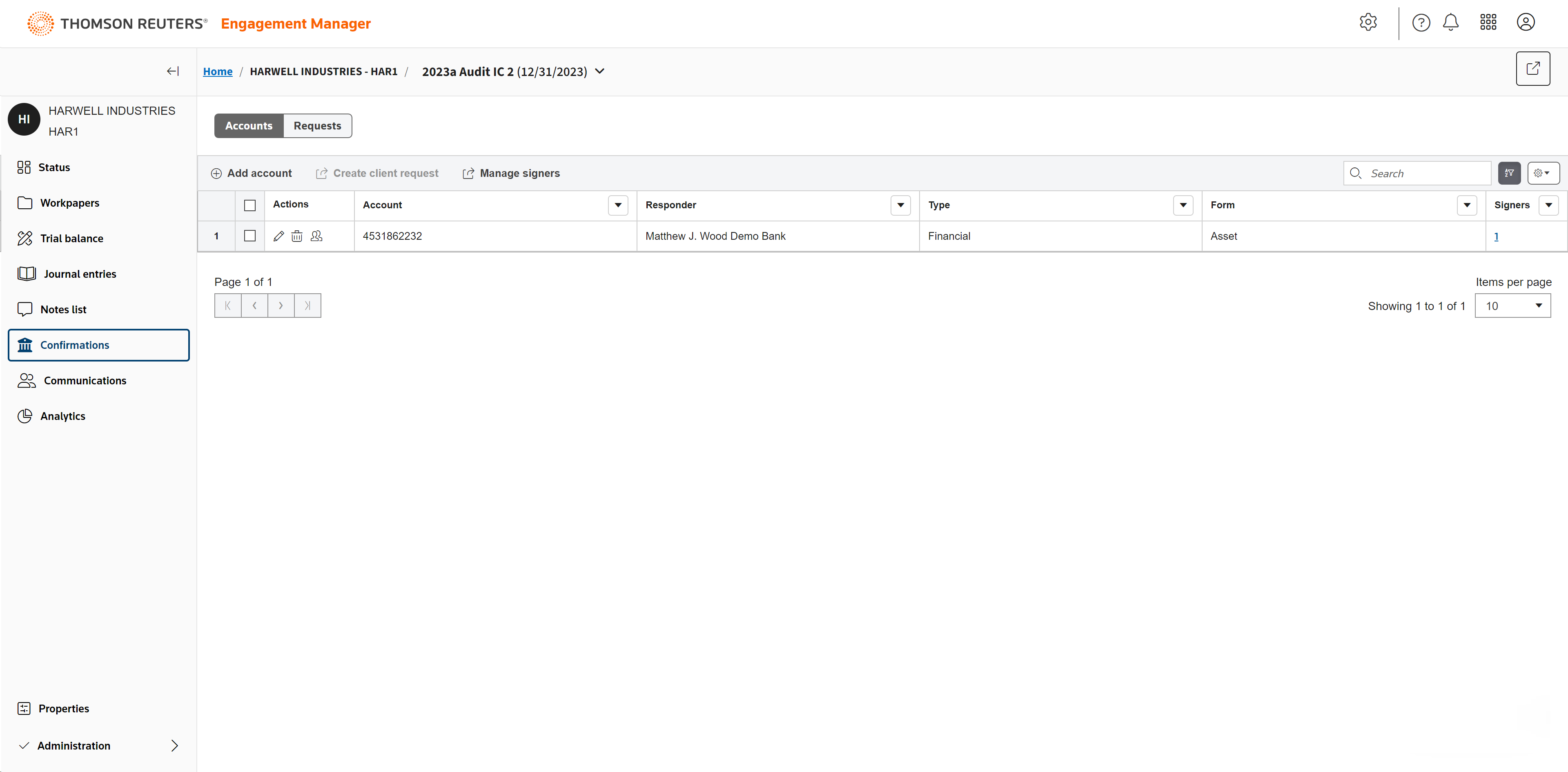
Next, click Add account.
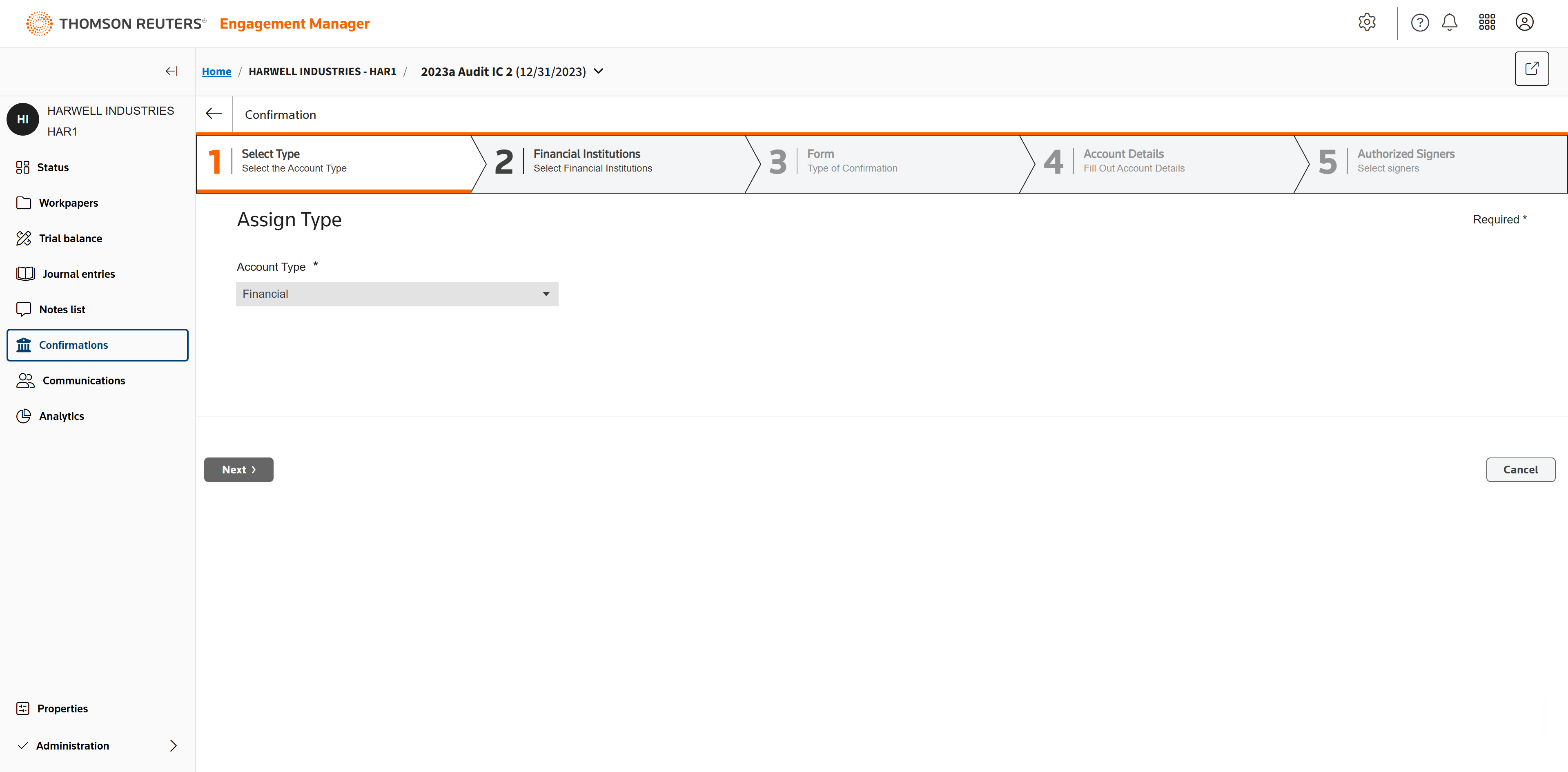
Select Financial as the account type.
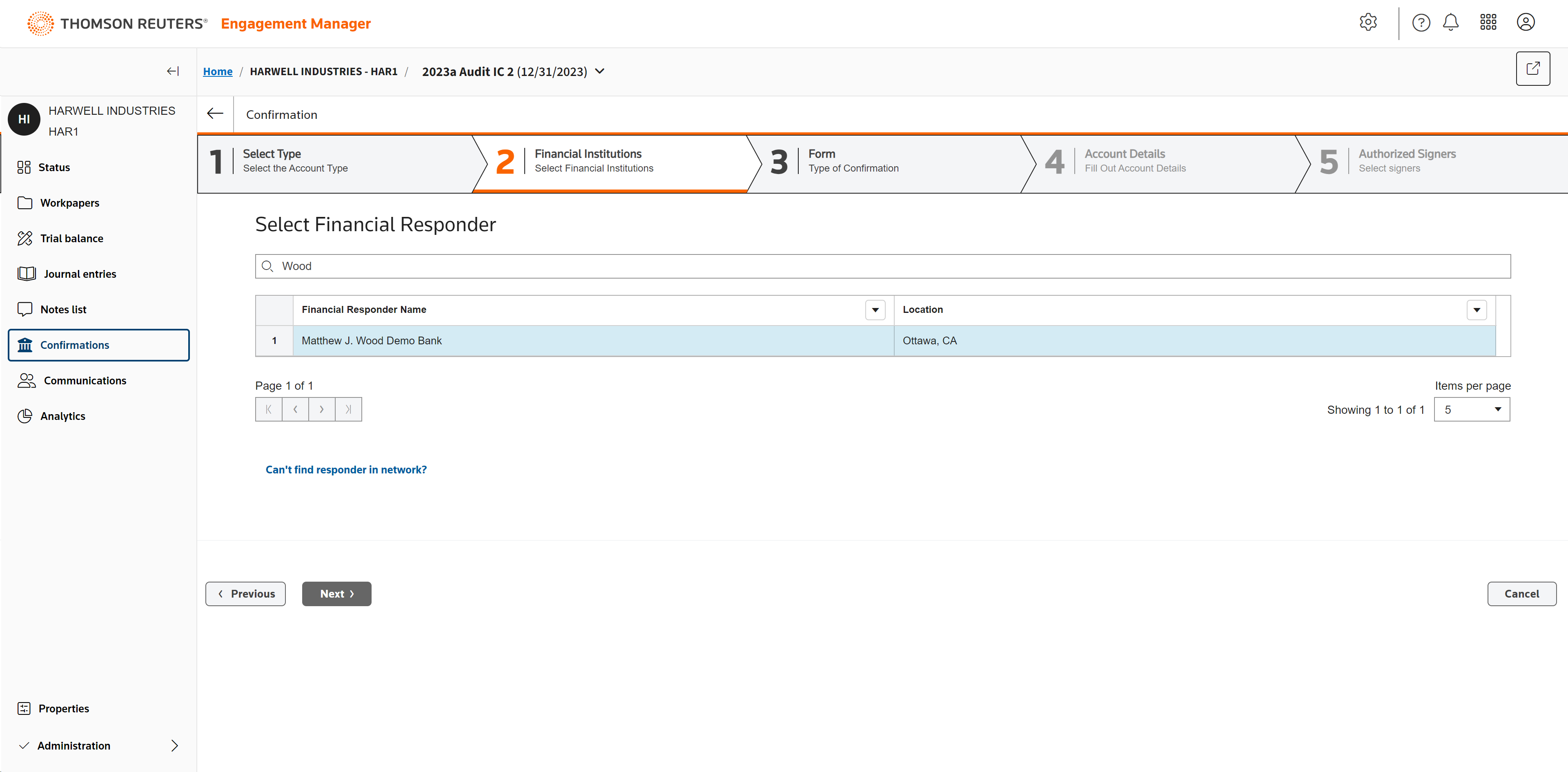
Search for and select the correct Financial Responder.
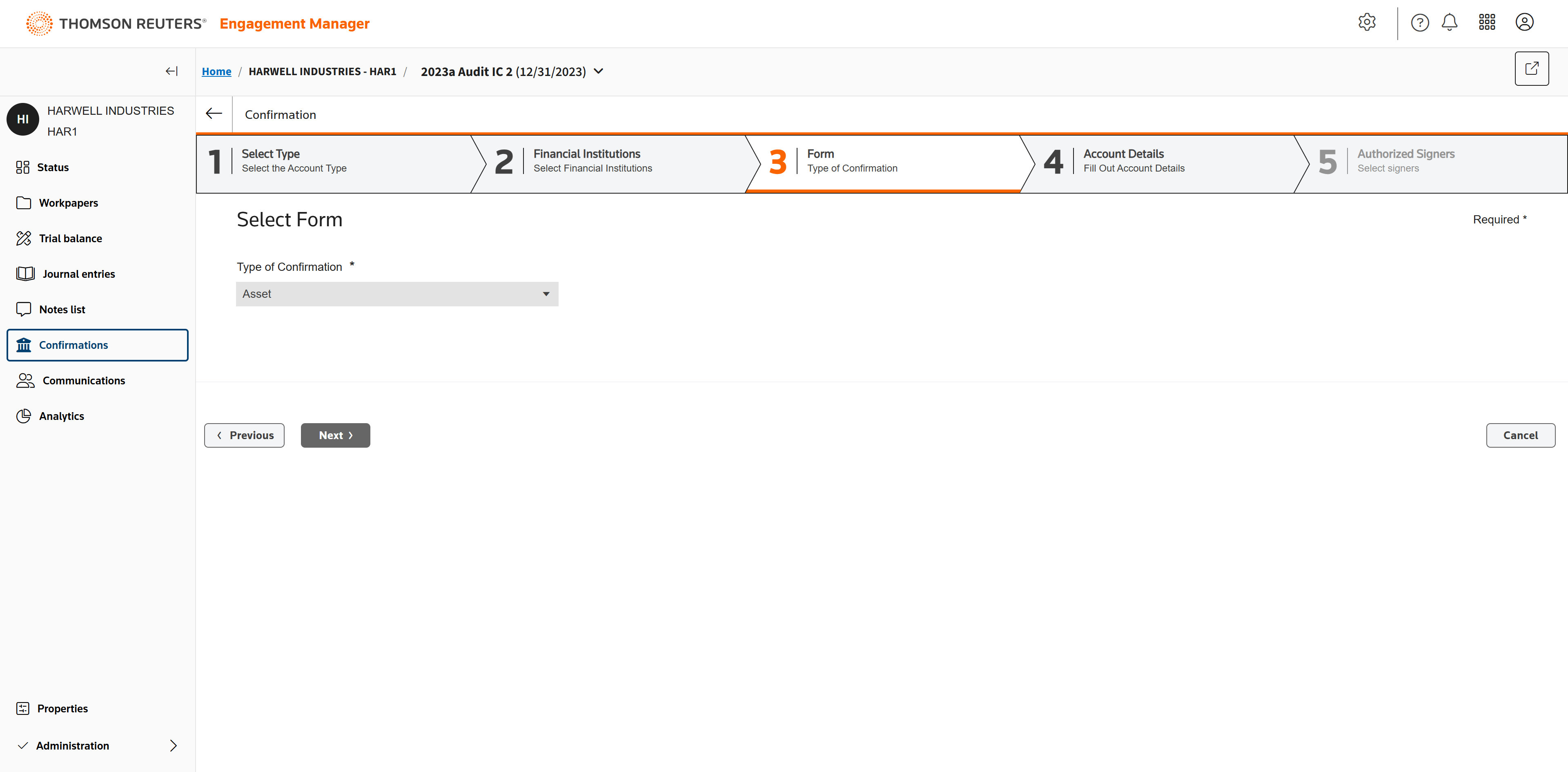
Select Asset for the type of confirmation. Other types available include liability, securities w/broker, bond issue, signatories, escrow/trust account, line of credit, and over 100 more.
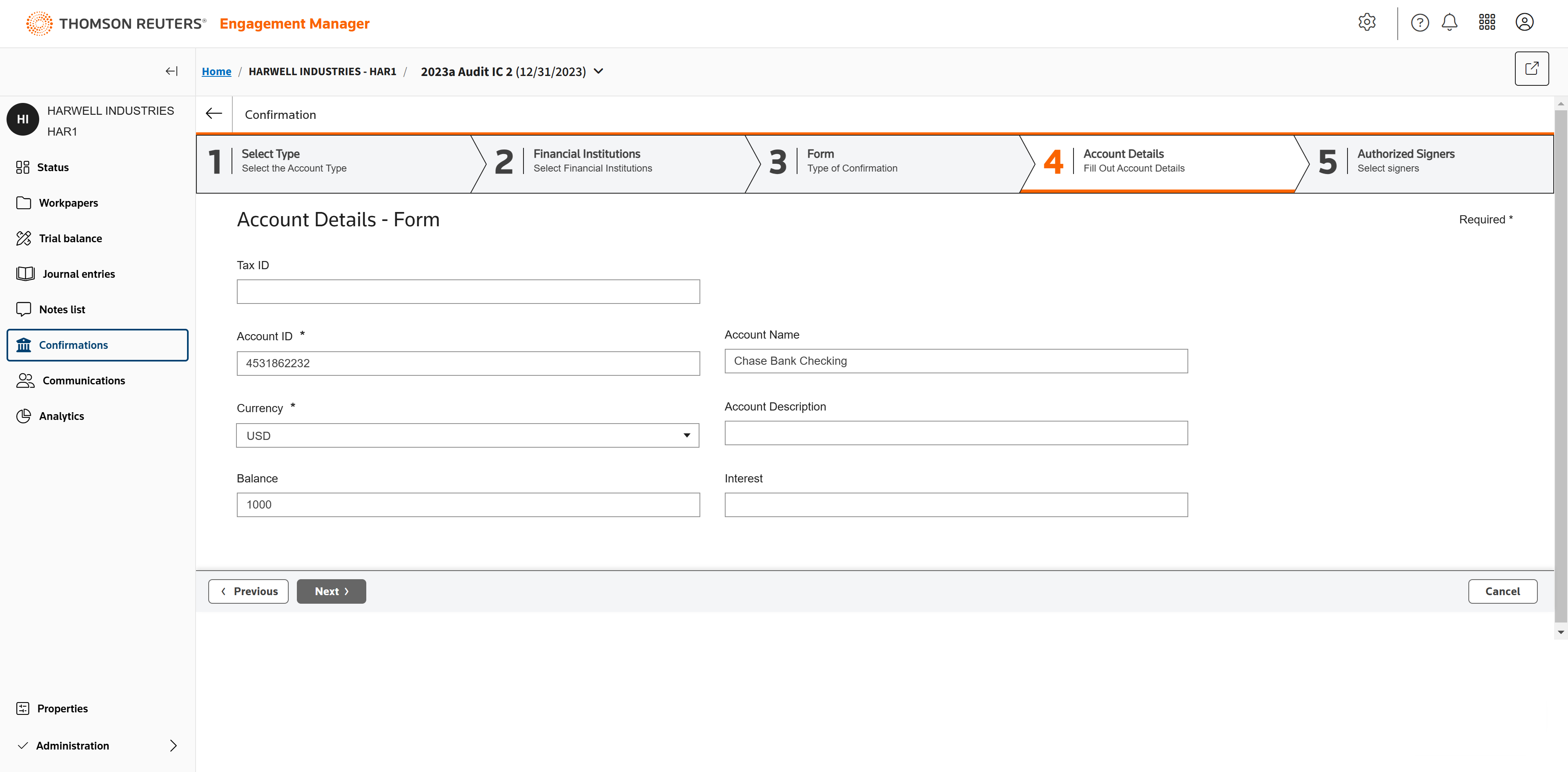
Enter the required account details.
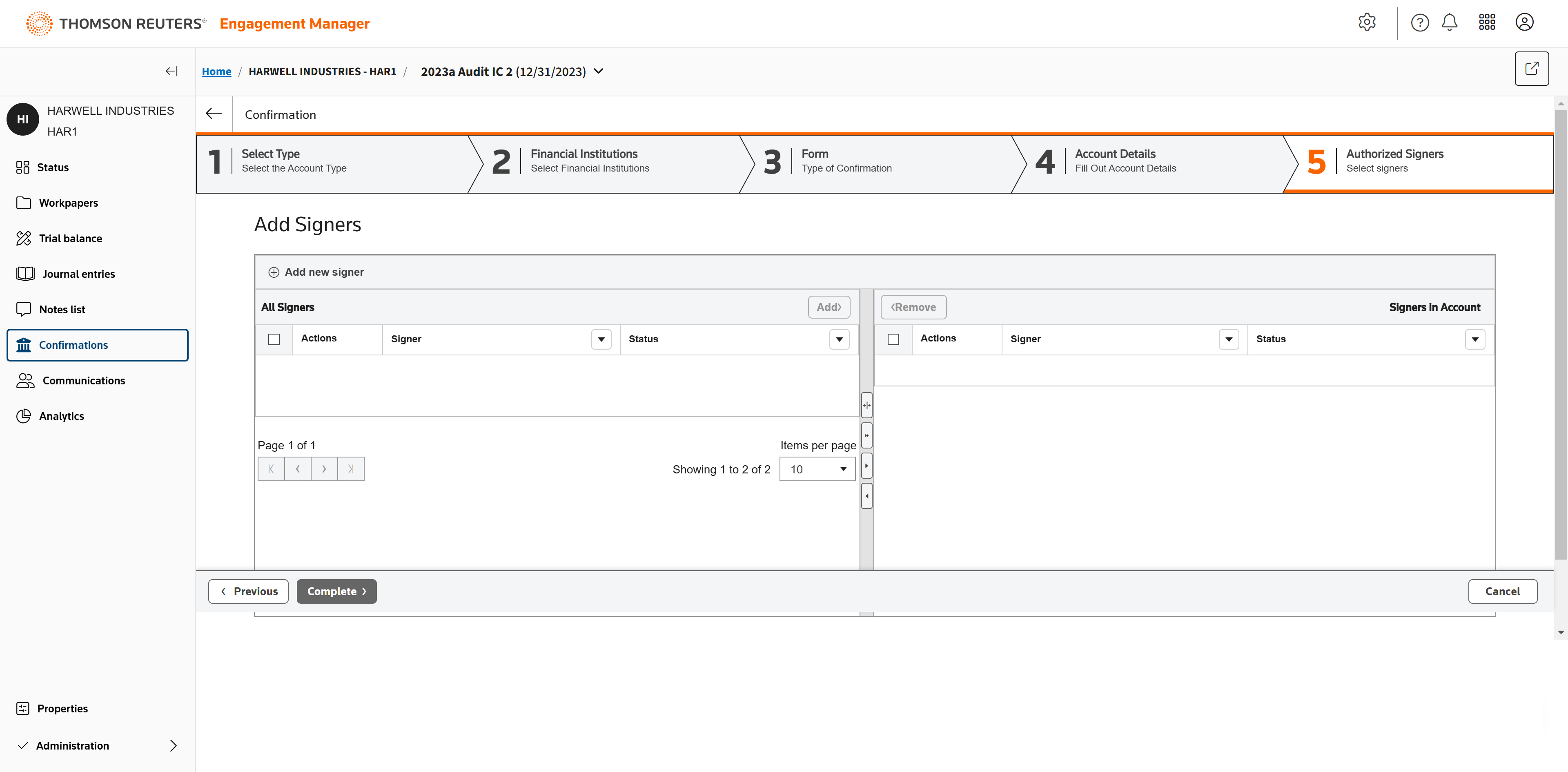
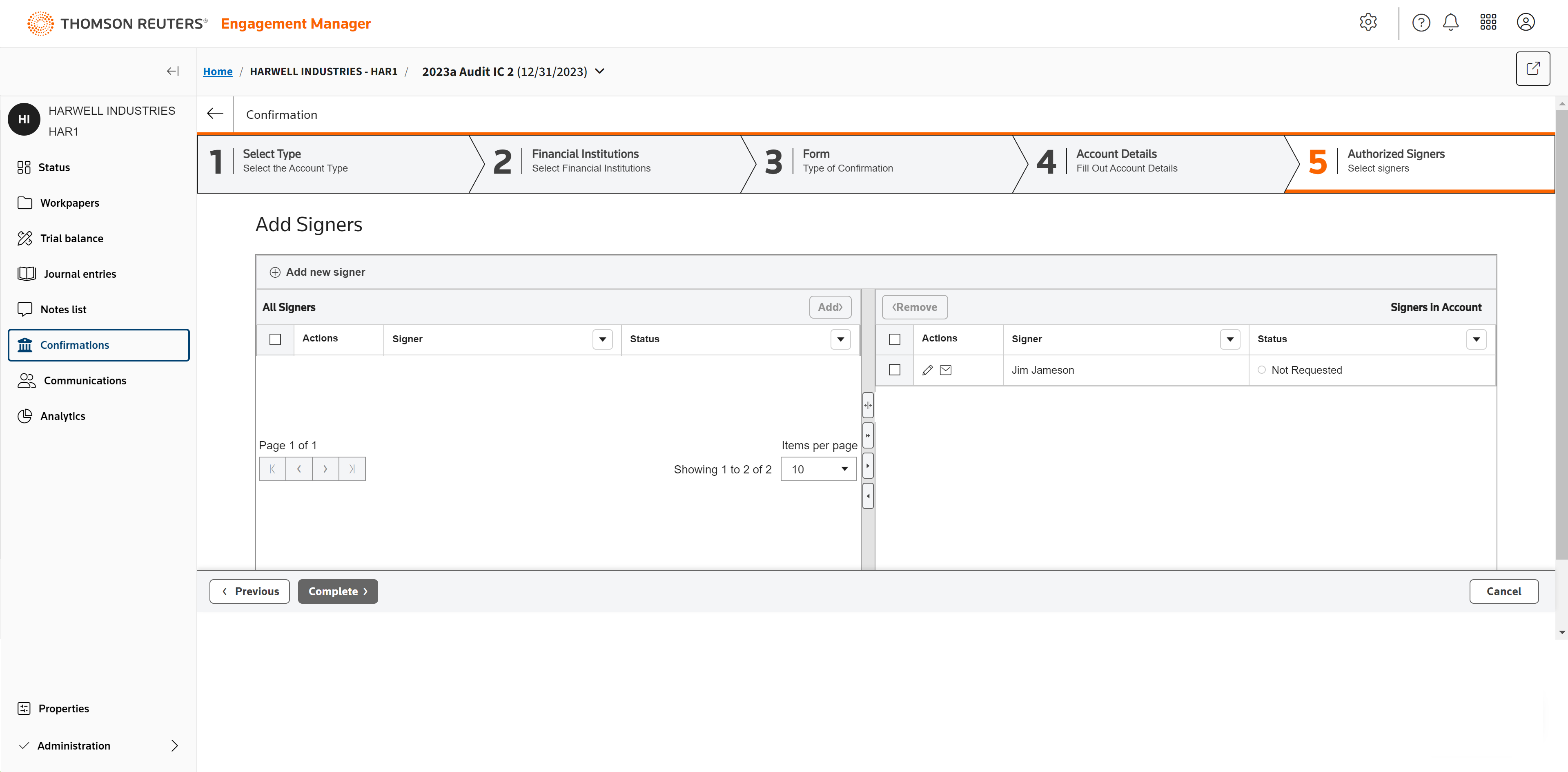
Click to Add new signer.
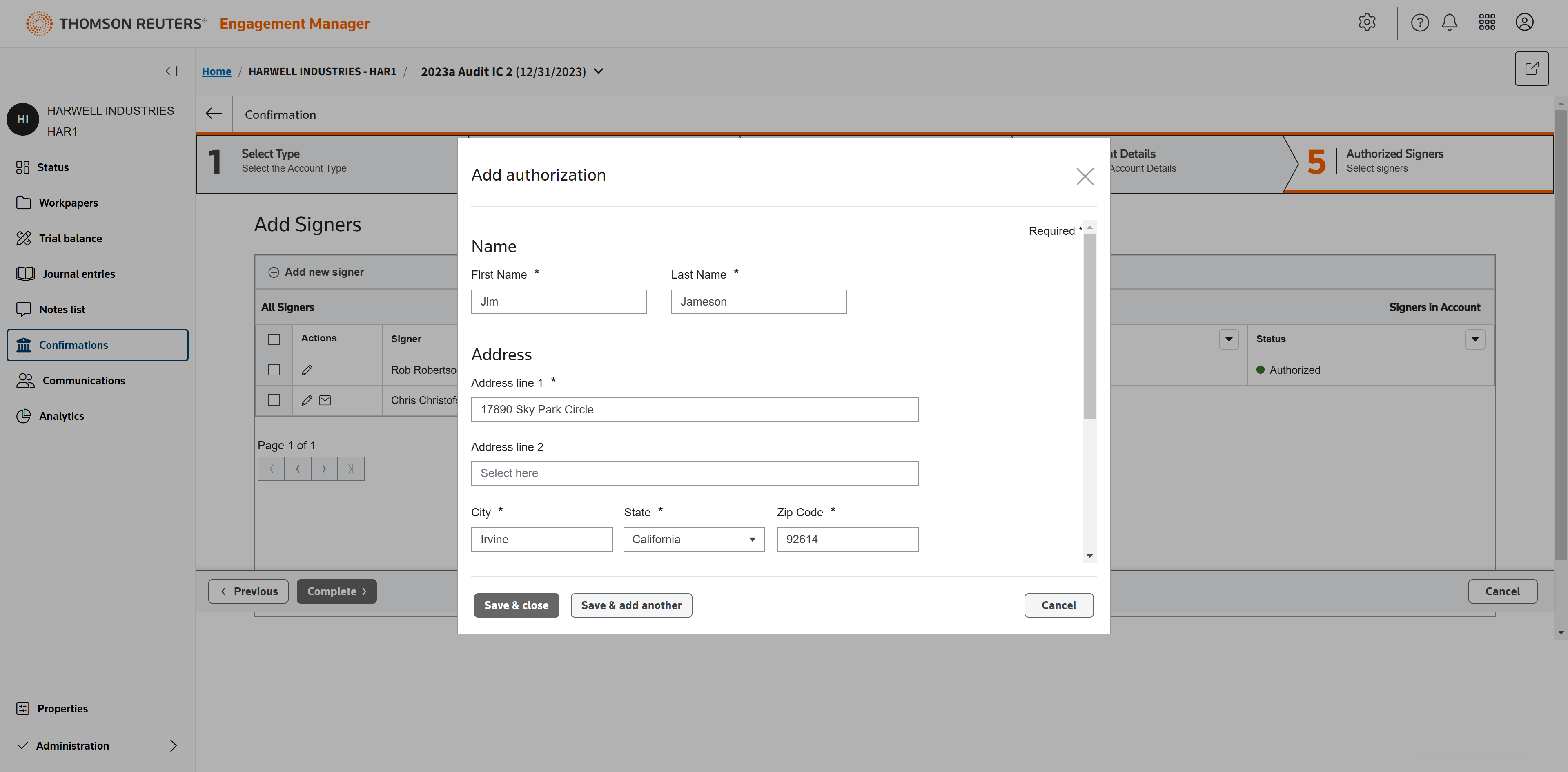
Enter the signer's details, then Save & close.
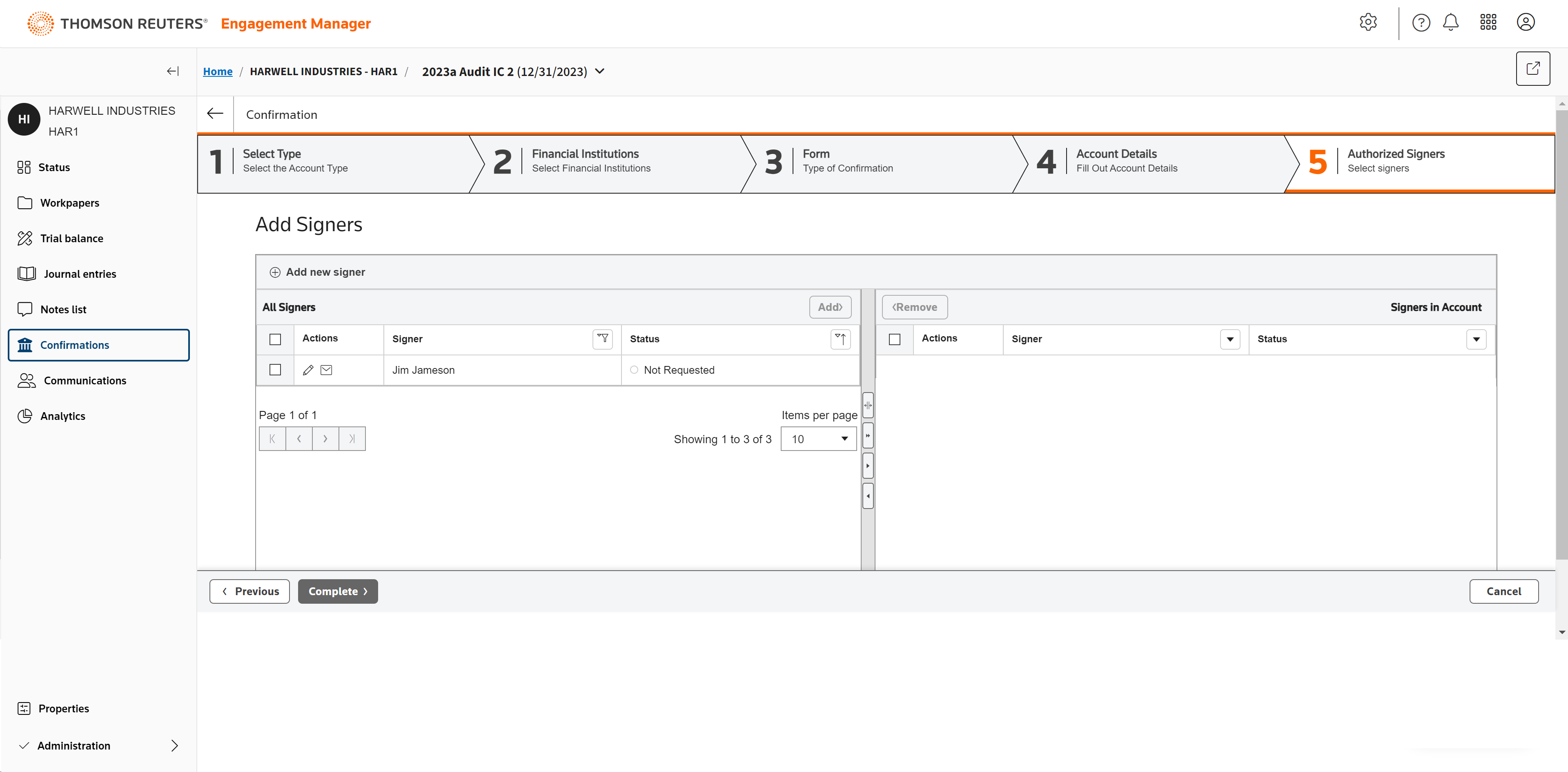
Select the new signer once they've been added.
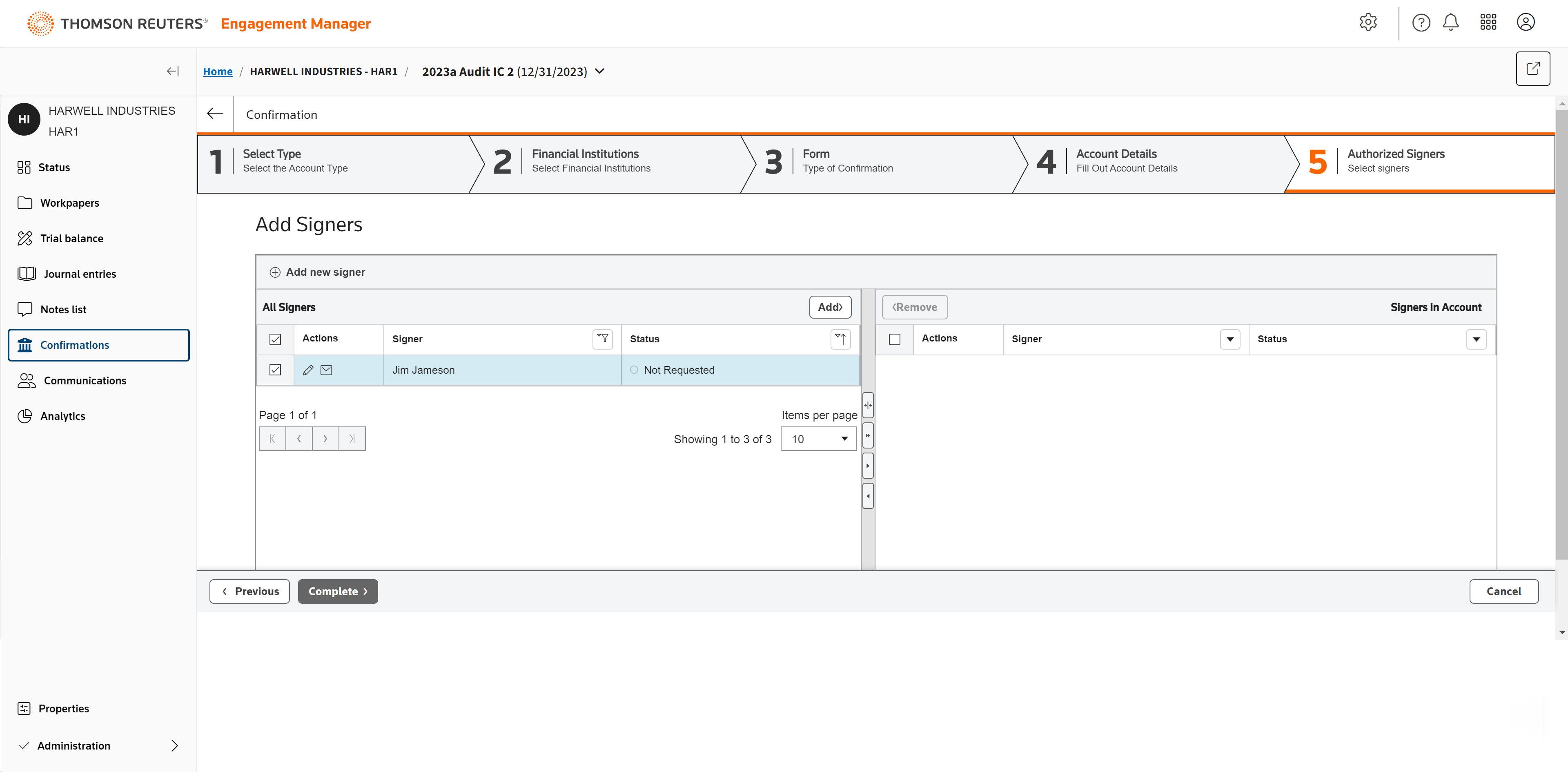
Click Add to add them to the Account.
After the signer is added, click Complete.
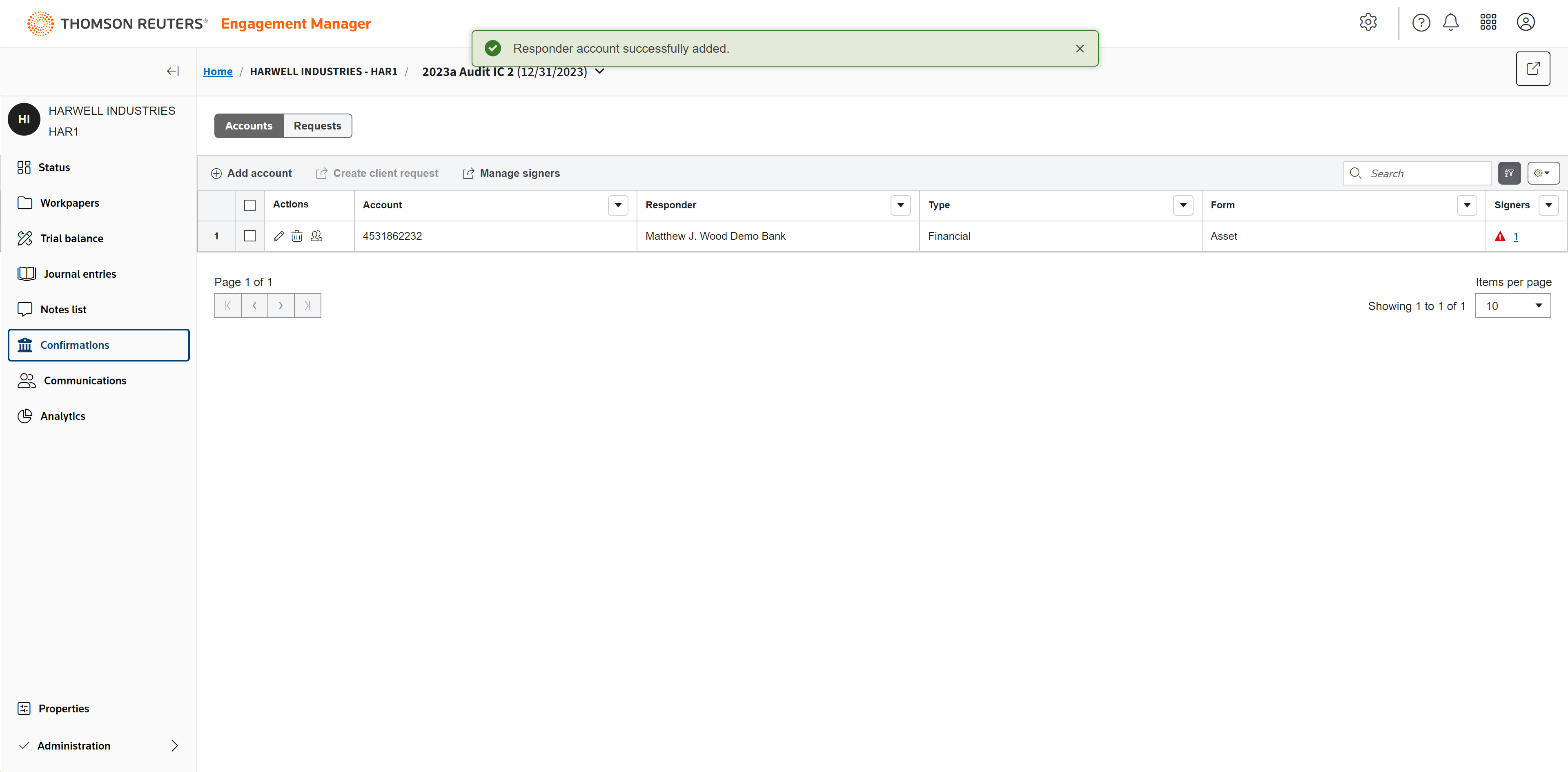
The responder account has been added. An alert will notify you that you have to validate the new responder.
Click the number next to the alert.
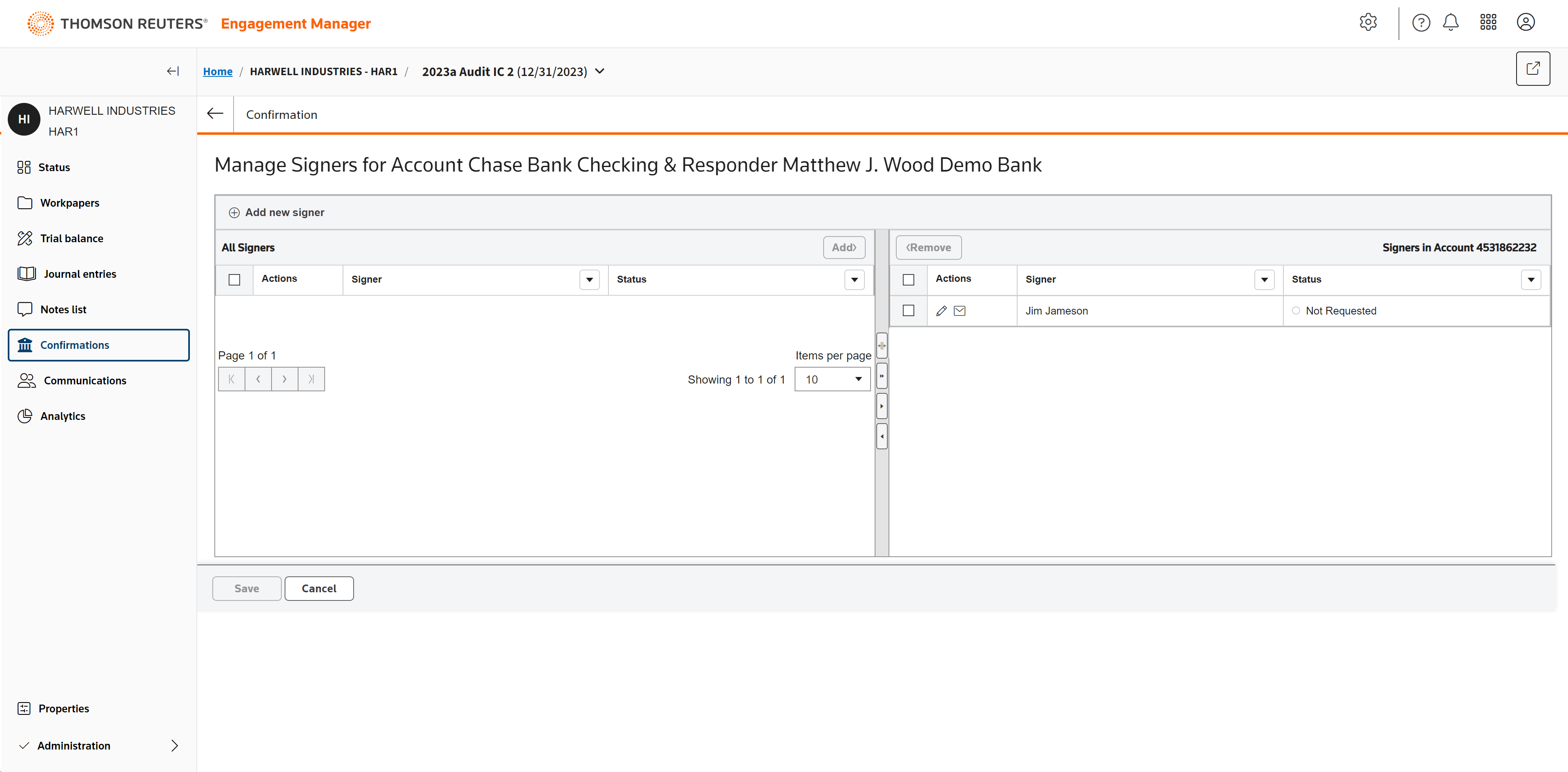
To get authorization from the signer, click the email icon to send them an email authorization.
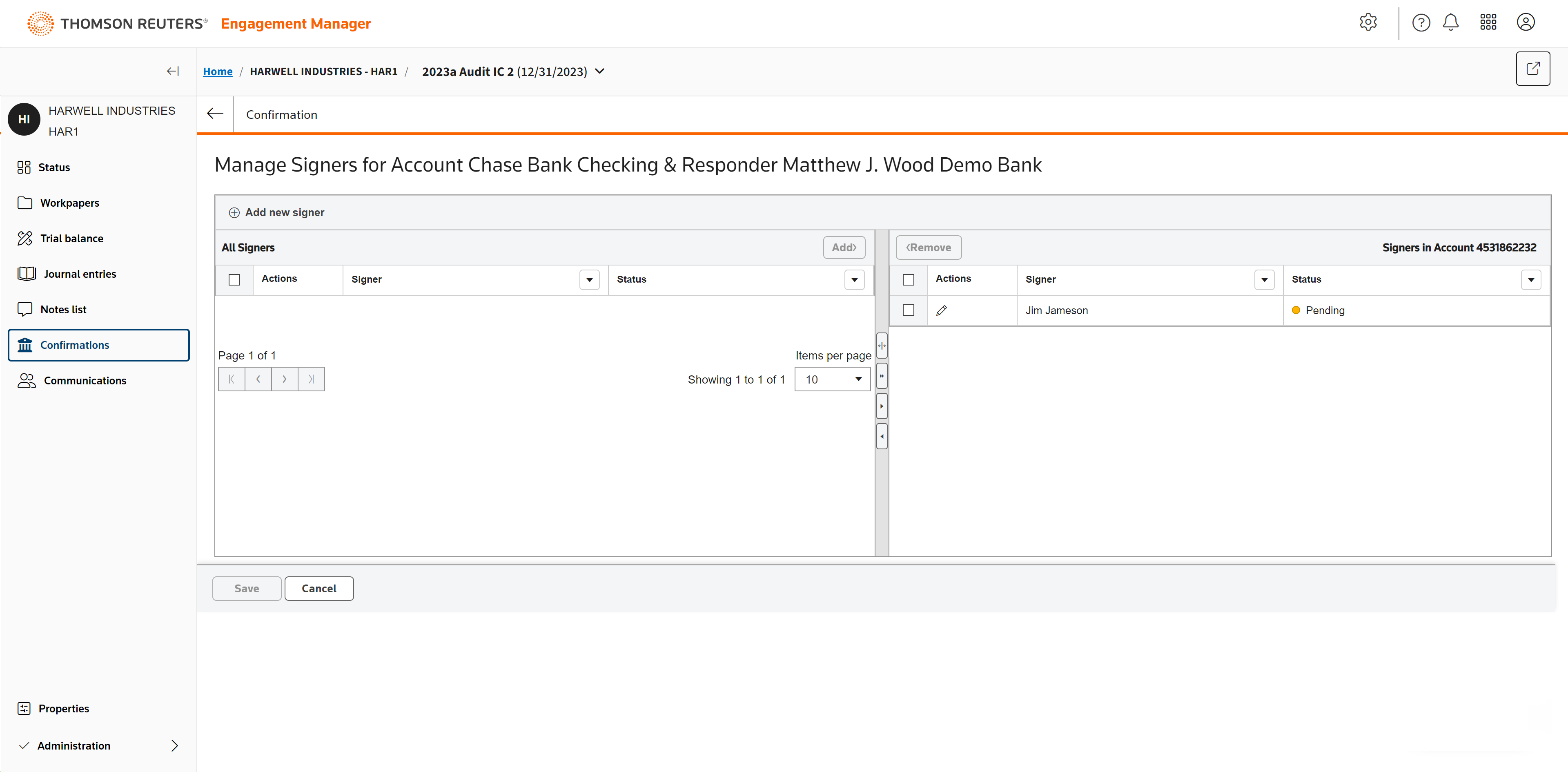
Once the email is sent, the status will update to Pending.
Once the signer authorizes the request, the alert will disappear.
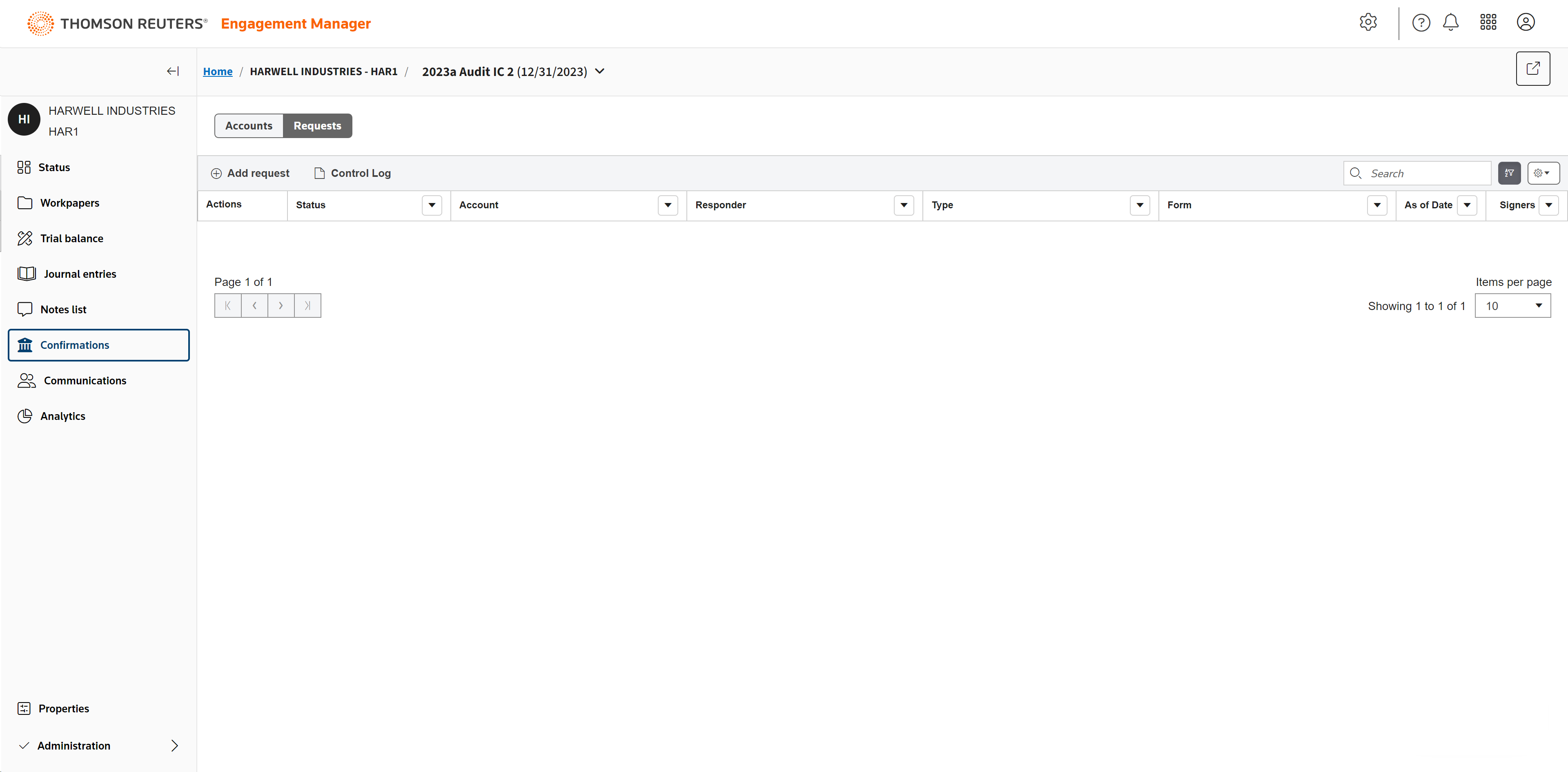
Click the Requests tab.
Click Add request.
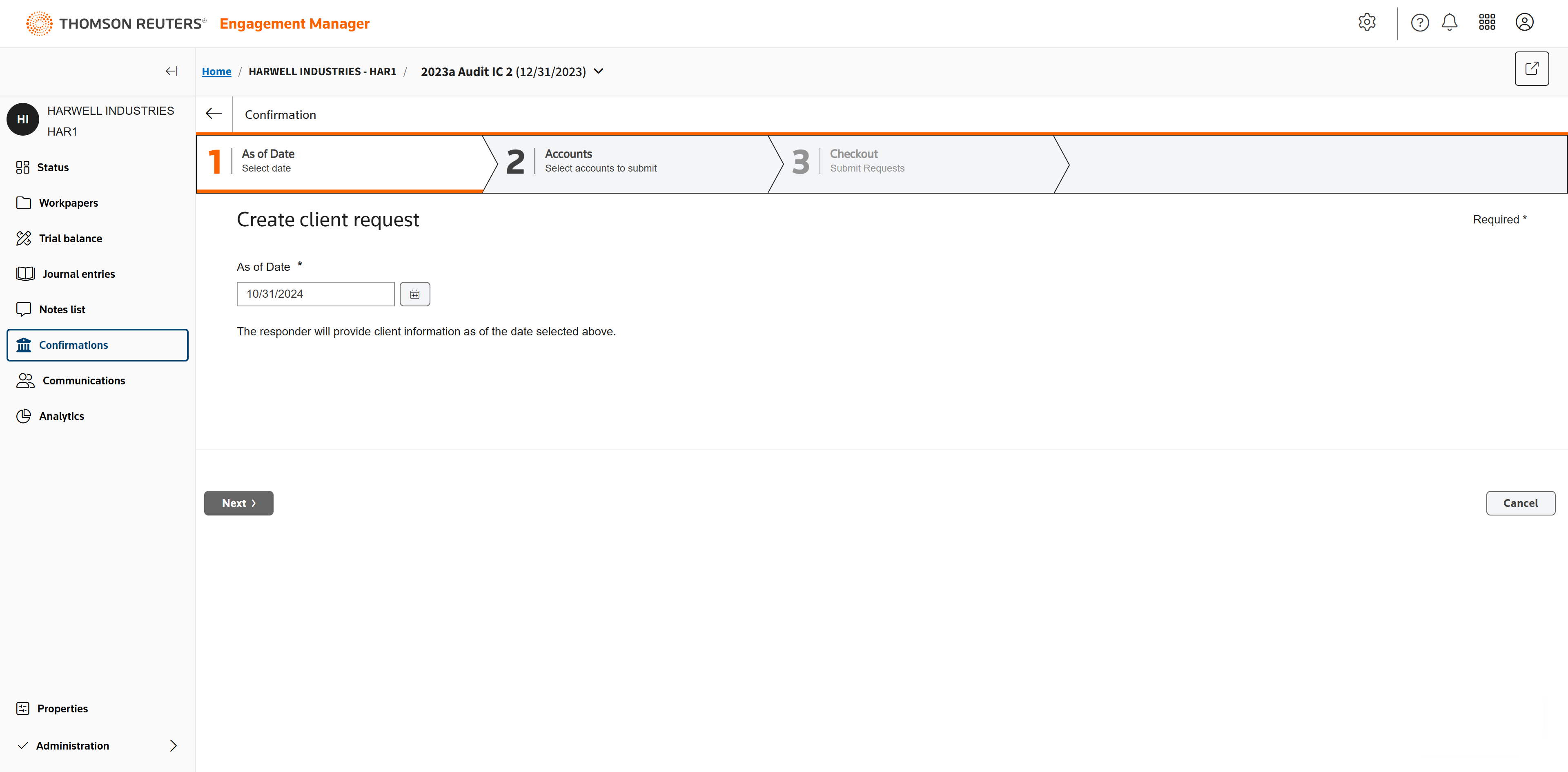
Set a date for checking the bank account.
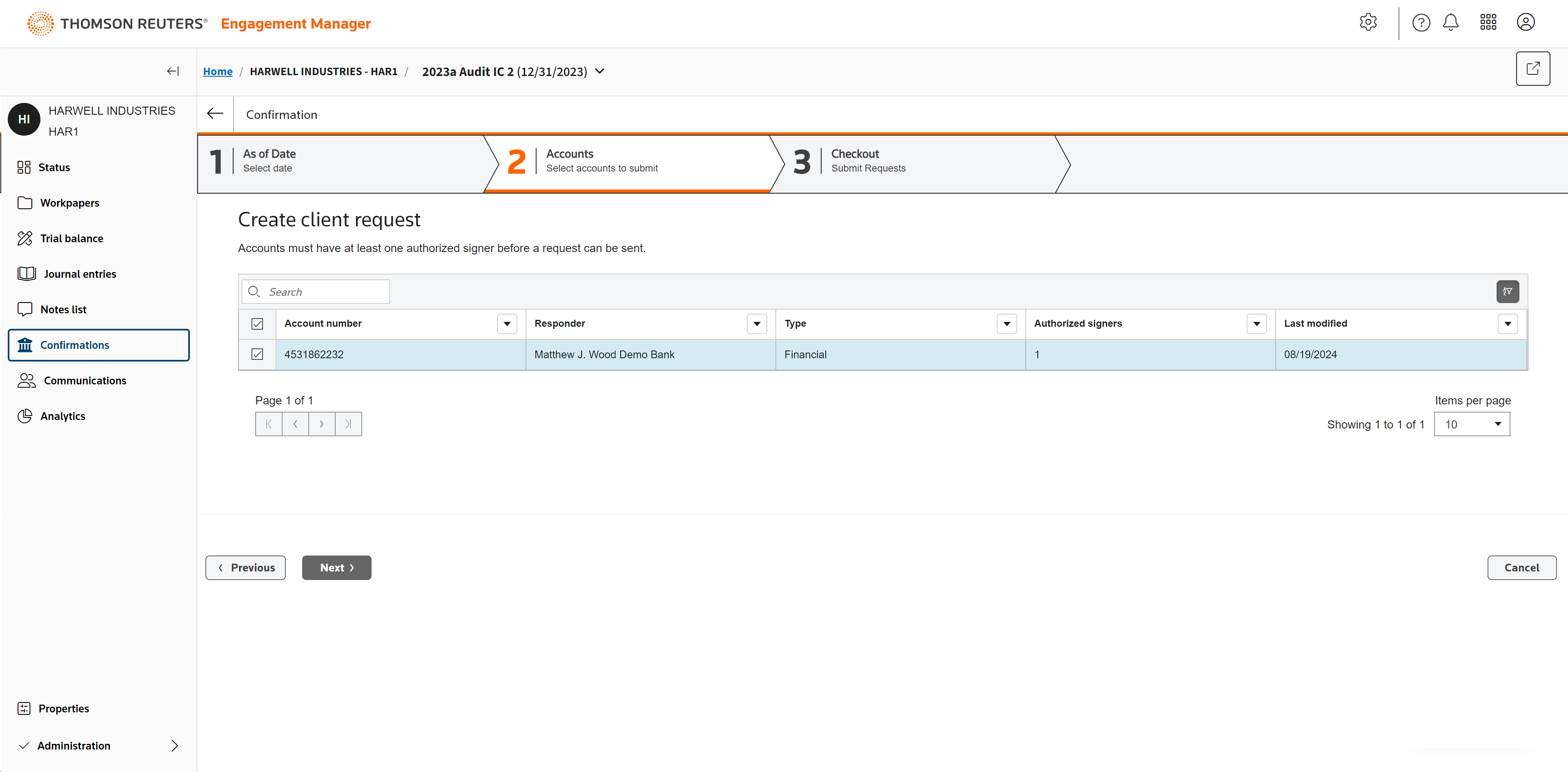
Select the account.
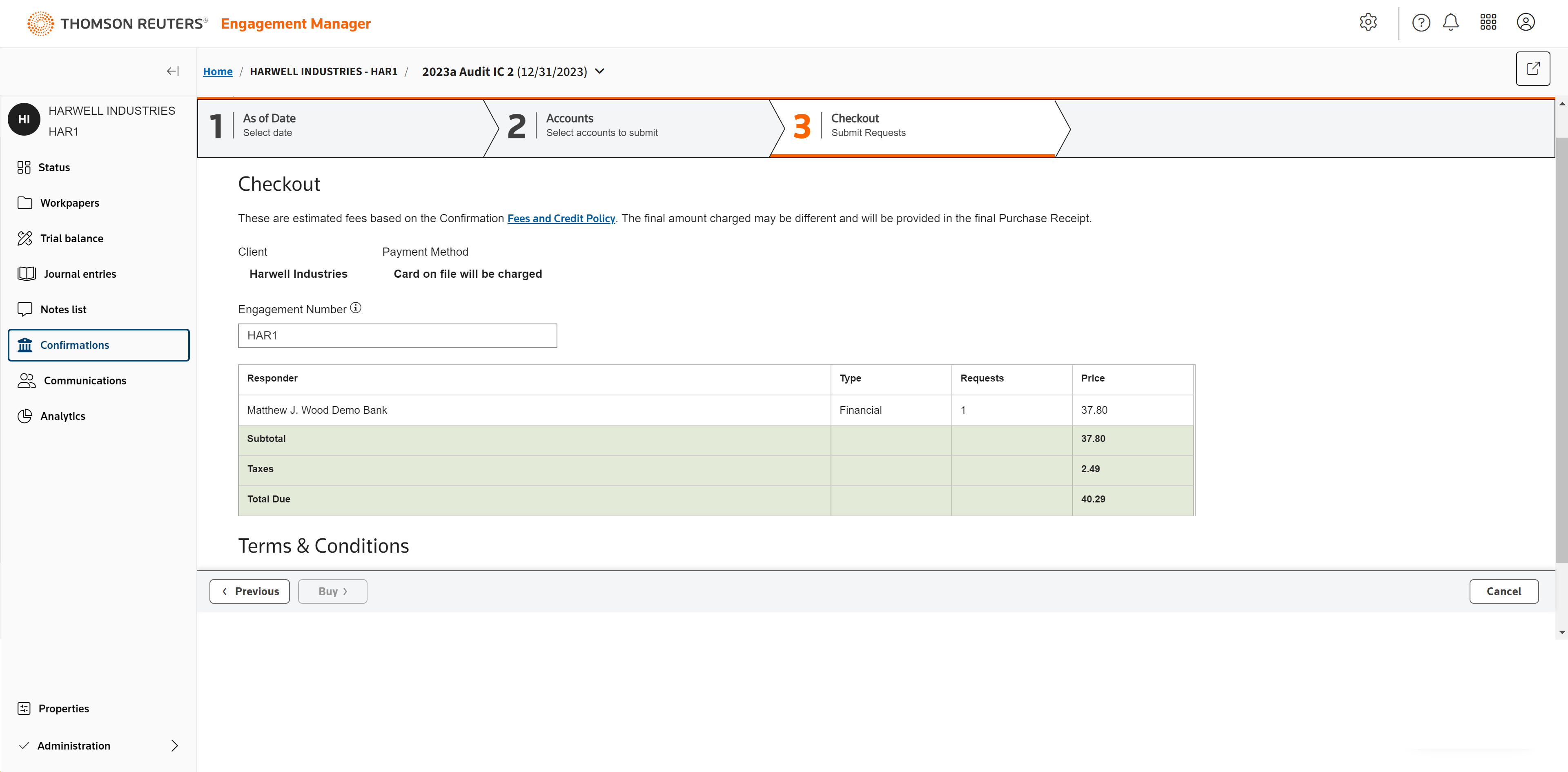
Read through the Checkout details. The total for the confirmation will be listed here.
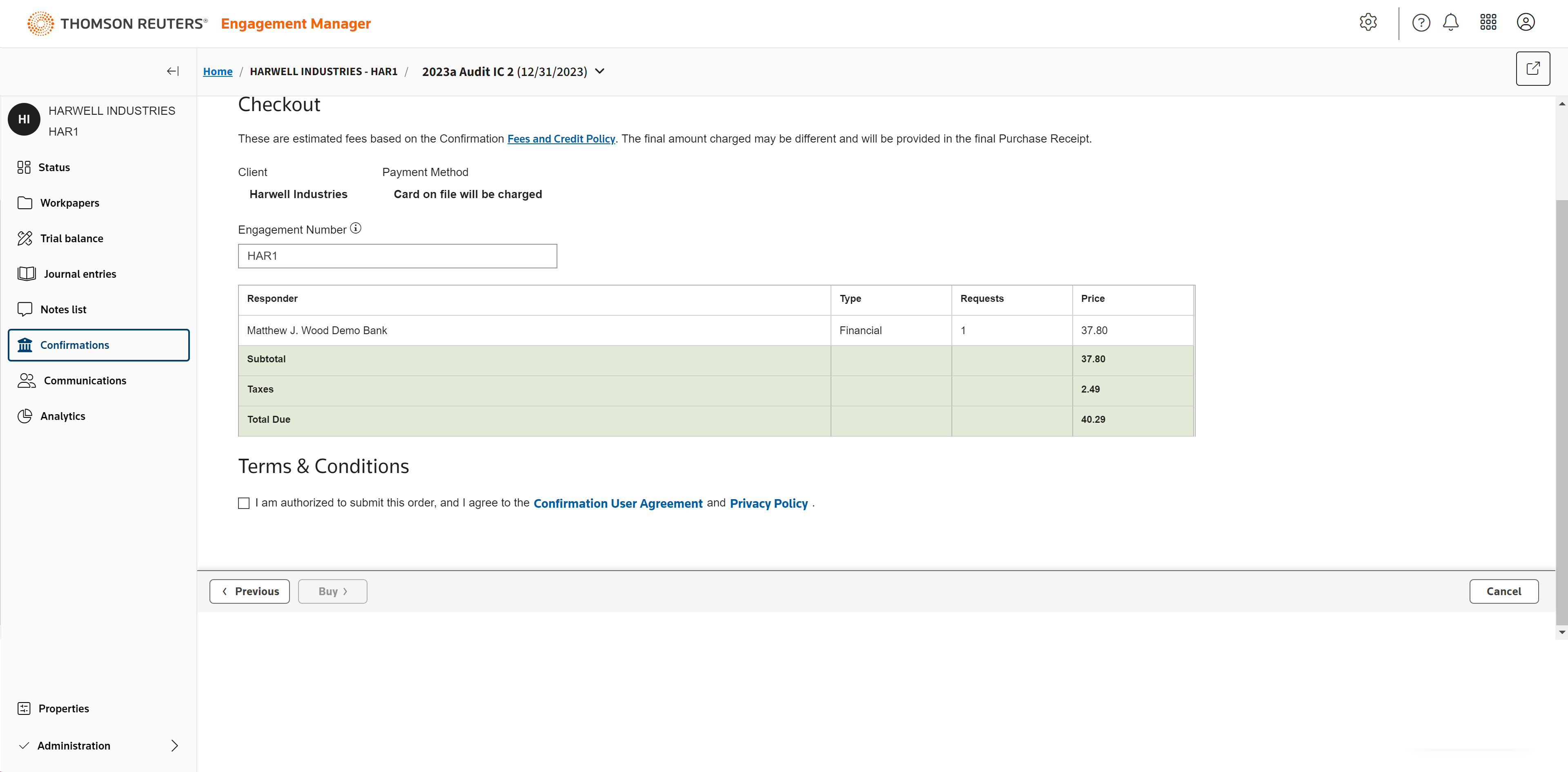
Verify that you are an authorized to submit this order and agree to the Terms & Conditions.
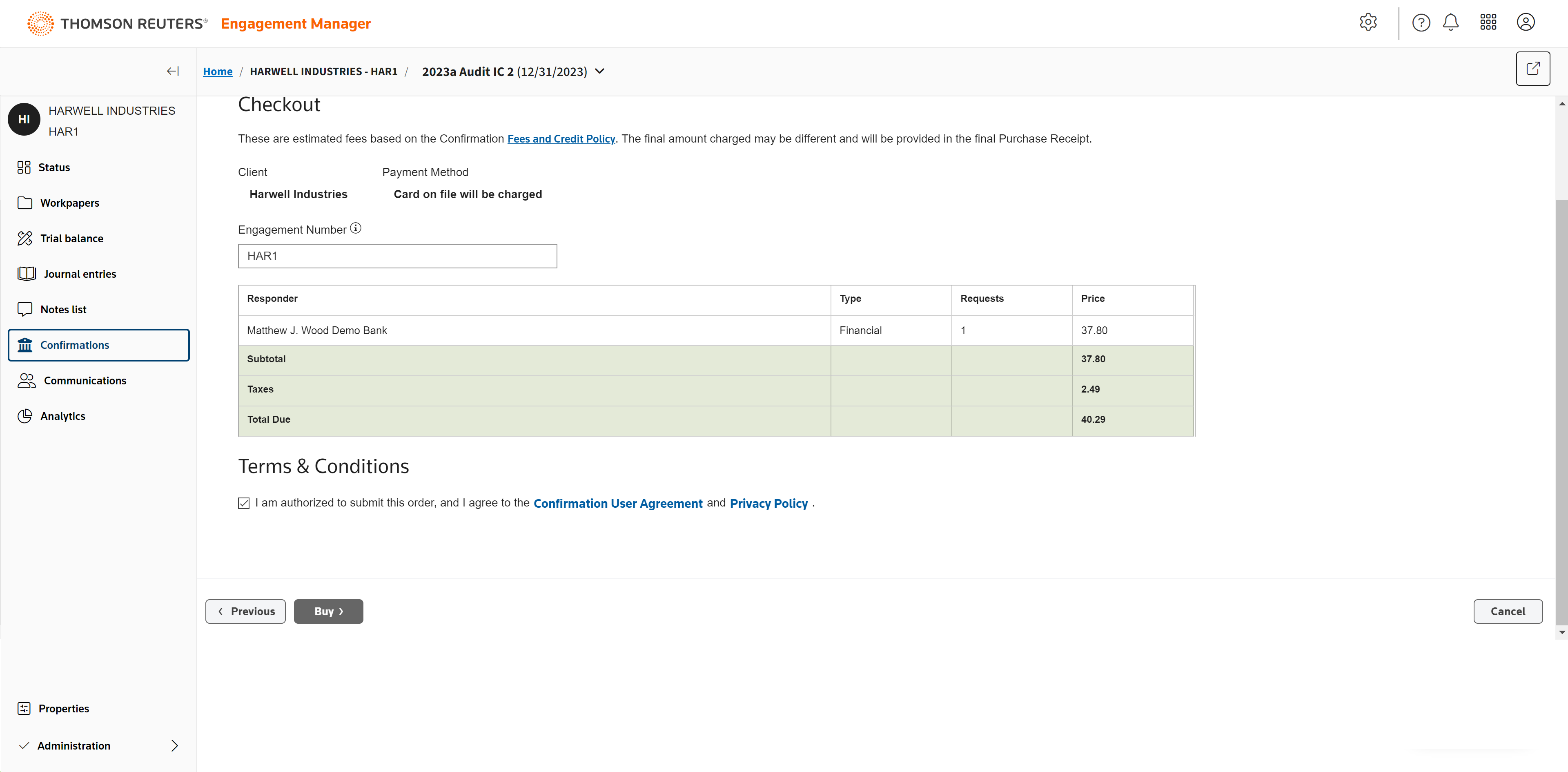
Click Buy to purchase the confirmation.
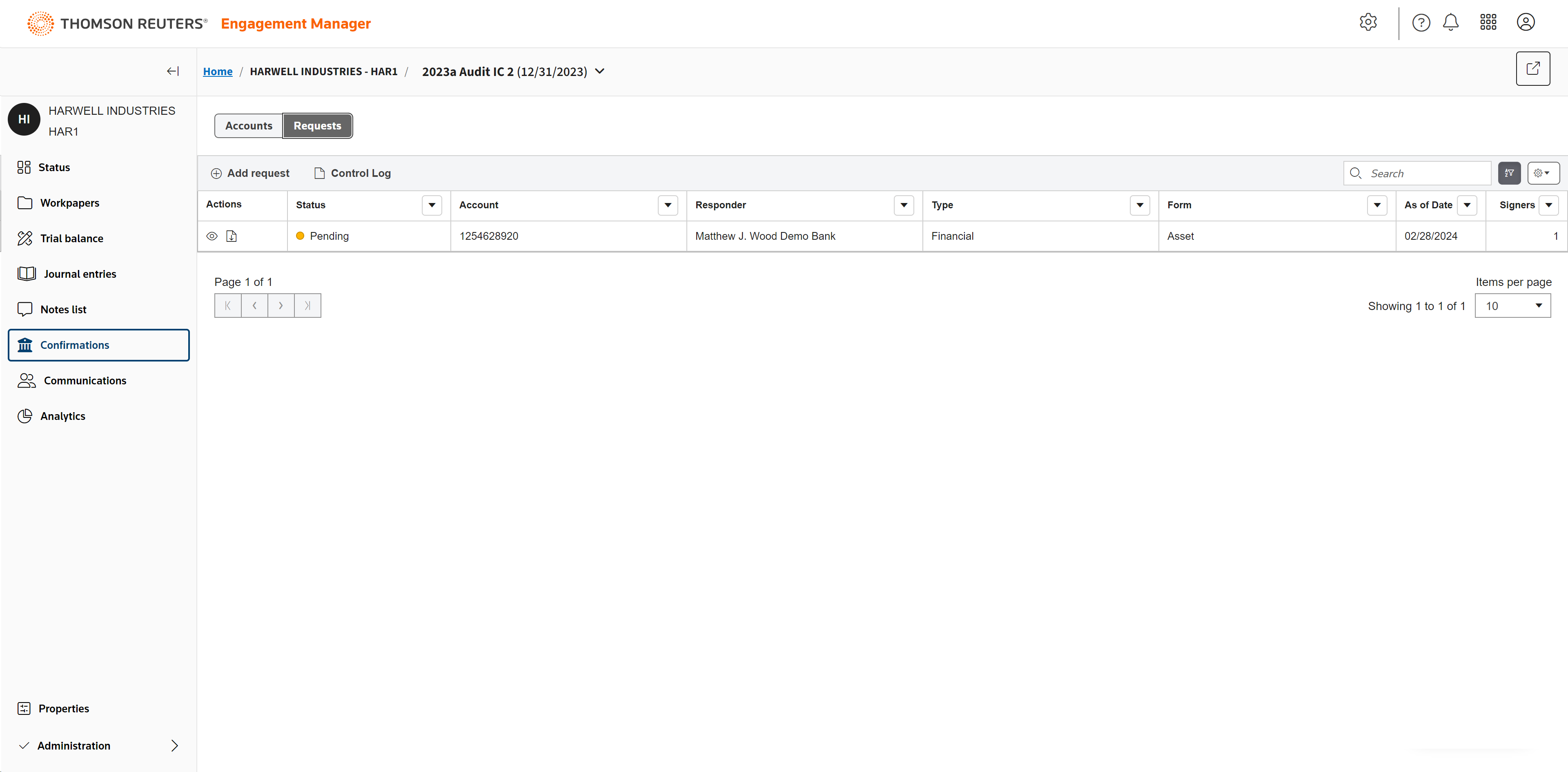
The confirmation has been initiated and will now show as Pending.
The bank will receive the request and respond. They may ask for more information in order to be able to respond. If they can't confirm the request, they may deny it. If they verify the request against their records and it is accurate, they will confirm it.
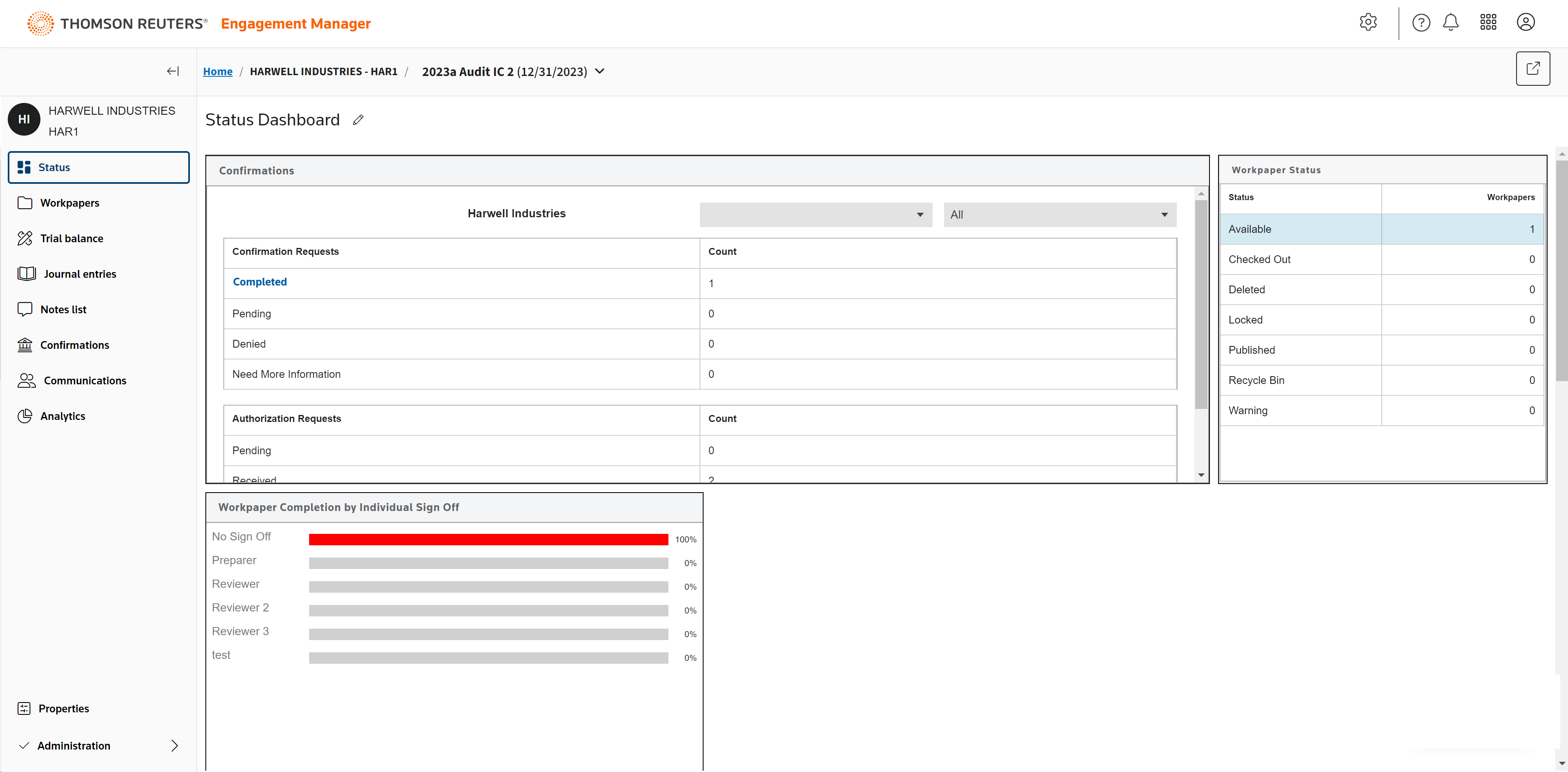
You can track the status of requests in the Confirmations widget in the Status Dashboard. When the bank confirms the request, the count will update from Pending to Completed.
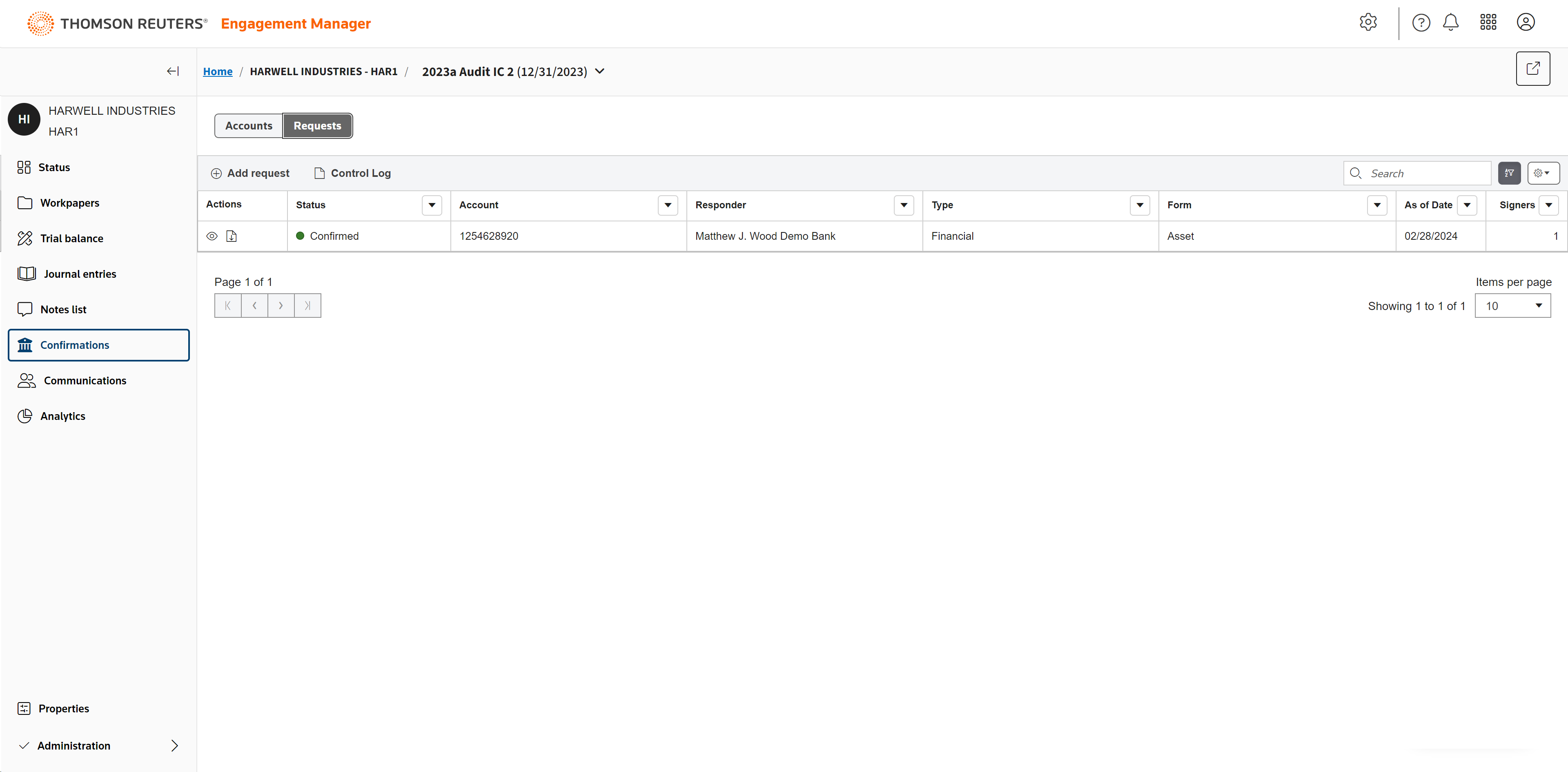
The status of the request also updates to Confirmed in Confirmations.
Click the paper icon to send the request to workpapers.
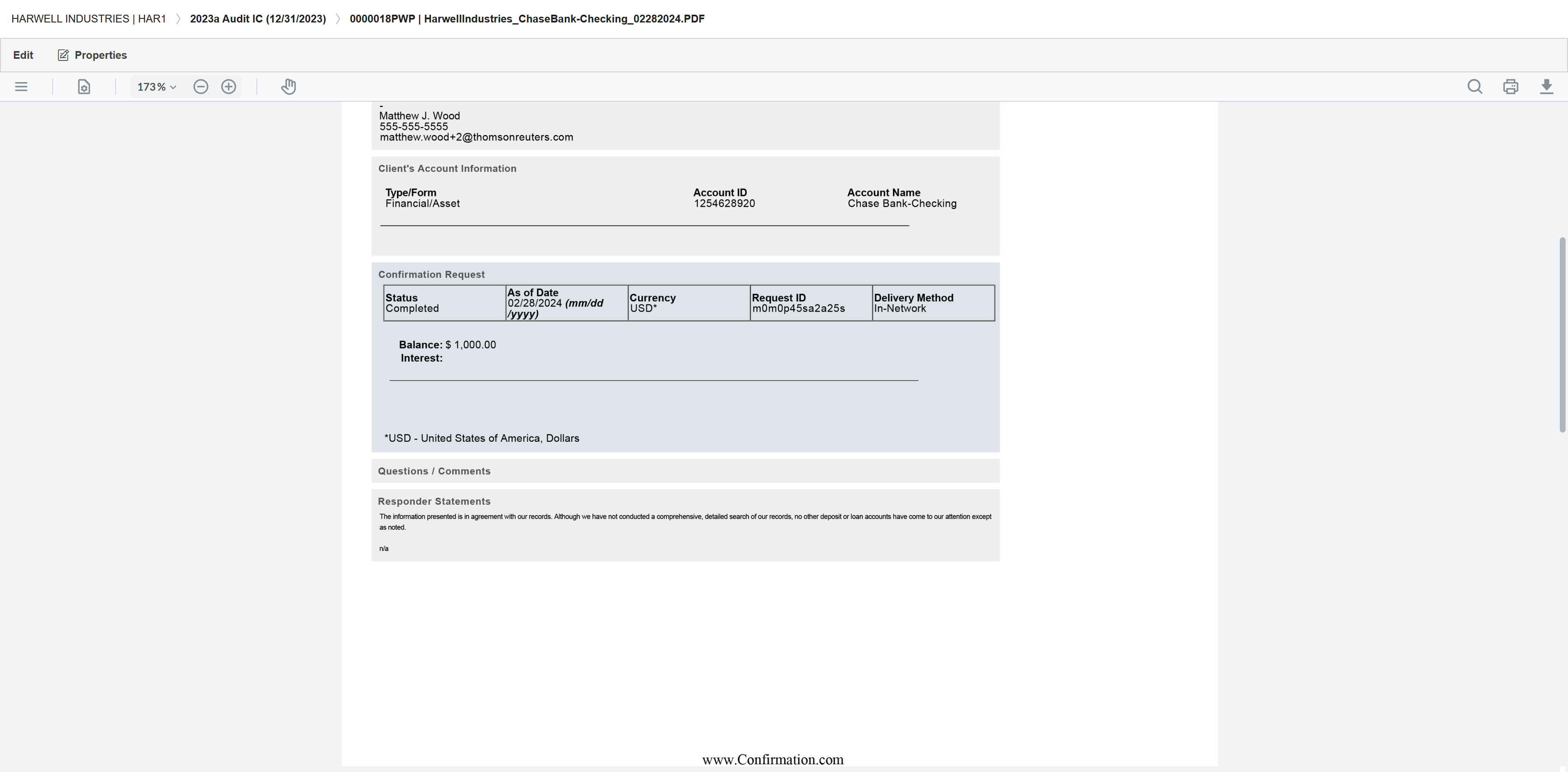
The document will be saved in your workpapers and show a report that the bank account has been confirmed.
Get a one-on-one demonstration If you'd like to see how our solutions can improve your audit and tax process, or if you have questions, schedule a one-on-one demonstration and consultation with a product expert.
Contact sales